
Use the Site Editor to customize the Coming Soon template when your site uses a block theme. In WooCommerce 11.1, the Default design inherits your theme’s colors and typography. You can edit its content and use the style controls supported by your theme and the selected blocks.
Coming Soon designs
↑ Back to topWooCommerce 11.1 includes six Coming Soon designs:
- Default Coming Soon – A theme-aware design with your site logo and title, a single outlined Log in button, and a heading that uses your site name. Your tagline appears below the heading when one is set, and social links appear in the footer.
- Image Gallery – A gallery of placeholder images that you can replace with your own product photos.
- Coming Soon With Header and Footer – Maintains your site’s header and footer while showing the coming soon content.
- Minimal Left Image – A two-column layout with a rounded image on the left and a launch message on the right.
- Modern Black – A full-width background image with a centered message overlay.
- Split Right Image – A two-column layout with an announcement and small image on the left, and a full-height background image with overlaid text on the right.
Customising Coming soon template
↑ Back to topThis section covers customizing the “Coming Soon” template in the Site Editor. To do this, you must have a block theme active on your site and follow the steps below:
- Go to WooCommerce > Settings > Site visibility.
- Select the Editor link under the Coming soon radio button.
Note:
When the Apply to store pages only toggle is enabled, the Coming Soon page will use a different design that includes the theme’s header and footer.
Selecting a pre-designed pattern
↑ Back to topNote:
The six designs are available in WooCommerce 9.8 and later. The theme-aware Default design described here requires WooCommerce 11.1 or later.
- In the Site Editor, select the Template tab in the right sidebar.
- Select Design.
- You’ll now see all available designs with preview thumbnails. Select the design you want to use.
- Make any additional customizations as needed and select Save when you’re done.
Design: Default coming soon
↑ Back to topThe Default design inherits your active theme’s colors and typography. It includes your site logo and title, one outlined Log in button, and a heading that says “{Site name} is coming soon.” A tagline appears below the heading when your site has one. The footer includes the Coming Soon social links.
Your theme may provide its own Coming Soon template, and saved customizations can change its appearance. Selecting a prebuilt design replaces the template content.
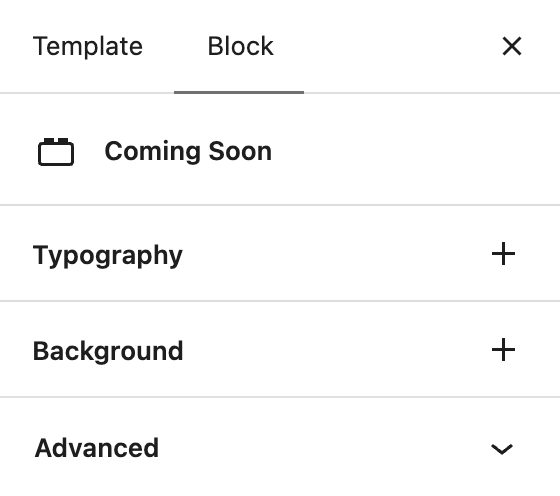
In the Site Editor, select the block you want to edit in List View. Use the selected block’s available controls to change its content or styling. Theme-wide color and typography changes belong in Styles and can affect other pages too.
Design: Image Gallery
↑ Back to topThe Image Gallery design includes stock photos as placeholders. These placeholders are meant to be replaced with your own images.
- Select any image in the design.
- Select Replace.
- Select Open Media Library or Upload to choose your image.
Design: Modern Black
↑ Back to topThe Modern Black design uses Gutenberg’s Cover block to span the entire page with an image. To replace the image, follow these steps:
- Open the Document Overview and select the Cover block in List View.
- Select Replace.
- Select Open Media Library or Upload to choose your image.
For more information about customizing theme colors and typography in the Site Editor, see the official WordPress documentation.
Check your Coming Soon page
↑ Back to topSave your template changes, then open your site in a private browser window while Coming Soon mode is enabled. Check the heading, tagline, links, and layout. Administrators and shop managers can view the store while signed in, so use the signed-out view to check what visitors see.
If you do not see the expected design, check WooCommerce > Settings > Site visibility. Apply to store pages only uses a different layout with your theme’s header and footer. Existing template customizations can also affect the result.
Questions and support
↑ Back to topDo you still have questions and need assistance?
This documentation is about the free, core WooCommerce plugin, for which support is provided in our community forums on WordPress.org. By searching this forum, you’ll often find that your question has been asked and answered before.
If you haven’t created a WordPress.org account to use the forums, here’s how.
- If you’re looking to extend the core functionality shown here, we recommend reviewing available extensions in the WooCommerce Marketplace.
- Need ongoing advanced support or a customization built for WooCommerce? Hire a Woo Agency Partner.
- Are you a developer building your own WooCommerce integration or extension? Check our Developer Resources.
If you weren’t able to find the information you need, please use the feedback thumbs below to let us know.