
The Add to Cart with Options block displays an Add to Cart button along with quantity selectors and, depending on the product type, additional selection inputs. This block allows customers to add a product directly to their cart with their chosen configuration.
The Add to Cart + Options (Beta) block offers a fully blockified, customizable add-to-cart form. It can be used on the Single Product templates or within the Single Product block, which is ideal for complex product types and flexible design needs.
Before you start: Use a block theme and an account that can edit site templates. Open the Single Product template or a page containing the Single Product block in the editor, then select Add to Cart + Options (Beta).
Features
↑ Back to topThe new block comes with key features:
- Adds products to the cart without reloading the page.
- After a successful add, the button updates to show how many items are in the cart for simple and variable products.
- You can show variation options as pills or a dropdown.
Wishlists
↑ Back to topThe experimental Wishlists feature is available for stores using block themes. Store owners can enable it from WooCommerce > Settings > Advanced > Features.
When the requirements are met, the Add to Cart + Options block can show an Add to Wishlist button on single-product templates. For variable products, shoppers can save the selected variation.
Requirements
- Feature enabled: Turn on Wishlists under WooCommerce > Settings > Advanced > Features.
- Logged-in shoppers: Shoppers must be logged in. The button is hidden for guests.
- Block theme and block template: The store must use a block theme, and the single-product template must include the Add to Cart + Options (Beta) block. Stores using classic product templates will not show the core wishlist button.
- Published products: Only published products can be saved to a wishlist.
Shoppers manage saved products from My Account > Wishlist. Items in the wishlist include an Add to Cart action when the product can be added to the cart.
If the wishlist button does not appear, use the requirements above as your checklist.
For saving items from your cart, see our Save for Later in Cart section of the Cart block documentation.
Block Structure
↑ Back to topFor supported product types, this block includes:
- Add to Cart Button: Displays a button to add the configured product to the cart. You can customize this button’s styles like fill styles or outline
- Product Quantity (Beta): A quantity input that appears when customers can choose more than one item. For an individual instance, style the selected block’s text or background color, border color, width, style, or radius, or add a shadow. Site-wide Product Quantity styles also apply to the quantity selector in each Cart item.
Style the Product Quantity block
↑ Back to topSelect Product Quantity (Beta) within the Add to Cart + Options form to style that instance. Use its text and background color controls, or Border & Shadow for the border color, width, style, radius, and shadow. If a control is hidden, open the section’s options menu and show it.
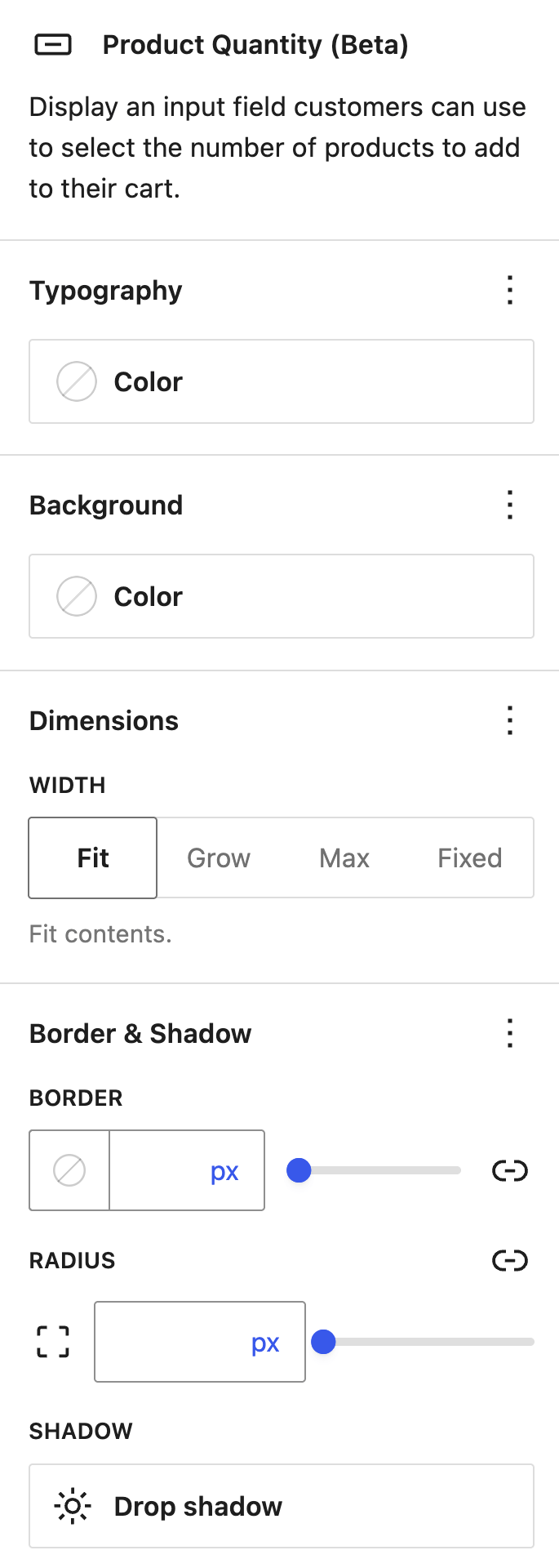
To set shared styles, open the Site Editor’s Styles, select Blocks, then Product Quantity (Beta). These shared styles also apply to Cart item quantity selectors. Preview both a product page and the Cart after saving to check that the controls remain readable and usable. For a different design on one product form, select that instance and change its block styles.
Depending on the product type, additional selection blocks are available:
Variable Products
↑ Back to top- Variation Selector: Attribute Name (Beta): Customizes how the attribute name is displayed (e.g., “Color”, “Size”). You can configure its colors, padding, and typography in the block settings.
- Variation Selector: Attribute Options (Beta): Renders the product’s attribute values as pills or a dropdown. When the experimental Color swatches for attributes feature is enabled and the selected attribute uses the Color / image type, pill options can display each term’s color or image swatch.
Dynamic Variation Updates
In WooCommerce v10.3.0, the Add to Cart + Options block has been updated so that when a variation is selected, it automatically updates related product blocks to display the correct variation data.
For example, selecting a variation will update the product image to show the selected variation’s product image. Similarly, the Add to Cart + Options block will also hide the Product Quantity block if a variation is sold individually.
Grouped Products
↑ Back to top- Grouped Product Selector (Beta): Displays a group of configured products that customers can select and add to the cart together.
- Each configured grouped product appears in a row with a quantity selector, product name, price, and stock.
Questions and support
↑ Back to topDo you still have questions and need assistance?
This documentation is about the free, core WooCommerce plugin, for which support is provided in our community forums on WordPress.org. By searching this forum, you’ll often find that your question has been asked and answered before.
If you haven’t created a WordPress.org account to use the forums, here’s how.
- If you’re looking to extend the core functionality shown here, we recommend reviewing available extensions in the WooCommerce Marketplace.
- Need ongoing advanced support or a customization built for WooCommerce? Hire a Woo Agency Partner.
- Are you a developer building your own WooCommerce integration or extension? Check our Developer Resources.
If you weren’t able to find the information you need, please use the feedback thumbs below to let us know.