
If you’re trying to log in to the WooCommerce Mobile App using your WordPress.com account and running into issues, this guide covers the most common causes and how to resolve them.
For general login instructions, see How to Log In to the WooCommerce Mobile App. If you’re logging in with your WP-Admin username and password instead, see Troubleshooting store credentials login issues on the WooCommerce Mobile App.
Before you start
↑ Back to topMake sure you’ve confirmed the basics from the login page requirements:
- WooCommerce 3.5 or higher is installed and activated.
- Your site is publicly accessible (not in maintenance mode or showing errors).
- Your user account has the Administrator or Shop Manager role.
- You have a working internet connection on your mobile device.
- The Jetpack plugin (or a plugin that includes the Jetpack Connection Package) is installed and connected to a WordPress.com account on your site.
If all of these are in place and you’re still unable to log in or your store isn’t loading data, work through the sections below.
Why is the app asking me to log in with WordPress.com?
↑ Back to topWhen you enter your store address, the app checks whether your site has an active Jetpack connection. If it finds one, it asks you to log in with the WordPress.com account linked to that connection.
You might not have installed Jetpack directly — but several WooCommerce and Jetpack plugins include the Jetpack Connection Package, which creates a Jetpack connection behind the scenes. If any of the following plugins are active on your site, your site has a Jetpack connection:
- WooPayments
- WooCommerce Shipping & Tax
- Google for WooCommerce
- Jetpack Backup
- Jetpack Boost
- Jetpack Protect
- Jetpack Search
- Jetpack Social
- Jetpack VideoPress
This is normal and expected — the app is using the existing connection to authenticate you.
If you’d rather not use the WordPress.com login, you can tap “Sign in with store credentials” when prompted, and use your WP Admin username and password instead. See Troubleshooting store credentials login issues if you run into problems with that method.
If you’re not sure what your WordPress.com account is or which email is associated with it, see the What is a WordPress.com account? guide.
“Account or Password does not exist” error
↑ Back to topIf you see this error, you’re likely entering your WP Admin credentials instead of your WordPress.com credentials. These are not the same.
- Your WordPress.com account is the one you use at wordpress.com. It was created when you signed up for WordPress.com or connected Jetpack.
- Your WP Admin account is the one you use to log in at
yourstore.com/wp-admin. This is managed by your WordPress installation.
The app needs your WordPress.com credentials when logging in via Jetpack. If you’re not sure what your WordPress.com account is or which email is associated with it, see the What is a WordPress.com account? guide.
Where to find your WordPress.com account
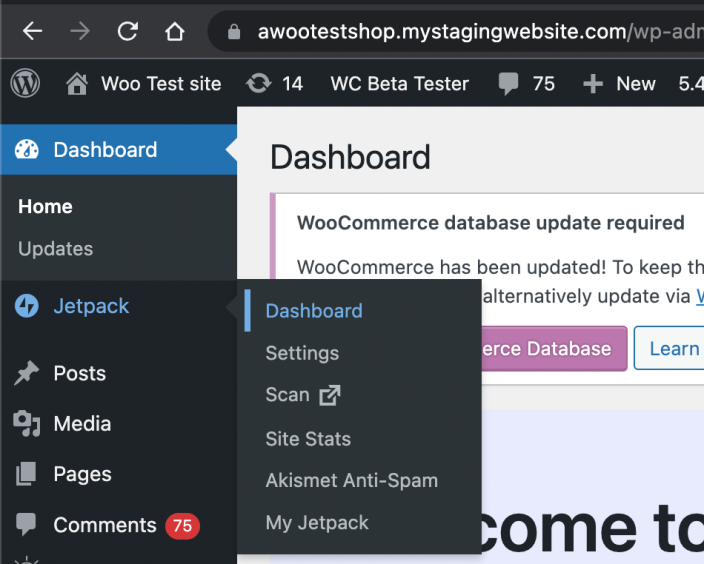
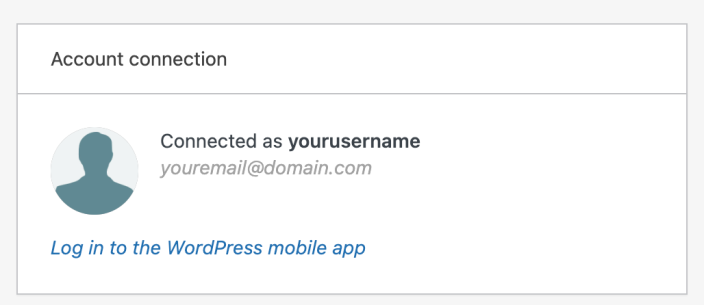
↑ Back to topFor self-hosted sites: Go to WP Admin > Jetpack > Dashboard, and scroll down to the Connections section. Your WordPress.com account email is shown under Account Connection.
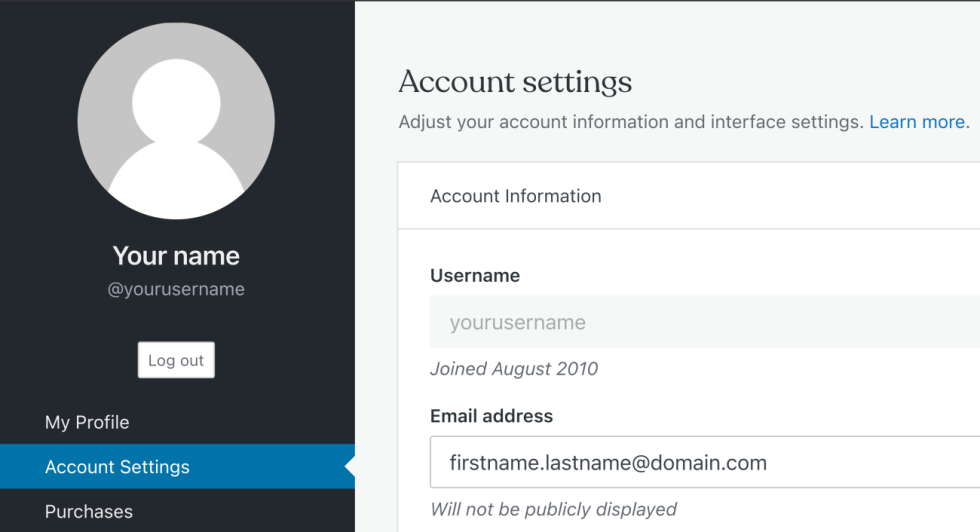
For WordPress.com-hosted sites: Visit wordpress.com/me from a desktop browser while logged in.
Trouble with your WordPress.com password?
↑ Back to topIf you don’t remember your password, you have two options:
- Magic link: Tap “Log in with magic link” on the app’s login screen to receive an email that logs you in directly — no password needed.
- Password reset: Tap “Forgot password?” to begin the reset process. See the WordPress.com Account Recovery guide for more details.
If you can log in at wordpress.com but not in the app, the issue may be with your Jetpack connection rather than your password — see the sections below.
Can’t find the magic link email?
↑ Back to topIf you requested a magic link but the email hasn’t arrived:
- Confirm you’re checking the correct email address (the one shown on the app’s login screen).
- The email may take a few minutes to arrive.
- If you use Gmail, check the Updates and Spam folders.
- If it still doesn’t arrive, go back and Log in with password instead, or use “Forgot Password?” See WordPress.com Account Recovery.
XMLRPC is blocked
↑ Back to topThe app uses XMLRPC (/xmlrpc.php) during initial site detection for all login flows — it’s how the app determines whether your URL is a WordPress site. Additionally, Jetpack relies on XMLRPC to maintain its connection tunnel to your site.
If XMLRPC is blocked, you may see a “We were not able to detect a WordPress site” error when entering your site address, or the app may fail to load data even after a successful WordPress.com login.
To check if XMLRPC is accessible:
Visit yourstore.com/xmlrpc.php in a browser. If it’s working, you’ll see a message that says “XML-RPC server accepts POST requests only.” If you get a 403 Forbidden error, a blank page, or a redirect, XMLRPC is being blocked.
Common causes:
- Your hosting provider blocks XMLRPC globally (common on shared hosts)
- A security plugin is blocking XMLRPC (e.g., Wordfence, Sucuri, or a plugin that “disables XMLRPC”)
- A CDN like Cloudflare is blocking XMLRPC requests
To resolve:
- Make sure the Jetpack IP addresses are whitelisted so WordPress.com servers can reach your site.
- If a security plugin is blocking XMLRPC, check the plugin’s settings for an option to re-enable it, or whitelist the Jetpack IPs within the plugin.
- If your hosting provider is blocking it at the server level, contact them and ask them to unblock xmlrpc.php for the Jetpack IP ranges.
- If XMLRPC cannot be unblocked for any reason, contact our support team — we may be able to set up an alternative endpoint for your site to bypass the block.
Wrong account error / app shows a different store
↑ Back to topIf you can log in but the app says “wrong account” or shows a store you don’t recognize, the WordPress.com account you used is not the one connected to Jetpack on your site.
To check which account is connected:
- Go to WP Admin on your desktop browser.
- Navigate to Jetpack > Dashboard.
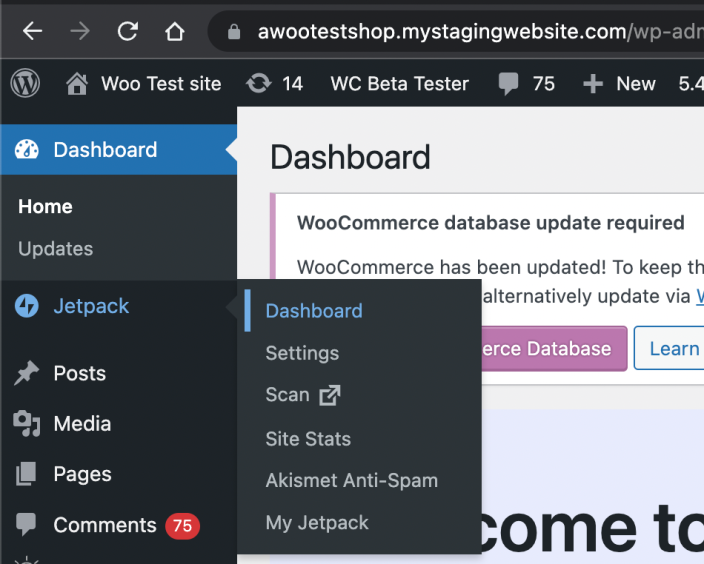
- Scroll down to the Connections section and check the Account Connection.
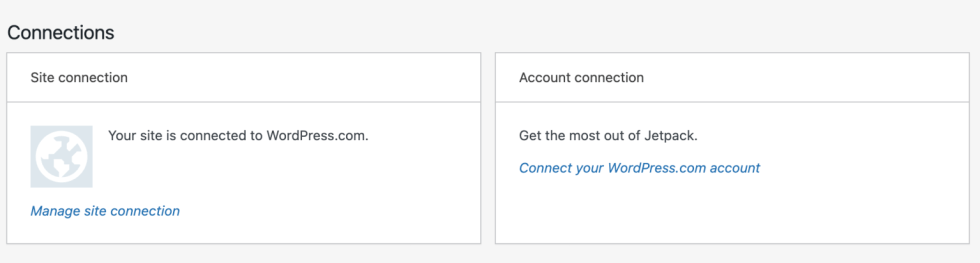
- If the connected email doesn’t match the one you used in the app, you have two options:
- Log in to the app with the correct WordPress.com account, or
- Reconnect Jetpack with the WordPress.com account you want to use.
If a different user made the Jetpack connection, other admins and shop managers need their own WordPress.com accounts connected to Jetpack on the site. See Jetpack’s Additional Users guide for instructions.
App stops loading data after a site migration or URL change
↑ Back to topIf your store was previously working in the app but suddenly shows blank screens, “Can’t Fetch Information” errors, or stops loading data, the Jetpack connection token may have become invalid.
This commonly happens after:
- Migrating your site to a new host or domain
- Cloning a staging site to production (or vice versa)
- Changing your site URL in Settings > General
- Reinstalling or disconnecting and reconnecting Jetpack
- Restoring your site from a backup
To diagnose: Go to the Jetpack Debug tool, enter your site URL, and run the check. If it reports connection errors, your Jetpack connection needs to be repaired.
To fix: Follow the Reconnecting and Reinstalling Jetpack guide to re-establish the connection. Once Jetpack is reconnected, log out of the app and log in again.
Logged in successfully but the app can’t load store data
↑ Back to topIf you logged in with WordPress.com successfully but the app shows errors when loading orders, products, or other store data, the Jetpack tunnel between your site and WordPress.com may be disrupted.
Common causes:
- xmlrpc.php was recently blocked by a security plugin or hosting change
- Your site was migrated and the Jetpack connection token is stale (see the section above)
- A CDN or firewall is blocking requests from WordPress.com servers
To troubleshoot:
- Visit
yourstore.com/xmlrpc.phpin a browser — if you get a 403, blank page, or redirect, it’s blocked. Whitelist the Jetpack IP addresses. - Use the Jetpack Debug tool to check your site’s connection status.
- If XMLRPC cannot be unblocked, contact our support team — we may be able to set up an alternative endpoint for your site.
Jetpack connection errors during setup
↑ Back to topIf you’re trying to install or connect Jetpack for the first time and running into errors, check Jetpack’s documentation:
You can also use the Jetpack Debug tool to diagnose connection problems, or contact Jetpack support for further help.
Still having trouble?
↑ Back to topIf you’re still having difficulty, you can get help from within the app by going to Menu → Settings → Help & Support → Contact Support. Starting with app version 24.9, this opens our AI Support Chat, which can help troubleshoot common issues. To reach our human support team, start a chat with the AI assistant and then tap the Contact Support 🎧 button in the top-right corner of the chat.