
If you’re trying to log in to the WooCommerce Mobile App using your site’s WP Admin username and password and running into issues, this guide covers the most common causes and how to resolve them.
- For general login instructions, see How to Log In to the WooCommerce Mobile App.
- If you’re logging in with a WordPress.com account instead, see Troubleshooting WordPress.com login issues on the WooCommerce Mobile App.
Before you start
↑ Back to topMake sure you’ve confirmed the basics from the login page requirements:
- WooCommerce 3.5 or higher is installed and activated.
- Your site is publicly accessible (not in maintenance mode or showing errors).
- Your user account has the Administrator or Shop Manager role.
- You have a working internet connection on your mobile device.
If all of these are in place and you’re still unable to log in, work through the sections below.
Error: “We were not able to detect a WordPress site”
↑ Back to topThis error appears when you enter your store address and tap Continue — before you reach the login screen. It affects all login methods, not just store credentials.
When you enter your site URL, the app contacts WordPress.com’s public API to verify your site is running WordPress. It runs two checks:
- XML-RPC test — calls
yourstore.com/xmlrpc.phpand expects a response. - Fallback check — if XML-RPC fails, checks
/wp-admin/index.phpfor a WordPress signature.
If both fail, the app cannot confirm your site is a WordPress site.
To resolve:
- Make sure you’re entering the full URL including
https://. Try bothhttps://yourstore.comandhttps://www.yourstore.com. - If your site uses a redirect, enter the final destination URL.
- Confirm your site is online by visiting it in your mobile browser.
- Check that Jetpack IP addresses are whitelisted — they may be blocked by your hosting provider or a CDN like Cloudflare.
- Confirm XML-RPC is not disabled. Visit
yourstore.com/xmlrpc.phpin a browser — if working, you’ll see “XML-RPC server accepts POST requests only.” If you get a 403, blank page, or redirect, a security plugin or server rule is blocking it. - The app does not support sites behind HTTP Basic Authentication (the browser pop-up that asks for a username and password before reaching WordPress). See the HTTP Basic Authentication section below.
Note: XML-RPC is only used for initial site detection. The store credentials login itself uses the REST API and application passwords.
Error: “Your username or password is wrong” (but they are correct)
The app authenticates using your site’s default WordPress login page at /wp-login.php to authenticate.
To troubleshoot:
- Try logging in at
yourstore.com/wp-login.phpdirectly in a browser. If you can’t log in there either, the issue is with your site — not the app. - Some hosting providers give customers credentials that work in their control panel but not on the default WordPress login page. If that’s the case, contact your host for WP-Admin credentials.
Application password errors
↑ Back to topWhen you log in to the app with store credentials, the app requests an application password from your site. This is a token generated by WordPress that allows the app to communicate with your site securely via the REST API without exposing your login credentials.
Several errors can occur at this stage, but they generally fall into two categories: the feature is disabled, or the request is blocked.
Error: “Application password is disabled”
↑ Back to topThis means the application password feature has been turned off on your site. Common causes:
Custom code or a plugin disabling application passwords: WordPress allows themes and plugins to disable application passwords using the wp_is_application_passwords_available filter. Check your site’s wp-config.php, theme’s functions.php, and active plugins for any code that returns false for this filter or otherwise disables application passwords. If you find it, remove or disable it.
Wordfence: Wordfence has a setting that disables application passwords entirely. To fix this: go to Wordfence > All Options > Login Security, and uncheck “Disable WordPress application passwords.”
Other security plugins: Several security plugins can block application passwords. Check the Plugin conflicts with the WooCommerce Mobile App page for known conflicts and their fixes.
If you’re unsure which plugin is causing the issue, follow our guide to test for conflicts by temporarily deactivating your security plugins one by one, and try logging in to the app after each.
403 / “not authorized” error when generating an application password
↑ Back to topIf you see a 403 error or a “not authorized” message instead of the “disabled” error above, the application password feature is enabled, but something is blocking the request from going through. Common causes:
Your site must use HTTPS: WordPress requires an HTTPS connection to generate application passwords. If your site is still on HTTP, you’ll need to install an SSL certificate and update your site URL to https:// before the app can authenticate.
Your hosting server may be stripping Authorization headers: This is one of the most common causes of 403 errors during application password authentication, particularly on Apache servers running PHP as CGI or FastCGI.
Since WordPress 5.9, the default .htaccess file includes a rule that passes Authorization headers to PHP:
RewriteRule .* - [E=HTTP_AUTHORIZATION:%{HTTP:Authorization}]If this rule is missing from your .htaccess file (for example, because the file was created before WordPress 5.9 and hasn’t been regenerated), adding it should fix the issue. You can find the rule in the official WordPress Apache HTTPD documentation.
If the rule is already present and you’re still getting 403 errors, your host may need to enable CGIPassAuth On in the server configuration.
If your site runs on NGINX (not Apache), .htaccess rules don’t apply. The equivalent fix needs to be done in your NGINX server block configuration. Contact your hosting provider and ask them to ensure that Authorization headers are being passed through to PHP.
A security plugin may be blocking the REST API endpoint: This overlaps with the “disabled” scenario above — check the Plugin conflicts page and try deactivating security plugins temporarily.
ModSecurity (server-level firewall) may be blocking the request: Some hosting providers run ModSecurity, which can block REST API requests that don’t include a Referer header or that match certain security rules. If your host uses ModSecurity, ask them to check the server’s error logs for blocked requests related to /wp-json/ or application passwords, and whitelist the app’s requests if needed.
Error: “The name of each application must be unique”
↑ Back to topThis happens when a previous login attempt generated an application password, but the process was interrupted before it completed. When you try again, WordPress rejects the request because the application name already exists.
To resolve this:
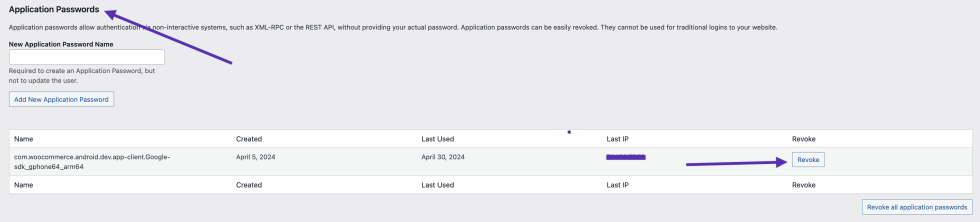
- Go to WP Admin > Users > Profile.
- Scroll down to the Application Passwords section.
- Find the entry named
com.woocommerce.android.app(Android) orcom.automattic.woocommerce.ios(iOS). - Click Revoke to delete it.
- Try logging in to the app again.
The app opens a web browser to log in, or shows a 404 after authorizing
↑ Back to topIf your site uses a non-standard login page — for example, one with a CAPTCHA, a customized login URL, or a modified WP-Admin — the app’s standard authentication may fail.
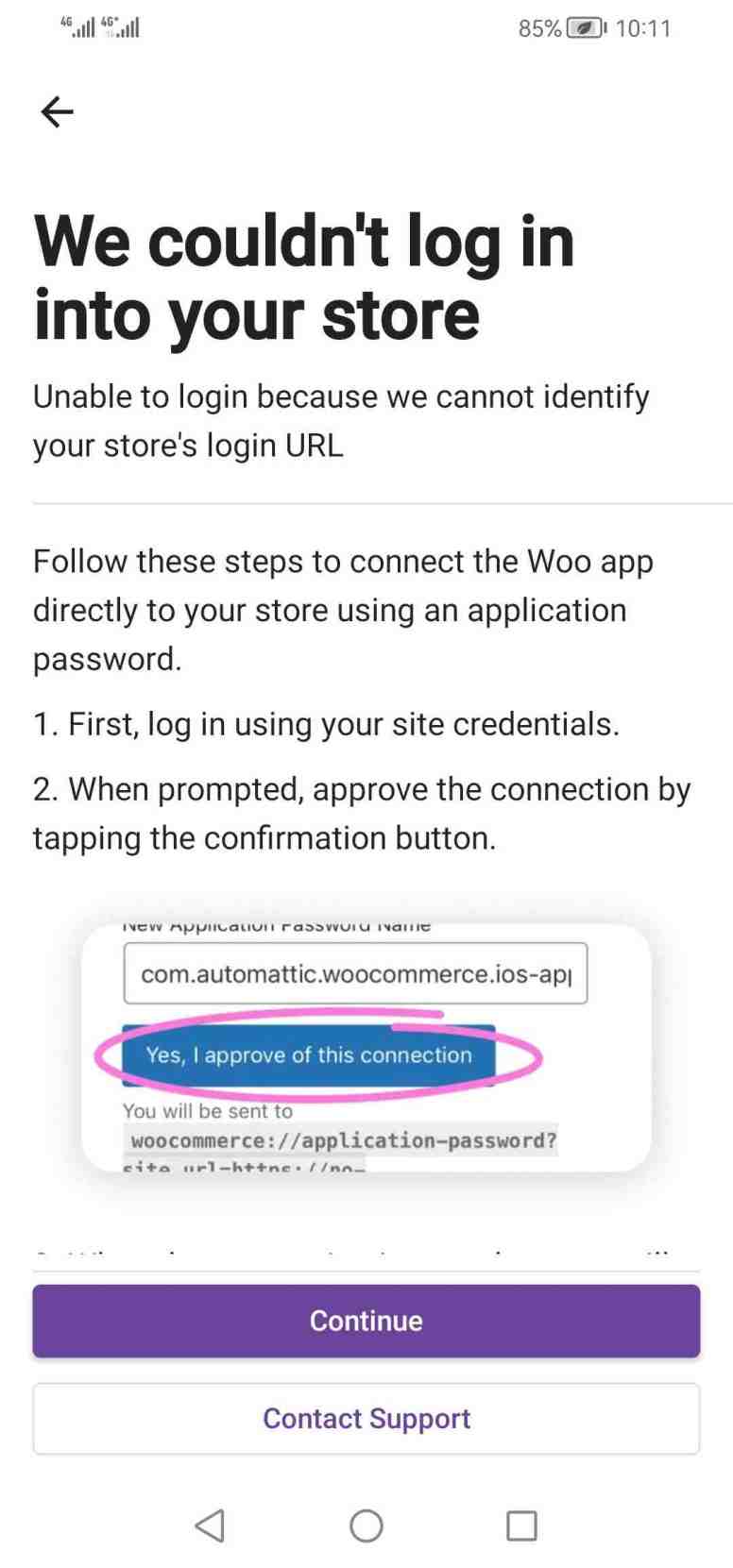
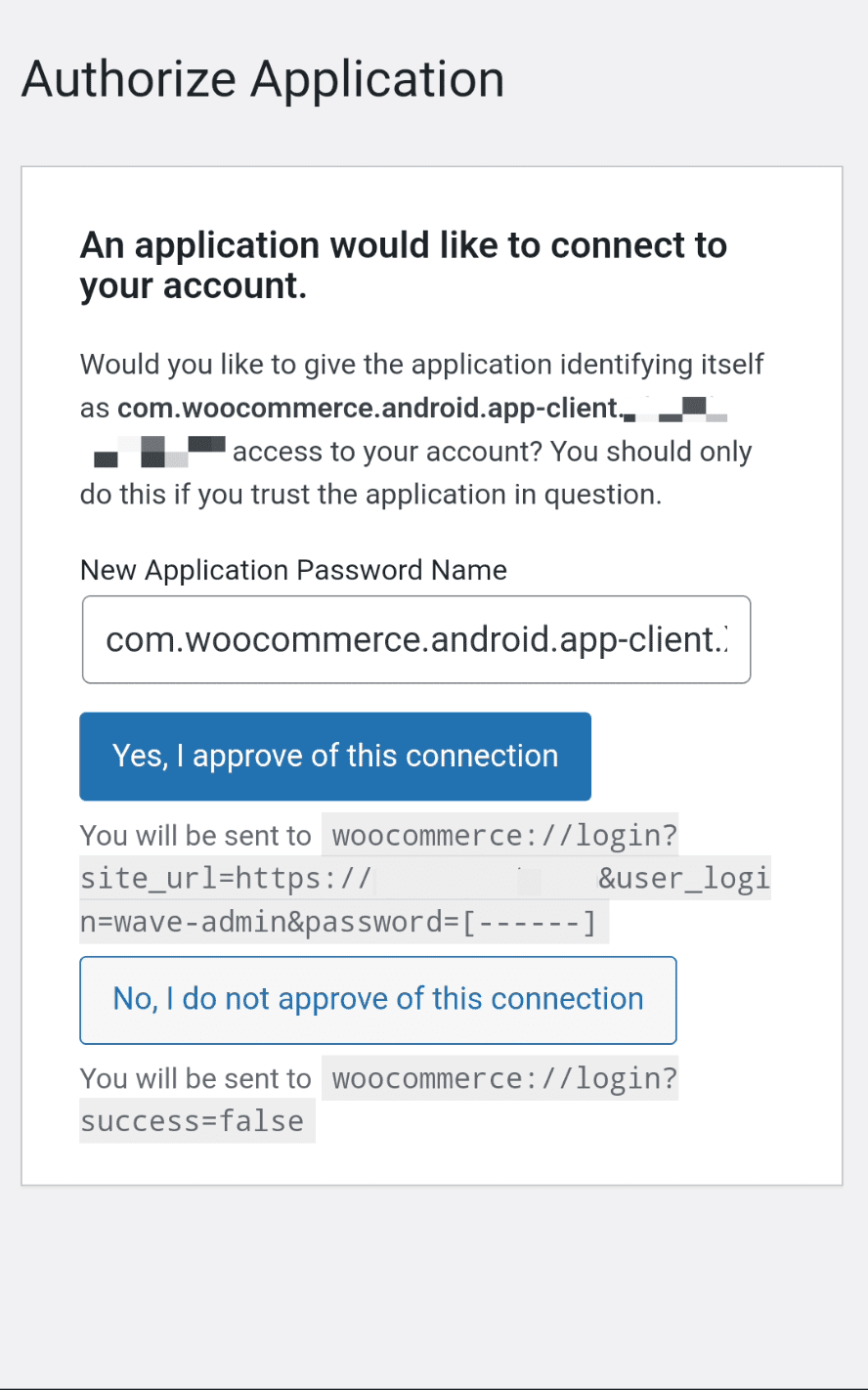
When this happens, the app will offer an alternative: logging in through a web browser view within the app. This flow opens your login page so you can sign in manually and then authorize the app via the WordPress application password authorization page at /wp-admin/authorize-application.php.
This login flow may also be shown if the password entered is incorrect.
To successfully sign in, you will need to go through two other steps to log into your WP-Admin page and authorize the app to access it:
Common causes of non-standard login pages:
- Security plugins that move the login URL (e.g., WPS Hide Login)
- CAPTCHA or reCAPTCHA is added to the login page
- Two-factor authentication plugins
- Custom login page themes or plugins
If you see a 404 error after authorizing in the web view, this typically means a security plugin or custom configuration is blocking or rewriting the /wp-admin/authorize-application.php URL that the app needs to complete the connection.
To troubleshoot:
- Temporarily revert to the default WordPress login page by deactivating the plugin that customizes it.
- Try logging in to the app again.
- If it works, you’ll know which plugin was causing the issue. You can reactivate it afterwards — the app only needs the default login page during the initial connection.
While the app does its best to handle customized setups, some plugins and configurations are incompatible.
Sites behind HTTP Basic Authentication
↑ Back to topThe WooCommerce Mobile App does not support sites that require HTTP Basic Authentication, in which a browser pop-up prompts for a separate username and password before even reaching your WordPress login page. This is common on staging sites, development environments, and some hosting setups with extra security layers.
Note: The WordPress.com/Jetpack login method also won’t work behind HTTP Basic Auth, since the Jetpack connection needs to reach your site from external servers.
The fix is to remove HTTP Basic Authentication from your site, at least temporarily, to establish the initial app connection. If Basic Auth is required for your environment (e.g., a staging site), you may need to coordinate with your hosting provider to temporarily disable it while you connect the app.
User role error
↑ Back to topThe app only allows users with the Administrator or Shop Manager role. If you see a “user role not permitted” error after entering your credentials:
- Verify your role at WP Admin > Users > Profile.
- If you use a security plugin that blocks REST API access, try deactivating it temporarily.
- If you use a plugin that customizes user roles or capabilities, try creating a new account with a default Administrator or Shop Manager role.
Still having issues with store credentials?
↑ Back to topIf you’ve worked through the steps above and are still unable to log in, the issue is likely on the server side, and you should reach out to your hosting provider for further assistance.
What to ask your hosting provider
↑ Back to topWhen contacting your hosting provider, ask them to check the following:
- Is the WordPress REST API accessible? The app needs to reach
/wp-json/on your site. Ask them to confirm it’s not blocked by a firewall rule or server configuration. - Are Authorization headers being passed to PHP? On Apache with CGI/FastCGI, the
.htaccessneeds theHTTP_AUTHORIZATIONrewrite rule (see the application password 403 section above). On NGINX, this needs to be configured in the server block. - Is
CGIPassAuthenabled? If the.htaccessrule is present but Authorization headers still aren’t reaching PHP, the server may needCGIPassAuth On. - Is
xmlrpc.phpaccessible? The app uses XMLRPC during initial site detection for all login flows — it’s how the app determines whether your URL is a WordPress site. Some hosting providers blockxmlrpc.phpglobally, which can prevent the app from even reaching the login step. Ask them to confirm it’s not blocked or rate-limited. - Are there any firewall rules blocking the app? Hosts running ModSecurity or similar WAFs can block REST API requests or application password generation — for example, ModSecurity may reject requests missing a Referer header. Ask them to check the server’s error logs for blocked requests to
/wp-json/or/wp-admin/authorize-application.php.
Consider using Jetpack as an alternative
↑ Back to topIf application passwords are persistently blocked and you’re unable to resolve the issue with your hosting provider, you can connect to the app using the WordPress.com/Jetpack login method instead. This bypasses application passwords entirely and uses the Jetpack connection to authenticate.
Note: This alternative won’t work if your site is behind HTTP Basic Authentication — see the HTTP Basic Auth section above.
Connecting via Jetpack also unlocks additional features: push notifications for new orders and reviews, site visitor statistics, multi-store management, and Blaze campaigns.
See Setting up Jetpack for the WooCommerce Mobile App for setup instructions.
Still having trouble?
↑ Back to topIf you’re still having trouble with push notifications after following the steps above, go to Menu → Settings → Help & Support → Contact Support in the app. Select Receiving push notifications as your issue, and the AI assistant will run diagnostics on your notification setup. To reach our human support team, start a chat with the AI assistant and then tap the Contact Support 🎧 button in the top-right corner of the chat.