
This page covers common problems you may encounter when managing your WooCommerce.com subscriptions. Issues are grouped into two categories:
- Problems with subscriptions on WooCommerce.com — issues related to your account, billing, or subscription status.
- Problems with the connection between your site and WooCommerce.com — issues related to linking your WordPress site to your WooCommerce.com account, receiving updates, or installing extensions.
Problems with subscriptions on WooCommerce.com
↑ Back to topThese issues relate to viewing, managing, or purchasing subscriptions on your WooCommerce.com account.
Subscription not appearing in My Subscriptions
↑ Back to topIf you purchased an extension or theme but it doesn’t appear in your My Subscriptions list:
- Check that you’re logged in to the correct WooCommerce.com account. If you have multiple accounts, the subscription is associated with the account that made the purchase. Look for the purchase confirmation email to see which email address was used.
- Check your purchase history. Go to your WooCommerce.com account and review your orders to confirm the purchase completed successfully.
- Check your payment method. If the payment did not go through, the subscription may not have been created. Look for a failed payment notification in your email.
If you still cannot locate the subscription, contact support with your order number or payment receipt.
Subscription shows “Expired” but you expected it to renew
↑ Back to topIf a subscription shows as expired when you expected it to auto-renew:
- Check your auto-renewal setting. The subscription may have had auto-renew turned off. Go to My Subscriptions and check the status.
- Check your payment method. The renewal payment may have failed. Look for a failed payment email from WooCommerce.com. Go to your WooCommerce.com account and update your payment method if needed.
- Check your email for renewal reminders. WooCommerce.com sends a reminder email before the renewal date. If you didn’t receive one, check your spam or junk folder.
To renew, follow the steps in Renew an expired subscription.
Being charged for a subscription you thought was cancelled
↑ Back to topIf you were charged for a subscription you believed you had cancelled:
- Confirm whether you cancelled or turned off auto-renew. Turning off auto-renew stops future charges but does not cancel the current active term. If you turned off auto-renew after the renewal charge was already processed, the charge is for the new subscription period.
- Check the timing. Renewal charges are processed on the renewal date. If you turned off auto-renew very close to the renewal date, the charge may have already been processed.
- Request a refund. WooCommerce.com offers a 30-day money-back guarantee on eligible purchases. Review the policy and your order details to check the refund options for your renewal. If the charge is within 30 days, you can request a refund from the order details, accessible via your Orders page. For more information, see our detailed instructions for requesting a refund.
If you need help, contact support.
Transfer or share not working
↑ Back to topIf you’re having trouble transferring or sharing a subscription:
- Confirm the recipient’s email address. The email must be associated with an existing WooCommerce.com account. Ask the recipient to verify their account email at WooCommerce.com.
- Check the subscription type. Multi-site subscriptions (5-site or 25-site) cannot be partially transferred. See Transfer a subscription and Share a subscription for details.
- Check for a pending transfer. If you already initiated a transfer and it hasn’t been accepted or rejected, you may not be able to start a new action for the same subscription. The pending action needs to be resolved first.
Extension still works after subscription expired
↑ Back to topThis is expected behavior. When a WooCommerce.com subscription expires:
- The extension remains installed and functional on your site.
- However, it no longer receives updates, including security patches and compatibility updates.
- You lose access to support for that extension.
Running an outdated extension is not recommended. Over time, it may become incompatible with newer versions of WordPress or WooCommerce, or it may develop security vulnerabilities. Renew the subscription or consider replacing the extension.
Problems with the connection between your site and WooCommerce.com
↑ Back to topThese issues relate to connecting your WordPress site to your WooCommerce.com account, receiving extension updates, or installing extensions from the Woo Marketplace.
Cannot connect site to WooCommerce.com
↑ Back to topIf you’re unable to connect your site to your WooCommerce.com account from WooCommerce > Extensions > My Subscriptions:
- Make sure WooCommerce is installed and activated on your site.
- Check that your site is publicly accessible. Sites behind a maintenance mode page, password protection, or a firewall that blocks external requests may not be able to connect.
- Check your REST API accessibility. See REST API issues below.
- Clear your browser cache and cookies and try the connection process again.
- Try a different browser or disable browser extensions temporarily.
- Check your server’s outbound connections. Your hosting environment needs to allow outbound HTTPS requests to WooCommerce.com. Contact your hosting provider if you suspect outbound connections are being blocked.
REST API issues
↑ Back to topSome WooCommerce.com account and extension-installation actions use your site’s WordPress REST API. If one of these actions fails, check whether the required endpoint is accessible. A REST API error alone does not show why an extension update check failed.
- Connecting your site to your WooCommerce.com account.
- Automatic extension installation via the Add to store feature.
- Loading subscription details in My Subscriptions.
Common REST API problems and solutions
REST API is disabled or restricted
Some security plugins or server rules restrict REST API access. To check:
- Visit
yourdomain.com/wp-json/in your browser. A JSON response confirms that the REST API index responds; it does not confirm that every route used by an account or installation action is available. If you see an error or blank page, the API may be blocked. - Check whether a security plugin or server rule blocks the specific account or installation action that failed. Ask your developer or host to review the required route; do not disable REST API security globally.
- If a security setting or server rule blocks REST API requests, ask your developer or host to review it. For code-level checks related to WooCommerce.com extension management, see the Developer guide to extension updates.
Permalink structure set to “Plain”
If a REST API request fails, ask your developer or host to check the request URL and your site’s permalink configuration before changing settings. Do not change the permalink structure based on a REST API error alone.
- In your WordPress dashboard, go to Settings > Permalinks.
- Have your developer or host verify that the route used by the failed action works with the current permalink configuration.
- Change and save the permalink setting only if your developer or host confirms that it is needed.
- Retry the same connection or installation action and record the result.
WordPress.com site visibility is set to “Private”
A Private setting limits who can view a WordPress.com site. If a WooCommerce.com account connection or extension-installation request fails, ask WordPress.com support whether the setting blocks that specific request. Do not change site visibility solely because a REST API error appeared. See the WordPress.com site visibility guide to review the current setting.
Hosting-level firewall blocking REST API endpoints
If a REST API request still fails, ask your hosting provider to identify the specific request and route affected by a firewall rule. Confirm the needed access before changing allowlists.
- Confirm whether the route needed for the failed action is blocked.
- Review any related outbound HTTPS restriction separately; the site sends extension update checks to WooCommerce.com.
WordPress cron issues
↑ Back to topIf scheduled tasks are delayed, ask your host to confirm which scheduler runs them before changing your site’s configuration. For code-level checks related to WooCommerce.com extension updates, see the Developer guide to extension updates.
Refresh subscription data or change the connected account
↑ Back to topIf a subscription change is not reflected in your dashboard, open WooCommerce > Extensions > My Subscriptions and select Refresh beside Installed on this store. Wait for the Subscriptions refreshed. confirmation, then check the subscription status again.
If the site is connected to the wrong WooCommerce.com account, first make sure you can sign in to the account that owns the subscription. In WooCommerce > Extensions > My Subscriptions, select the account menu, choose Disconnect account, confirm, and then select Connect to sign in to the correct account. Disconnecting the account does not affect WooCommerce or extensions already running on your site.
After reconnecting, check that My Subscriptions shows the expected account and that the subscription is connected to this store. If the refresh displays an error or the data still looks wrong, use REST API issues to check the failed request.
Extension not receiving updates
↑ Back to topIf your site is not receiving updates for an extension, first confirm the site is connected to the WooCommerce.com account that owns the subscription and that the subscription is active and assigned to this store. For paid Woo Marketplace extensions delivered through WooCommerce.com, confirm the WooCommerce.com Update Manager is installed and active.
- Check the subscription status. In My Subscriptions on WooCommerce.com, confirm the subscription is active and not expired or cancelled.
- Check your site connection. Go to WooCommerce > Extensions > My Subscriptions in your WordPress dashboard and verify that your site is connected to your WooCommerce.com account. If it shows as disconnected, reconnect.
- Check the WooCommerce.com Update Manager. For paid Woo Marketplace extensions delivered through WooCommerce.com, confirm the WooCommerce.com Update Manager is installed and active under Plugins in your WordPress dashboard.
- Check that the subscription is connected to this store. Go to WooCommerce > Extensions > My Subscriptions and check its connection status. If you manage subscriptions for multiple stores, see Assigning subscriptions to connected stores.
- If My Subscriptions shows an API error, see REST API issues. This data error does not by itself explain a failed outbound update check.
- If your host reports delayed scheduled tasks, see WordPress cron issues below.
- Ask your host to check whether outbound HTTPS requests to WooCommerce.com are blocked. Do not disable security plugins on a live site to test for conflicts.
- Check again. In your WordPress dashboard, go to Dashboard > Updates and select Check again. Confirm whether an update is available or the extension is already up to date.
If the extension still has no update after these checks, note its name, version, and the exact error. Use Error when updating a WooCommerce.com extension for the next checks.
Notices on the Plugins screen
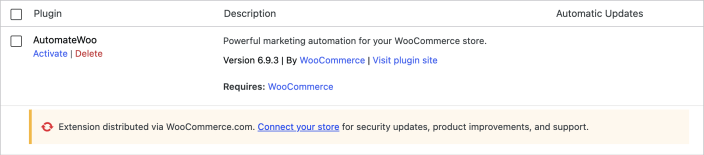
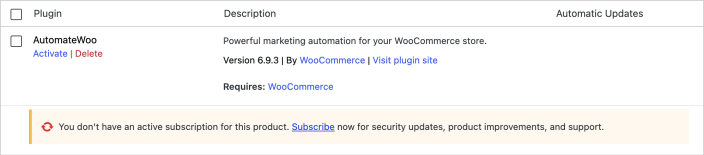
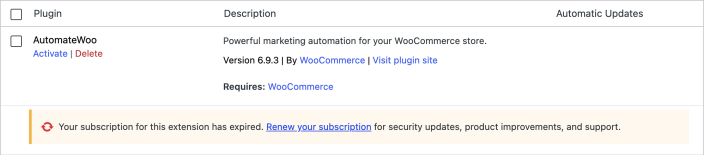
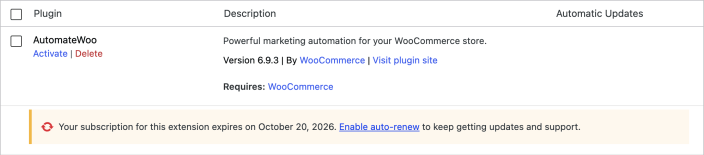
↑ Back to topOn Plugins, WooCommerce.com can show a notice under an installed WooCommerce.com extension when its store connection or subscription needs attention. The notice appears for people who can manage plugin updates. On multisite, check Network Admin. WordPress core’s update row takes precedence when an update is already available, and the WooCommerce.com Update Manager does not show a notice on its own row.
Store disconnected: select Connect your store and connect the site to the WooCommerce.com account that owns the subscription.
No active subscription: select Subscribe to review the product and subscription options.
Subscription expired: select Renew your subscription.
Subscription expires soon and auto-renewal is off: select Enable auto-renew in My Subscriptions to continue receiving updates and support.
For comparison, an extension with a healthy subscription has no additional subscription notice:

These notices describe a WooCommerce.com connection or billing state. They are separate from the extension’s software automatic-update setting in Manage subscriptions from WP Admin.
If My Subscriptions shows an API error, treat it as a failed subscription-data request, not proof that you have no subscription. Follow the retry information shown in the error, or use Refresh to request the data again. See REST API issues if the error continues.
Error when updating a WooCommerce.com extension
↑ Back to topIf you see an error when trying to update an extension purchased from the Woo Marketplace:
- Verify the subscription is active. Expired subscriptions do not receive updates.
- Verify the subscription is connected to this store. Go to WooCommerce > Extensions > My Subscriptions and check that the extension shows as connected.
- Check that the WooCommerce.com Update Manager is installed and up to date. An outdated version of the Update Manager may cause update errors.
- Refresh subscription data. In My Subscriptions, select Refresh beside Installed on this store. If the error continues, see Refresh subscription data or change the connected account above.
- Check for file permission issues. If your server’s file permissions are too restrictive, WordPress may not be able to write the updated files. Contact your hosting provider to verify that file permissions are set correctly for plugin updates.
Related documentation
↑ Back to top- What are WooCommerce.com subscriptions?
- Install extensions and themes
- Connect your site to WooCommerce.com
- Activate and manage your subscriptions
- Transfer a subscription
- Share a subscription
- Auto-renewal, cancellation, refunds
Questions and support
↑ Back to topDo you still have questions and need assistance?
- Get in touch with a Happiness Engineer via our Help Desk. We provide support for extensions developed by and/or sold on WooCommerce.com, and Jetpack/WordPress.com customers.
- If you are not a customer, we recommend finding help in the WooCommerce support forum or hiring a Woo Agency Partner. These are trusted agencies with a proven track record of building highly customized, scalable online stores. Learn more about Woo Agency Partners.