
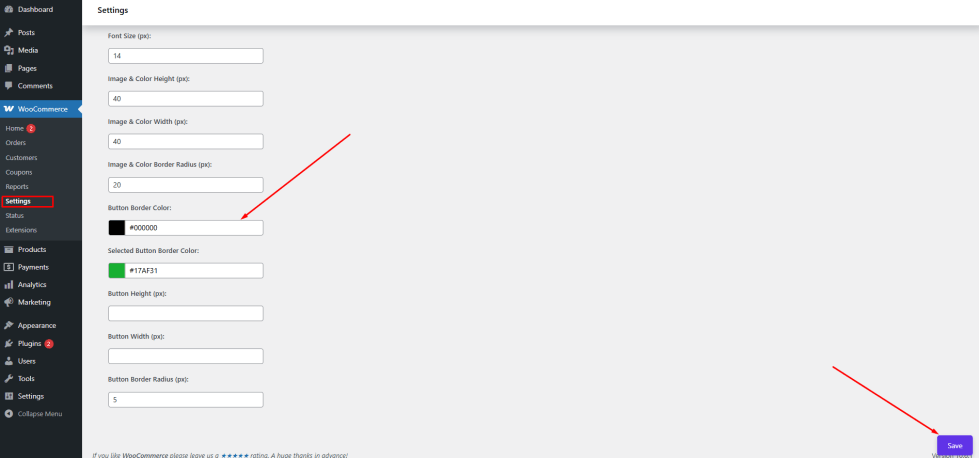
The Button Border Color setting allows you to customize the border color of all variation swatches, including:
- Button-type swatches
- Color swatches
- Image swatches
Borders help define the shape and separation of each variation option. If the default border color does not match your store’s design, it can look inconsistent or less visually appealing.
With this setting, the admin can apply a unified border color across all swatch types, ensuring a clean and consistent appearance.
For example:
- Use a subtle border color for a minimal and modern design
- Use a bold border color to make each variation stand out clearly
This improves both visual clarity and overall user experience.
How to Configure
- Go to WordPress Admin Panel → WooCommerce → Settings.
- Click the Variation Monster tab.
- Navigate to the Variation Swatches section.
- Locate the Button Border Color option.
- Choose your preferred color using the color picker or enter a hex code.
Click the Save button.
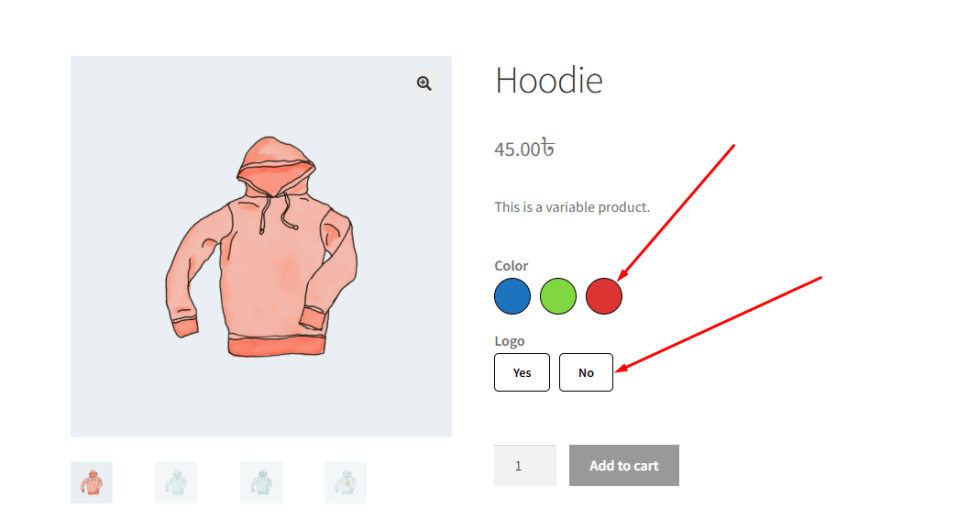
After saving the settings, the selected border color will be applied to all variation swatches (button, color, and image) on the single product page, ensuring a consistent and polished design.
Selected Button Border Color
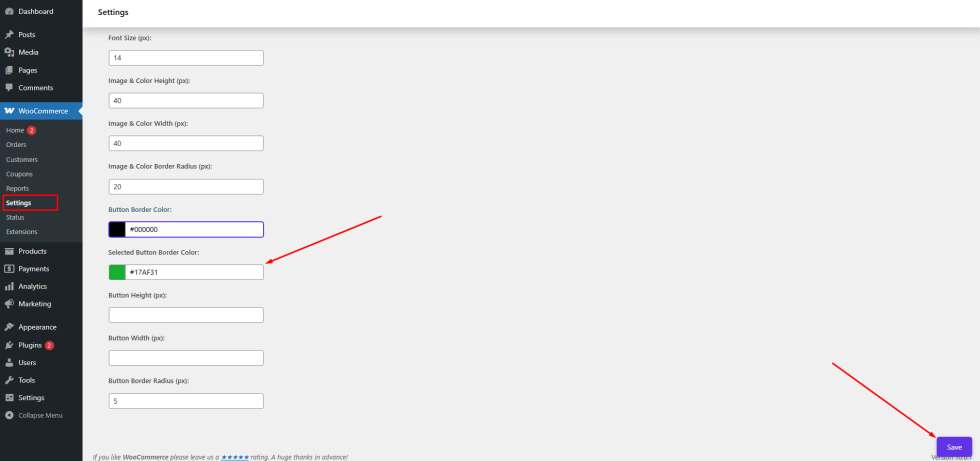
↑ Back to topThe Selected Button Border Color setting allows you to customize the border color of a variation swatch when it is selected.
When a customer chooses a variation (such as size or color), the selected swatch is highlighted to indicate the active choice. This setting lets you define a specific border color for that selected state.
It applies to all types of swatches, including:
- Button swatches
- Color swatches
- Image swatches
Using a clear and contrasting border color helps customers easily identify their selected option.
For example:
- Use a bright or brand color to highlight the selected variation
- Use a high-contrast color to improve visibility on different backgrounds
This enhances usability and ensures a smooth shopping experience.
How to Configure
↑ Back to top- Go to WordPress Admin Panel → WooCommerce → Settings.
- Click the Variation Monster tab.
- Navigate to the Variation Swatches section.
- Locate the Selected Button Border Color option.
- Choose your preferred color using the color picker or enter a hex code.
Click the Save button.
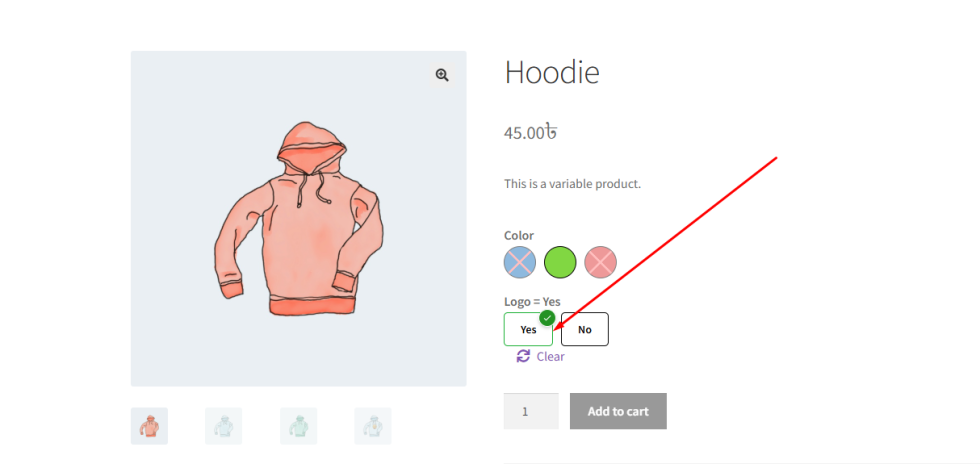
After saving the settings, the selected border color will be applied to all active variation swatches on the single product page, making the selected option clearly visible to customers.
Button Height Customization
↑ Back to topThe Button Height setting allows you to control the height of simple (text-based) variation attribute buttons.
When attributes are displayed as buttons (such as size or label), their height affects both readability and layout. If the button height is too small, it may be difficult for customers to click. If it is too large, it can disrupt the overall design.
With this setting, the admin can define a consistent height for all button-type variation swatches.
For example:
- Use a larger height for better visibility and easier interaction
- Use a smaller height for a compact and clean layout
This ensures that your variation buttons remain user-friendly and visually balanced.
How to Configure
- Go to WordPress Admin Panel → WooCommerce → Settings.
- Click the Variation Monster tab.
- Navigate to the Variation Swatches section.
- Locate the Button Height option.
- Enter your desired height value (e.g., in pixels).
Click the Save button.
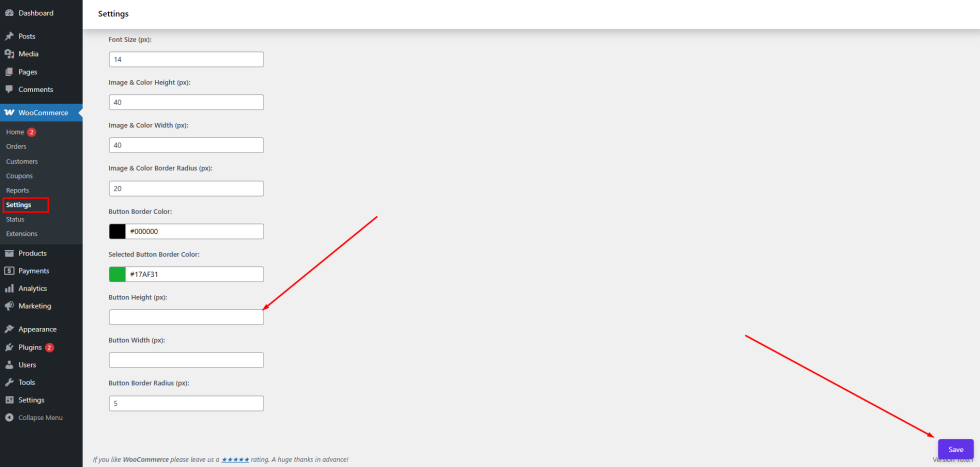
After saving the settings, the defined height will be applied to all simple variation attribute buttons on the single product page.
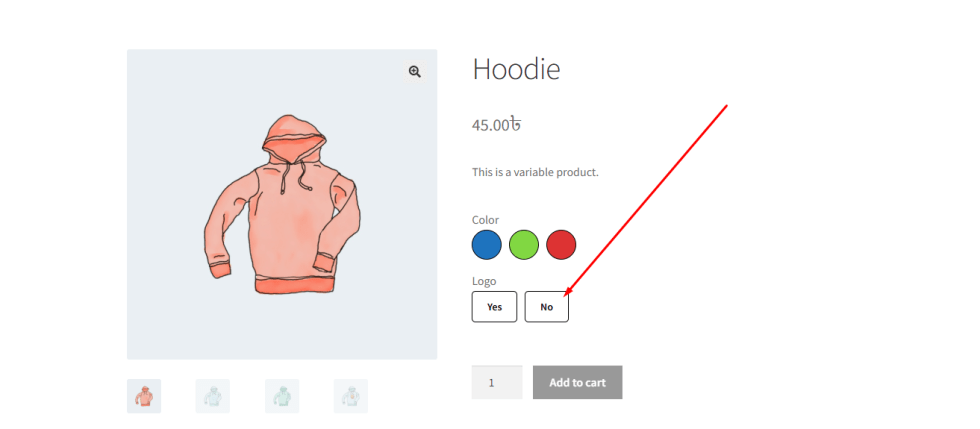
Button Width
↑ Back to topThe Button Width setting allows you to control the width of simple (text-based) variation attribute buttons.
When attributes are displayed as buttons (such as size or labels), the width affects how neatly they are arranged and how easy they are to interact with. If the width is too small, the text may look cramped. If it is too large, it can break the layout or create unnecessary spacing.
With this setting, the admin can define a consistent width for all button-type variation swatches.
For example:
- Use a larger width for better readability and spacing
- Use a smaller width for a compact and grid-based layout
This helps maintain a clean, organized, and user-friendly design.
How to Configure
- Go to WordPress Admin Panel → WooCommerce → Settings.
- Click the Variation Monster tab.
- Navigate to the Variation Swatches section.
- Locate the Button Width option.
- Enter your desired width value (e.g., in pixels).
Click the Save button.
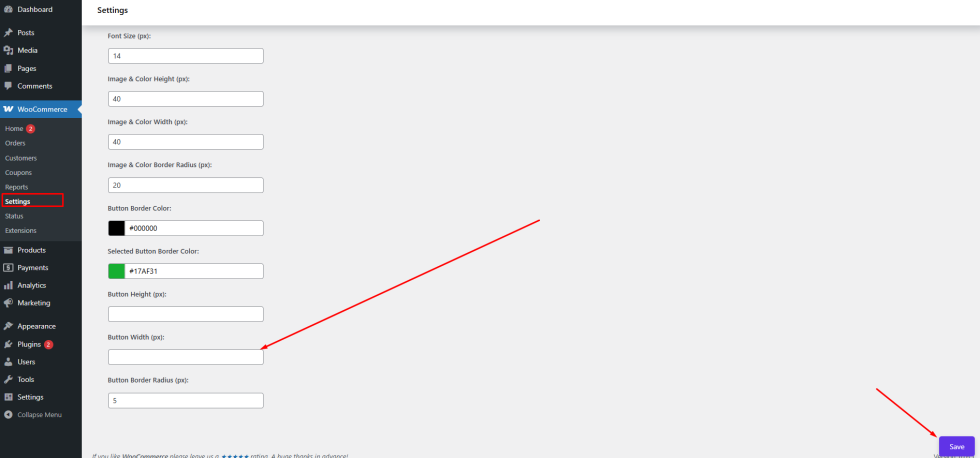
After saving the settings, the defined width will be applied to all simple variation attribute buttons on the single product page, ensuring a consistent and balanced layout.
Button Border Radious
↑ Back to topThe Button Border Radius setting allows you to control the corner roundness of simple (text-based) variation attribute buttons.
This setting defines whether the buttons appear with sharp corners or rounded edges, helping you match the design style of your website.
With this option, the admin can easily customize the shape of all button-type variation swatches.
For example:
- Use a higher border radius to create rounded or pill-shaped buttons
- Use a lower value (or 0) for sharp, square corners
This flexibility ensures that your variation buttons align perfectly with your store’s overall design.
How to Configure
- Go to WordPress Admin Panel → WooCommerce → Settings.
- Click the Variation Monster tab.
- Navigate to the Variation Swatches section.
- Locate the Button Border Radius option.
- Enter your desired value (e.g., in pixels).
Click the Save button.
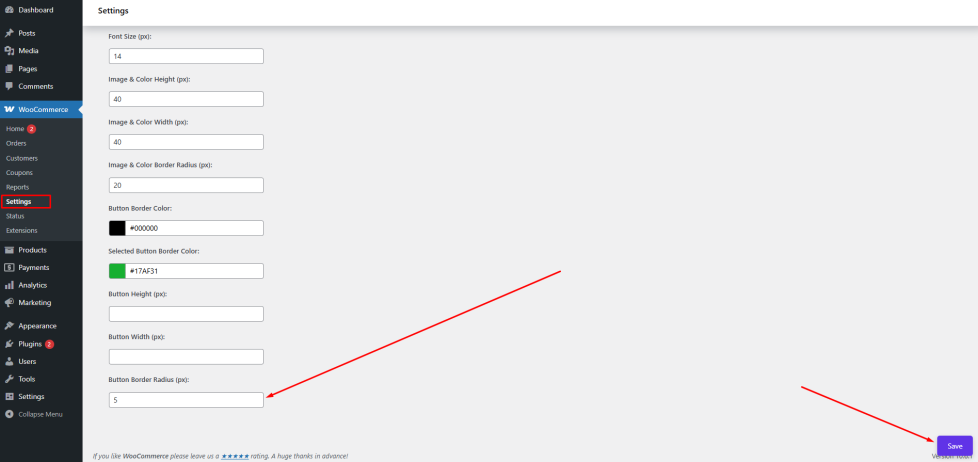
After saving the settings, the selected border radius will be applied to all simple variation attribute buttons on the single product page, giving them a consistent and polished look.

