Click to rate
Product comparison
Subscription includes
Hide Products for WooCommerce gives merchants total control over catalog privacy using a simple “lock and key” mechanism. Set precise locks across products, categories, brands, tags, or price tiers. Choose between completely hiding products or masking only prices and buy buttons, then grant access via passcodes, shareable secret links, or custom user conditions. In addition to this, choose to show or hide hidden content in the store’s internal search and search engines.
Using rule based approach, merchants can set-up product locks in 3 simple steps:
Choose Content to Hide – Merchants can choose what products need hiding; they can choose to hide the entire store or specific: products, categories, brands, tags, products of a certain value, or products of certain types
Choose Restriction Type – Choose whether to hide the products completely, including for internal and external search engines, or just hide add to cart and price. Merchants can also choose to show custom text instead of the price, change the add-to-cart button’s text, and set custom redirection links.
Choose Ways to Access – Merchants can choose to allow access to locked products via passcodes or secret links. They can also choose to give unrestricted access to certain user roles, users from certain countries/states, users with certain IP addresses, or email domains.

Hide Product extension allows merchants to manage their content visibility based on multiple conditions. Choose which products and sections will be visible to customers and hide specific items when needed. The following visibility conditions can be applied
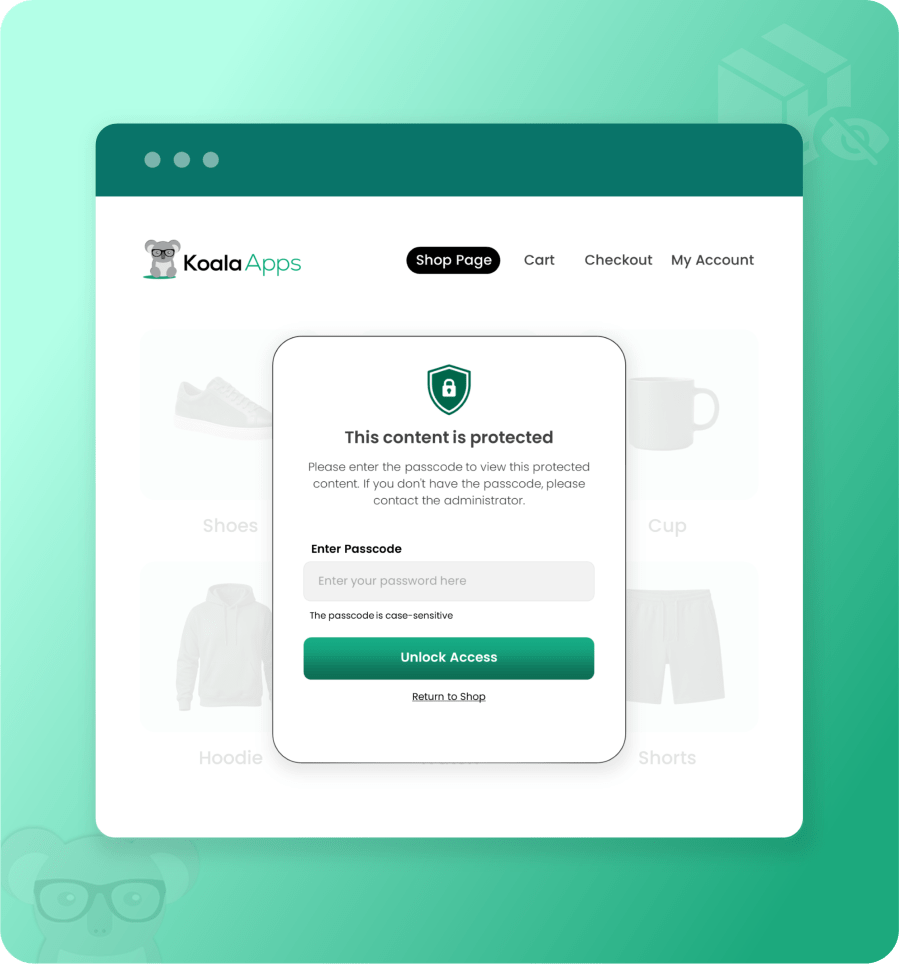
Merchants can choose to hide the entire store. Once hidden, all WooCommerce store pages will be hidden and can be accessible via the merchant’s selected option i.e passcode and secret link.
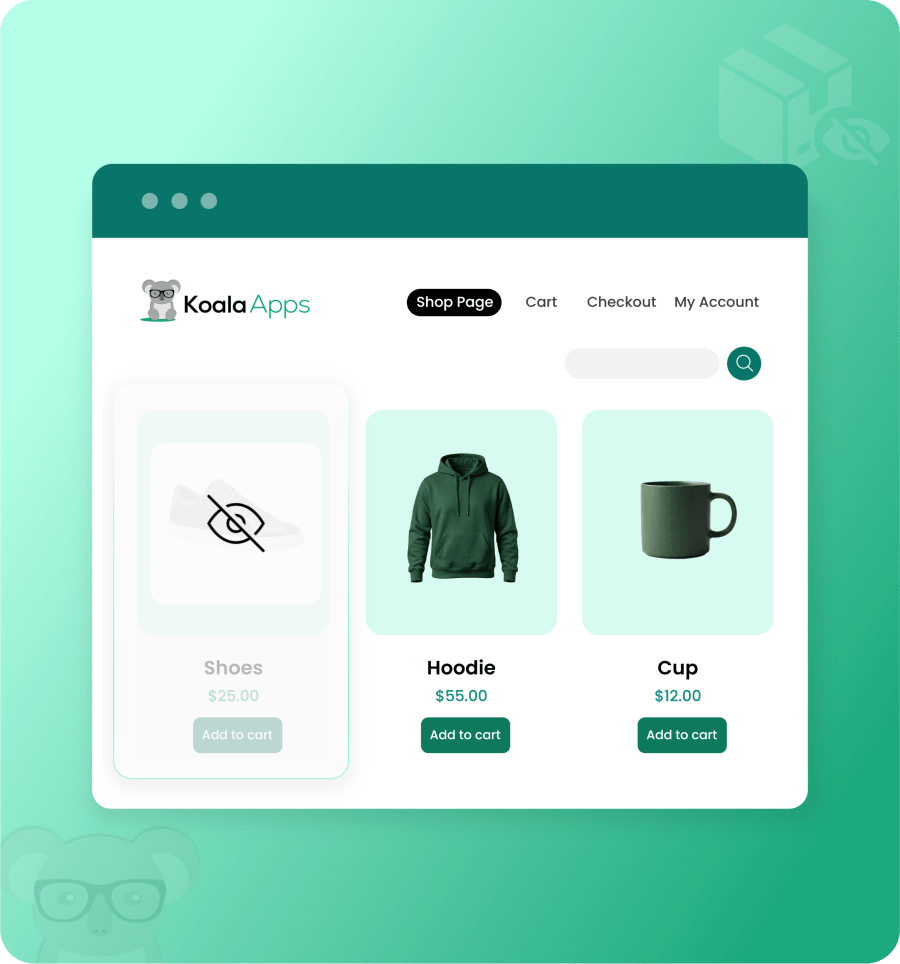
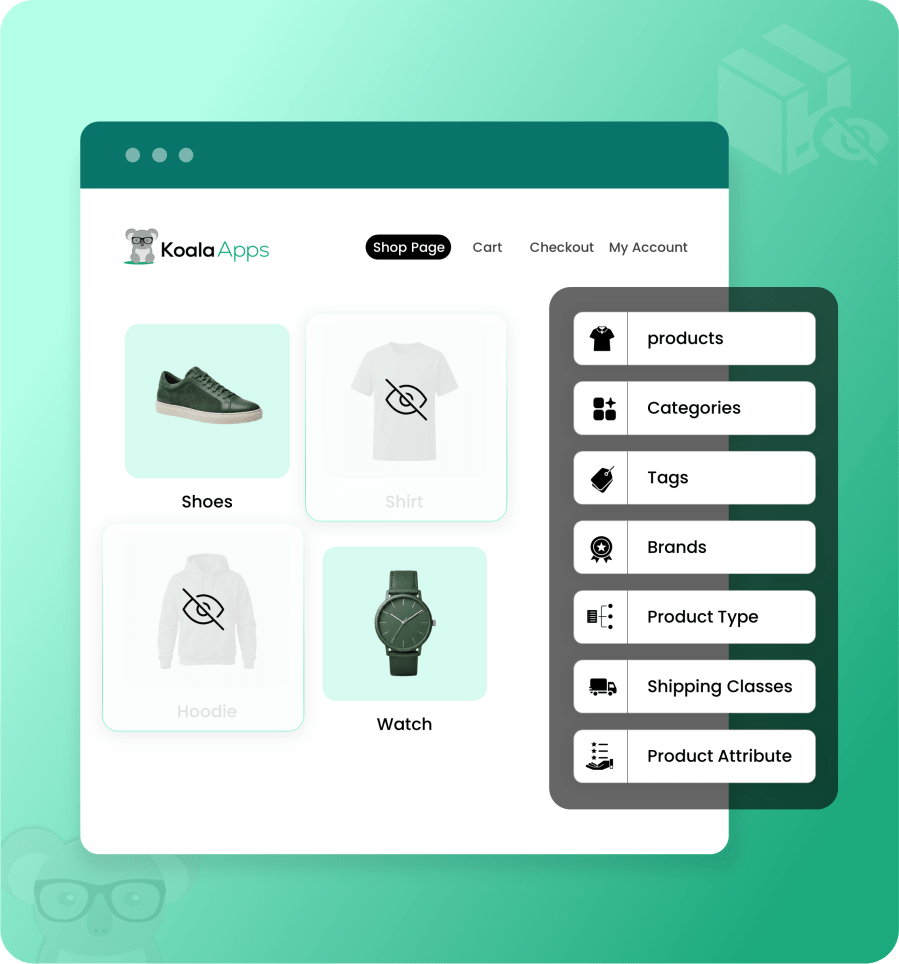
Hide specific products or attributes from public view. Restricted items remain invisible to standard visitors but can be unlocked effortlessly using a passcode or shareable secret links.
Choose to hide products by:
Merchants can also hide the category based on minimum or maximum product count. For example, if the range is 5-10 products, a category with fewer than 5 or more than 10 products will be hidden from customers.
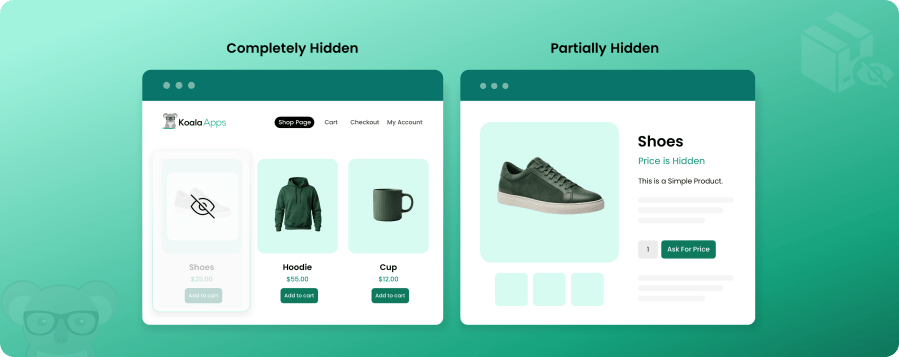
Merchants can choose to hide products completely or partially based on their requirements. When a product is hidden completely, it is invisible to customers from shop and category, internal, and external search pages and can only be accessible via direct URL for selected customers.
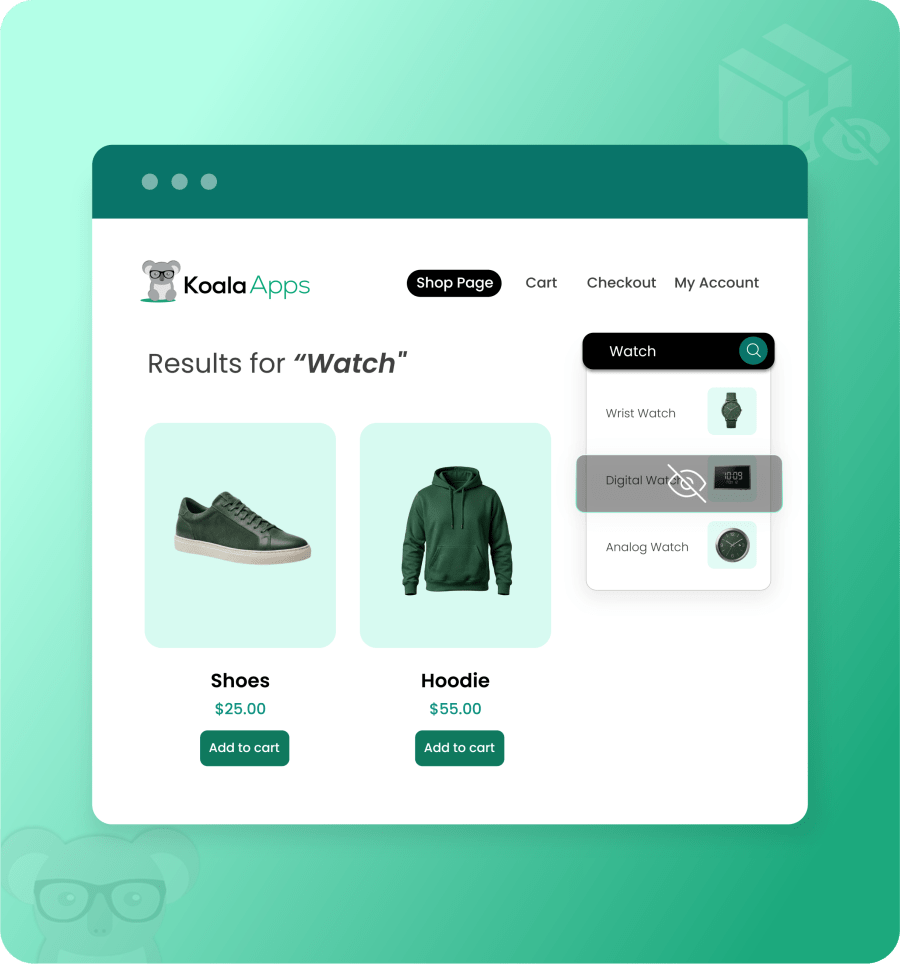
Choose to hide the selected items from your store’s catalog and internal search results. If not selected, then the product will be hidden when accessed directly via URL but will be visible in shop, category, and store search results.
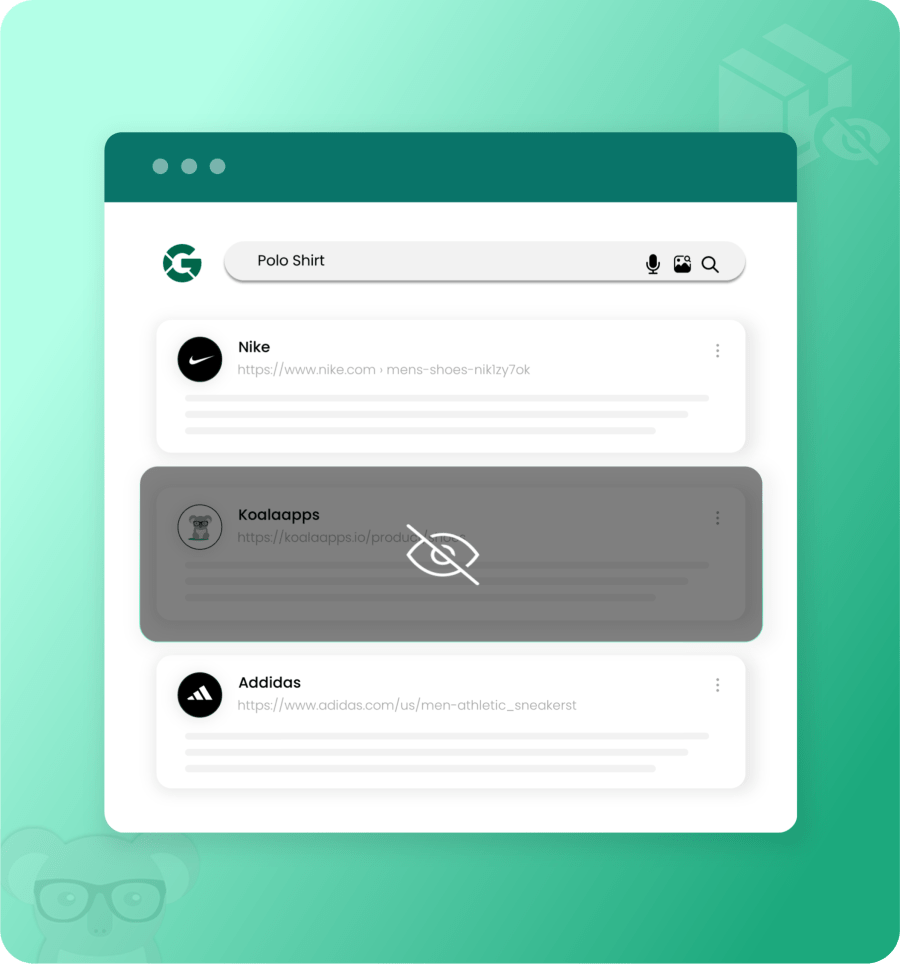
Choose to hide the selected product from search engine results. The extension adds a noindex tag to the product; hence, it becomes invisible to search engine bots.
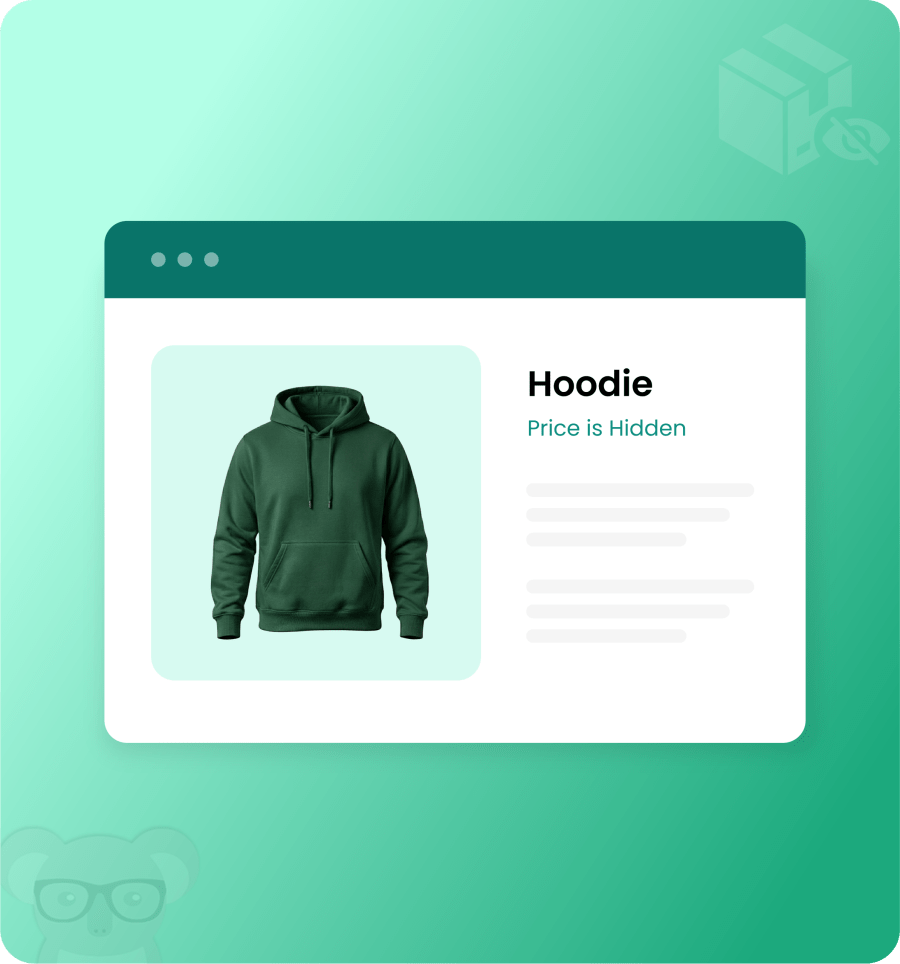
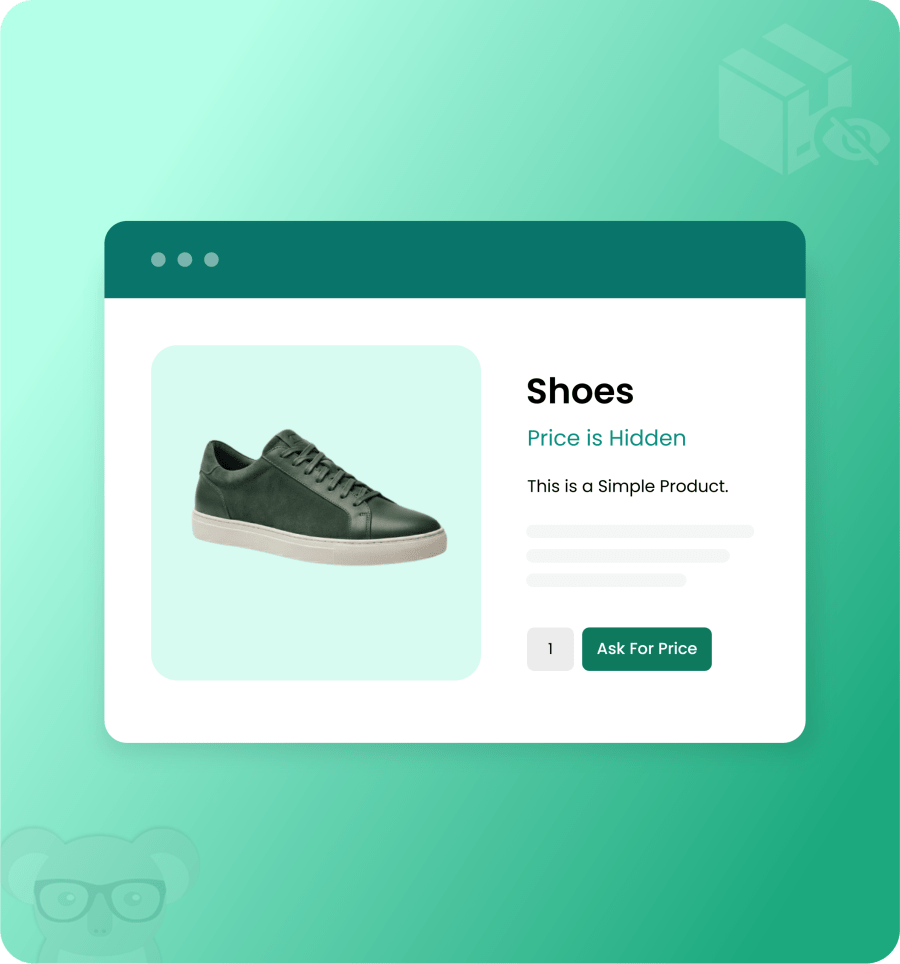
Instead of hiding the whole product, merchants can just hide its price and add-to-cart button. For example, you can restrict new arrivals from being purchased immediately and create curiosity among customers before making them available for purchase.
Admins can hide the product price and replace the add-to-cart button with any custom text or link. For example, you can add a “Contact Us” form or “Inquire Here” button to provide an alternative action to users.
By using the Hide Product for WooCommerce plugin, merchant can set the following conditions to provide access to restricted products:
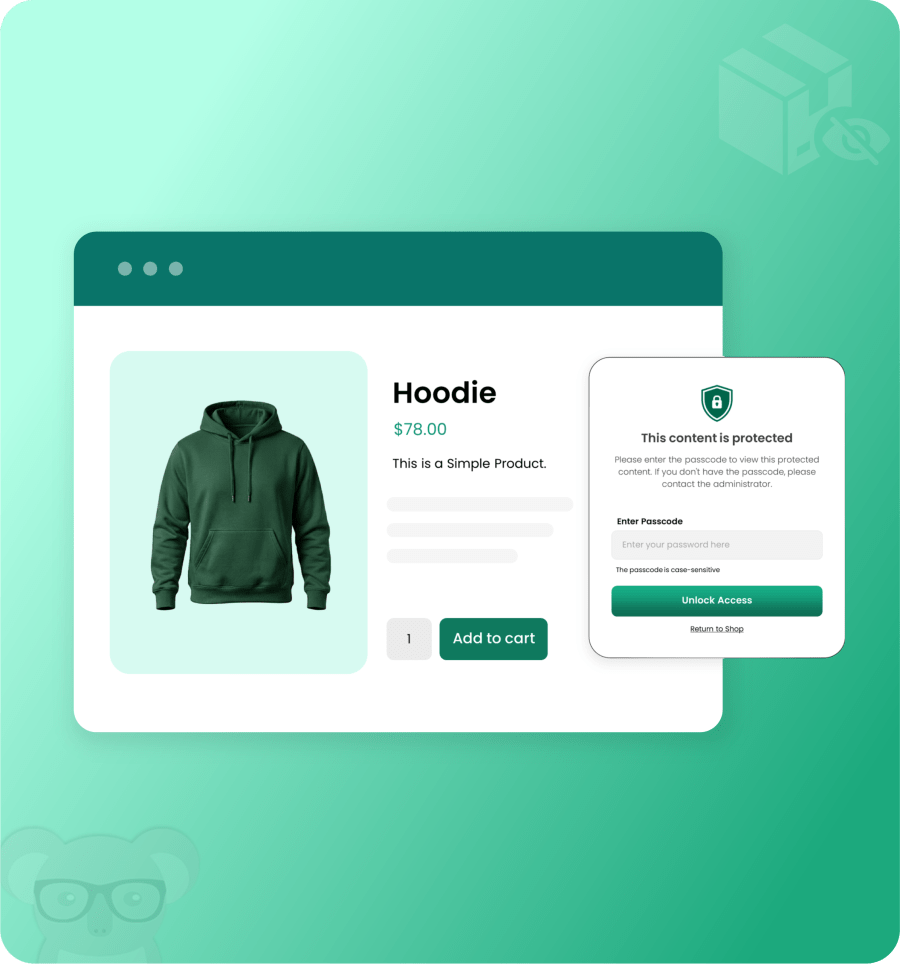
Merchants can enable the passcode, set the desired key, and allow customers to simply enter the password to unlock restricted products. This method is useful for selling exclusive or age-restricted items.
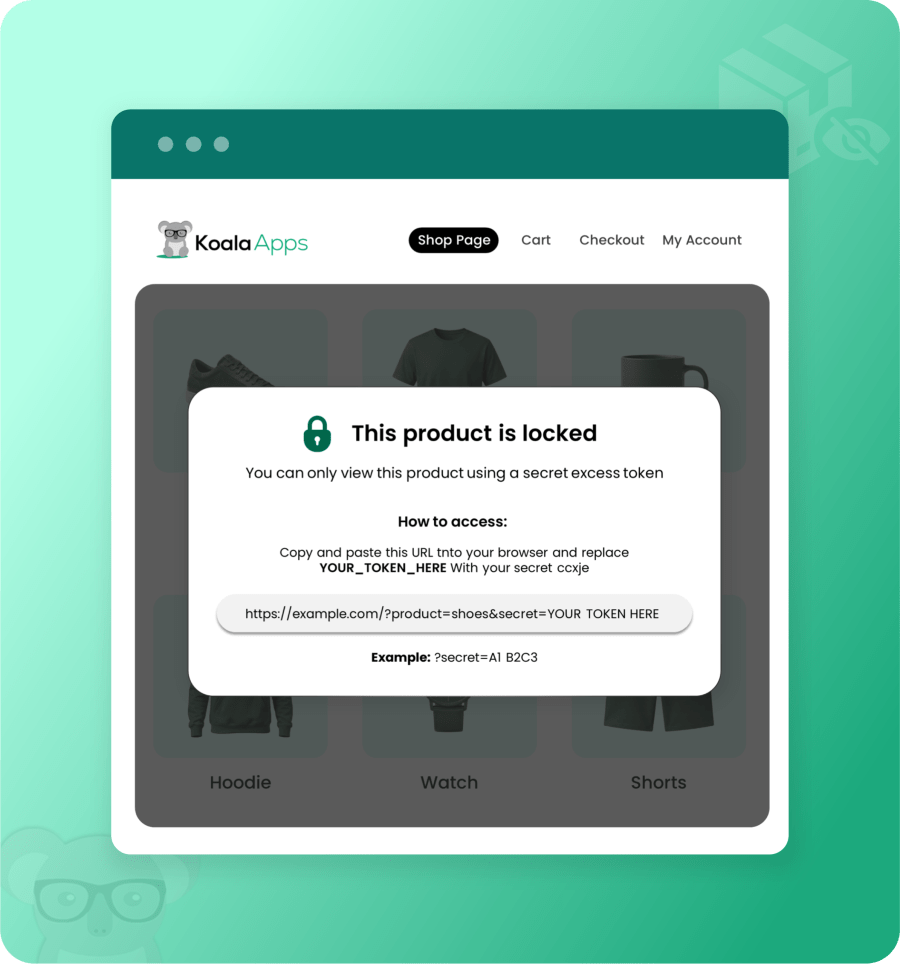
Merchants can give access to restricted items using a secret link. Simply share it with the selected users and allow them to access the product directly using the link.
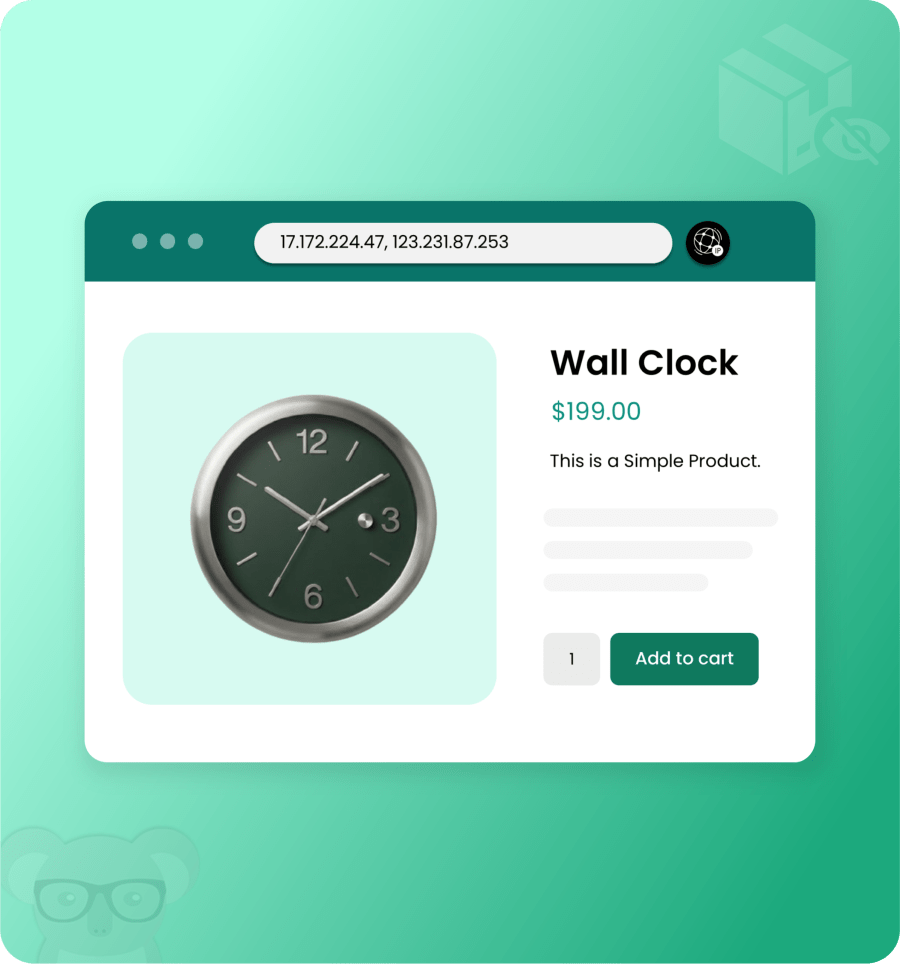
Allow customers to access products based on their IP addresses. In this way, merchants can set a specific IP range to protect their store from unusual activity or unauthorized users.
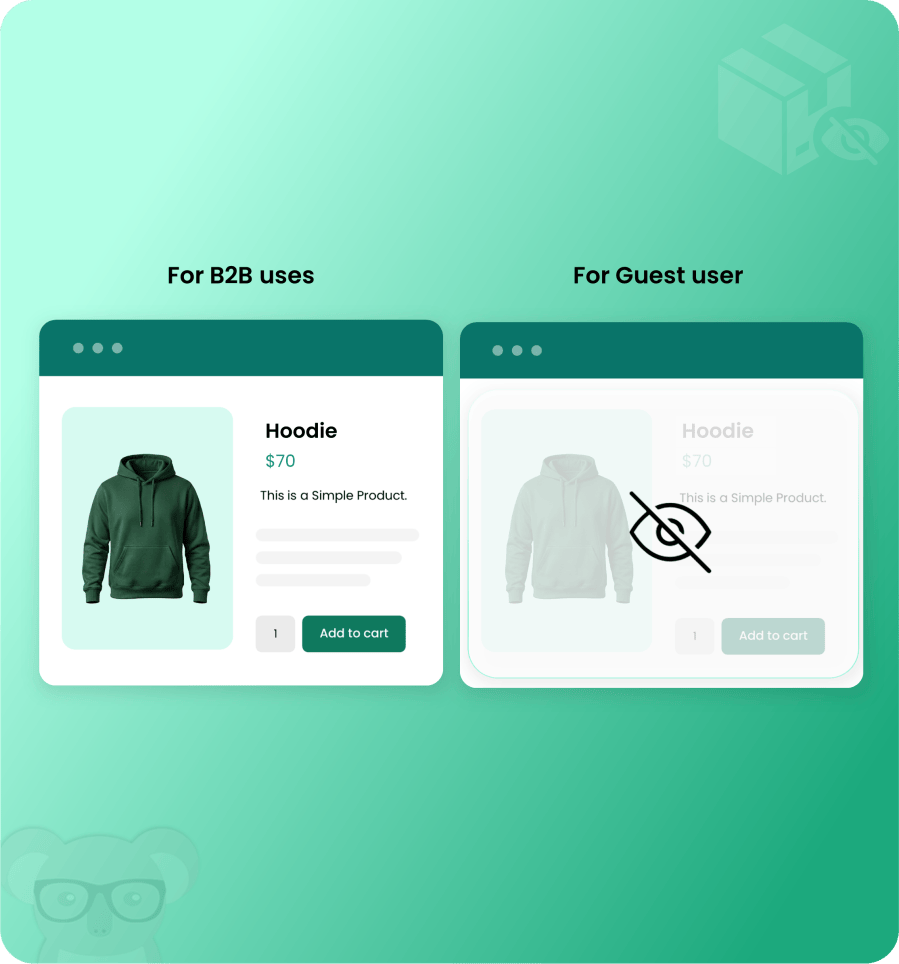
Allow specific user roles such as wholesalers, administrators, or contributors to access the restricted products.
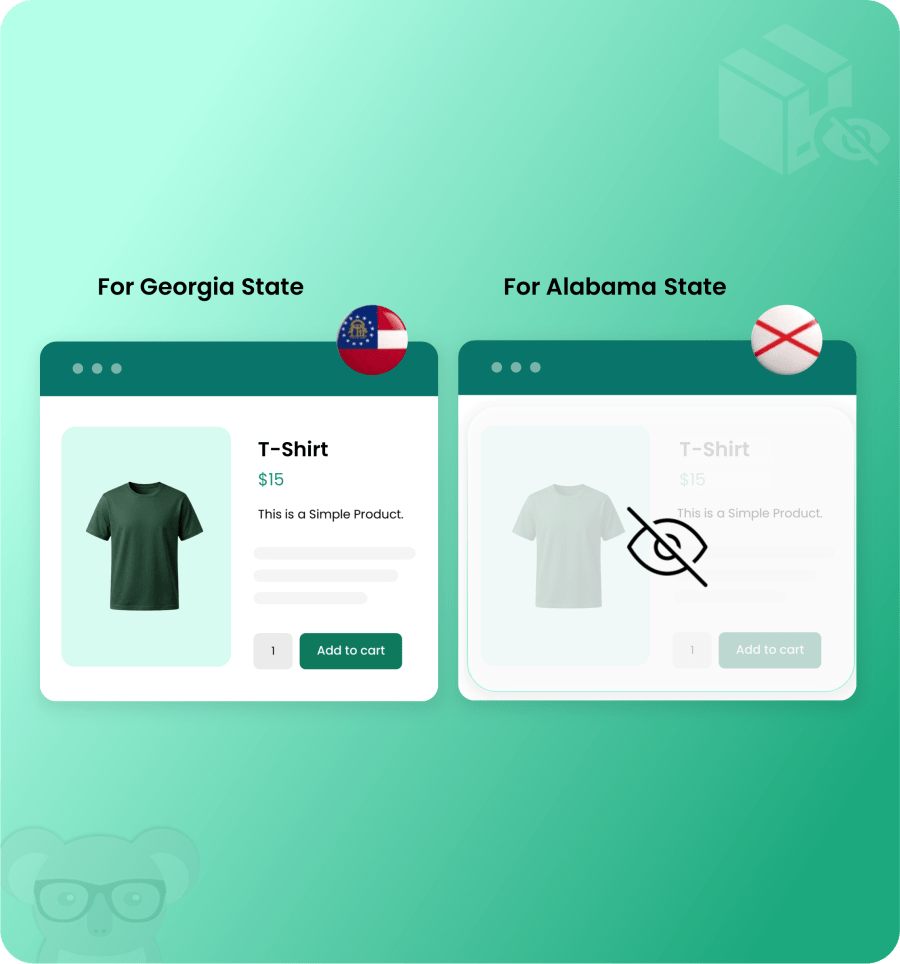
Enable access based on selected states. For example, merchants can provide access to local products for customers living in nearby states.
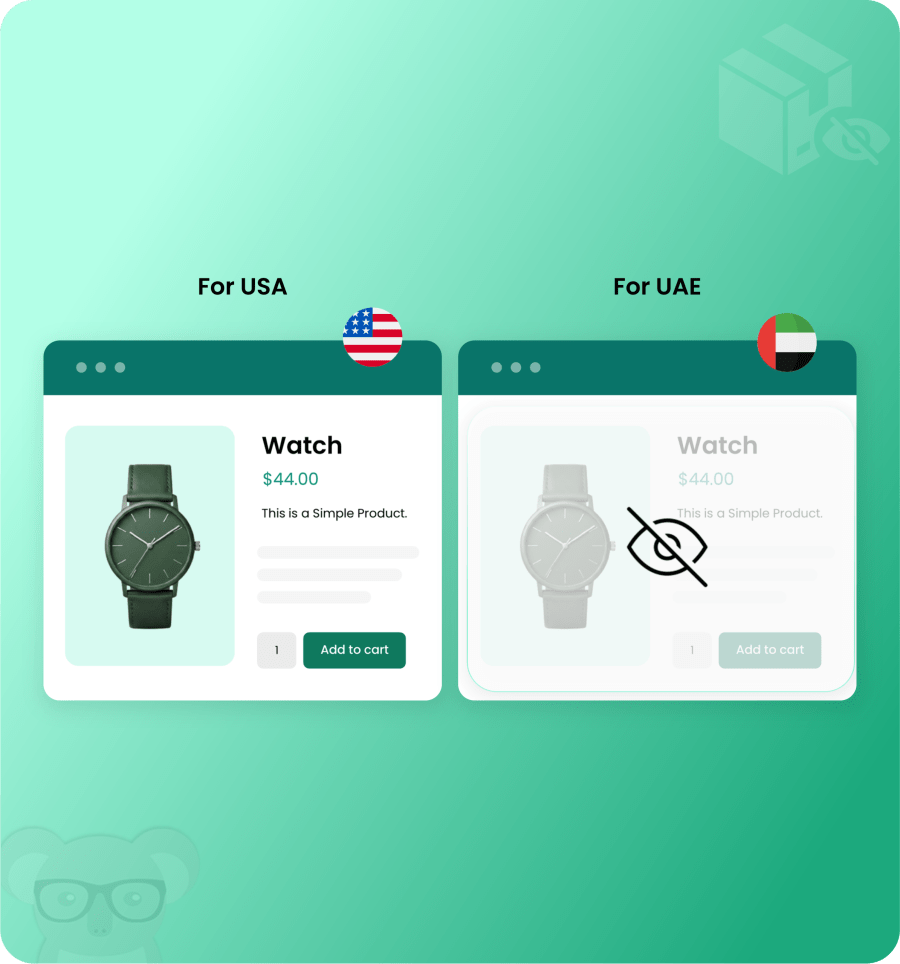
Customers from the selected countries will be allowed to access the products, while access can be restricted for users from other regions.
Admins can allow customers to access restricted products using a passcode. But in case of multiple failed attempts, merchants can set the following actions:
Display a custom error message when users enter an incorrect passcode. For example, merchants can display “Invalid Passcode. Please try again” or “Please enter a valid code” to notify users.
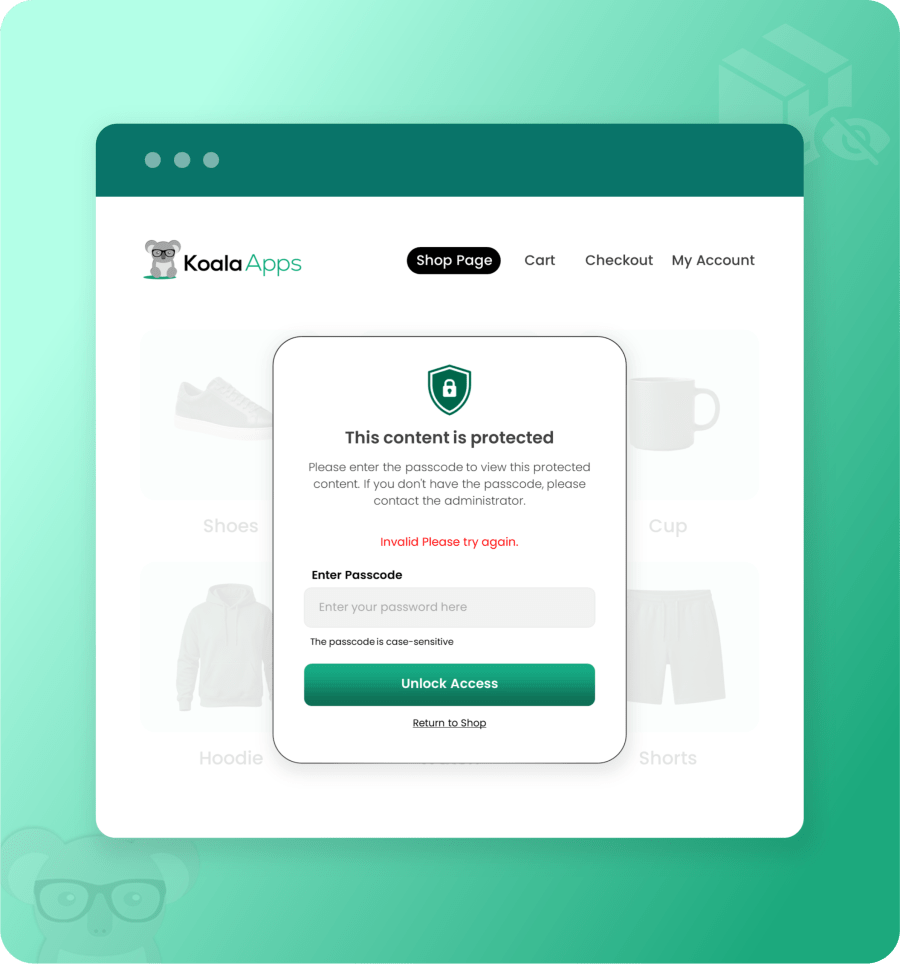
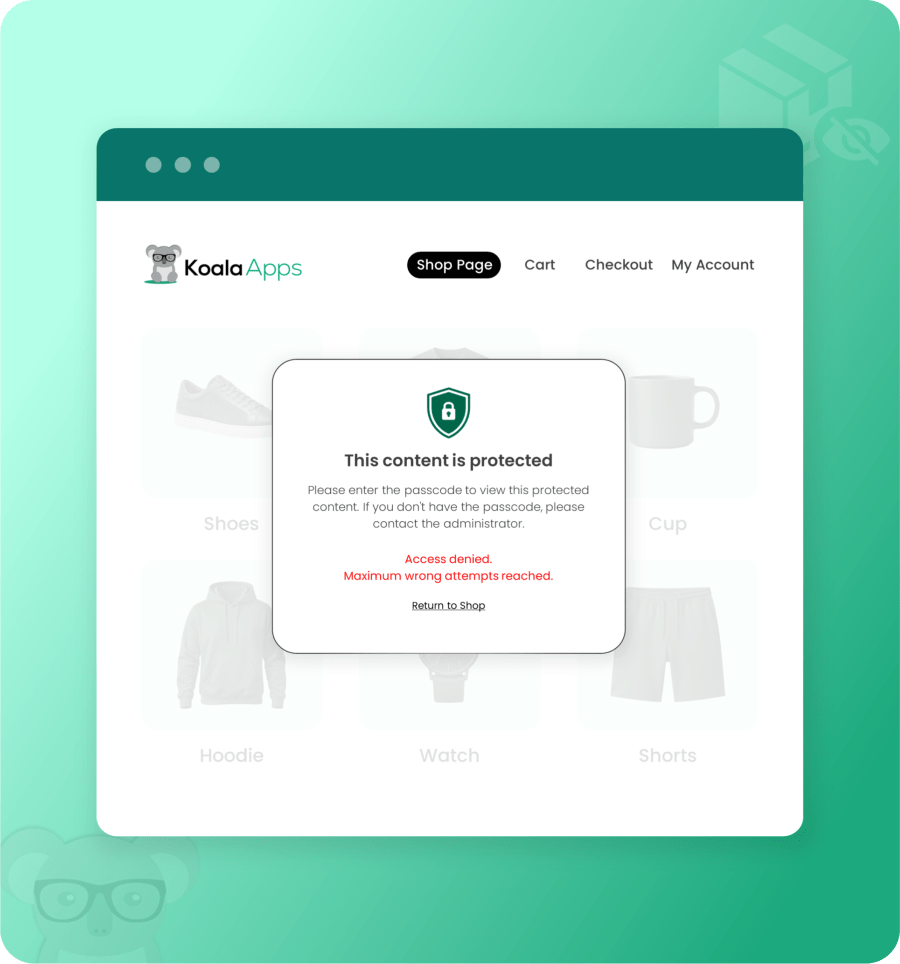
Set a maximum number of incorrect attempts, and once the limit is reached, choose to redirect users to any other page, show an error message, or disable the passcode.
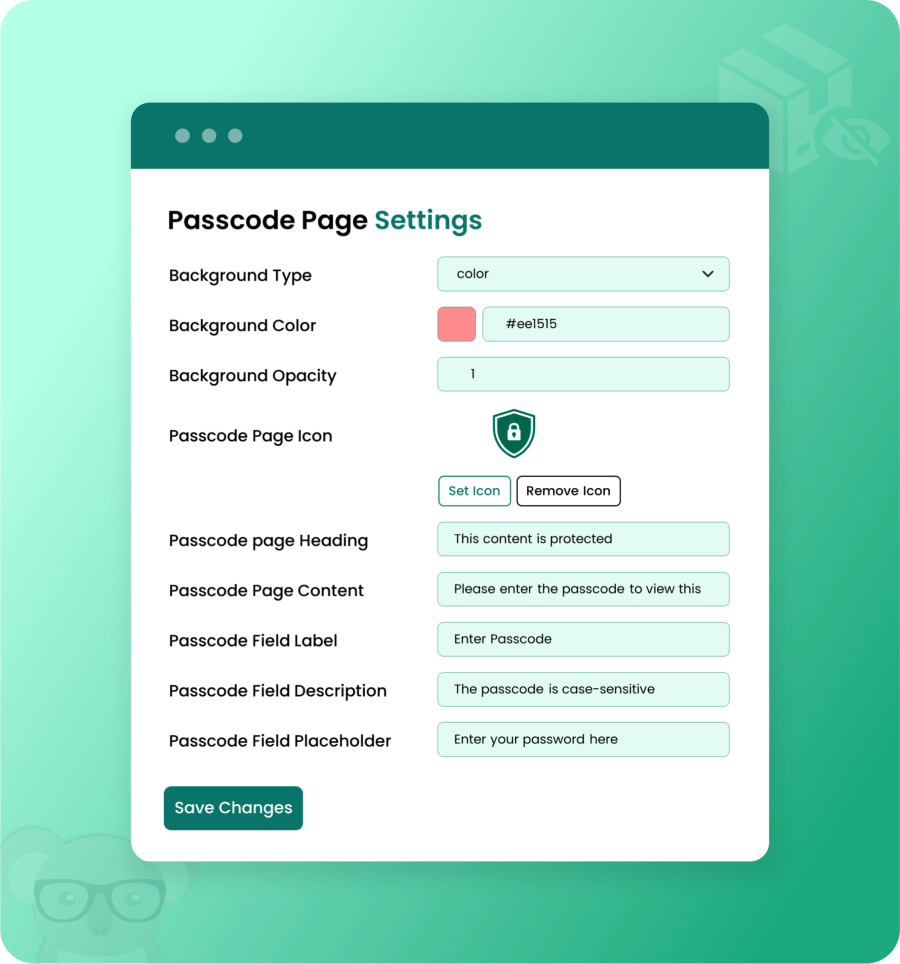
Hide Product extension allows merchants to display the passcode field directly on the product page. Customize the passcode popup by selecting different background types such as blur, color, or image. Merchants can also upload a custom icon and add desired text for the popup heading, content, and description. In this way, admins can guide customers with clear instructions and help them access the restricted products easily.
Yes, by using the Hide Product for WooCommerce plugin, you can create multiple rules to hide products by their type, price, attribute, shipping class, category, tags, brand, and dimensions.
Yes, the Hide Product extension allows you to give access to selected customers, countries, user roles, and states. You can also provide a secret link or passcode to give them access directly.
Yes, instead of hiding the whole product, you can just hide the price and add-to-cart button. You can also replace the Add-to-Cart button with custom text or a URL.
Yes, the plugin allows you to hide the entire product from customers. You can also hide selected products from your store’s catalog and internal search results.
Yes, admins can set a passcode or a secret link to provide access to restricted products. You can share them with selected customers and let them access the product directly from the product page.
Quality Checks
Countries