
Pricing rules add surcharges on top of the customization fee, based on what customers add to their design.
Go to WooCommerce > Settings > Product Designer > Customization and scroll to Pricing Rules (Modern). Each rule has its own checkbox, so you can use any mix of them.
Note: Pricing rules work with the Modern designer only. Object level rules stack when more than one matches the same canvas object. Print size and coverage pricing stay additive.
Rule settings
↑ Back to top- Enable Per-Asset Prices: Adds clip art, template, and shape prices to the live total.
Note
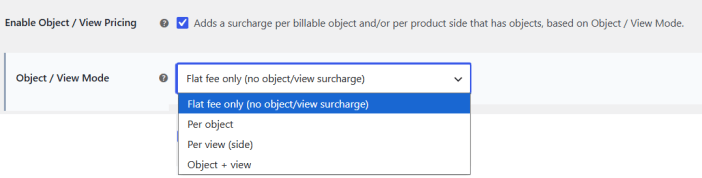
- Enable Object / View Pricing: Adds a surcharge per object, per product side that has objects, or both, based on the Object / View Mode.
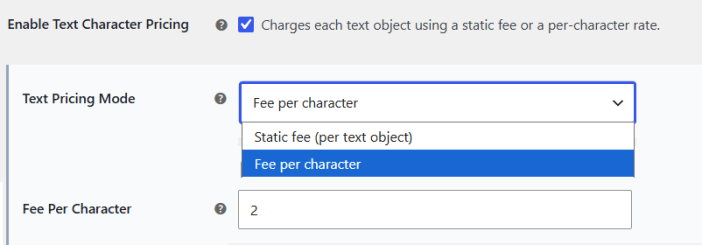
- Enable Text Character Pricing: Charges each text object a static fee or a per character rate.
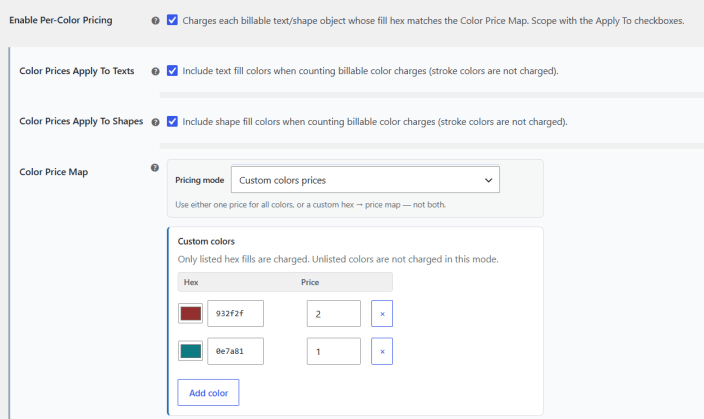
- Enable Per-Color Pricing: Charges each text or shape object whose fill color matches the Color Price Map.
- Color Prices Apply To Texts: Includes text fill colors. Stroke colors are not charged.
- Color Prices Apply To Shapes: Includes shape fill colors. Stroke colors are not charged.
How to set up Coverage Pricing?
↑ Back to topCharge customers based on how much of the print area their design covers.
- Tick Enable Coverage Pricing.
- Under Coverage Rules, enter the Min % and Max % of the print area the band covers.
- Enter the price customers pay when their design falls in that band.
- Click Add rule to add more bands. Click the x icon to remove a band.
- Click Save changes.
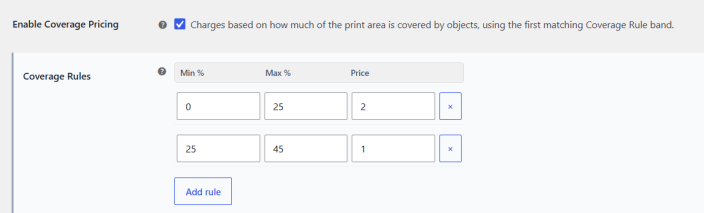
Coverage is the share of the print area that objects take up. The plugin uses the first Coverage Rule band that matches the design. For example, a rule with Min 0, Max 25, and Price 2 adds a surcharge of 2 to any design that covers 0 to 25 percent of the print area.
Coverage Pricing settings
↑ Back to top- Enable Coverage Pricing: Charges based on how much of the print area objects cover.
- Coverage Rules: Set coverage rule with a Min %, Max %, and Price.
Note: Coverage pricing is additive. Its fee is added on top of the design total, together with print size pricing.
