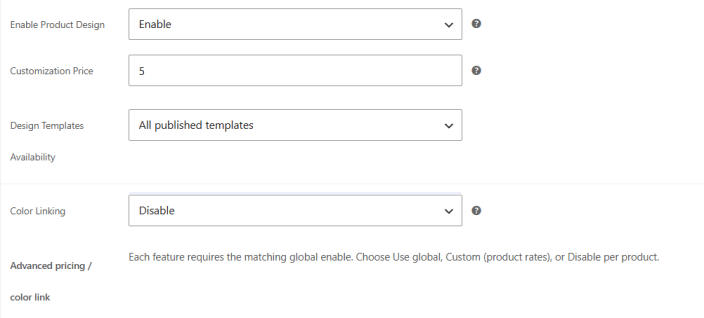
Turn the designer on for each product you want customers to customize.
- Go to Products and add a new product or edit an existing one.
- Scroll down to Product Data and click the Product Designer tab.
- Enable Product Designer from the dropdown.
Product Designer options
↑ Back to top- Customization Price: The customization fee for this product.
- Design Templates Availability: The design templates customers can use. Select between All Categories/Templates or Specific.
- Color Linking: Use the global setting or change it for this product.
Note: You can link colors by editing Templates and Cliparts. Assign the same group to link colors.
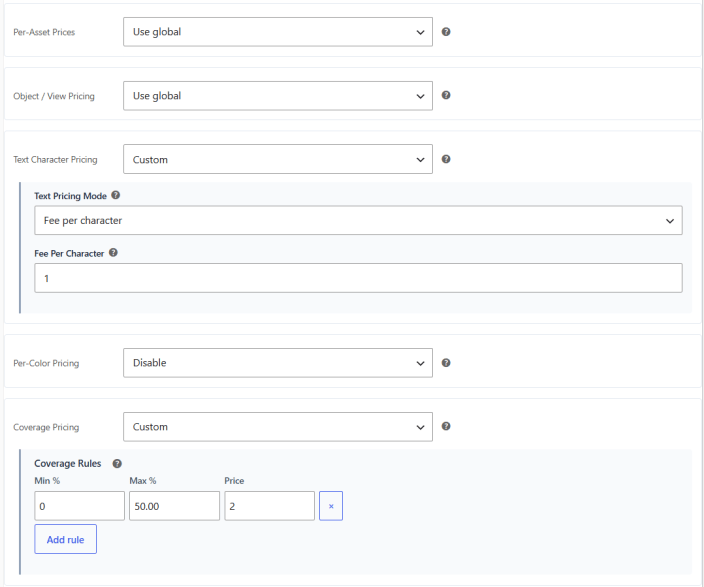
Product Level Pricing rule
↑ Back to topYou can override each pricing rule for a single product. Configuration of the Product Level pricing rule are same as Global. You can view it in detail at Pricing Rule.
Note: Each option needs the matching global option enabled. For each one, choose Use global, Custom to set product rates, or Disable for this product.
- Per-Asset Prices: Charge for clip art, templates, and shapes.
- Object / View Pricing: Charge per object or per product side.
- Text Character Pricing: In Custom mode, pick a Text Pricing Mode, such as Fee per character, and enter the fee.
- Per-Color Pricing: In Custom mode, choose whether prices apply to texts and shapes, then set the Color Price Map for this product.
- Print Size Pricing: In Custom mode, set the Print Size DPI and select the Allowed Print Size Presets.
- Coverage Pricing: Enable or disable coverage pricing for this product.