The Product Builder is where you place layers and define where customers can print.
Click Edit with Product Builder on a view, or go to WooCommerce > Product Builder.
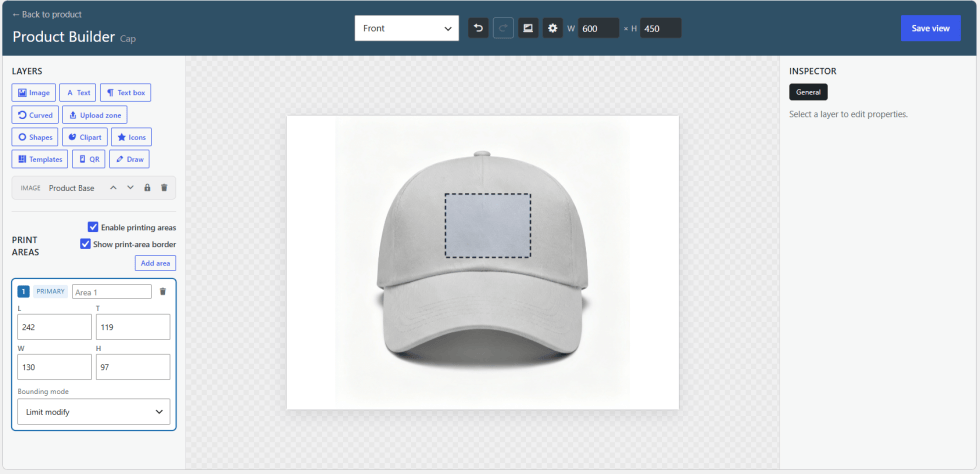
Builder header
↑ Back to top- Back to product: Returns to the product page.
- View selector: Switches between views, such as Front and Back.
- Undo and Redo: Reverses or repeats changes.
- Settings icon: Opens builder options.
- W and H: Sets the canvas width and height.
Layers
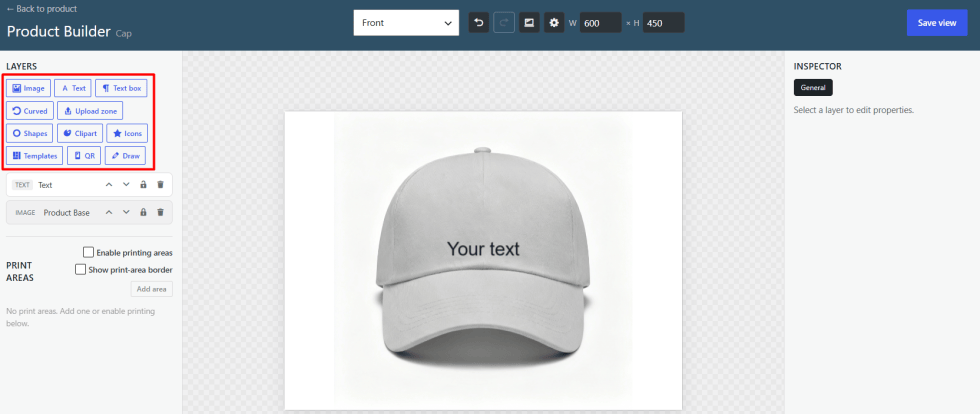
↑ Back to topUse the Layers panel to add these layer types.
Image: Add a fixed image, such as the product base.
Text: Add a single line text layer that customers can edit.
Text box: Add a multiline text layer.
Curved: Add curved text.
Upload zone: Let customers upload their own image.
Shapes: Add basic shapes.
Clipart: Add clip art from your library.
Icons: Add icons from the bundled Material Icons.
Templates: Add a design template.
QR: Add a QR code.
Draw: Add a free hand drawing.
Each layer appears in the layer list. Move a layer up or down, crop it, lock it, or delete it from there.
Print areas
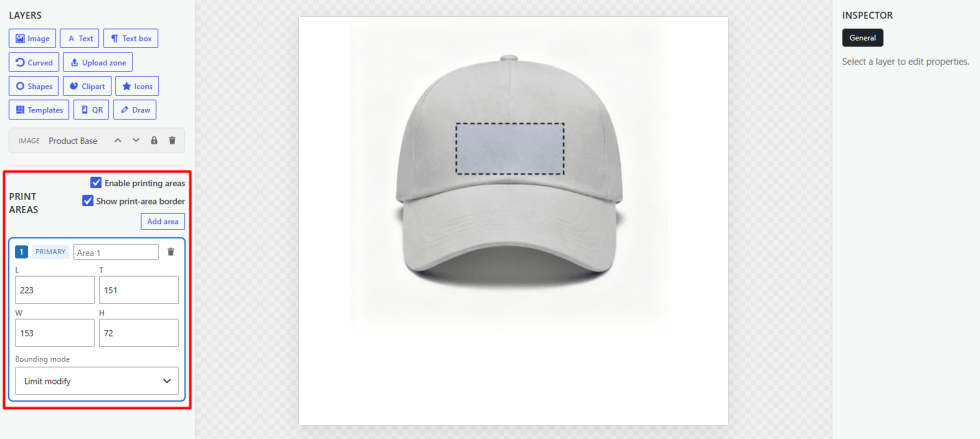
↑ Back to topPrint areas limit where customers can place their designs.
- Enable printing areas: Turns print areas on or off for the view.
- Show print-area border: Shows a dashed border around each area.
- Add area: Adds another print area. The first one is marked Primary.
- Area name: The name of the print area.
- L, T, W, H: The left, top, width, and height of the area.
- Bounding mode: Controls how layers behave at the area edge. Choose from Limit modify and Clipping.
- Limit modify: Limits how customers can move and resize artwork.
- Clipping: Cuts off any artwork outside the rectangle.
- None: No restriction.
Inspector
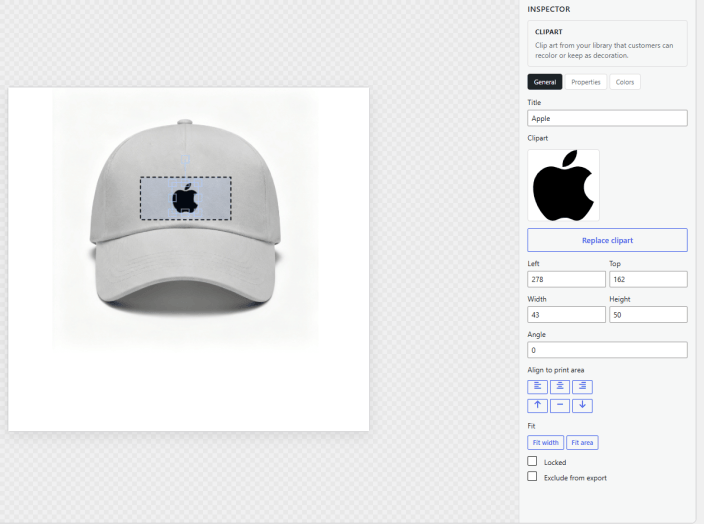
↑ Back to topSelect a layer to edit it in the Inspector. It has three tabs: General, Properties, and Colors.
General tab
↑ Back to top- Title: The name of the layer.
- Left and Top: The position of the layer.
- Width and Height: The size of the layer.
- Angle: Rotates the layer.
- Align to print area: Aligns left, center, right, top, middle, or bottom.
- Fit width and Fit area: Fits the layer to the print area.
- Locked: Prevents changes to the layer.
- Exclude from export: Leaves the layer out of the final output.
- Replace icon: Swaps the icon on an icon layer.
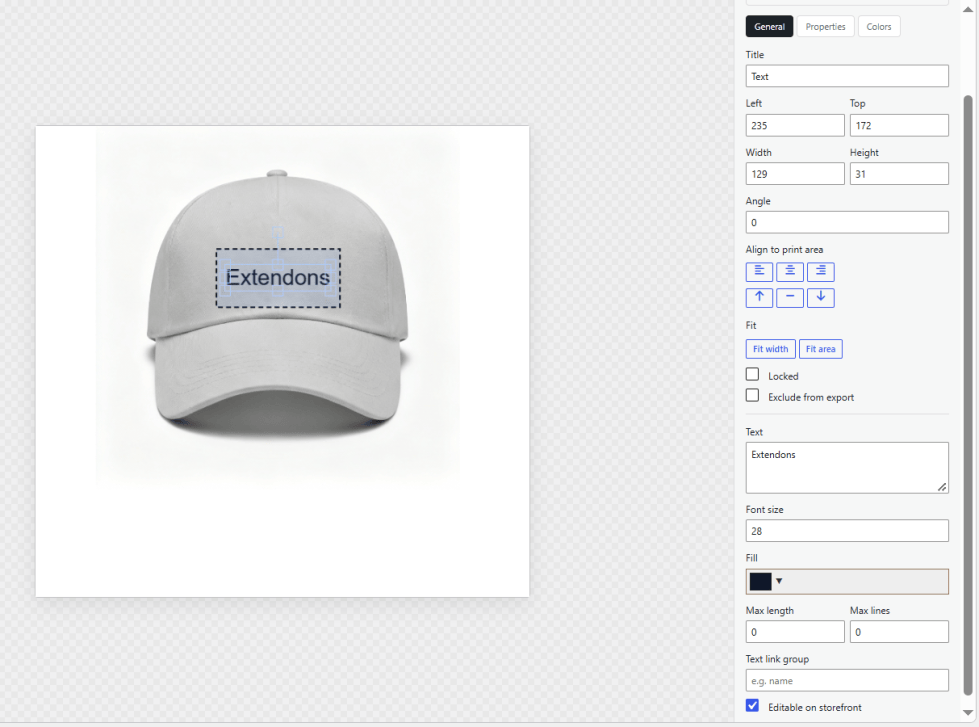
Text layers also include these fields.
- Text: The default text.
- Font size: The text size.
- Fill: The text color.
- Max length: Limits the number of characters.
- Max lines: Limits the number of lines.
- Text link group: Links text layers so they share the same text.
- Editable on storefront: Lets customers edit the text.
Properties tab
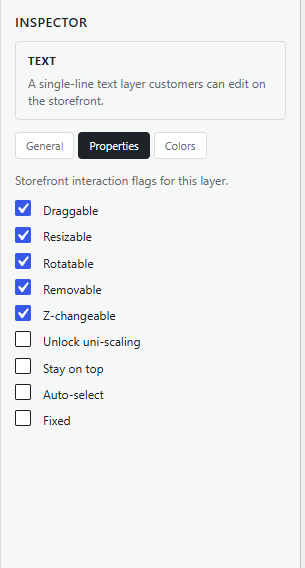
↑ Back to topThese control what customers can do with the layer on the storefront.
- Draggable: Move the layer.
- Resizable: Resize the layer.
- Rotatable: Rotate the layer.
- Removable: Delete the layer.
- Z-changeable: Change the layer order.
- Unlock uni-scaling: Scale width and height separately.
- Stay on top: Keep the layer above all others.
- Auto-select: Selects the layer automatically.
- Fixed: Customer will be unable to move the layer.
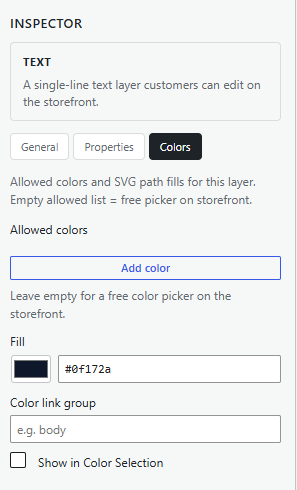
Colors tab
↑ Back to top- Allowed colors: Limits the colors customers can pick.
- Fill: The default fill color.
- Color link group: Links layers so their colors change together. Needs Color Linking enabled.
- Show in Color Selection: Shows the layer color in the color selection list. These colors will be shown in the product images tab at the frontend.