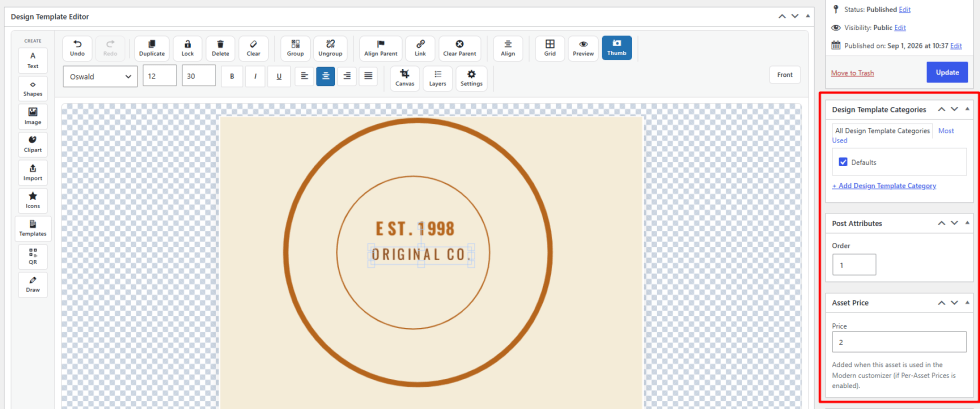
Design templates are ready-made designs that customers can start from and change. The plugin comes with a starter set of design templates, so they are available right after activation. You can add your own next to them.
How to manage design templates?
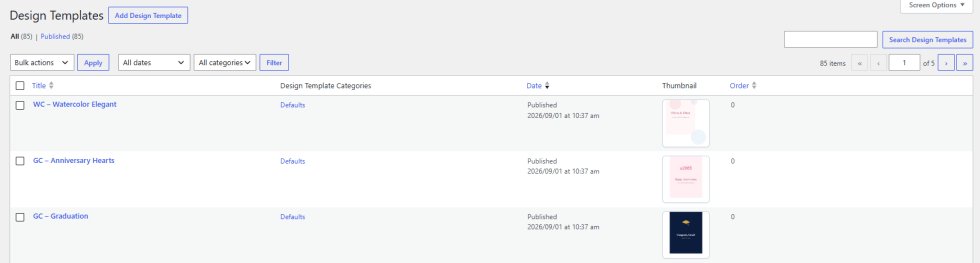
↑ Back to top- Go to WooCommerce > Design Templates.
- Add a new template or edit an existing one.
- Set a category if you want to group the template.
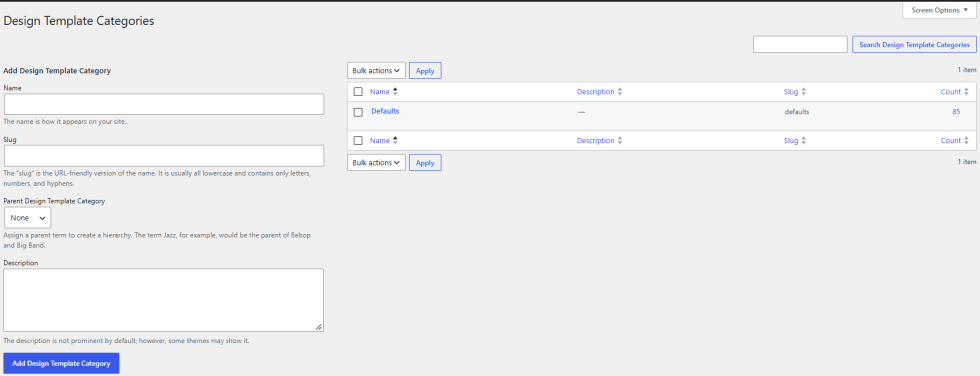
How to add design categories?
↑ Back to topGo to WooCommerce > Design Categories to add categories that group your design templates.
How to choose the templates a product shows?
↑ Back to top- Edit the product and open the Product Designer tab.
- Find Design Templates Availability.
- Choose which templates customers can use. The default is All published templates.
Design Templates page
↑ Back to topHow to edit a design template?
↑ Back to top- Go to WooCommerce > Design Templates.
- Add a new template or edit an existing one.
- Enter the template name at the top.
- Use the Design Template Editor to build the design.
- Click Thumb to create the template thumbnail.
- Click Update.
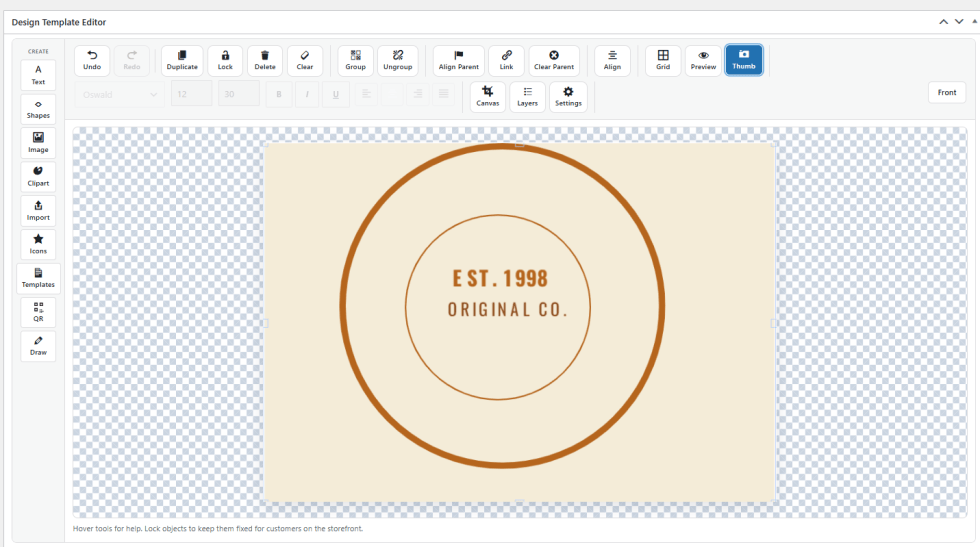
Create panel
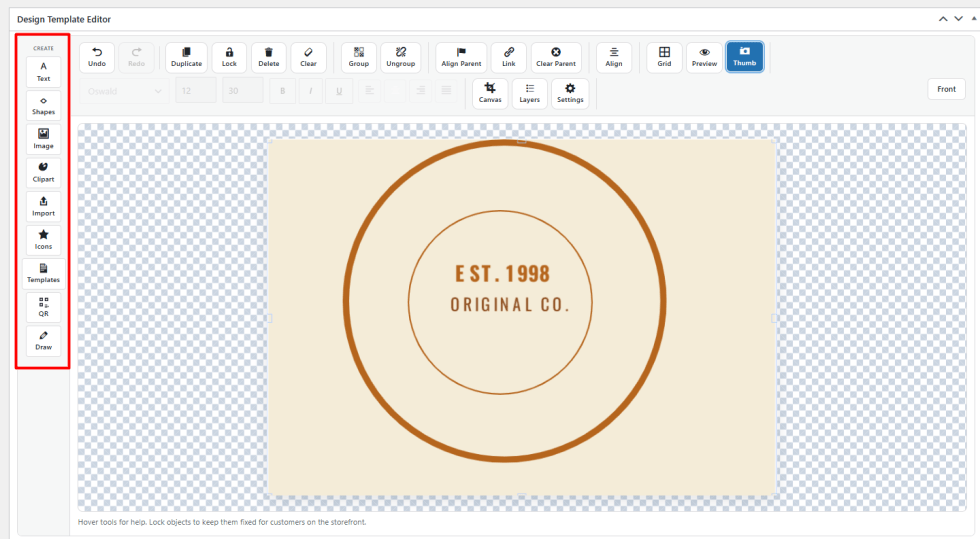
The left panel adds content to the template.
- Text: Adds a text object.
- Shapes: Adds basic shapes.
- Image: Adds an image.
- Clipart: Adds clip art from your library.
- Import: Imports a file into the template.
- Icons: Adds an icon.
- Templates: Adds another template.
- QR: Adds a QR code.
- Draw: Lets you draw on the canvas.
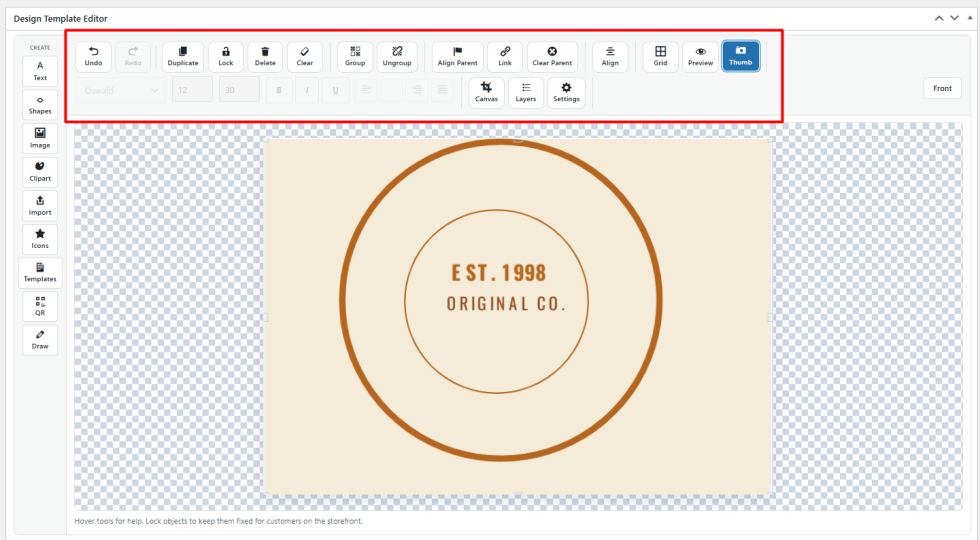
Editor buttons
- Undo and Redo: Reverse or repeat changes.
- Duplicate: Copies the selected object.
- Lock: Locks the selected object.
- Delete: Removes the selected object.
- Clear: Clears the canvas.
- Group and Ungroup: Combine objects into a group, or split a group.
- Align: Aligns objects.
- Grid: Shows a grid on the canvas.
- Preview: Previews the template.
- Thumb: Creates the template thumbnail.
- Canvas: Opens the canvas options.
- Layers: Opens the layers panel.
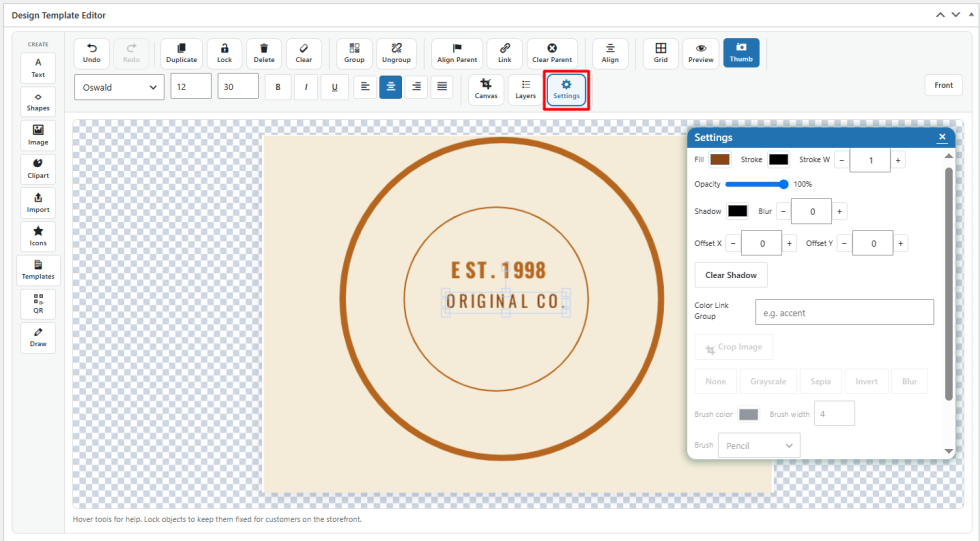
- Settings: Opens the Settings panel for the selected object.
Settings panel options
- Fill: The fill color.
- Stroke and Stroke W: The outline color and width.
- Opacity: How see through the object is, shown as a percentage.
- Shadow: The shadow color.
- Blur: How soft the shadow is.
- Offset X and Offset Y: How far the shadow moves sideways and up or down.
- Clear Shadow: Removes the shadow.
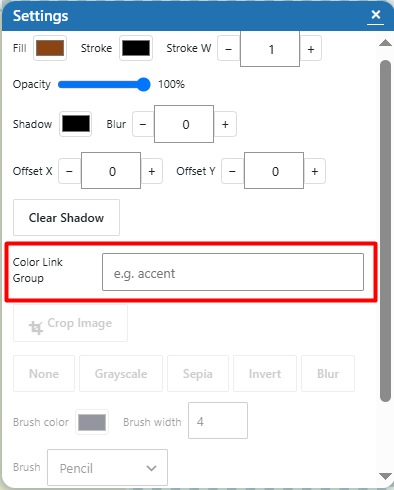
- Color Link Group: Links the object’s color with other objects that share the group name, for example accent.
- Crop Image: Crops an image object.
- Image filters: Apply None, Grayscale, Sepia, Invert, or Blur to an image object.
- Brush color, Brush width, and Brush: Set how drawings look. The default brush is Pencil.
Tip: Lock the objects you want to keep fixed. Customers cannot change locked objects on the storefront.
How to link colors in a design template?
↑ Back to top- Select an object.
- Click Settings.
- Enter the same name in the Color Link Group on every object that should change together.
- Click Update.
Note: Color Linking must be enabled in the Customization tab. See Customization Settings.
How to group design templates?
↑ Back to topUse the right sidebar to organize and price your templates.
- Design Template Categories: Tick a category. Click Add Design Template Category to create a new one.
- Order (Post Attributes): Set the order of the template.
- Asset Price: Enter a Price. It is added when customers use the template in the Modern designer, and only if Enable Per-Asset Prices is on. See Pricing Rules.
- Featured image: Shows the template preview image.