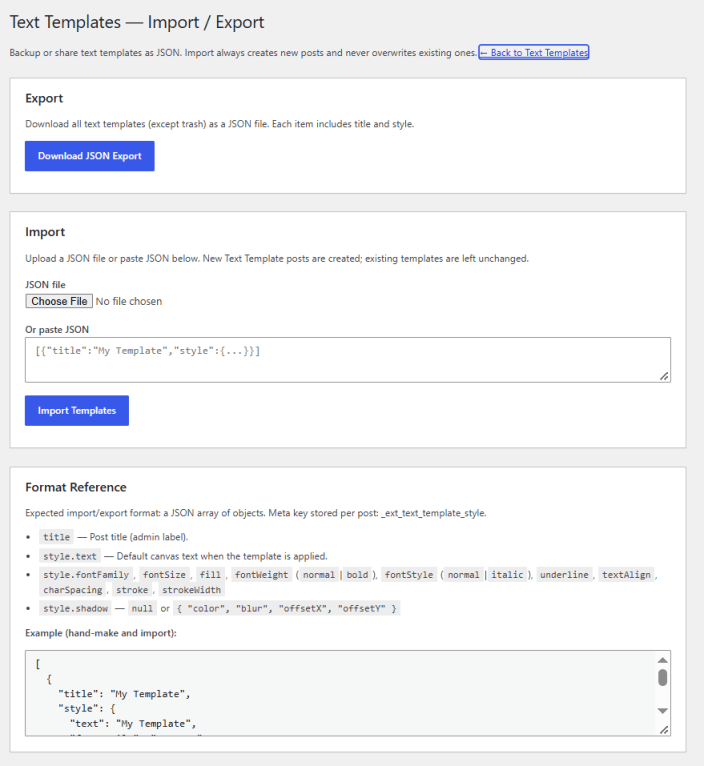
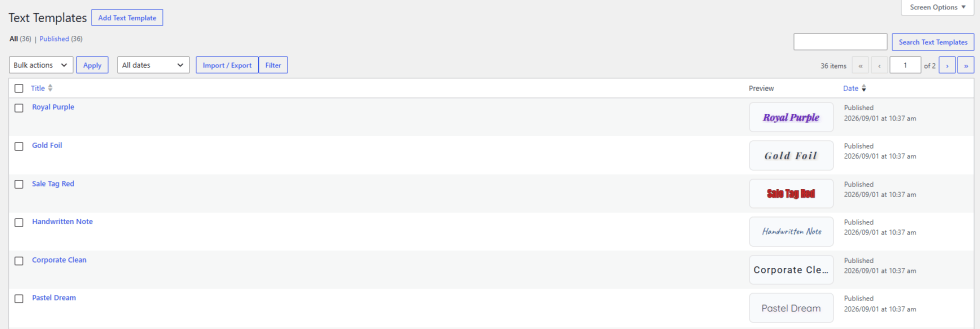
Text templates are ready-made text styles that customers can apply to their text. The plugin comes with a starter set of text templates, so they are available right after activation. You can add your own next to them.
Go to WooCommerce > Text Templates to manage them.
How to add a text template?
↑ Back to topHow to add a text template?
A text template is a saved text style. Customers pick it to style their text in one click.
- Go to WooCommerce > Text Templates.
- Add a new template or edit an existing one.
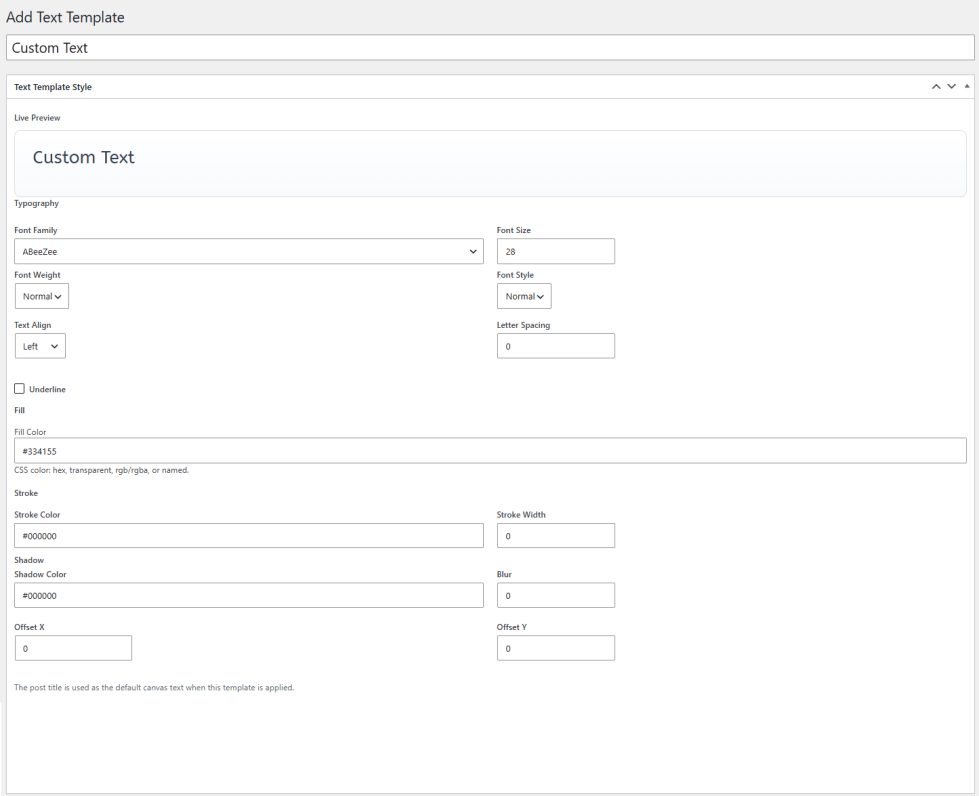
- Enter the template name at the top. The plugin uses it as the default text when the template is applied.
- Set the style options in the Text Template Style box. The Live Preview shows your changes.
- Click Publish or Update.
Typography
- Font Family: The font of the text.
- Font Size: The size of the text.
- Font Weight: Normal or Bold.
- Font Style: Normal or Italic.
- Text Align: Left, center, or right.
- Letter Spacing: The space between letters.
- Underline: Adds a line under the text.
Fill
- Fill Color: The color of the text. Enter a hex code, transparent, an rgb or rgba value, or a color name.
Stroke
- Stroke Color: The color of the text outline.
- Stroke Width: The thickness of the outline. Keep it at 0 for no outline.
Shadow
- Shadow Color: The color of the shadow.
- Blur: How soft the shadow is.
- Offset X: How far the shadow moves sideways.
- Offset Y: How far the shadow moves up or down.
How to export text templates?
↑ Back to top- Go to WooCommerce > Text Templates Import/Export.
- Under Export, click Download JSON Export.
The file includes all text templates except trashed ones. Each item has its title and style.
How to import text templates?
↑ Back to top- Go to WooCommerce > Text Templates Import/Export.
- Under Import, upload a JSON file or paste JSON.
- Click Import Templates.
Note: Import always creates new text templates. It never overwrites existing ones.