Active installs
1K+
Subscription includes
Support
Conditional Checkout Fields & Edit Checkout Fields for WooCommerce, by FMEAddons, gives store owners complete control over the checkout page without a single line of code. Add up to 26 custom field types, edit or hide default WooCommerce checkout fields, apply conditional logic, and assign fields to specific products or categories. Compatible with HPOS, Multisite, and WooCommerce Cart and Checkout Blocks.
Apply conditional logic to show fields based on products, categories, or user roles. You can also use custom fields to upsell services by adding extra charges for options like gift wrapping, priority support, or faster delivery.
Validate EU VAT numbers against the official VIES service and apply reverse-charge exemption automatically, and restrict which payment gateways and shipping methods appear based on field values.
Keep every field accurate with custom regex validation rules and confirm-field matching, and give customers instant feedback as they fill out block checkout. When it’s time to update your store or move to a new site, back up your entire configuration, or export and import individual sections, so your setup is never at risk.
Replace with: Checkout Field Editor for WooCommerce is fully compatible with Cart and Checkout Blocks, including custom sections.
You can choose from 26 different field types to display on the checkout page.
Edit the default WooCommerce checkout page by adding custom fields. Choose from 26 different field types and easily edit, hide, or delete them as needed. You can also apply conditional logic to display fields based on user input, customize field labels and placeholders, and enable validation to ensure accurate data entry.
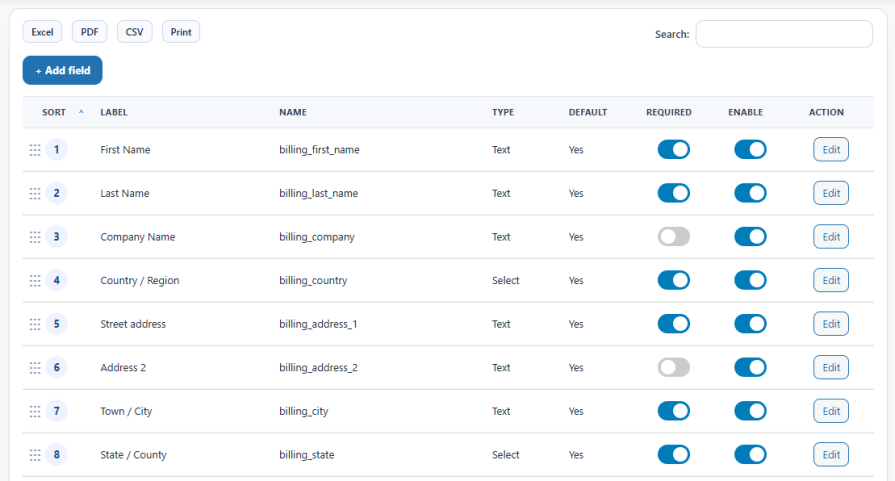
Use the Custom Checkout Field Editor plugin to add new checkout fields or edit existing ones. Rearrange field positions with a simple drag-and-drop interface. Enable or disable custom fields and hide default fields as needed to customize your checkout flow.
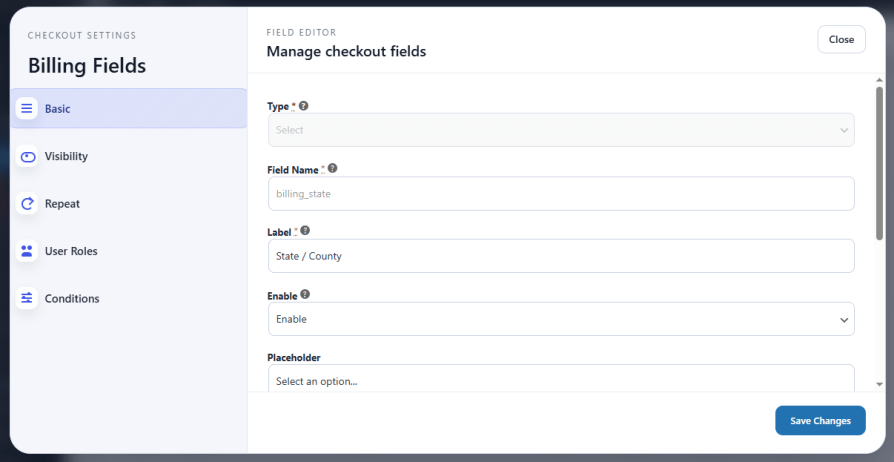
Use the Conditional Checkout Fields plugin to add new checkout fields to apply conditional logic and control when checkout fields appear. Set specific conditions to show or hide custom fields based on user input. The plugin applies an “AND” relationship within each condition group and an “OR” relationship between multiple groups, giving you flexible control over field visibility.
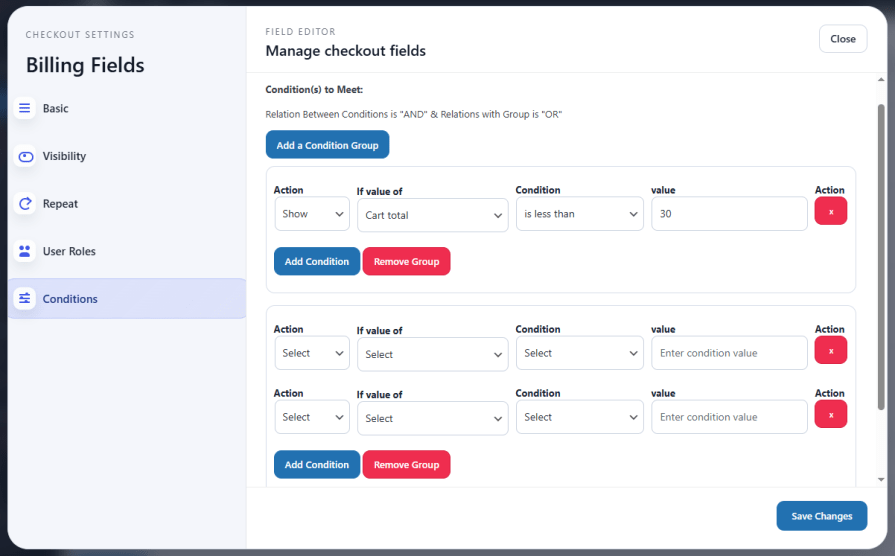
The Conditional Checkout Fields plugin allows admins to add new sections to the checkout page easily. When you click to add a section, a configuration pop-up appears with multiple customization options. You can set the section’s name and title, control its visibility for specific products, categories, or user roles, and apply conditional logic to manage field behavior. Additionally, you can choose where the new section appears on the checkout page, such as:
Custom sections display on both the classic checkout and the block checkout.
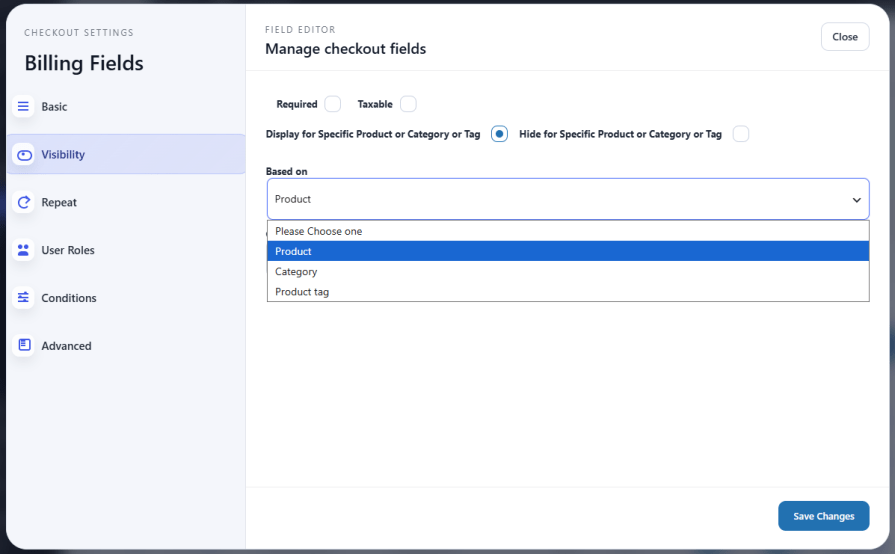
Assign custom checkout fields to specific products or categories to control where they appear. Show or hide fields based on the selected product or category to create a more streamlined and personalized checkout experience for your customers. You can also show or hide fields based on items currently in the customer’s cart or by product tag, giving you more precise targeting than category alone.
Customize every section of the WooCommerce checkout page using the checkout field editor. Add, edit, or remove fields in the billing, shipping, and additional information sections to match your store’s requirements.

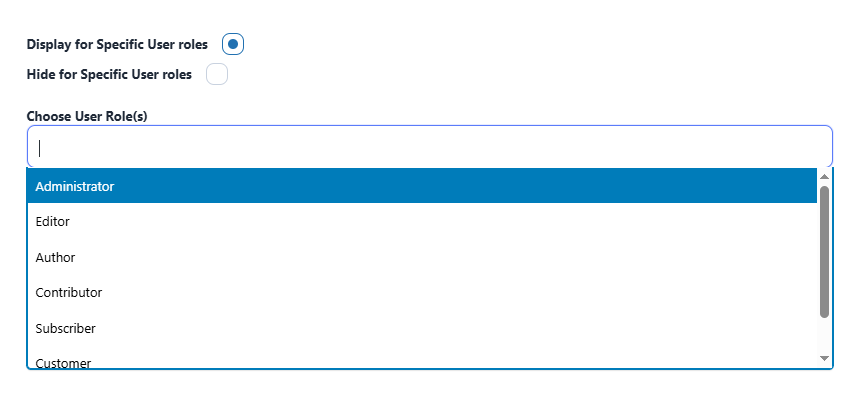
Control the visibility of custom checkout fields based on user roles using the Conditional Checkout Fields plugin. Select one or more user roles, such as customer, subscriber, or administrator, and define whether to show or hide specific fields for each role. This helps you create tailored checkout experiences by displaying only the relevant fields to different types of users.
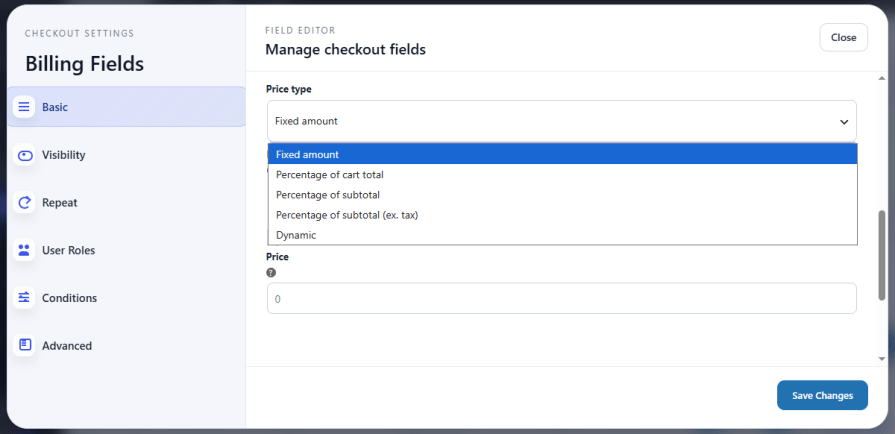
Set a price for each custom checkout field with the Conditional Checkout Fields plugin. Charge additional fees when customers select paid add-ons, such as gift wrapping or priority support, and increase your store’s revenue through field-based pricing. Choose between fixed, percentage-based, or dynamic pricing for each field to match how you want to charge for optional add-ons.
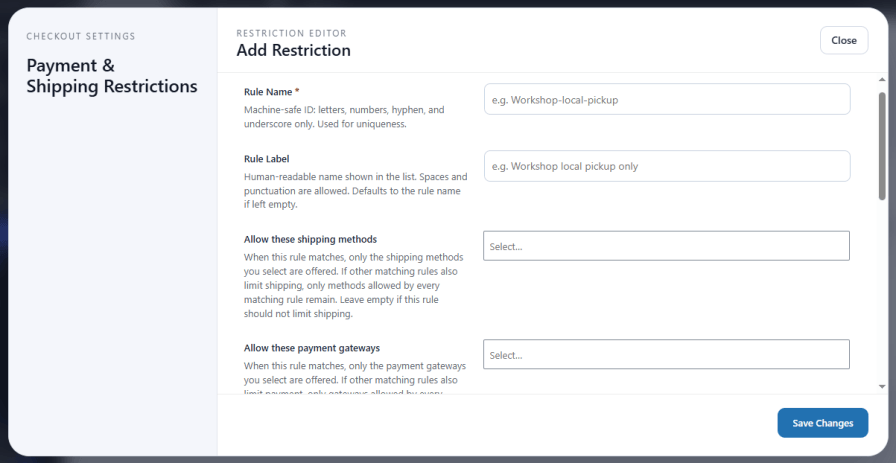
Control which payment gateways and shipping methods a customer can use based on what they enter at checkout. Create rules that keep cash on delivery off high-value orders, offer local pickup only for certain purchases, or limit business customers to bank transfer. Each rule works as an allow list, so only the options you select stay visible when the rule matches, and conditions use the same AND and OR logic as the rest of the plugin.
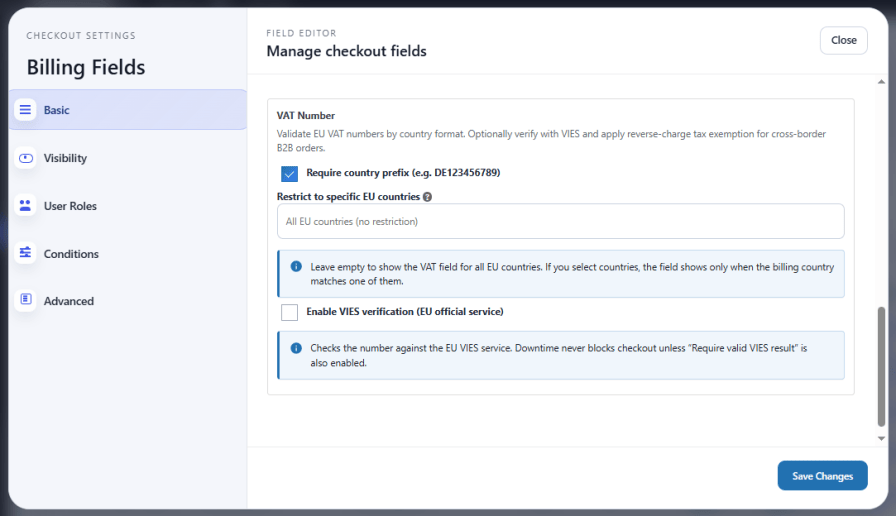
Add a dedicated VAT Number field that checks each entry against the correct format for the customer’s country. Verify the number against the EU’s official VIES service, and restrict the field to the EU countries you sell in. When a verified number belongs to a different EU country from your store, the plugin removes VAT from the order automatically under the reverse-charge rules. Domestic orders are never exempted, and you decide whether a VIES outage blocks checkout or lets the order through.
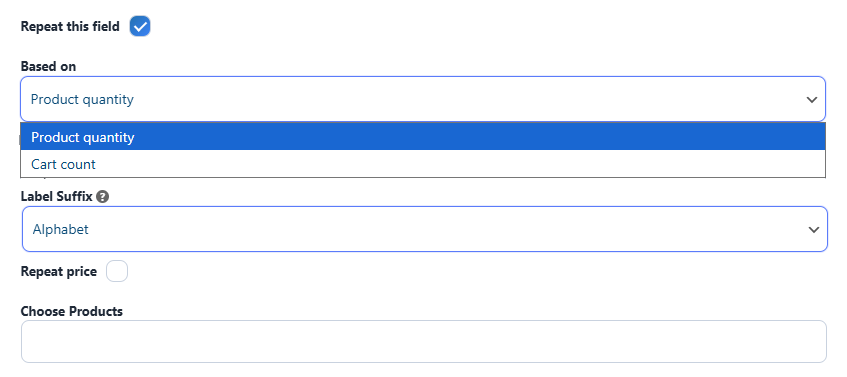
Repeat checkout fields based on product quantity or cart item count using the Checkout Field Editor. For example, if the cart has five items, the plugin displays the selected field five times during checkout. You can define a label suffix using numbers or letters and apply repeated field pricing to charge per instance.
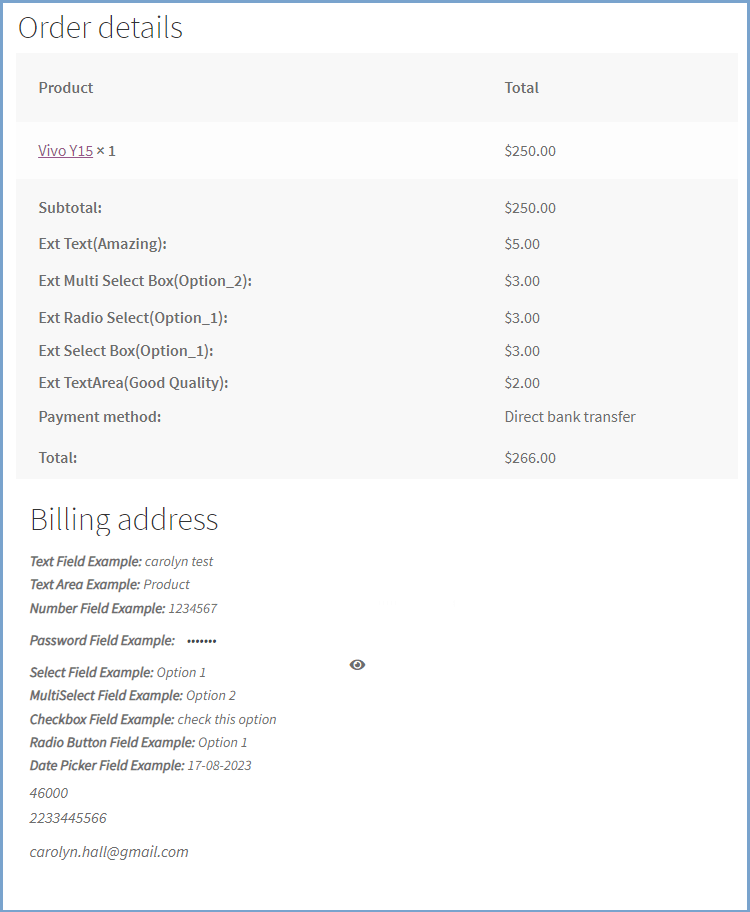
Control the visibility of custom checkout fields across multiple locations using simple checkbox options. Display additional fields on the order details page, the My Account page, and invoice emails. Manage where each field appears to ensure customers and store admins see the right information at the right time.
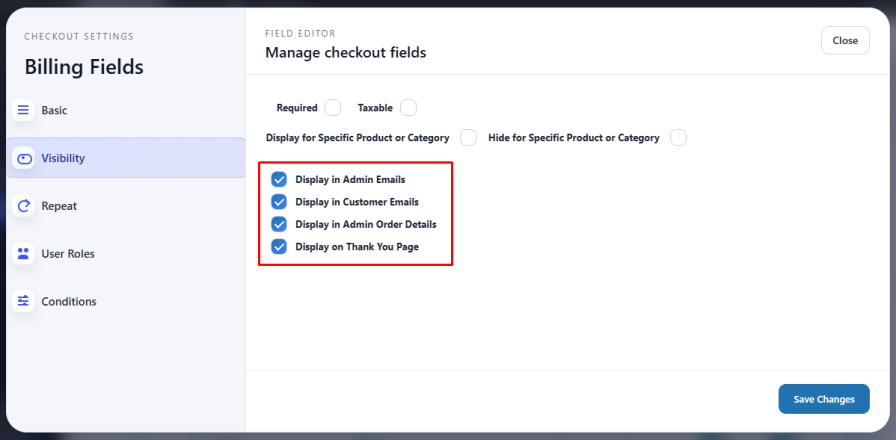
For each custom field, you can control where the collected data appears after checkout. Enable display in admin order emails, customer confirmation emails, the WooCommerce order details screen, or the Thank You page. Each location is controlled independently per field.
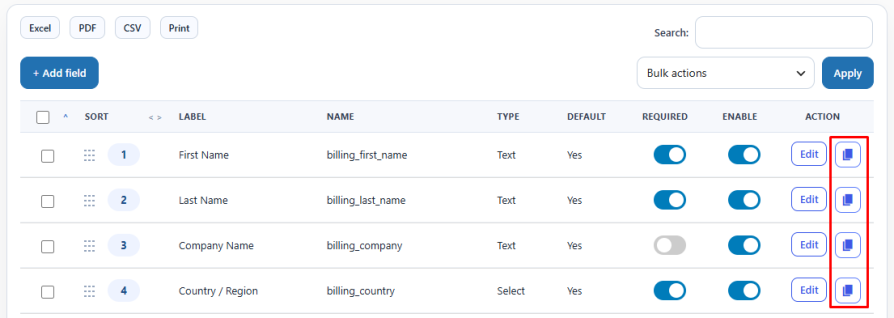
Save time when creating similar fields using the one-click Duplicate Field button. Clone any existing field along with all its settings, including label, validation rules, conditional logic, and pricing, then adjust only what’s different instead of building it from scratch.
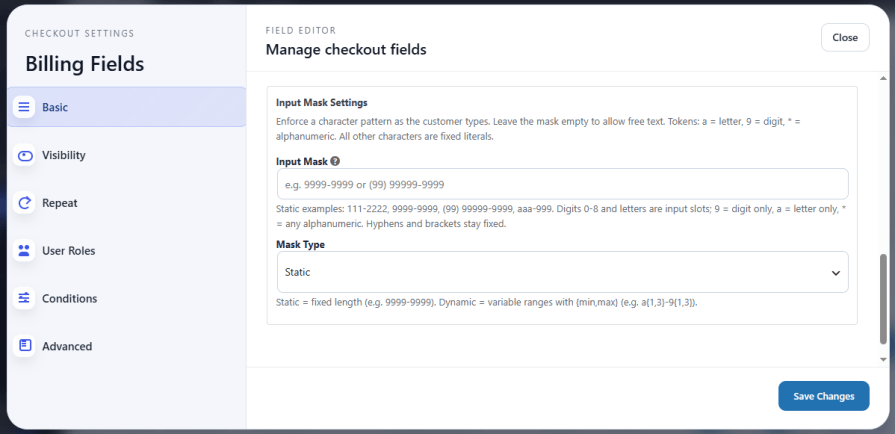
Guide customers toward the correct format using configurable input masking on text and telephone fields. Define character patterns for the field so entries follow a consistent structure, reducing invalid submissions and formatting errors at checkout.
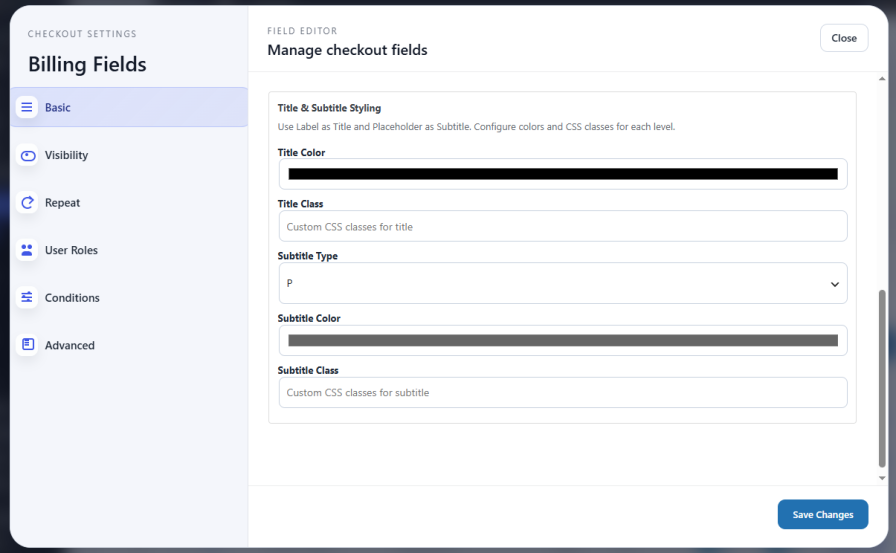
Match your store’s branding by styling Heading, Label, and Paragraph fields with subtitles, custom colors, and HTML elements. Customize how these fields look and read to keep the checkout page visually consistent with the rest of your site.
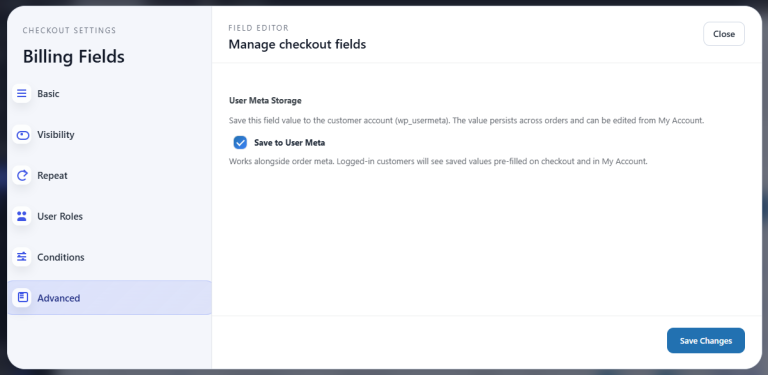
Let returning customers skip re-entering information at checkout. Enable this option on any custom field to save its value to the customer’s account and automatically pre-fill it on their next order.
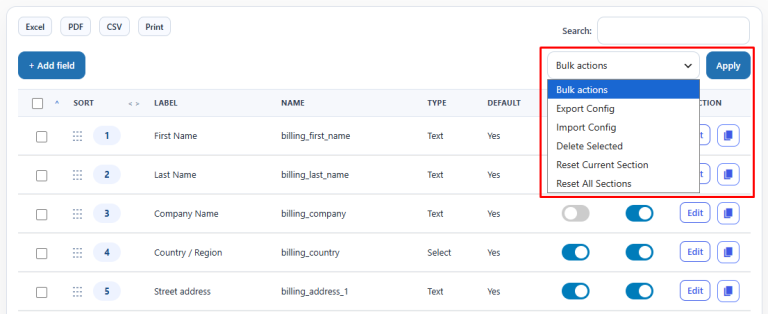
Manage checkout sections faster with bulk actions. Import or export section configurations to reuse across stores, or reset a section back to default with a single click.
Every custom field you create can carry its own validation. Choose a built-in format rule, one of your saved regex rules, or a confirm-field rule directly from the field editor. Leave it on the default setting, and email, phone, URL, and password fields still validate automatically; assign a rule, and it takes over instead. Only one rule applies per field, and if the field also uses an input mask, the mask handles formatting on its own.
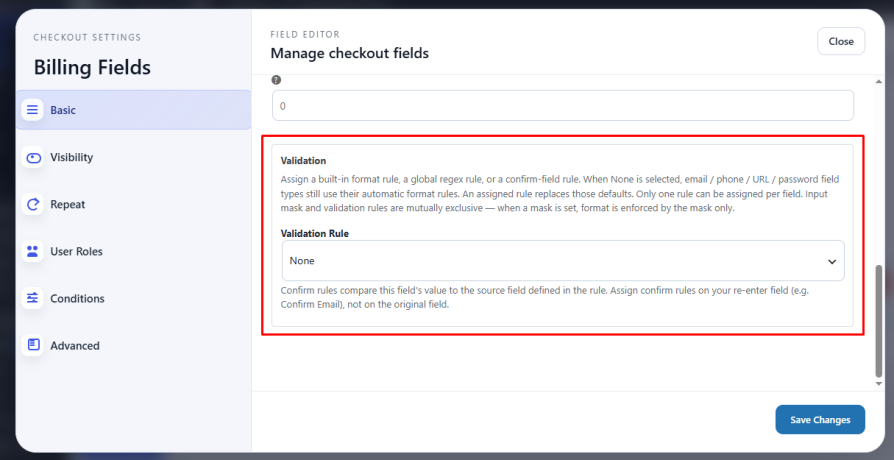
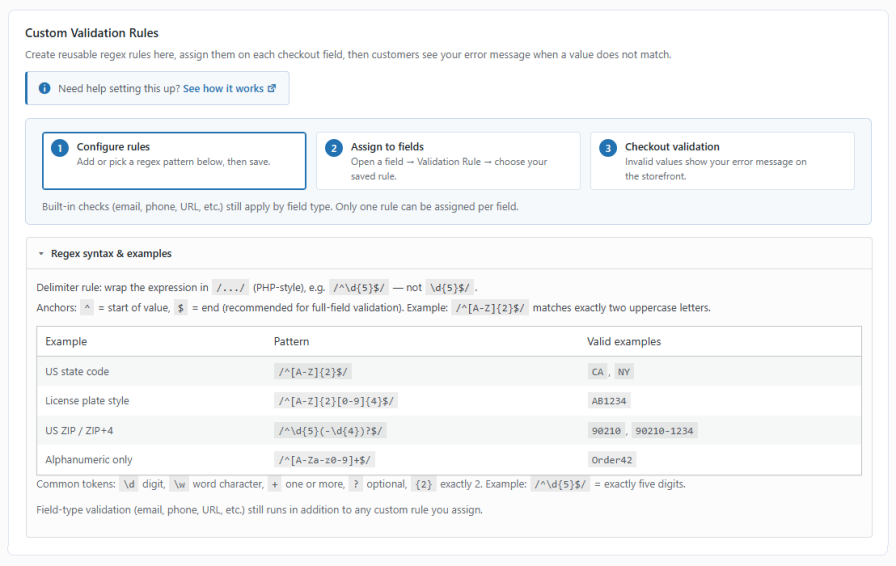
Go beyond built-in field validation with your own custom rules. Write a regex pattern, or pick one from a built-in library covering common formats like postal codes, national ID numbers, phone numbers, tax and finance identifiers, and general-purpose patterns, then assign it to any checkout field along with your own error message. Test every rule against a sample value with a live preview before it ever reaches your storefront, so you know exactly how it will behave.
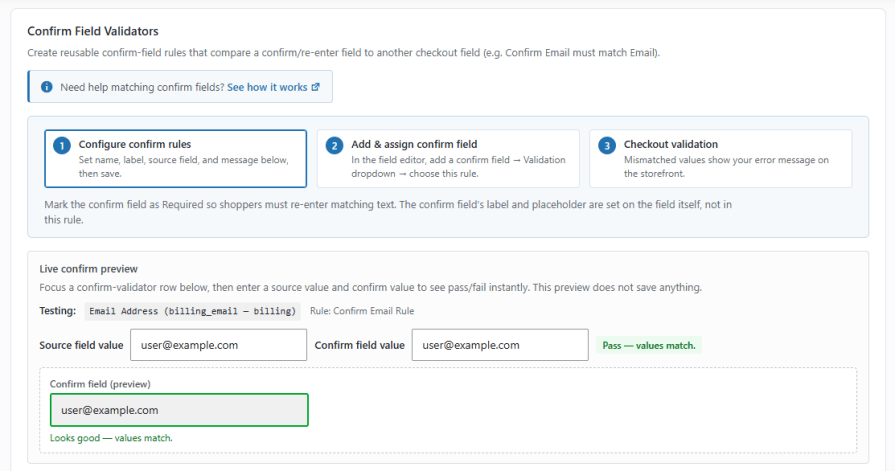
Make sure customers enter matching values in fields like Confirm Email or Confirm Phone. Set up a confirm-field rule that compares a re-enter field against its original, and customers see your custom error message the moment the two don’t match. A live preview lets you test the match before saving.
Give customers real-time feedback as they move through block checkout. When inline validation is enabled, custom fields validate as soon as a customer leaves the field, instead of waiting until they submit the order, catching mistakes earlier and keeping checkout moving.

Export your entire field editor setup, every section, every field, and every label, as a single backup file. Restore it in one click before a major update, or when migrating to a new site, so your checkout configuration is never at risk.

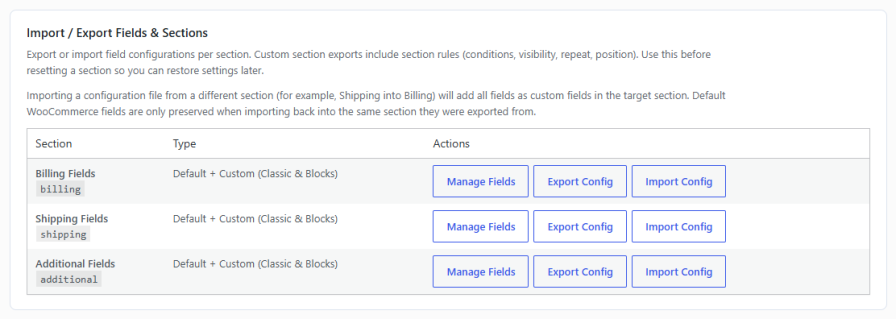
Export or import field configurations for Billing, Shipping, or Additional Fields individually. Custom section exports carry over their rules, conditions, visibility, repeat, and position, so you can safely reset a section knowing you can restore it later.
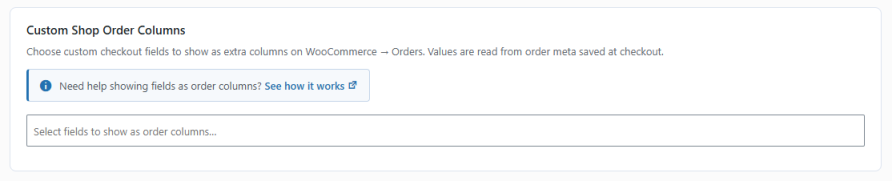
Add any custom checkout field as its own column on the WooCommerce Orders screen. Field values are pulled straight from the order data saved at checkout, giving your team visibility into custom field responses without opening every order individually.
Our plugins are designed to be highly versatile and also compatible with the most commonly used themes, browsers, builders, and mobile views. We understand the importance of flexibility and integration when it comes to enhancing your website’s functionality. Our plugins can effortlessly integrate with the following:
Looking for assistance? Check out the extensive documentation for a complete understanding of the Conditional Checkout Fields plugin.
View documentation
For Questions and Support: If you have inquiries before making a purchase or require assistance, don’t hesitate to contact our support team.
A WooCommerce checkout field editor is a plugin that lets you add, edit, reorder, or remove fields on your WooCommerce checkout page without writing any code. It gives store owners full control over what information is collected from customers at checkout, including custom field types, conditional visibility rules, and section placement.
Yes. The plugin is fully compatible with WooCommerce Cart and Checkout Blocks. You can add and manage custom checkout fields on both the classic shortcode-based checkout and the newer block-based checkout introduced in recent WooCommerce versions.
Yes, you can apply conditional logic to show or hide fields based on user input. The plugin supports “AND” conditions within a group and “OR” between multiple groups.
Yes, you can assign checkout fields to specific products or categories to control when and where they appear during checkout.
Yes, you can control field visibility by user role, such as customer, subscriber, or administrator, to tailor the checkout experience.
Yes, the plugin allows you to assign a price to any checkout field, enabling you to charge additional fees for options like gift wrapping or faster delivery.
After installing the plugin, go to WooCommerce > Checkout Fields in your WordPress dashboard. From there, select the section you want to add a field to (Billing, Shipping, or Additional Information), choose a field type from the 15 available options, configure the label, placeholder, and validation rules, and save. The field will appear on your checkout page immediately, no coding required.
Yes, the plugin supports repeating fields dynamically based on product quantity or cart item count. You can also define label suffixes and apply per-instance pricing.
Custom field data can be displayed on the order details page, the My Account page, and in invoice emails based on your configuration.
No, the plugin is designed for non-technical users and does not require any coding knowledge to add, edit, or manage checkout fields.
Yes. The conditional logic feature lets you show or hide any checkout field based on which products or categories are in the customer's cart, the customer's user role, or the values entered in other fields. You can combine multiple conditions using AND logic within a group and OR logic between groups.
The default WooCommerce Checkout Field Editor supports a limited set of field types and basic field management. This plugin extends that significantly with 15 field types, conditional logic, product and category-based field visibility, user role targeting, field-based pricing (charge extra fees per field selection), repeatable fields based on cart quantity, and display control across order details, My Account, and invoice emails.
Yes. The plugin is compatible with WPML, allowing you to translate custom checkout field labels, placeholders, and other text into multiple languages for multilingual WooCommerce stores.
Extension information
Quality Checks
Countries
Languages