Active installs
400+
Product comparison
Subscription includes
Support
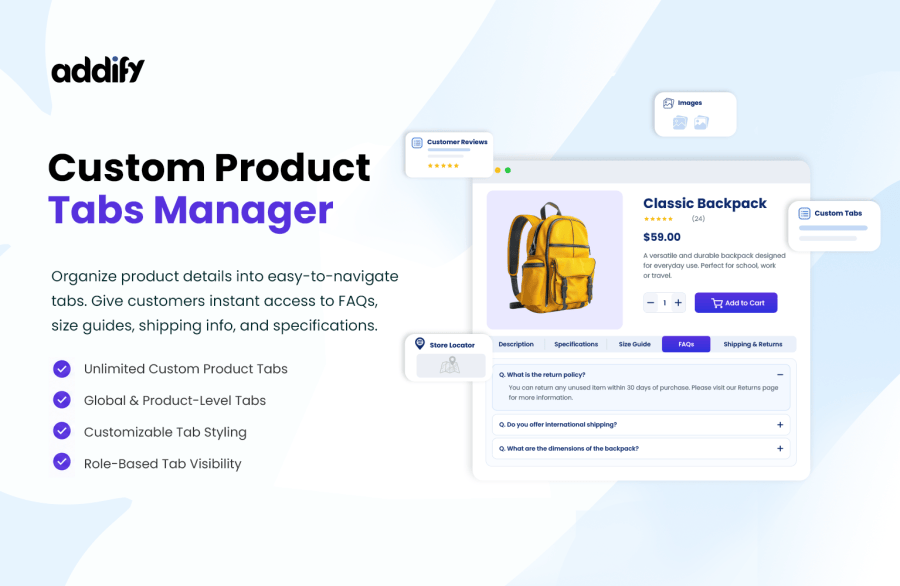
WooCommerce Custom Product Tabs Manager enables you to add additional custom tabs to your product pages. Organize important information about your products’ features, warranty, policy, use cases, videos, size charts, and other details in multiple professional-looking tabs.
Create unlimited tabs and assign each tab to specific products, categories, customers, and user roles. With the editor functionality, you can add videos, text, FAQs, and any other type of content in custom tabs.
Customize tab sorting order and choose to enable/disable default WooCommerce tabs.
Add Size Guides
Help customers choose right size.
Store Location
Show nearby stores and locations.

Installation Guides
Provide detailed setup instructions.

Warranty Info
Display warranty details & coverage.

Display FAQs
Give Every Product Its Own FAQ Section

Videos & Tutorials
Show More Than Just Product Photos

Customer Reviews
Showcase customer feedback.

Software Products
Display software compatibility details

Certifications
Applicable product certifications

Rental Products
Rental periods, deposits & returns
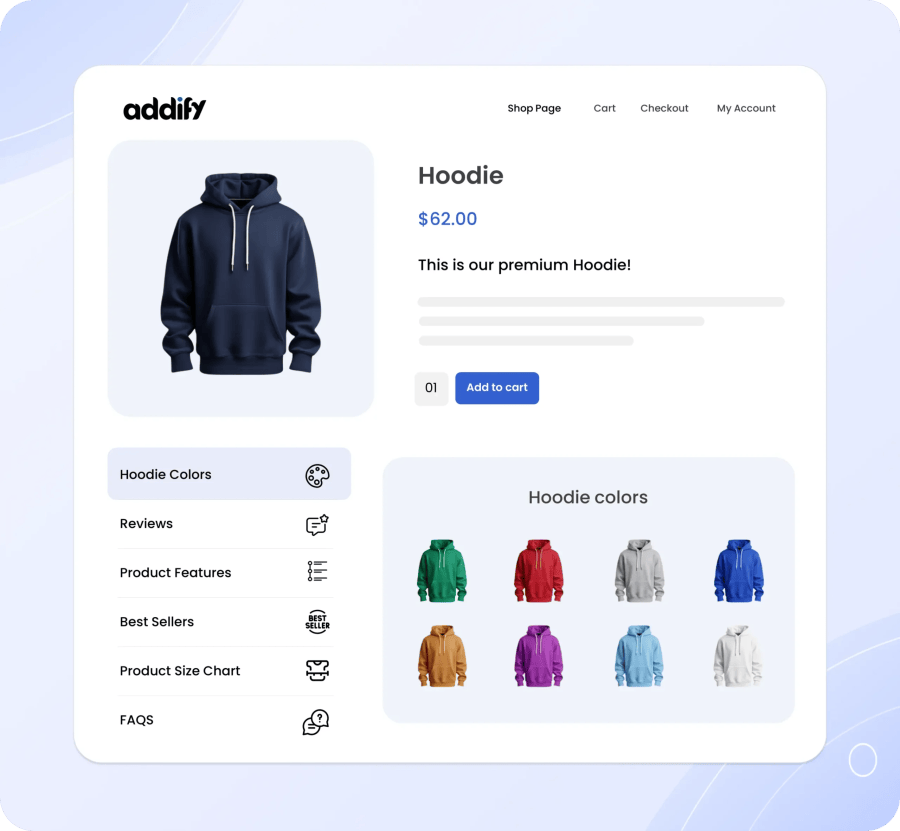
Using the Global rules, you can create multiple tabs and attach them to specific products, categories, user roles, and individual customers.
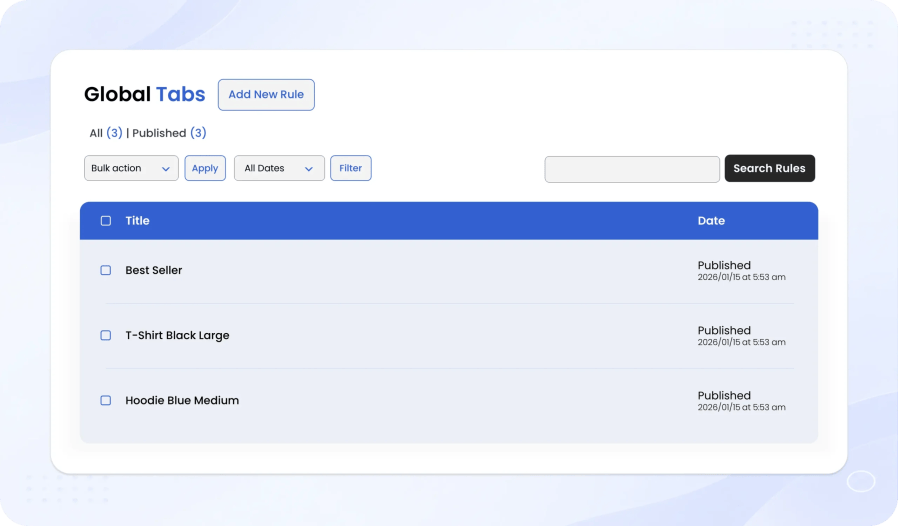
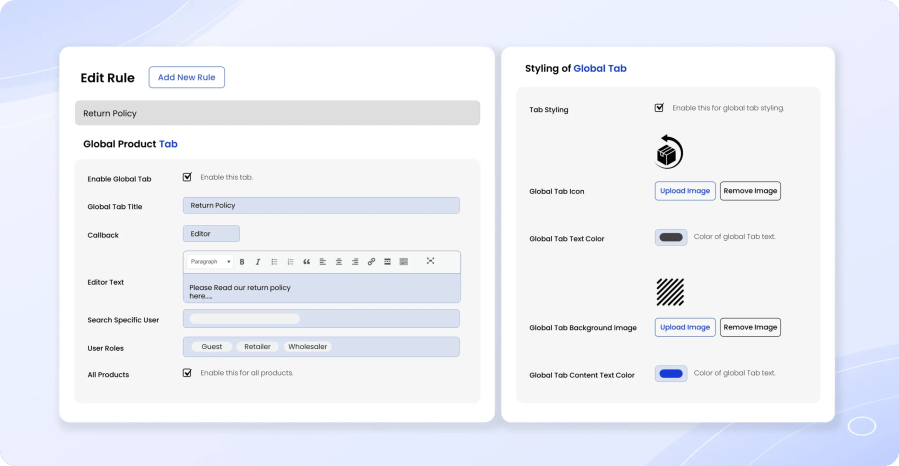
While creating a global tab, you can customize the following settings:
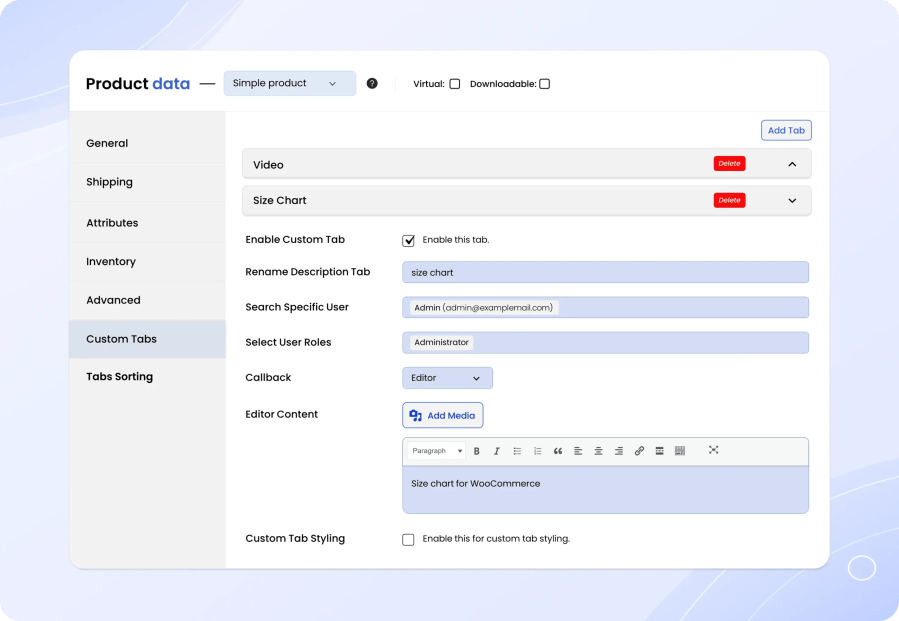
Instead of adding tabs from Global rules, you can add tabs directly from the product edit sheet as well. These tabs will display only on the selected product page. You can add multiple tabs and customize the following options,
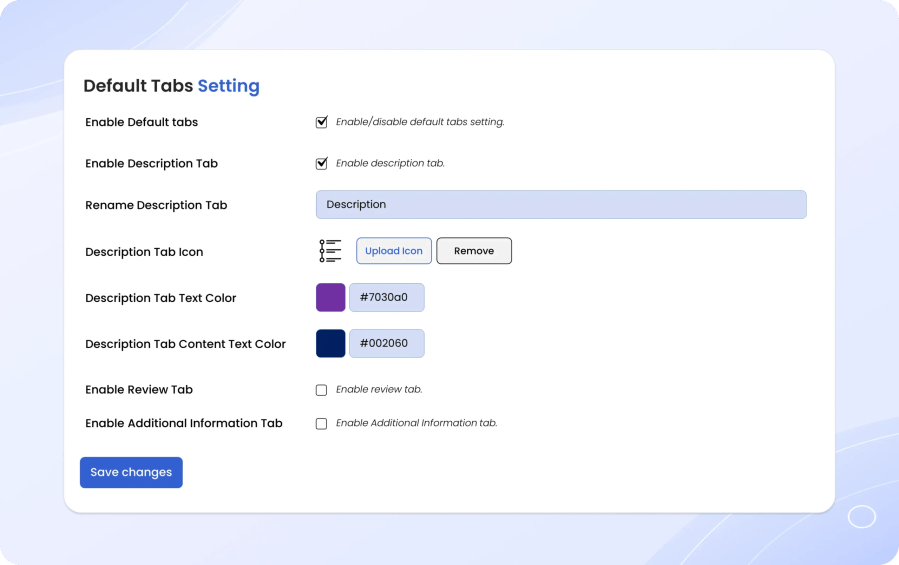
Customize WooCommerce default product tabs including Description, Reviews, and Additional Information. You can enable or disable the tabs across your store, edit tab labels, add content text colors, and assign icons to each tab. These styling options can help you create a consistent product page design and improve the overall shopping experience.
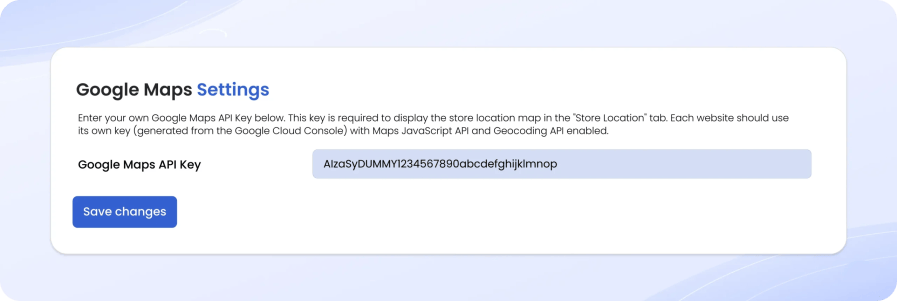
You can add a Google Maps API key to display the store location map in the “Store Location” tab. You can generate the key from the Google Cloud Console and enable the Maps JavaScript API and Geocoding API. For each website, you need to use a separate API key.
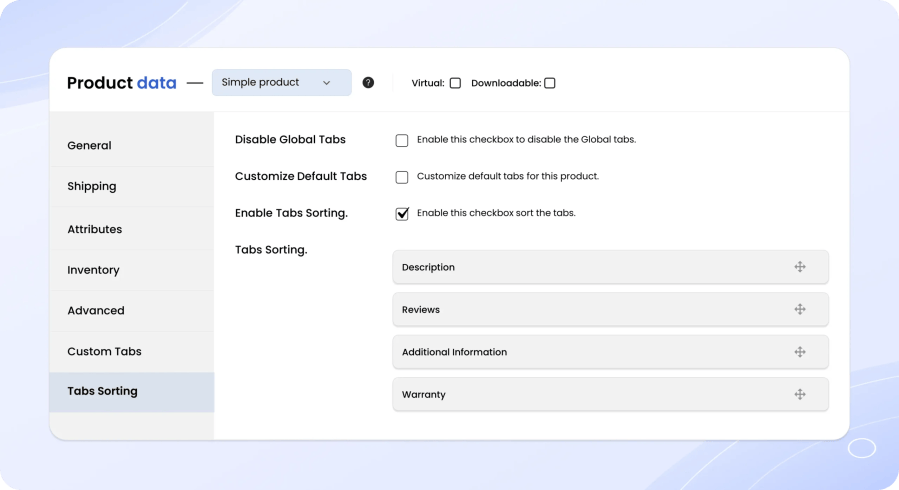
Using Global sorting, you can drag and drop to sort default and custom product tabs under WooCommerce > Custom Product Tab > Tab Sorting.
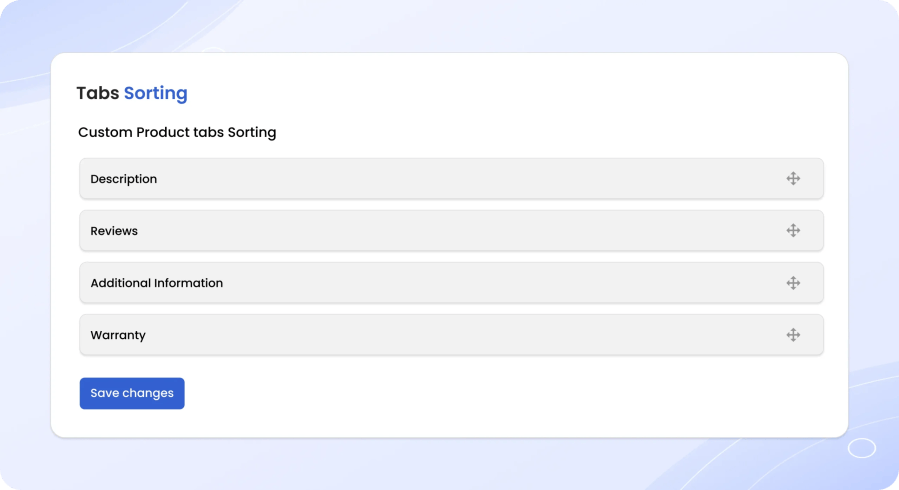
You can also customize tab sorting at the product level, which overrides the global sorting.
Categories
Extension information
Quality Checks
Countries