
Permalinks are the permanent URL structures that organize content on your website, including pages, posts, and WooCommerce products. A clear permalink structure helps customers and search engines find, share, and reference your products. This guide covers how WooCommerce permalink taxonomy works and how to configure permalinks for your products.
On this page, you will learn how to:
- Configure taxonomy permalinks for product categories, tags, and attributes.
- Configure permalinks for WooCommerce products.
Taxonomy permalinks
↑ Back to topThe permalink settings for WooCommerce are located alongside the standard WordPress settings. To access them, go to Settings > Permalinks in your WordPress dashboard.
Keep permalink structures as short as possible and include keywords that relate to the content they categorize.
The Optional section contains three settings that control the base of your WooCommerce product categories, tags, and attributes:
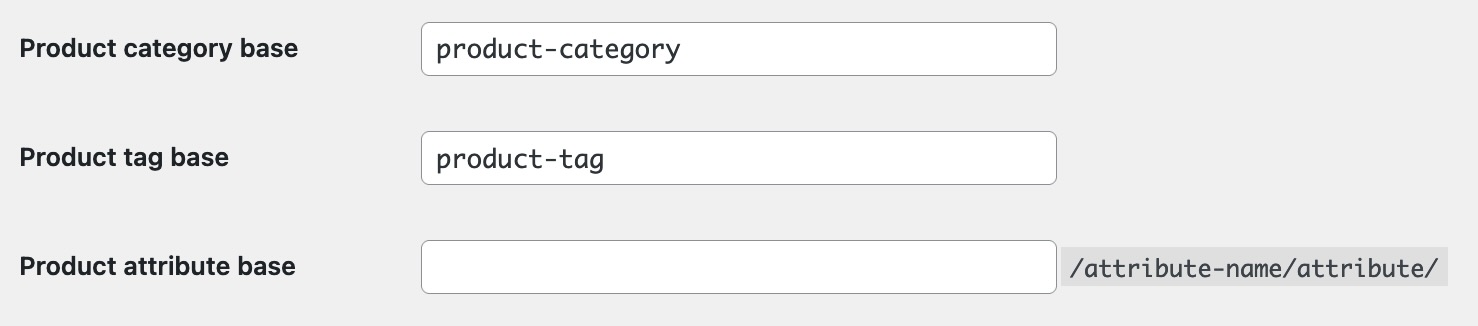
- Product category base — the default product category base is product-category, for example
example.com/product-category/accessories. - Product tag base — the default product tag base is product-tag, for example
example.com/product-tag/casual. - Product attribute base — the default product attribute base is empty, which produces a URL such as
example.com/size/medium. Adding a custom base such as attribute changes the URL toexample.com/attribute/size/medium.
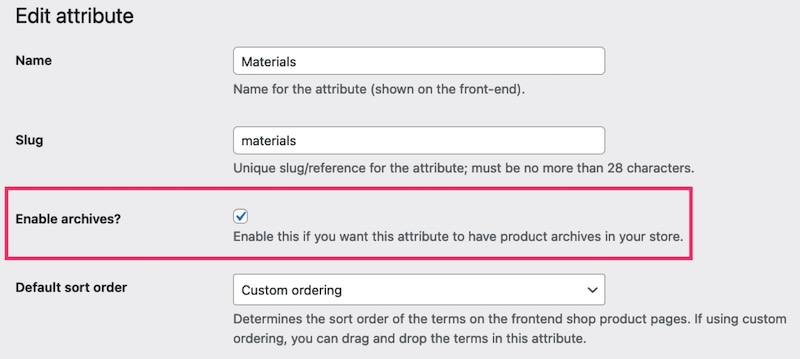
Note: Attributes are only accessible via the Product attribute base URL if Enable archives is turned on for the attribute. To find this option, go to Products > Attributes, click the attribute name, and toggle Enable archives on.
Product permalinks
↑ Back to topYou can choose from four permalink base options for your products. To configure these, go to Settings > Permalinks in your WordPress dashboard and scroll to the Product permalinks section.
The following options are available:
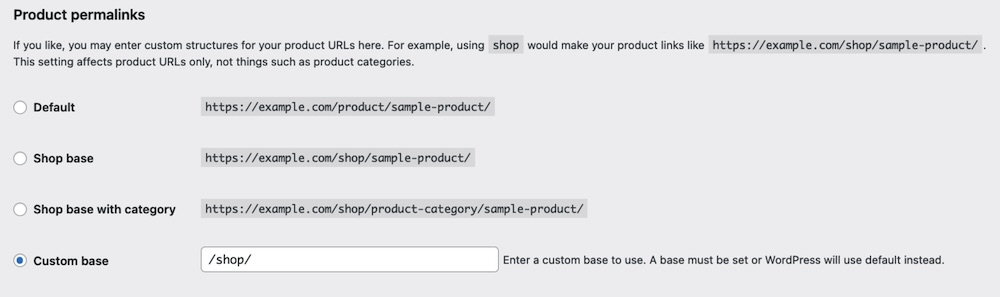
- Default — the only option available when using plain permalinks. It relies on ID-based URLs, for example
example.com/?product=111. If you use any non-plain permalink structure, the product base becomesexample.com/product/hoodie-with-logo. - Shop base — uses the shop page name as the base, for example
example.com/shop/hoodie-with-logo. - Shop base with category — uses the shop page name followed by the product category name, for example
example.com/shop/hoodies/hoodie-with-logo. - Custom base — allows you to set custom text before the product name, for example
example.com/superstore/hoodie-with-logo.
Note: Make sure your Custom base setting does not conflict with the taxonomy permalink settings. For example, if you set the product base to shop, do not also set the product category base to shop. WordPress requires these values to be unique so it can distinguish categories from products.
Save permalink changes
↑ Back to topAfter updating any permalink settings, scroll to the bottom of the Settings > Permalinks page and click Save Changes. WordPress flushes its rewrite rules when you save, which ensures your new URL structures take effect immediately.
If your product pages return 404 errors after a permalink change, go to Settings > Permalinks and click Save Changes again — even without making any edits. This forces WordPress to regenerate its rewrite rules and typically resolves the issue.
Note: Changing permalink structures updates the URLs of existing products. Any previously shared links or search engine indexes pointing to the old URLs will return 404 errors unless you set up redirects.
Questions and support
↑ Back to topDo you still have questions and need assistance?
This documentation is about the free, core WooCommerce plugin, for which support is provided in our community forums on WordPress.org. By searching this forum, you’ll often find that your question has been asked and answered before.
If you haven’t created a WordPress.org account to use the forums, here’s how.
- If you’re looking to extend the core functionality shown here, we recommend reviewing available extensions in the WooCommerce Marketplace.
- Need ongoing advanced support or a customization built for WooCommerce? Hire a Woo Agency Partner.
- Are you a developer building your own WooCommerce integration or extension? Check our Developer Resources.
If you weren’t able to find the information you need, please use the feedback thumbs below to let us know.