Subscription includes
Support
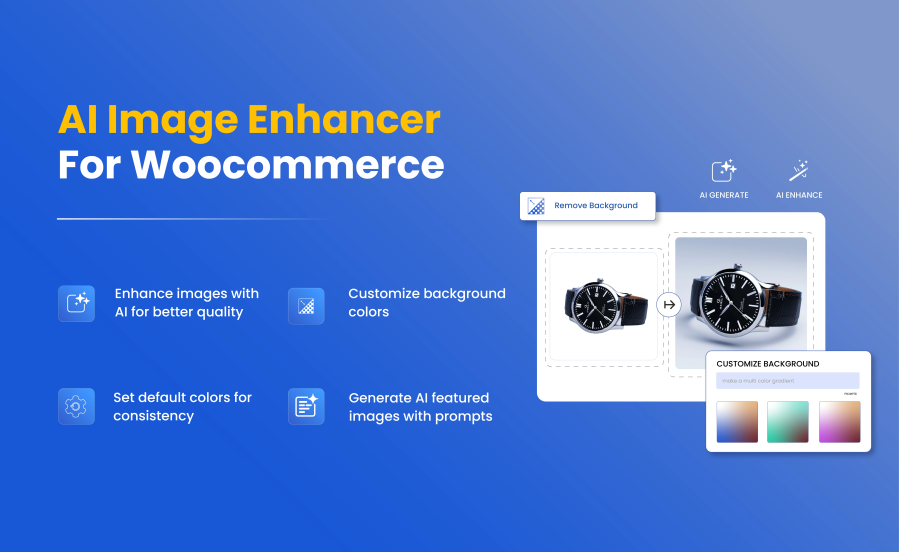
Generate product images from a simple prompt, enhance blurry photos automatically, and transform any background, all with AI.
Create high-quality visuals without any designing skills or extra tools using our powerful feature of Smart AI Image Enhancer for WooCommerce. It allows you to easily enhance existing images, generate new ones using text prompts, or customize backgrounds.By using this, you can improve image sharpness, lighting, and overall quality without affecting the original look. Fix low-quality visuals to keep your product listings clean, professional, and consistent. Additionally, you can manage everything from your WooCommerce dashboard without leaving the page and keep track of all enhancements.
Enhance Image QualityImprove sharpness, brightness, and clarity automatically using AI. |
Generate AI ImagesCreate high-quality product visuals instantly using AI prompts. |
Customize BackgroundChange colors, replace or remove backgrounds for better branding. |
AI Model SupportSupports OpenAI and Gemini for image generation and enhancement. |
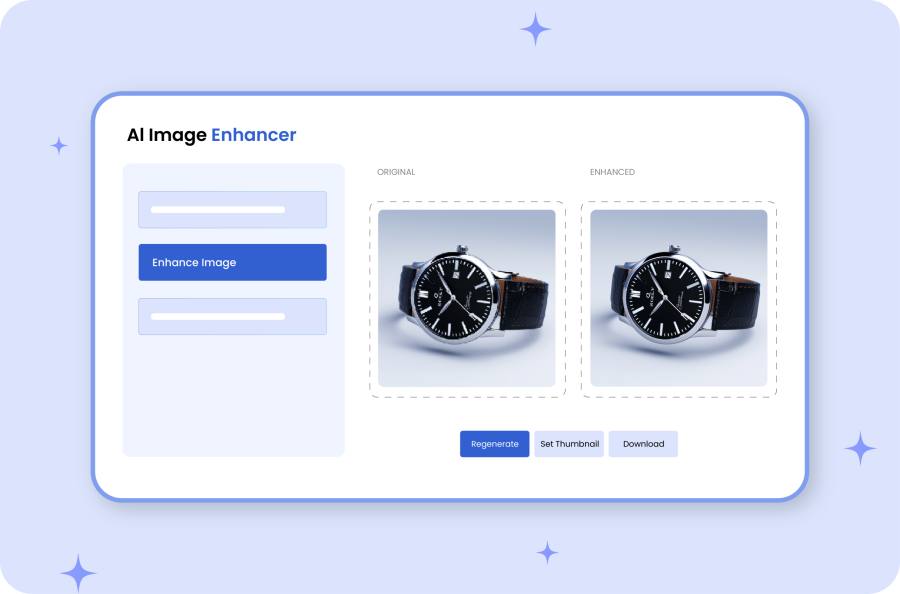 |
Enhance WooCommerce & WordPress ImagesEasily enhance new and existing images of both WooCommerce and WordPress using the AI image enhancer. Simply upload the image, and the plugin will automatically sharpen details, correct exposure, boost color accuracy, and upscale image quality all without manual editing. Additionally, you can also enhance:
|
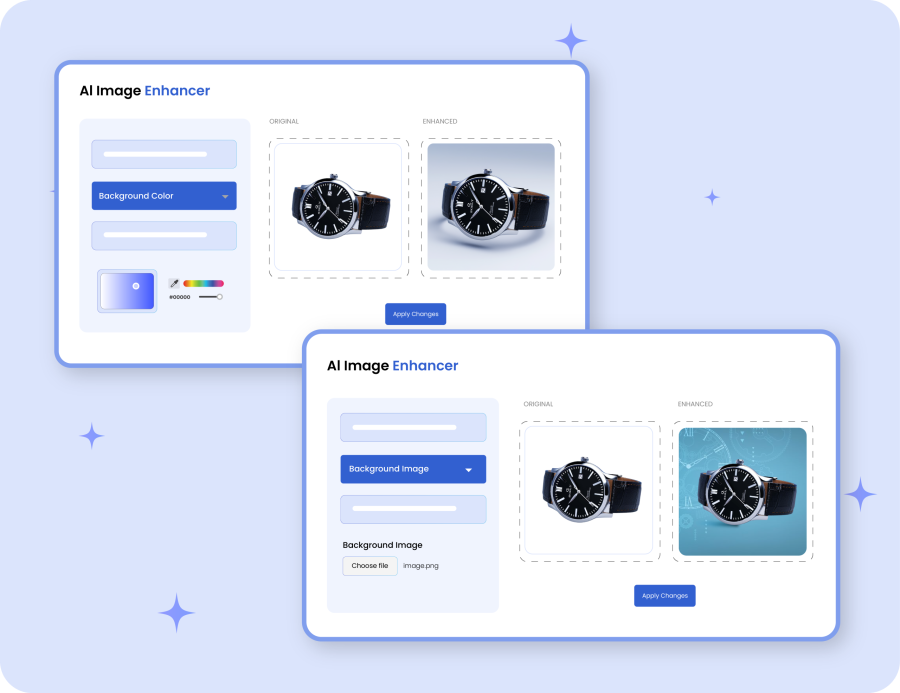
Change Image Backgrounds or Colors with AIThe right background can make your product stand out and feel more trustworthy. With AI-powered customization, you can:
|
 |
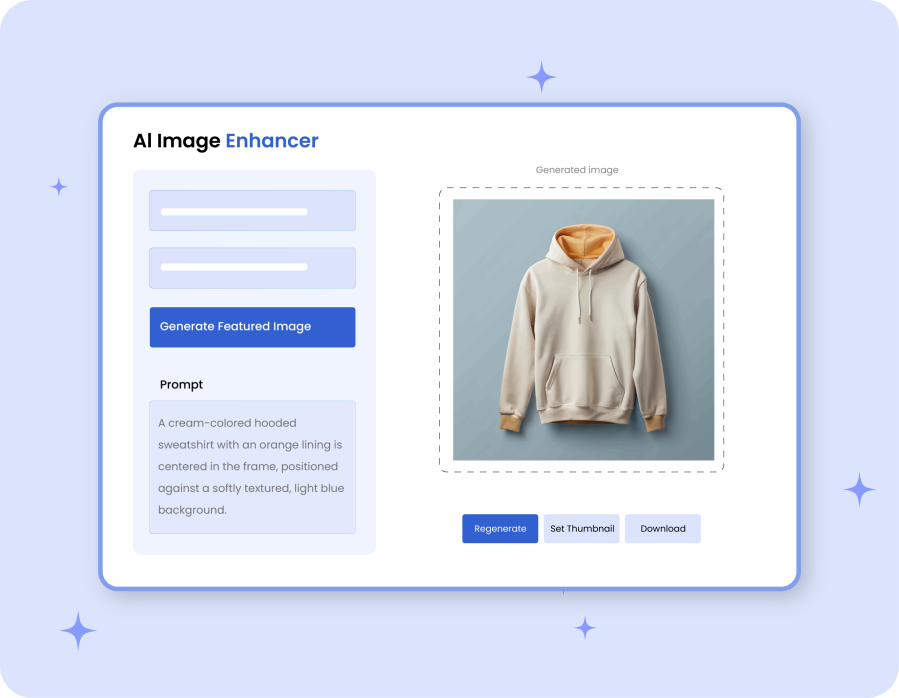 |
AI Image Generation from Text PromptsUse this extension to generate high-quality product images instantly. Simply describe how you want your product to look, choose your preferred AI model, and create multiple featured images in just a few clicks. |
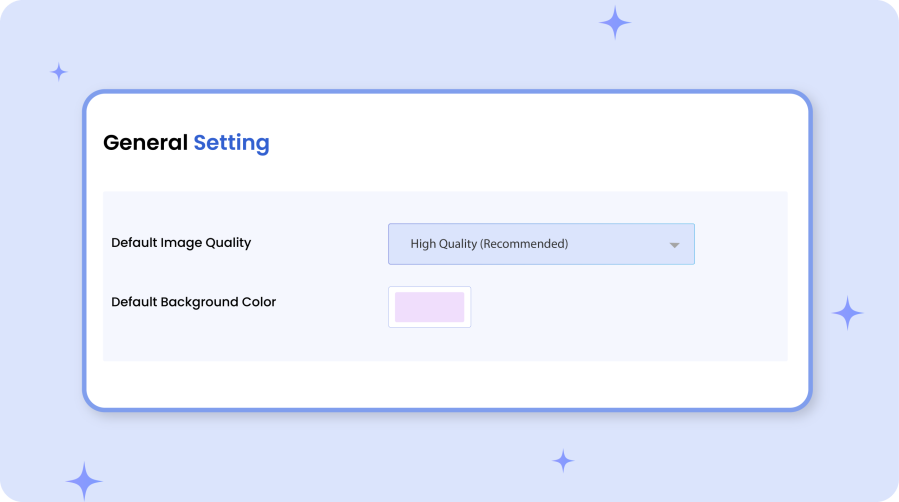
General Settings & ConfigurationAI for WooCommerce offers flexible settings that give you full control over how the image enhancer works across your store. |
 |
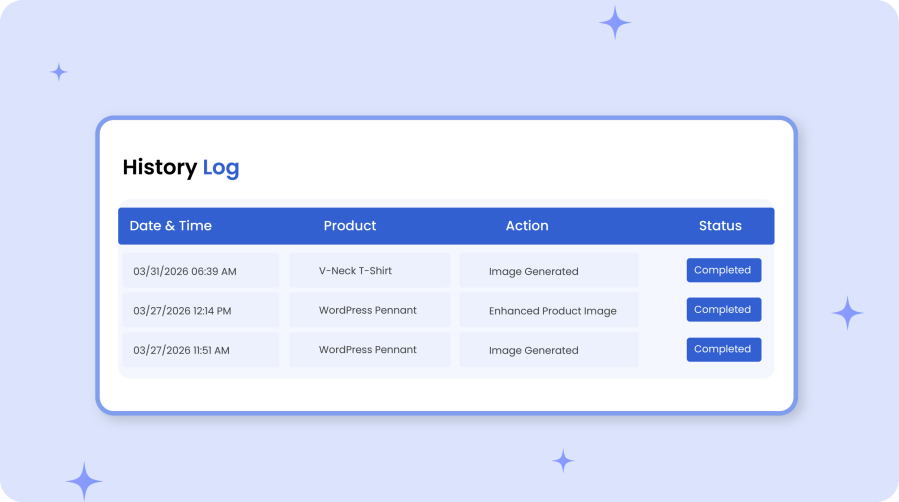 |
Activity Logs & ReportingMaintain and track detailed activity logs including:
|
After choosing your AI model, enter its corresponding API key. The plugin will automatically verify the key and display a green checkmark once successfully connected. Moving forward, all actions you perform, such as enhancing images, generating new ones, or changing backgrounds, are securely generated through the selected AI service.
Every action performed by the AI is recorded in the Logs section. Each entry includes:
These logs allow you to easily track all AI activity, monitor performance, and troubleshoot any issues that may arise.
The prompt field allows you to tell the AI exactly what kind of image you want to generate. You can describe the product, its background, the camera angle, the mood, the style, and its purpose. The AI uses this information to create an image tailored to your instructions. For the best results, keep your descriptions clear and detailed, and avoid using brand names or copyrighted terms.
The default image quality setting determines how the AI processes your images by default. When set to High Quality (recommended), the AI produces clearer, sharper, and more detailed images. Please note that high-quality processing may take slightly longer than lower-quality options. Once saved, this setting will automatically apply to all products unless you manually override it for a specific item.
The API costs depend entirely on your usage. Our extension connects directly with AI providers using your own API keys, meaning you only pay for exactly what you use based on the volume of data and requests processed.
To see detailed pricing tiers, token costs, and plan options, you can view the developer pricing articles directly on Gemini here and OpenAI here.
Note: We do not add any markup or hidden fees to these costs; you are billed directly by the respective AI providers according to your usage.
Quality Checks
Countries