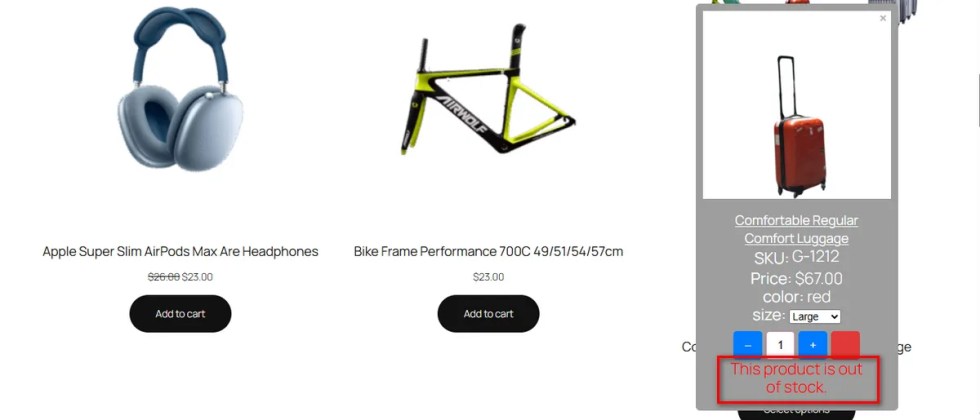
Generic notifications feel robotic. “Product added” doesn’t exactly spark joy or confirm the specific action clearly.
It leaves the interaction feeling cold and transactional.
You want to speak your customer’s language.
This field allows you toconfigure the add to cart success message text.
Change the default text to something engaging like “Great choice! It’s in your bag.” or “Got it! Added to cart.”
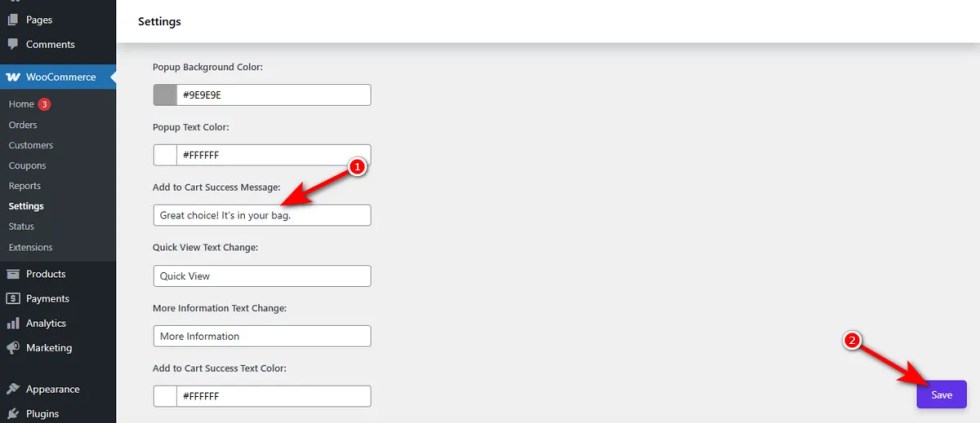
This small customization adds personality to an otherwise boring system alert.
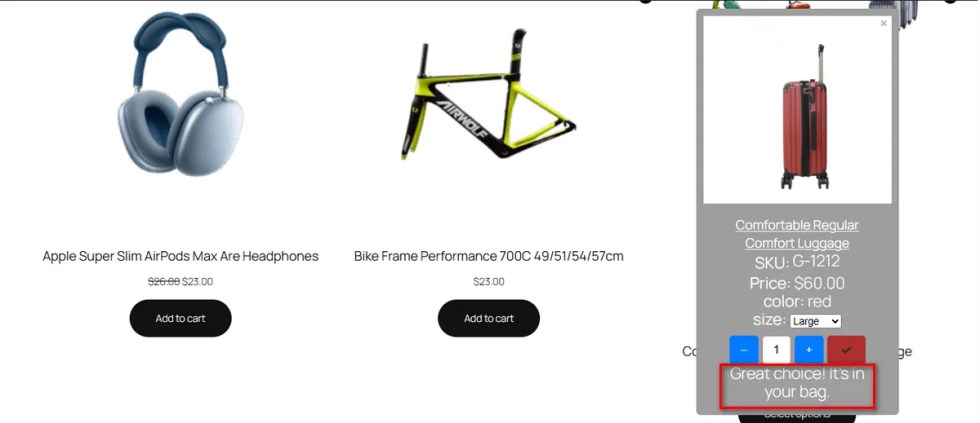
Add to Cart Success Text Color Customization
↑ Back to topFeedback must be visible to be effective. If your success message blends into the popup background, the user won’t see it. They might click the button again, adding duplicates to their cart. This leads to frustration at checkout.
You need clear, high-contrast confirmation.
This setting allows you to change the add to cart success text color.
Select a color that stands out. Whether it is a vibrant green or a bold brand color, ensure the user knows immediately that their action was successful.
Add to Cart Success Text Color
↑ Back to topSuccess messages vanish into the background if the color is wrong.
If buyers cannot read the confirmation, they get confused. They might click the buy button multiple times. This results in duplicate items and a frustrating checkout experience.
You need a clear, readable text color. Variation Monster lets you easily change the add to cart success text color. You can pick a shade that pops against your popup background.
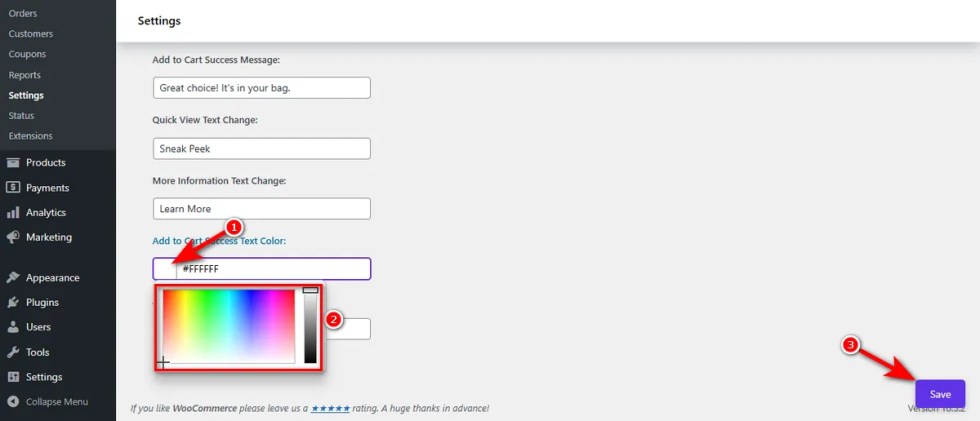
Here are the steps to adjust it:
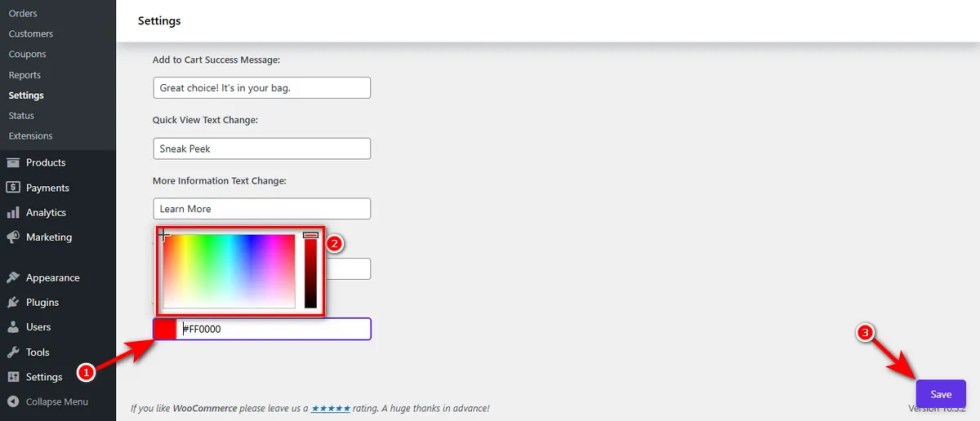
- Find the “Add to Cart Success Text Color” input field in your settings.
- Type a specific hex code or use a visual color picker tool.
- Click the ‘Save’ button.
Add to Cart Failed Text Color
↑ Back to topErrors happen. Sometimes a product variation goes out of stock right as a user clicks the buy button.
If the error message blends into the popup background, the shopper misses the alert completely.
They assume your website is broken. They keep clicking the button in frustration. Eventually, they abandon their cart entirely.
Confusion destroys trust. You need to alert them instantly so they can pick a different option.
This setting allows you to change the add to cart failed text color. Pick a shade that screams for attention.
Here is how to set up your error alerts:
- Scroll down to the “Add to Cart Failed Text Color” field in the settings menu.
- Enter a highly visible hex code (or use the visual color picker).
- Hit the ‘Save’ button.
Here’s how it appears inside the carousel popup.