
Looking to use a physical scanner in Point of Sale (POS) mode? Check out our documentation here.
The WooCommerce Mobile App supports the most widely used barcode formats on both Android and iOS platforms.
This powerful tool streamlines your workflow by allowing you to create new orders directly from the Orders screen. Add products to orders during the order creation process, and quickly locate products from the products screen.
Note: The mobile app’s barcode scanner now works with codes added to either the SKU field or the GTIN, UPC, EAN, and ISBN field, in a product’s Inventory tab. The GTIN, UPC, EAN, and ISBN field is newer, and a better choice for all stores, especially if you use standard retail barcodes. If you use the new field, SKU can be used for a human-readable identifier instead.
Barcodes can be set for both products and variations. For formats that use a check digit or country code, such as GTIN, UPC, EAN, and ISBN, enter the complete barcode. An ISBN-10 check digit can be the letter X. Include it as the final character, for example 157249042X. The field accepts uppercase or lowercase X and saves it as entered. Other letters are not accepted.
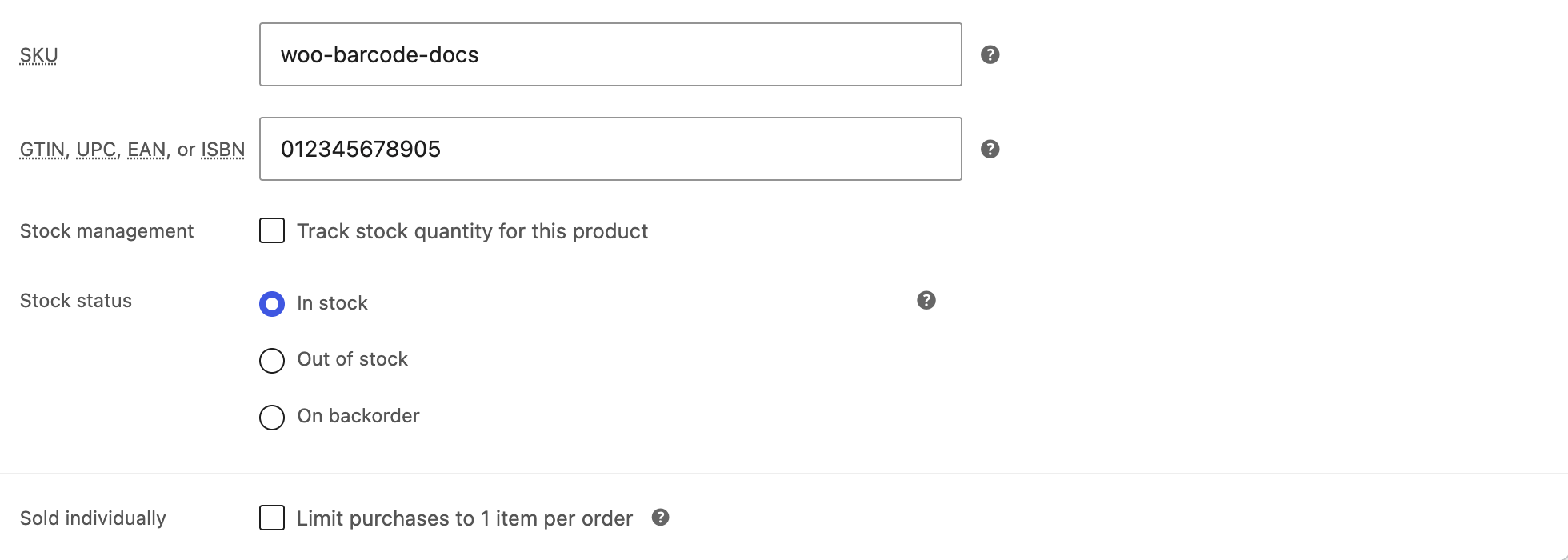
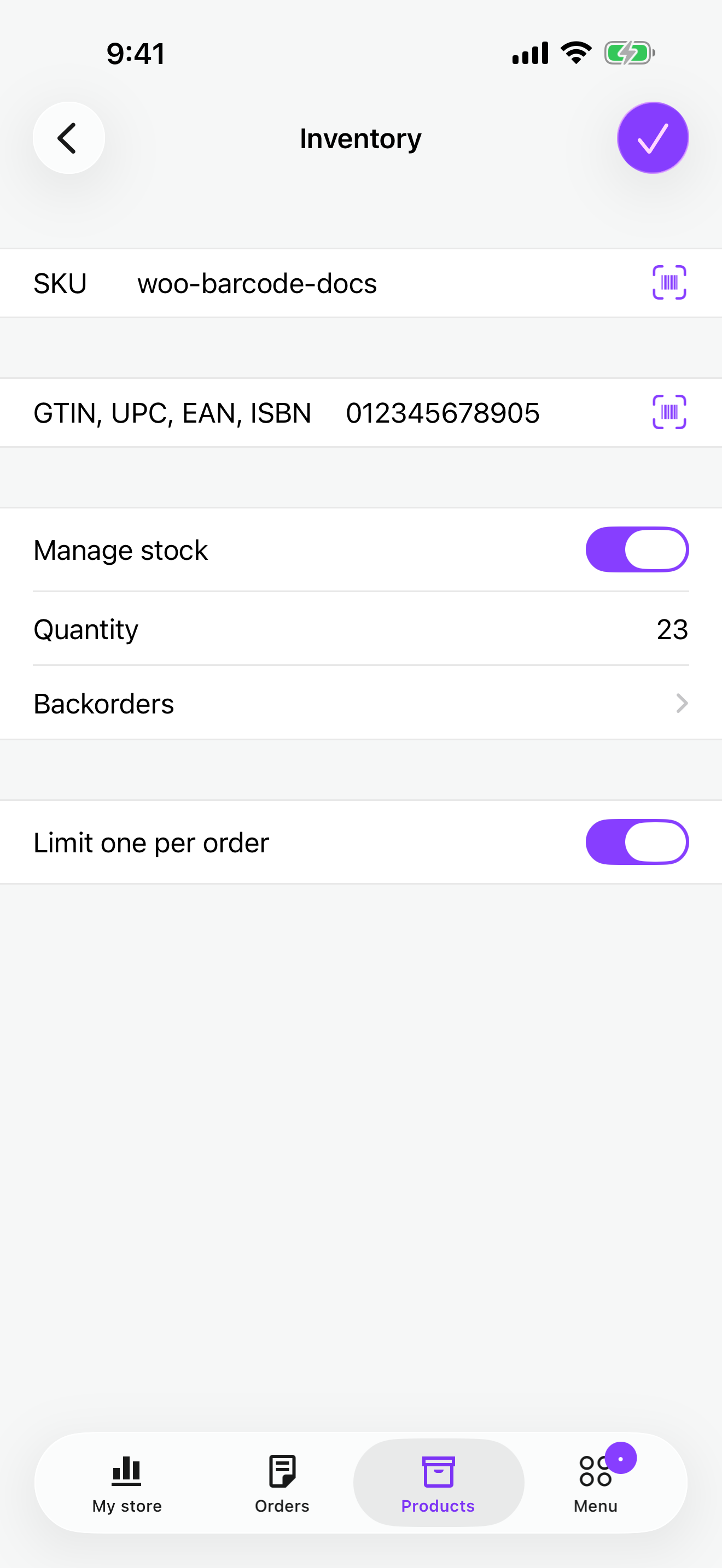
You can add barcodes for products and variations in both the iOS and Android apps. Open a product from the Products tab, then open its Inventory section. Type the identifier or select the scan button beside the field. For a variation, open that variation’s Inventory section instead.
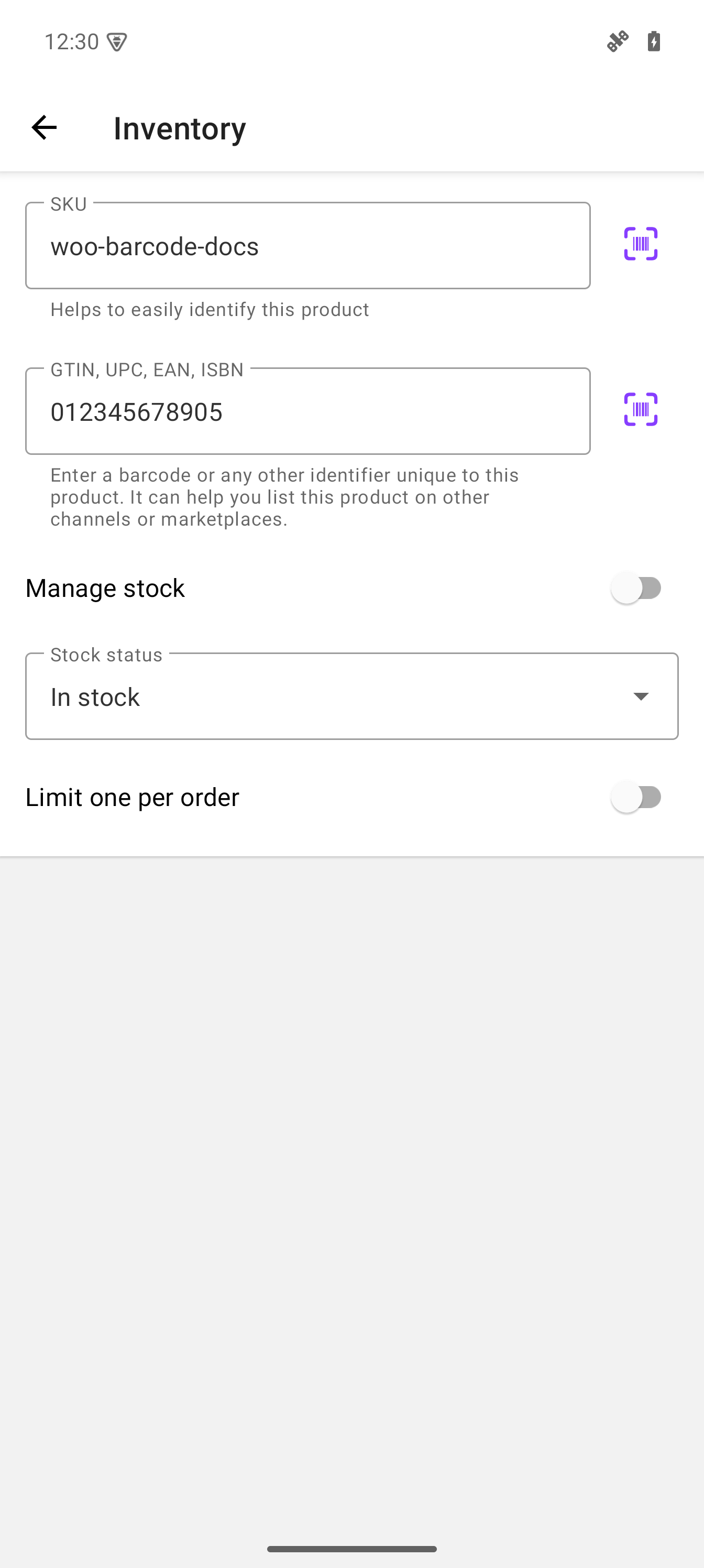
Android
↑ Back to topAndroid devices use ML Kit to recognize and decode barcodes.
Supported barcode formats
↑ Back to top- QR code
- Aztec Code
- Data Matrix
- PDF417
- UPC-A
- UPC-E
- EAN-8
- EAN-13
- Code 39
- Code 93
- Code 128
- Interleaved 2 of 5 (ITF)
- Codabar
Unsupported barcode formats
↑ Back to top- 1D barcodes containing a single character.
- Barcodes in ITF format with fewer than six characters.
- Barcodes encoded with FNC2, FNC3, or FNC4.
- QR codes generated in Extended Channel Interpretation (ECI) mode.
iOS
↑ Back to topiOS devices use the Vision framework to recognize and decode barcodes.
Supported barcode formats
↑ Back to top- Aztec
- Codabar
- Code 39
- Code 39 with Checksum
- Code 39 Full ASCII
- Code 39 Full ASCII with Checksum
- Code 93
- Code 93i
- Code 128
- Data Matrix
- EAN-8
- EAN-13
- GS1 DataBar
- GS1 DataBar Expanded
- GS1 DataBar Limited
- Interleaved 2 of 5 (I2of5)
- Interleaved 2 of 5 (I2of5) with Checksum
- ITF-14
- MicroPDF417
- MicroQR
- Modified Plessey (MSI Plessey)
- PDF417
- QR
- UPC-E
Unsupported barcode formats
↑ Back to topUnfortunately, Apple’s official documentation does not provide specific information about unsupported barcode types.
Still experiencing issues?
↑ Back to topIf you’re using the Jetpack plugin to connect the mobile app to your site, ensure that the Jetpack connection is active and functioning correctly. Review common issues or reconnect your site.
If you’re still having difficulty, you can get help from within the app by going to Menu → Settings → Help & Support → Contact Support. Starting with app version 24.9, this opens our AI Support Chat, which can help troubleshoot common issues. To reach our human support team, start a chat with the AI assistant and then tap the Contact Support 🎧 button in the top-right corner of the chat.