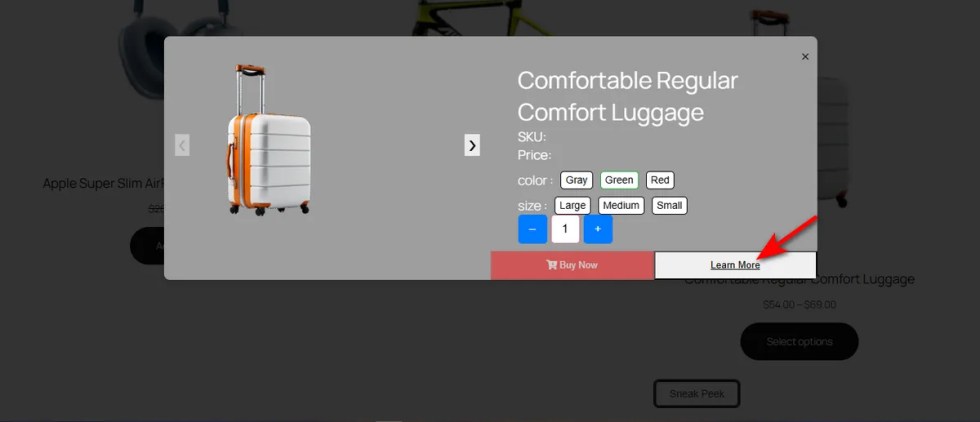
Popups often block key product details. If a customer cannot see the image while selecting options, they hesitate. This obstruction forces them to close the window and disrupts their shopping flow.
You need to place the popup where it aids, not hinders.
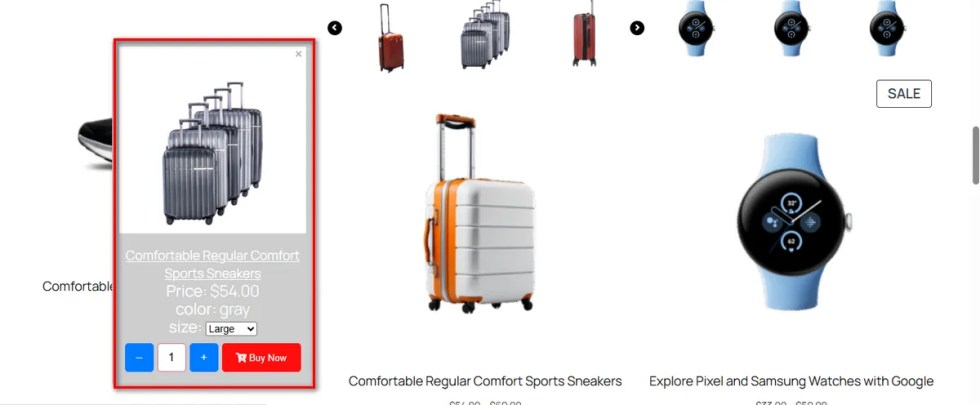
This setting allows you tochange the popup position.
You can align it to the Center, Left, or Right.
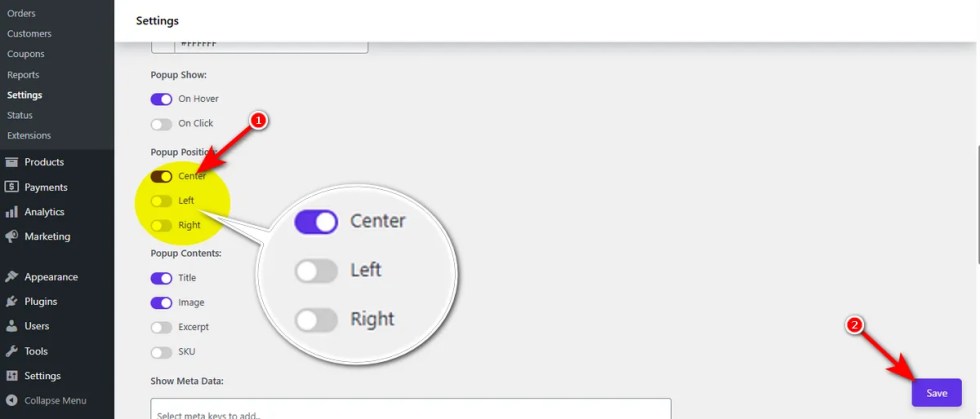
This ensures the popup appears exactly where it fits your layout best.
Popup Contents
↑ Back to topA cluttered popup overwhelms the shopper. If you display unnecessary data like SKUs or long descriptions, it distracts from the product image and price. This noise creates friction and slows down the decision to buy.
You need to curate the information.
This setting allows you toenable popup contents configuration.
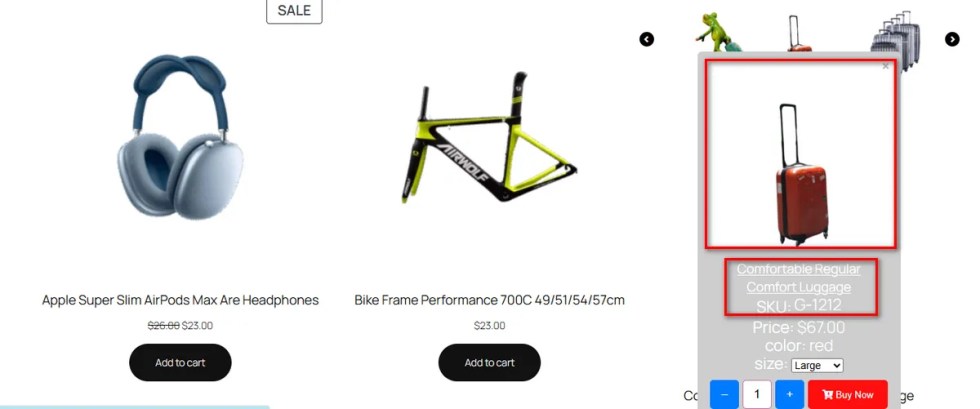
You can toggle the Title, Image, Excerpt, or SKU on or off.
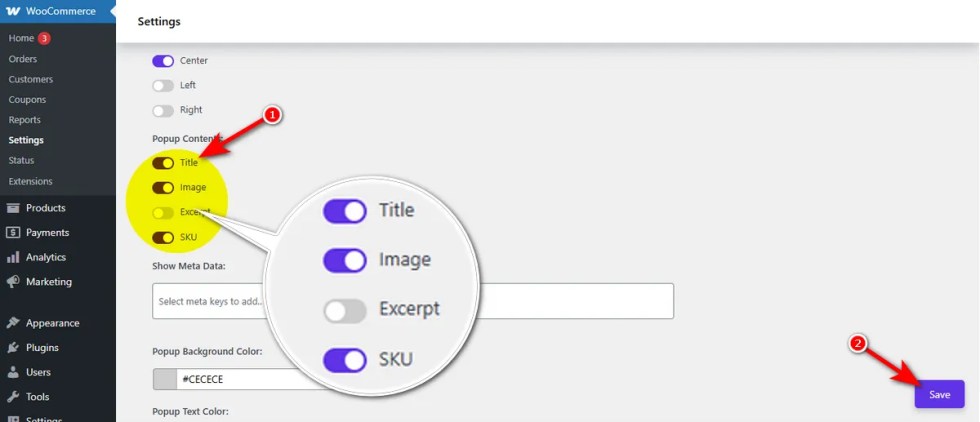
This ensures the customer sees only the essential details they need to make a choice.
Show Meta Data (Pro)
↑ Back to topStandard product fields are often insufficient. Maybe you sell technical gear that needs a specific model number or food items requiring a precise expiration date.
If this data remains hidden in the backend, the customer lacks the confidence to buy. They might think the product isn’t the right fit.
The Show Meta Data feature solves this gap. It allows you to display custom data fields directly in the popup. It puts the technical details right where they need to be.
Here is how to configure custom metadata for your quick view popup:
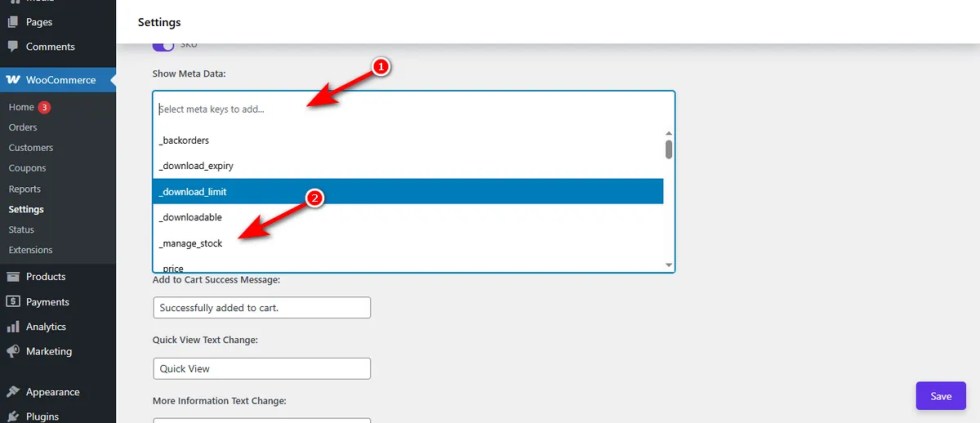
- Locate the “Show Meta Data” field in the settings menu.
- Click inside the input box that reads “Select meta keys to add…“.
3. Pick the relevant meta keys from the dropdown list, such as _stock_status or _tax_status.
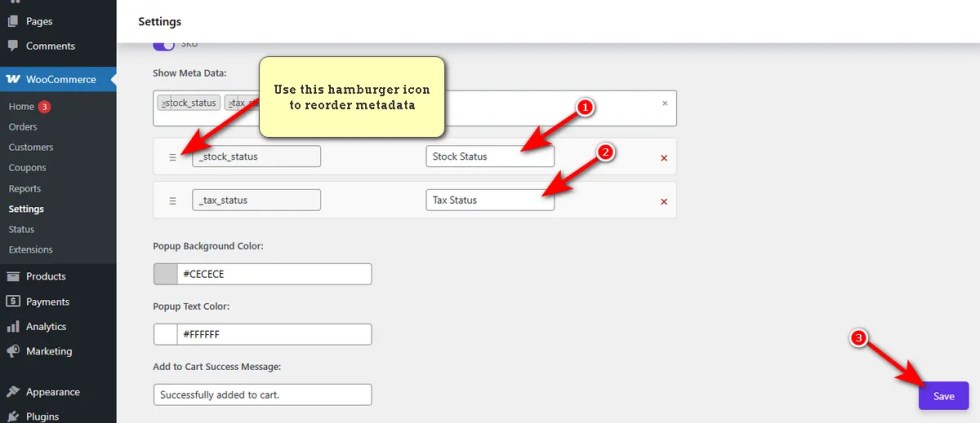
4. Write a customer-friendly name in the label box next to your selected key. For example, type “Stock Status” next to the _stock_status key to make it easy to read.
5. Click and drag the hamburger icon on the left side of any item to reorder the list.
6. Click the ‘Save’ button to finalize your changes.
Reordering your metadata gives you total control over the information hierarchy. You can place the most critical specifications at the very top of the popup.
This prioritization ensures shoppers see the exact details they care about immediately.
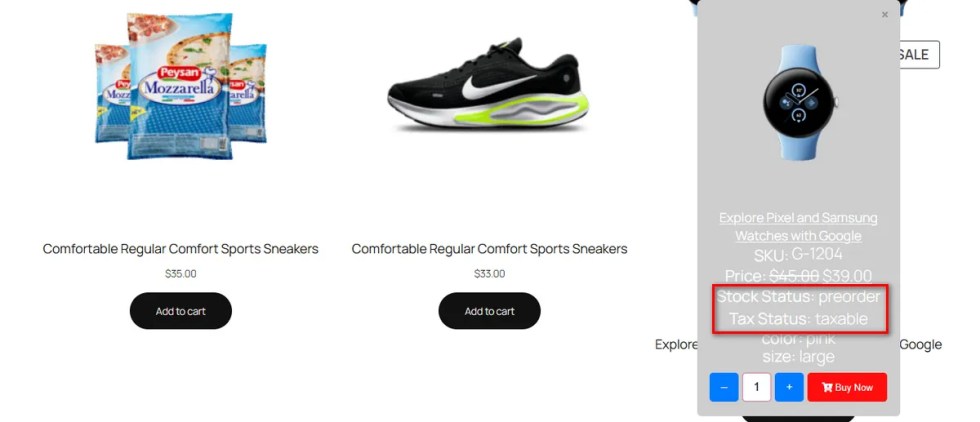
It speeds up their buying decision and keeps your product presentation perfectly structured.
Popup Background Color
↑ Back to topVisual consistency matters. A stark white popup on a dark-themed site looks jarring. It feels like a glitch, not a feature. This visual disconnect breaks the immersion of your store design.
You want a seamless look that feels intentional. The Popup Background Color setting allows you to blend the carousel popup perfectly with your brand palette.
Here is how you can adjust it:
- Click on the color input box under the “Popup Background Color” heading.
- Use the visual color picker tool to find your preferred shade, or manually type a specific hex code.
Click the ‘Save’ button at the bottom right to finalize your changes.
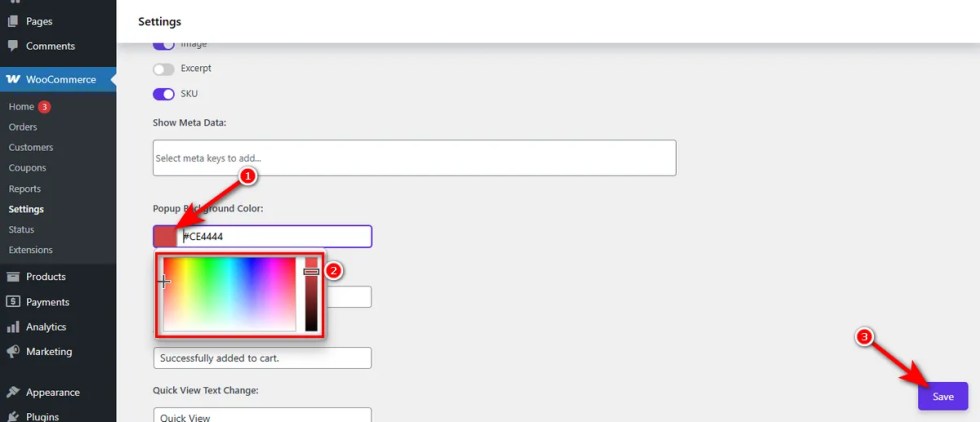
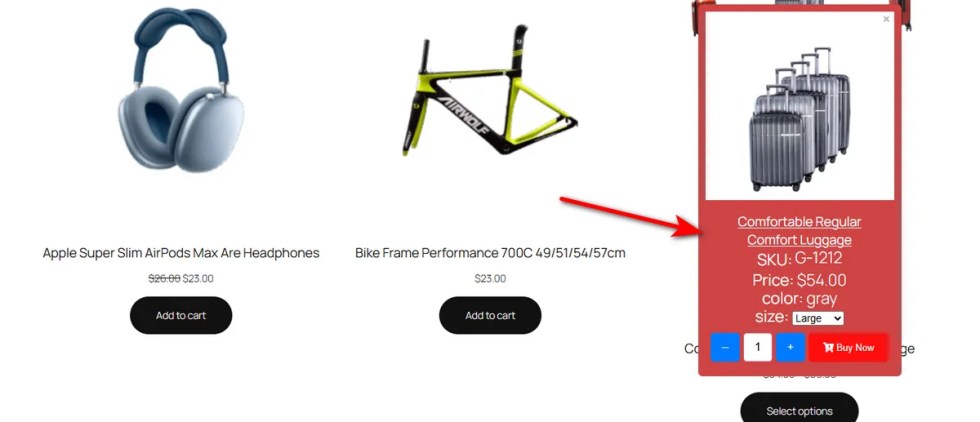
Whether you need a subtle grey or a bold brand color, this quick adjustment ensures the popup feels like a native part of your website.
Popup Text Color
↑ Back to topWhen you change the background color of a carousel popup, text colors within that popup must adapt accordingly.
A dark background with dark text is completely unreadable. If shoppers cannot read the price or the variation name, they cannot buy.
This lack of clarity causes instant frustration.
You need to ensure legibility is never compromised.
The Popup Text Color setting allows you to fix this easily.
Here is how to adjust your text color:
- Click on the color input field labeled “Popup Text Color“.
- Use the visual color picker tool to choose a contrasting shade, or type a hex code directly.
Press the ‘Save’ button.
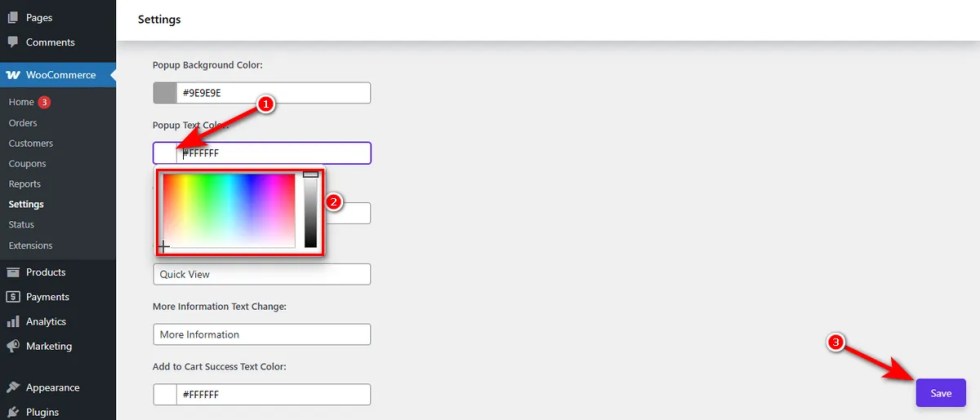
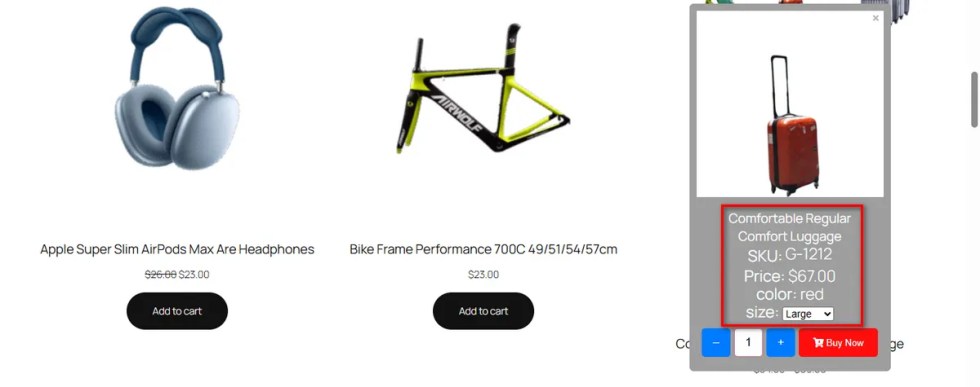
Use this to set a high-contrast color. By making the text pop against the background, you guarantee that every detail is instantly readable.
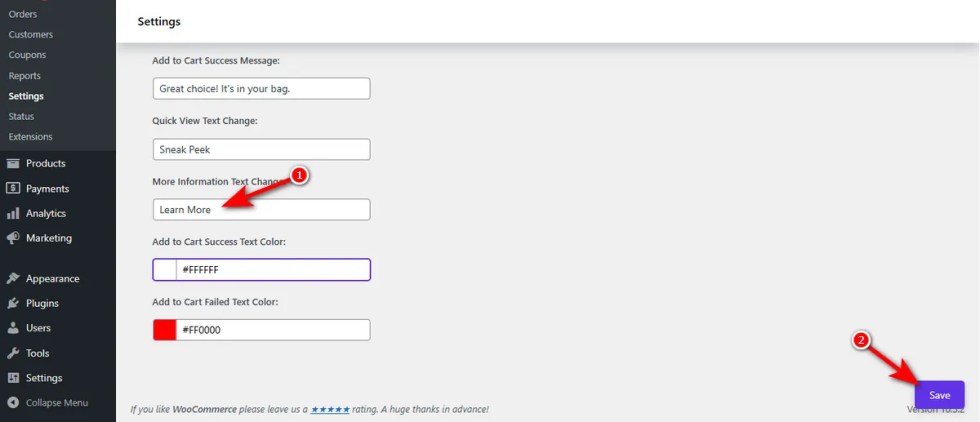
More Information Text Change
↑ Back to topGeneric links inside your quick view popup often go unnoticed.
A simple “More Info” label might not compel a shopper to click.
If they need comprehensive details but fail to see a clear path, they hesitate.
They might close the popup and leave your store entirely. This missed opportunity costs you sales.
You need a strong, clear call-to-action. This specific link guides users from the quick view modal to the full product page.
The plugin allows you to configure the more information text change easily. You can rewrite this label to sound much more inviting.
Here is how you update the text:
- Head to the “More Information Text Change” input field in your settings panel.
- Replace the existing text with your custom phrase. For example, type “Learn More” or “View Full Details”.
- Click the ‘Save’ button.
Let’s see how the changes appear in the quick view popup.