
Shipping classes utilize a product classification system to group products of a similar type, like bulky products or small items. Shipping classes work with shipping methods such as flat rate shipping to provide different rates to different classes or types of products.
For example, with shipping classes and flat rate shipping, it’s possible to create different flat rate costs for different product types.
Shipping classes are used to group products — they cannot be used to directly offer shipping rates to customers. To set up shipping rates, configure your shipping zones, then add your shipping class costs to a shipping method such as flat rate.
Add shipping classes
↑ Back to top- Go to: WooCommerce > Settings > Shipping > Classes.
- Click the Add shipping class button.

- Fill in the form that appears on your screen. It includes these three fields:
- Shipping class: This is the name of your shipping class (e.g. Heavy).
- Slug: This is the unique identifier. Leave it blank for automatic generation or add your own (e.g.
heavy-packages). - Description: Provide a brief description to clarify the purpose of this shipping class (e.g. for heavy items that require higher postage).
- Click Create to finish.

Edit and delete shipping classes
↑ Back to topYou can edit and delete shipping classes from the same page where you added them, using the options located to the right side of the shipping classes.
Follow these instructions to either edit or delete a shipping class:
- Go to WooCommerce > Settings > Shipping > Classes.
- Find the Edit and Delete links on the right side of the shipping classes. You can either:
- Click the Delete link to remove the shipping class.
- Click the Edit link to open the Add shipping class form and revise the name, slug, and/or descriptions.
- Click the Save button to finish.

Assign shipping classes to products
↑ Back to topAssign shipping classes to individual products you want in a specific class (e.g. bulky or heavy items) to apply shipping rates to that class. Each product can only have one shipping class assigned to it.
Follow the instructions below to assign shipping classes to individual products:
- Go to Products > All Products.
- Find the product you want to add a shipping class to, and select Edit.
- Simple product: Go to the Shipping tab, and select the class you want to assign from the Shipping class dropdown menu.
- Variable product: You can set a Shipping class for the parent product the same way as you would for a Simple product. You can also set a different Shipping class for individual variations on the Variations tab, select the variation to update, then select the Shipping class you want to assign to that variation from the Shipping class dropdown menu.
- Update the product to save changes.


Bulk-edit shipping classes
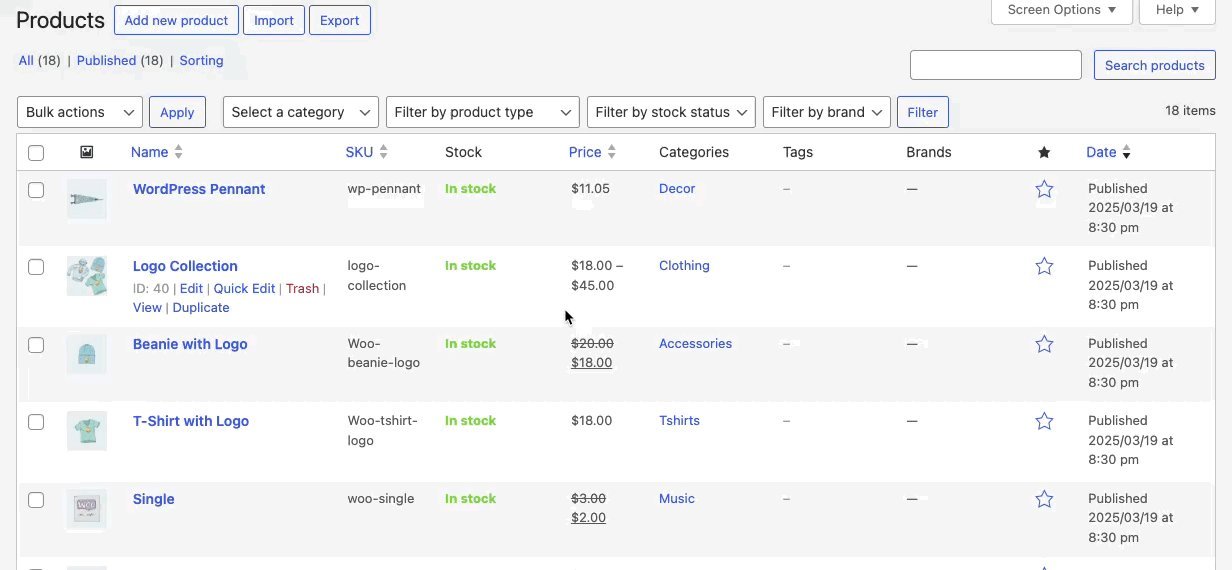
↑ Back to topIf you need to add, update, or change a shipping class for multiple products at once, use the Bulk actions dropdown on the Products page.
Follow these steps to update the shipping class for more than one product at once:
- Go to Products > All Products.
- Select the products you want to edit by ticking boxes on the left-hand side.
- Select Edit from the Bulk actions drop-down, then click Apply to display the available editable fields.
- Select a Shipping class from the drop-down.
- Click Update to save changes.

Questions and support
↑ Back to topDo you still have questions and need assistance?
This documentation is about the free, core WooCommerce plugin, for which support is provided in our community forums on WordPress.org. By searching this forum, you’ll often find that your question has been asked and answered before.
If you haven’t created a WordPress.org account to use the forums, here’s how.
- If you’re looking to extend the core functionality shown here, we recommend reviewing available extensions in the WooCommerce Marketplace.
- Need ongoing advanced support or a customization built for WooCommerce? Hire a Woo Agency Partner.
- Are you a developer building your own WooCommerce integration or extension? Check our Developer Resources.
If you weren’t able to find the information you need, please use the feedback thumbs below to let us know.