
Clip art gives customers ready-made images to add to their designs. The plugin comes with starter clip art, so customers can start designing right away. You can add your own next to it.
How to add clip art?
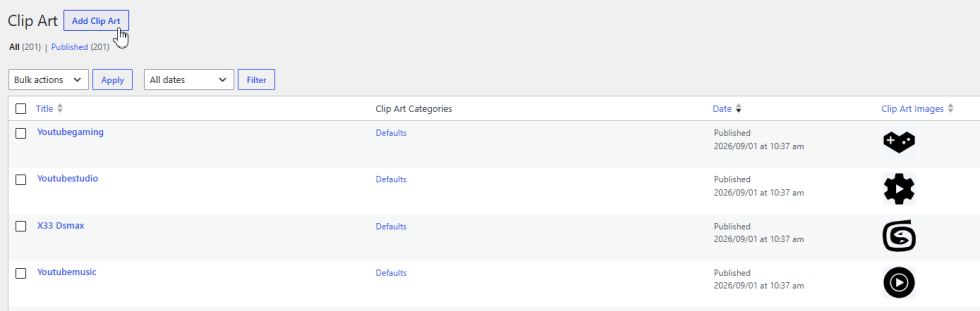
↑ Back to top- At the back end, go to WooCommerce > Clip Art.
- Add a new clip art item.
- Upload the clip art image and set its name.
- Select a category.
- Save the item.
Important: You must set a category for a clip art item to show on the frontend.
How to add clip art categories?
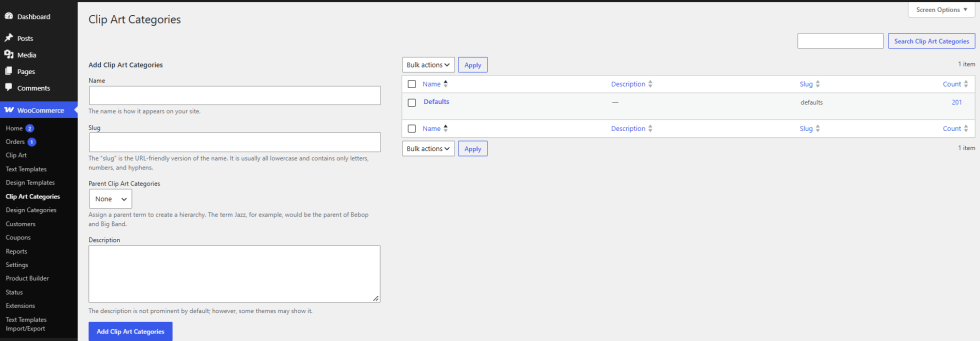
↑ Back to top- Go to WooCommerce > Clip Art Categories.
- Add a new category, for example cars, animals, or planes.
- Save the category.
How to use SVG clip art with multiple colors?
↑ Back to topUpload an SVG so customers can change its colors on the storefront.
- Go to WooCommerce > Clip Art and edit or add a clip art item.
- In the Clip Art Asset box, open the SVG tab.
- Click Upload SVG and select your file.
- Under Colors found in SVG, pick a default color for each color group.
- Click Update.
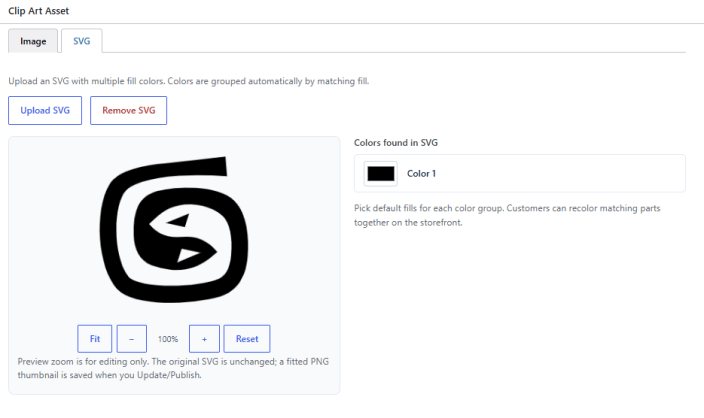
The plugin groups matching colors automatically. When customers change one color, every part with that color changes together. Click Remove SVG to delete the file.
Note: The zoom buttons (Fit, minus, plus, and Reset) only change the preview while you edit. They do not change your SVG.
How to link colors with other objects?
↑ Back to topGive objects the same group name, and they change color together.
- Edit the clip art item.
- In the Color Link Group box, enter a Group name, for example primary.
- Click Update.
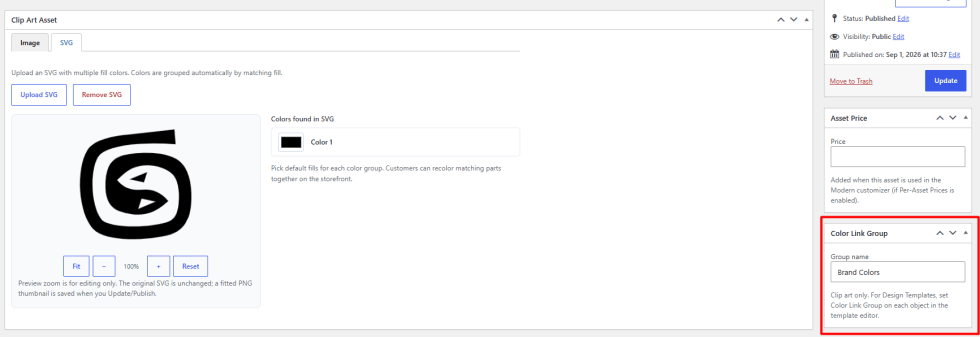
Note: Turn on Enable Color Linking in the Customization tab first. For design templates, set the group on each object in the template editor.
How to charge for a clip art item?
↑ Back to top- Edit the clip art item.
- In the Asset Price box, enter the Price.
- Click Update.
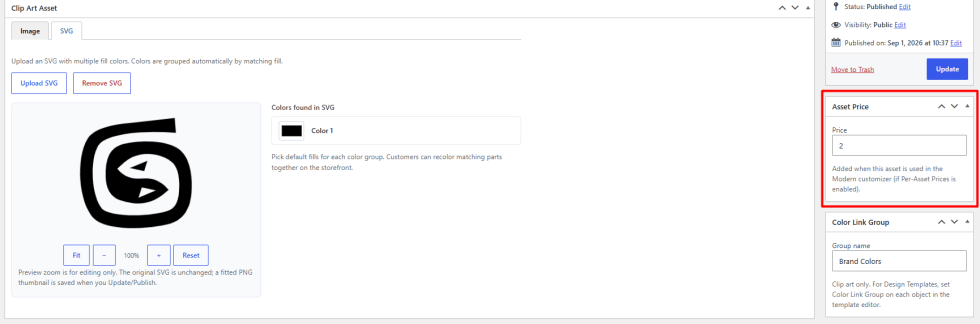
Note: The price is charged only when Enable Per-Asset Prices is on. See Pricing Rules.