
The Customization tab controls labels, canvas size, fees, and colors. Go to WooCommerce > Settings > Product Designer and open the Customization tab.
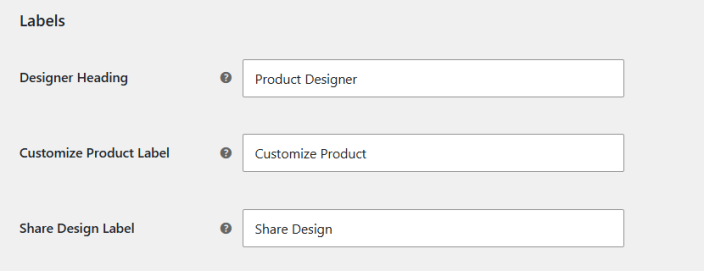
Labels
↑ Back to topSet the text customers see in the designer.
- Designer Heading: The heading shown in the product designer.
- Customize Product Label: The text of the customization button.
- Share Design Label: The text of the share button.
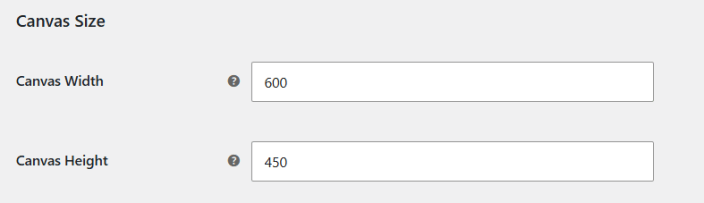
Canvas Size
↑ Back to topSet the size of the design canvas.
- Canvas Width: The width of the canvas.
- Canvas Height: The height of the canvas.
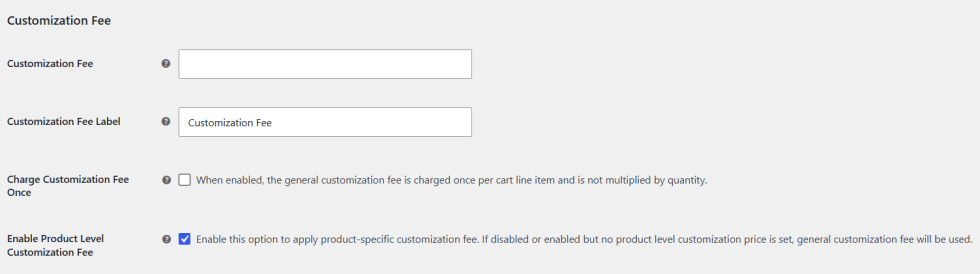
Customization Fee
↑ Back to topCharge customers a fee for customizing a product.
- Customization Fee: The general fee for customizing a product.
- Customization Fee Label: A custom label for the fee.
- Charge Customization Fee Once: Charge the general fee once per cart line item. It is not multiplied by quantity.
- Enable Product Level Customization Fee: Apply a product specific fee. If it is disabled, or no product level price is set, the general fee is used.
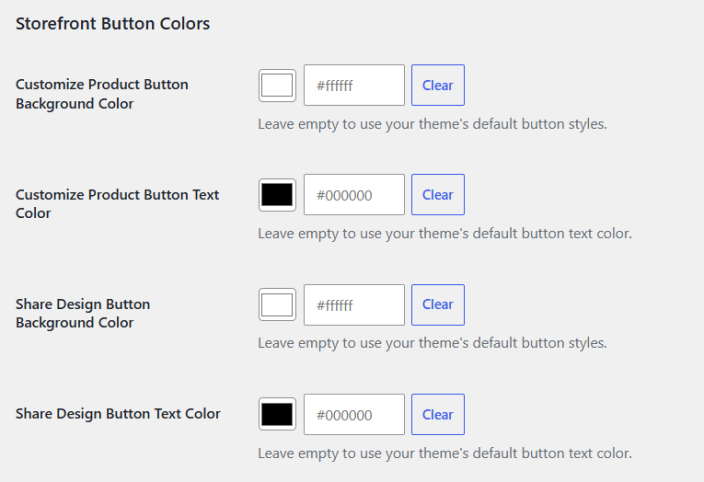
Storefront Button Colors
↑ Back to topStyle the customize and share buttons. Leave a field empty to use your theme default.
- Customize Product Button Background Color: The background of the customize button.
- Customize Product Button Text Color: The text color of the customize button.
- Share Design Button Background Color: The background of the share button.
- Share Design Button Text Color: The text color of the share button.
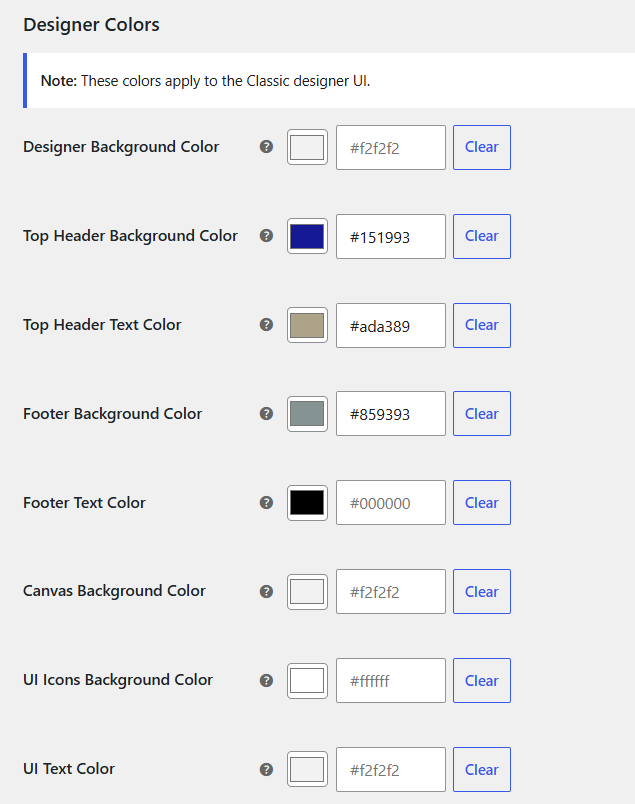
Designer Colors
↑ Back to topStyle the designer window.
- Designer Background Color: The background of the designer window.
- Top Header Background Color: The background of the header.
- Top Header Text Color: The text color of the header.
- Footer Background Color: The background of the footer.
- Footer Text Color: The text color of the footer.
- Canvas Background Color: The background of the canvas.
- UI Icons Background Color: The background of the UI icons.
- UI Text Color: The color of the UI icons and text.
Note: These colors apply to the Classic designer only.
Color Linking (Modern)
↑ Back to topLinks fill colors across objects so they change together.
- Enable Color Linking: Objects that share a Color Link Group sync their fill colors in the Modern designer. Set the group per object in the Design Template editor, on clip art items, or in the Product Builder.

Material Icons (Modern)
↑ Back to topGive customers a searchable icon library.
- Enable Material Icons: Adds an Icons panel to the Modern designer with searchable, bundled Material Icons. Customers can recolor them.
