Mix and Match for WooCommerce lets store owners create custom product boxes, allowing customers to build multiple boxes or bundles from available products.
Installation
↑ Back to top- Download Custom Mix & Match Product Boxes from your WooCommerce dashboard.
- At the WordPress admin panel, go to Plugins > Add New > Upload and select the .zip file you just downloaded.
- Click Install Now, and then Activate Plugin.
Configuration
↑ Back to topTo configure the extension, go to WooCommerce > Settings within the WordPress admin panel. Here, you will find the Custom Boxes tab.
Custom Boxes Settings
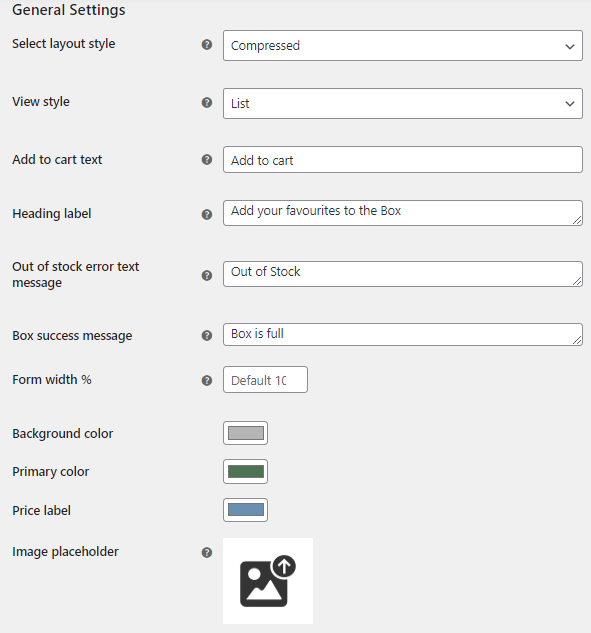
↑ Back to topWithin Custom Boxes > General Settings, you can configure the following options:
- Select Layout Style: Choose between Detailed (product description is visible) and Compressed to display the products on the front end.
- View Style: Choose to display the product boxes in List or Grid view.
- Add to Cart Text: Set custom text for add to cart button.
- Heading Label: Customize the heading label for product boxes.
- Out of Stock Error Text Message: Customize text to be shown when the product is out of stock.
- Box Success Message: Set a custom message when the product box is full.
- Form Width: Customize the width of the product boxes form according to your preference.
- Background Color: Customize the background color of the product boxes.
- Primary Color: Set the primary color of the product boxes to complement your store theme.
- Price Label: Customize the color of the price label text.
- Image Placeholder: Set the custom product image placeholder for an empty box
How to Create Custom Product Boxes
↑ Back to topTo create WooCommerce mix and match boxes, navigate to WooCommerce > Products > All Products > Add New. Within the Product Data tab, set the product type to Custom Product Boxes, and the “Product Boxes” tab will be added.
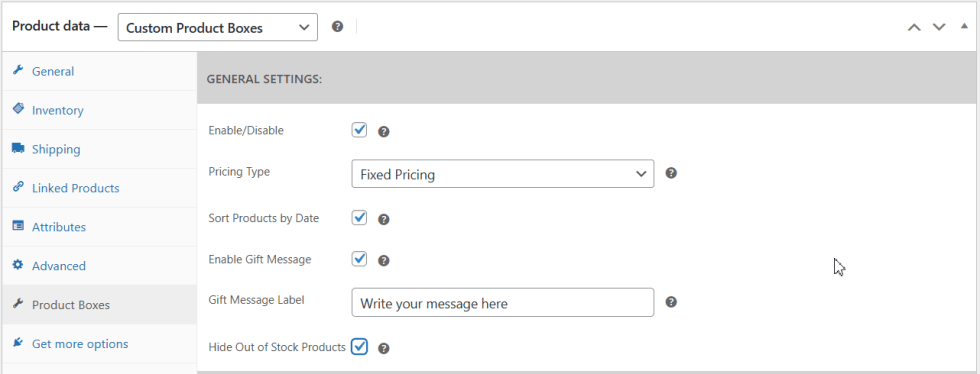
General Settings
- Enable / Disable: Enable or disable product boxes for a specific product.
- Pricing Type: From within the dropdown, select pricing type – options include:
- Fixed Pricing – Fixed price of a box.
- Per Item Price with Base Price – Includes item price and product price as well.
- Per Item Price Without Base Price – Includes only prices of the products in a box.
- Sort Products by Date: It displays newly added products on top in box.
- Enable Gift Message: Checkbox to enable the gift message.
- Hide Out of Stock Products: Click the checkbox to hide out of stock product or variation from the box.
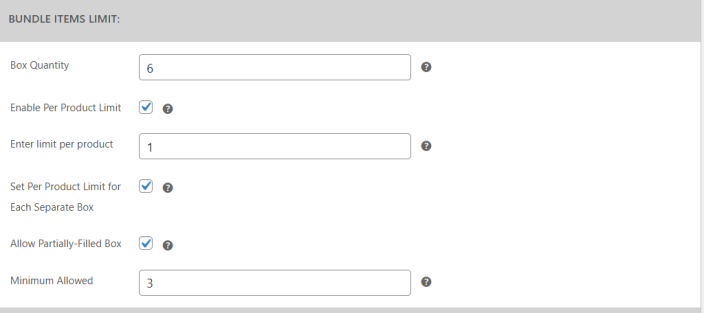
Bundle Items Limit
- Box Quantity: Set the number of product quantity in a box.
- Enable Per Product Limit: Enable a checkbox to limit product copies and set a quantity cap, preventing customers from adding the same product beyond the allowed limit.
- Set Per Product Limit for Each Separate Box: A checkbox to apply the product limit to each separate box instead of the entire order.
- Allow Partially Filled Boxes: Allow customers to check out without filling the entire box. You can set the minimum quantities allowed.
Bundle Layout Design
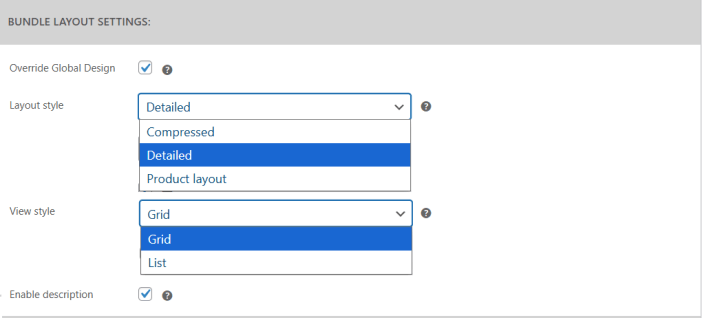
- Override Global Design: Checkbox to override the global box layout.
- Layout style: Choose between three types of layouts
- Compressed
- Detailed
- Product Layout
- View style: Select the style of the custom product boxes.
- Grid
- List
- Enable description: Check the box to enable the product description. It only works with Detailed Layout.
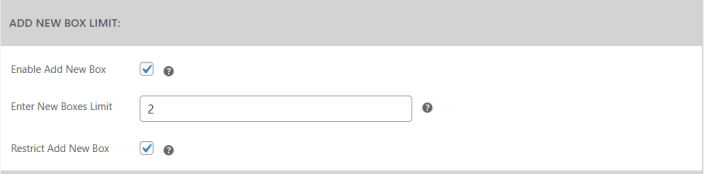
Add New Box Limit
- Enable Add New Box: Check the box to allow customers to add multiple boxes.
- Enter New Boxes Limit: Set a limit to restrict customers to add specific number of mix and match boxes.
- Restrict Add New Box: Restrict customers from adding new boxes if the minimum product quantities are filled in the box. This feature is linked with the partially filled box setting.
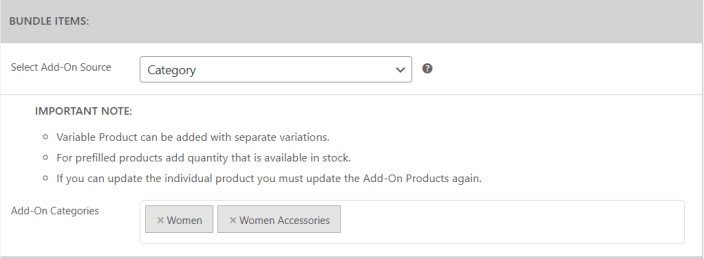
Bundle Items
Select the products that you want to display in the custom products boxes. You can choose between Products or Categories.
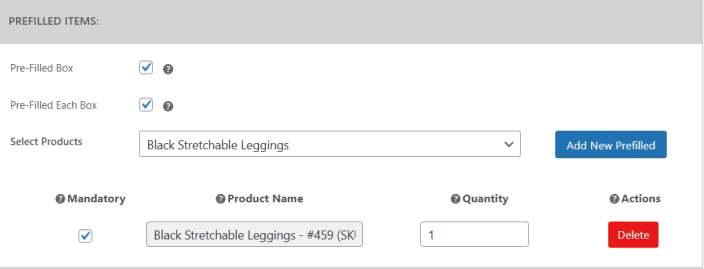
Prefilled Items
- Pre-Filled Box: Checkbox to enable the prefilled box.
- Pre-Filled Each Box: Allow prefilled items in each box, if a new box is added.
You can add the products and variations as pre-filled, while making them optional or mandatory.
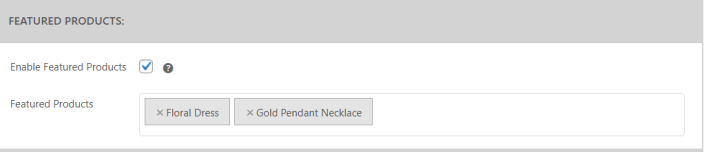
Featured Products
Set featured products that are included in the box to show at the top of the box.
User Restrictions
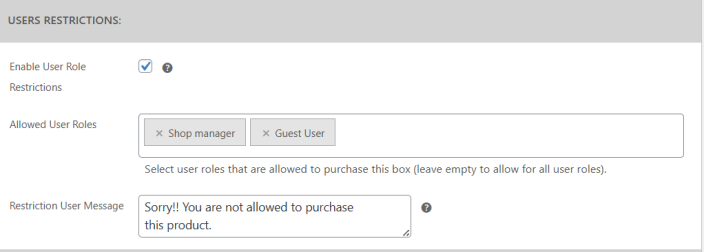
- Enable User Role Restrictions: Checkbox to enable the user role restrictions. Select the allowed user roles that can purchase the product box.
- Restriction User Message: Set a custom message to restricted users who are not allowed to purchase the mix and match product box.
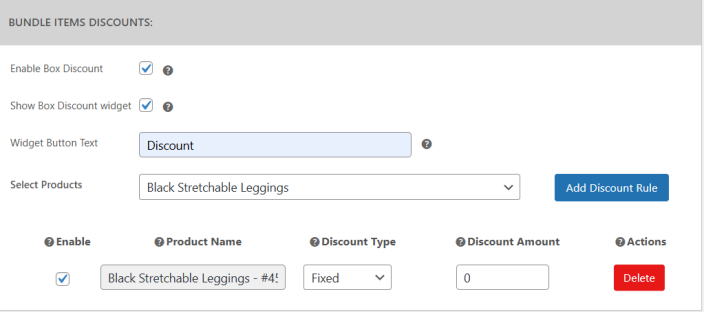
Bundle Items Discounts
- Enable Box Discount: Checkbox to enable the discount when the customer purchases a specific product.
- Show Box Discount widget: Display bundle item discount widget.
- Widget Button Text: Set custom discount widget button text.
- Select Products: Select the product or product variation and apply the discount on specific product. Set discount type (Fixed or Percentage) and discount amount.
The bundle item discount will only be displayed when the Per Item Price with Base Price or Per Item Price Without Base Price is selected.