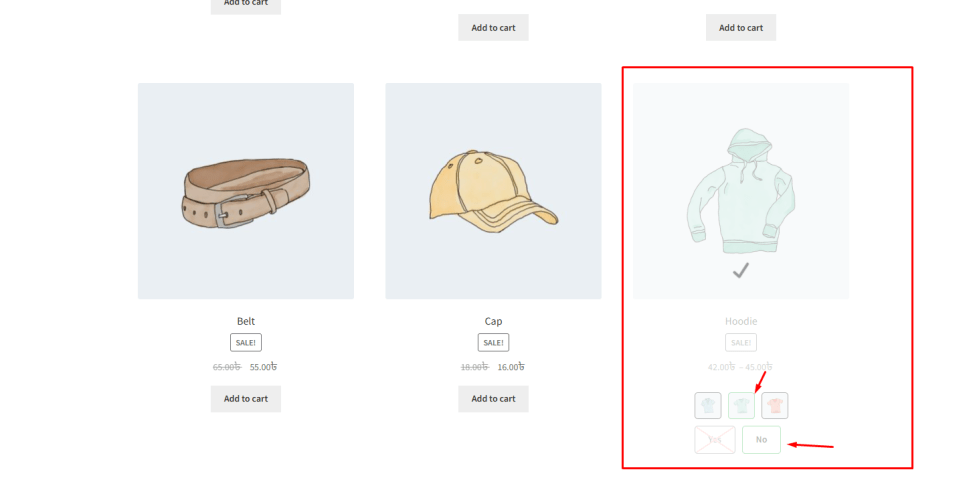
Since shop page layouts vary depending on the theme, Variation Monster provides an option to control where the variation swatches appear within the product card.
The Display Position on Archive Page setting allows the admin to choose the exact location where the swatches will be displayed.
The available position options include:
Shop Loop Item Title
This displays the variation swatches near the product title inside the product card on the shop page.
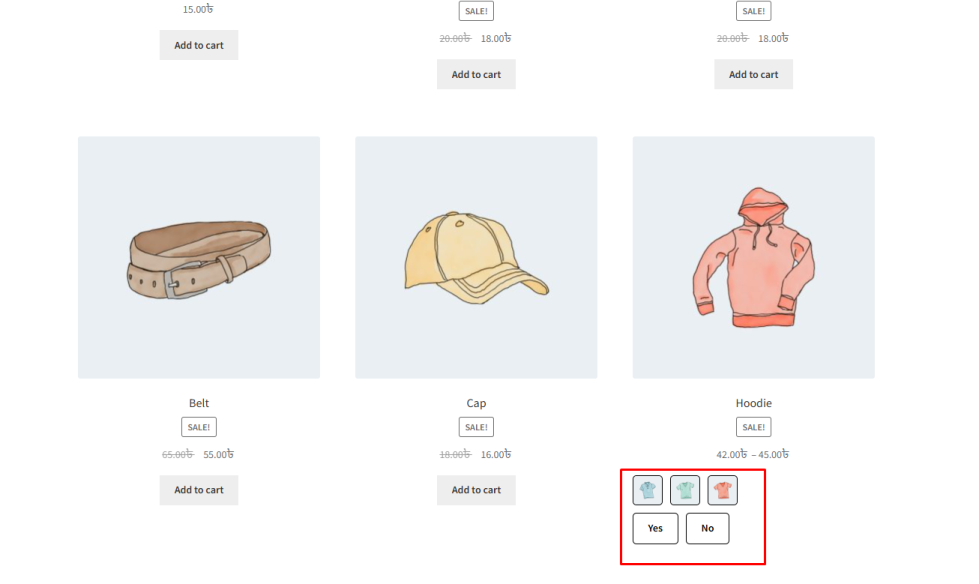
After Shop Loop Item
This displays the variation swatches after the product content, typically below the price or add-to-cart area in the product card.
How to Configure
↑ Back to top- Go to WordPress Admin Panel → WooCommerce → Settings.
- Click the Variation Monster tab.
- Navigate to the Variation Swatches settings section.
- Locate the Display Position on Archive Page option.
- Select the preferred display position from the dropdown list.
- Click the Save button.
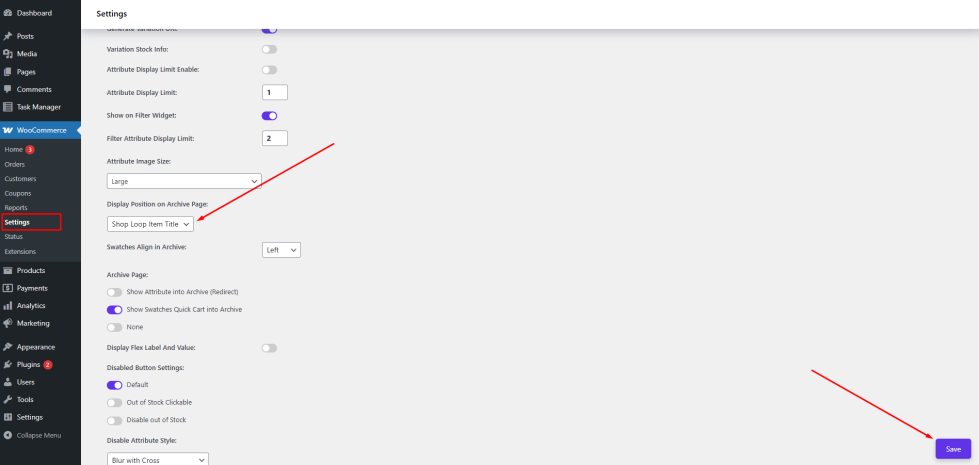
After saving the settings, the variation swatches will appear on the shop and archive pages in the selected position.
Swatches Align in Archive
↑ Back to topWhen variation swatches are displayed on the shop or archive page, they appear inside the product card along with the product image, title, and price. Depending on your store design and theme layout, you may want to adjust how these swatches are aligned within the product card.
The Swatches Align in Archive setting allows the admin to control the alignment of variation swatches on the shop page.
Using this option, the swatches can be aligned in different positions such as:
- Left Align – Displays the swatches aligned to the left side of the product card.
- Center Align – Displays the swatches centered within the product card.
This flexibility helps store owners match the swatch alignment with their website’s design and layout requirements.
How to Configure
↑ Back to top- Go to WordPress Admin Panel → WooCommerce → Settings.
- Click the Variation Monster tab.
- Navigate to the Variation Swatches section.
- Locate the Swatches Align in Archive option.
- Select the preferred alignment (Left or Center or Right).
Click the Save button.
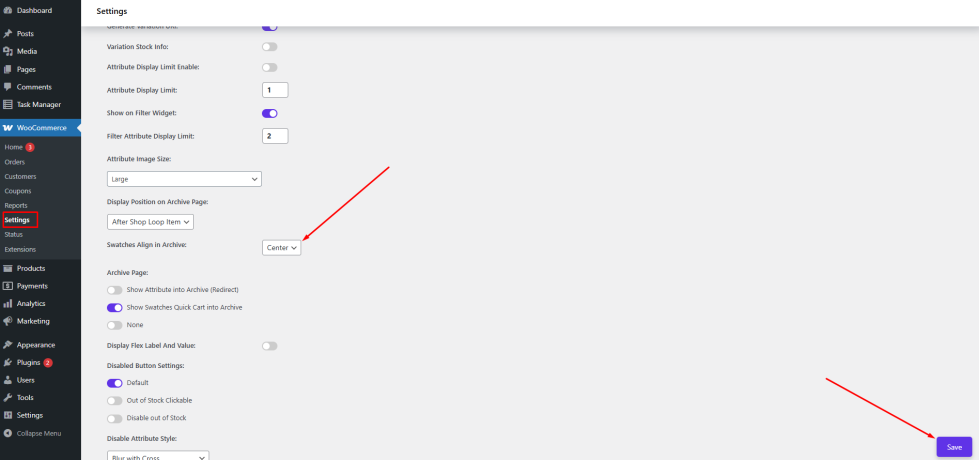
After saving the settings, the variation swatches on the shop and archive pages will appear with the selected alignment inside the product cards.
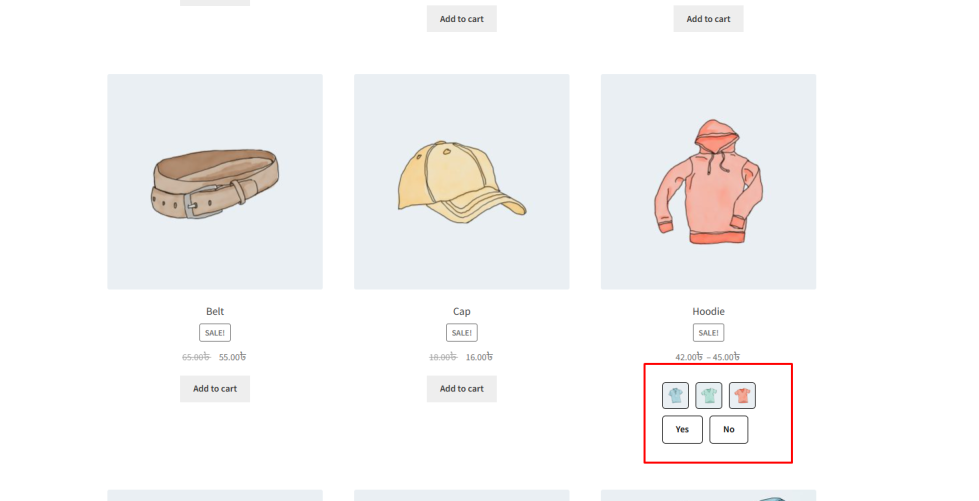
Variation Monster for WooCommerce also allows variation swatches to appear on shop and archive pages, not only on the single product page. This feature improves the shopping experience by letting customers interact with product variations directly from the shop page.
When variation swatches are visible on the archive page, customers can quickly explore different product options such as colors or sizes without opening the product page first.
This feature supports two common behaviors:
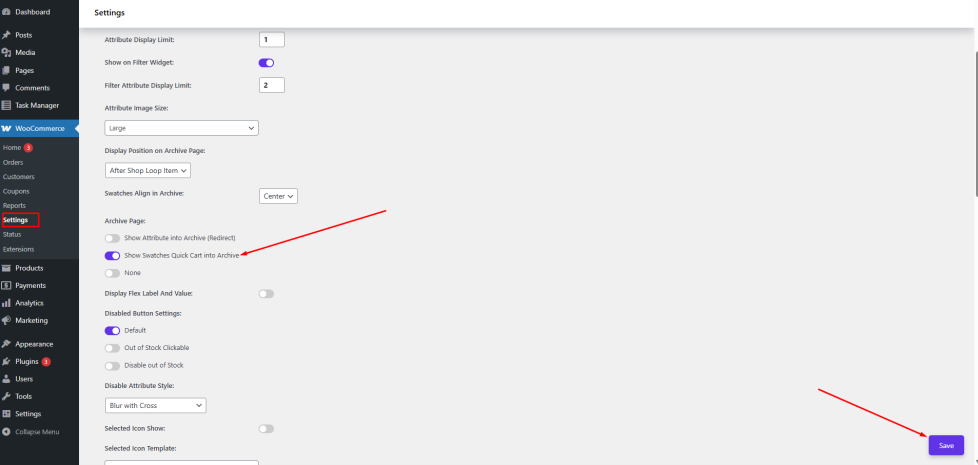
Direct Purchase from the Shop Page
↑ Back to topCustomers can select a variation directly from the shop page and add it to their cart without visiting the single product page. This helps speed up the buying process and improves conversions.
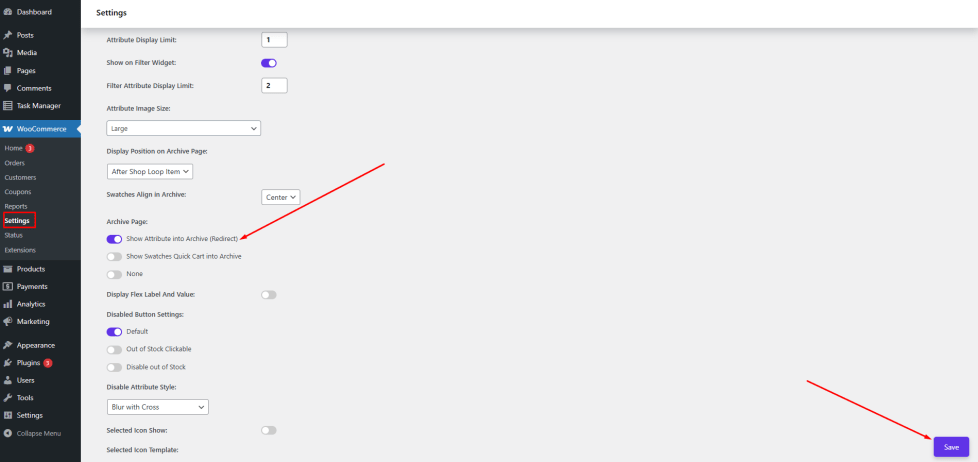
Redirect to the Single Product Page
↑ Back to topAlternatively, when a customer clicks on a variation (for example Color → Blue), the system can redirect them to the single product page with that specific variation already selected.
This ensures that customers land on the correct product configuration while still browsing from the shop page.
Also admin can control it for each variation product.
These settings allow you to override the default variation swatches on archive page for individual products.
How to Configure It
↑ Back to top- Go to WordPress Admin Panel → Products.
- Open the Edit Product page for the desired product.
- Scroll down to the Variation Monster Product Meta Settings section.
- Select the preferred Variation Swatches on Archive Page for the product.
Click Update to save the changes.
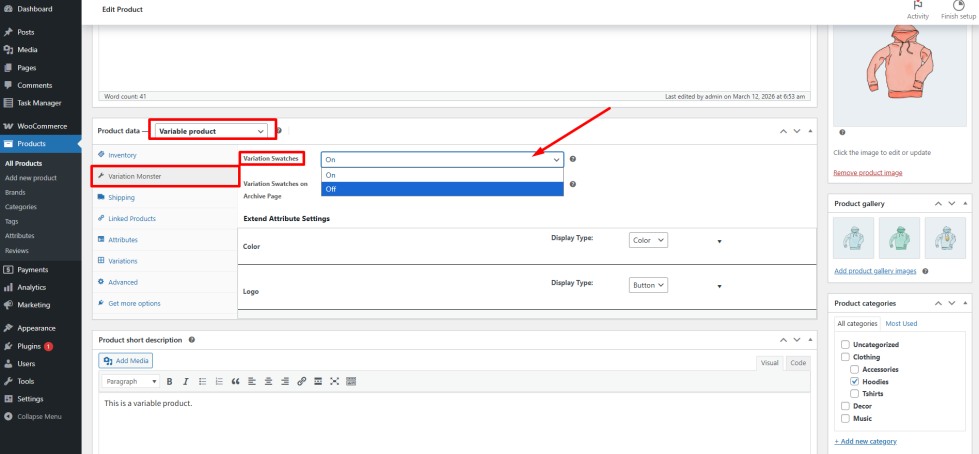
After saving the settings, the variation swatches will appear on the shop and archive pages.