Keep your subscribers engaged and coming back with automated, fully customizable reminder emails for WooCommerce Subscriptions. Set it up in minutes and effortlessly notify customers before trials end, payments are due, or subscriptions expire. The perfect solution to boost renewals, reduce churn, and grow your subscription business.
Requirements
↑ Back to top- WooCommerce 5.0.0+
- WooCommerce Subscriptions 3.1.0+
Installation
↑ Back to top- Download the email-reminders-for-woocommerce-subscriptions.zip file from your WooCommerce account.
- Go to: WordPress Admin > Plugins > Add New and Upload Plugin. Choose File with the file you downloaded.
- Install Now and Activate Plugin.
Setup and Configuration
↑ Back to topHow to use
↑ Back to topAfter activating Email Reminders for WooCommerce Subscriptions, configure reminder emails from the following location:
WooCommerce > Settings > Subscriptions > Email Reminders
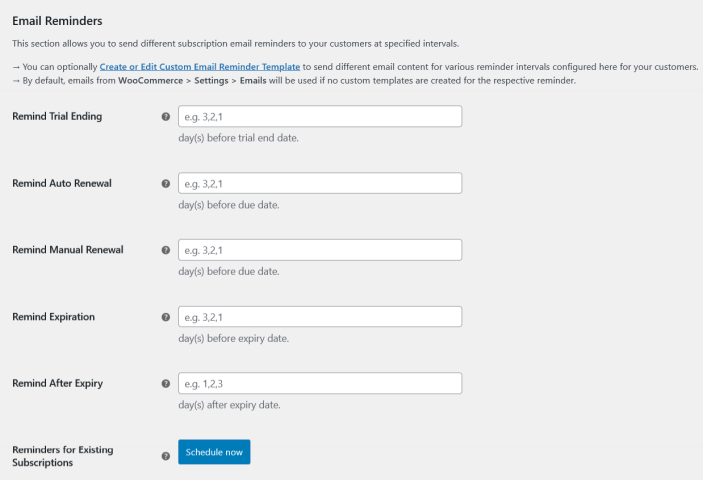
Available Reminder Email Types:
↑ Back to topOur plugin provides the following 4 types of reminder emails:
- Subscription Trial Ending Reminder
- Subscription Manual Renewal Reminder
- Subscription Auto Renewal Reminder
- Subscription Before Expiry Reminder
- Subscription After Expiry Reminder
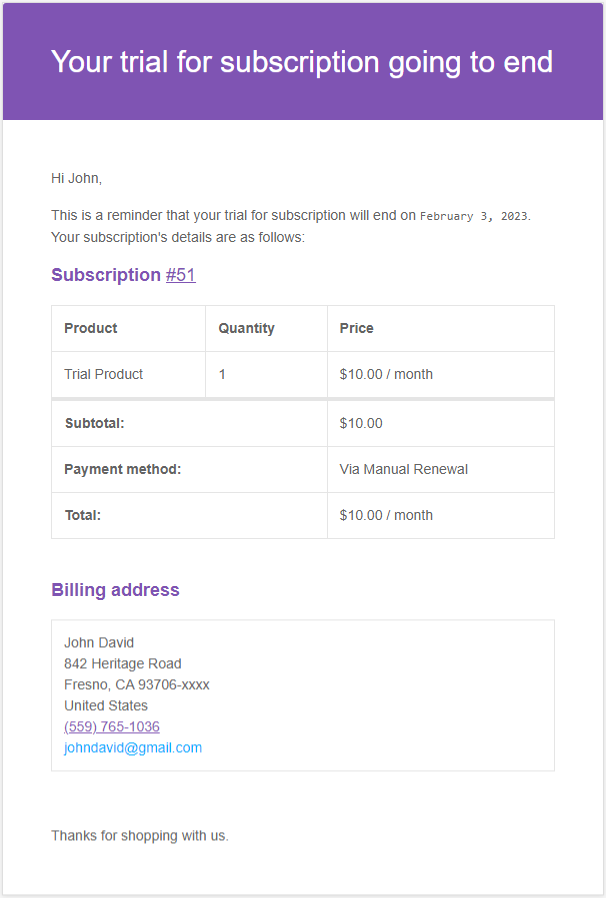
Subscription Trial Ending Reminder
↑ Back to topSent to customers before the subscription trial period ends.
Subscription Manual Renewal Reminder
↑ Back to topSent to customers before a subscription renewal is due when the renewal requires a manual payment.

Subscription Auto Renewal Reminder
↑ Back to topSent to customers before a subscription renewal is due when the renewal uses automatic recurring payments.

Subscription Before Expiry Reminder
↑ Back to topSent to customers before a subscription expires.

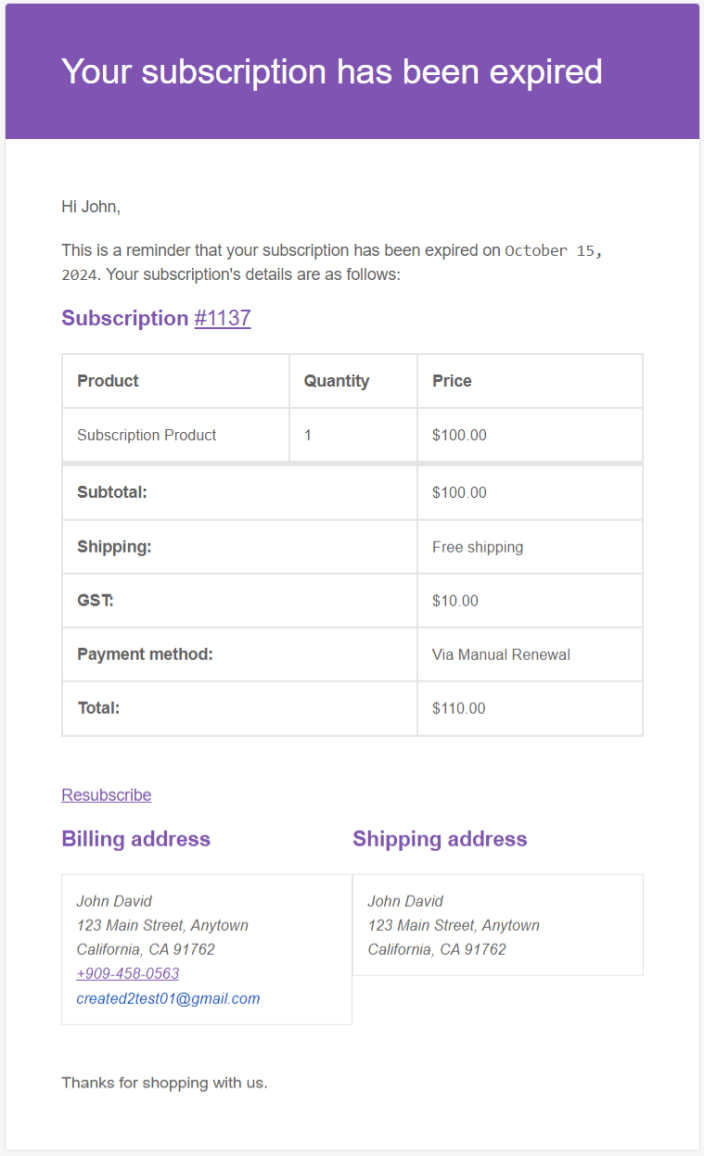
Subscription After Expiry Reminder
↑ Back to topSent to customers after a subscription has expired.
Setting Up Subscription Email Reminders:
↑ Back to topTo set up any reminder, the process is the same. Here’s how it works using Auto Renewal Reminder as an example:
Step 1: Enable the Email Notification
↑ Back to top
- Go to WooCommerce > Settings > Emails.
- Enable the relevant reminder (e.g., Subscription Auto Renewal Reminder) and save changes.
Step 2: Configure the Reminder Schedule
↑ Back to top
- Navigate to WooCommerce > Settings > Subscriptions > Email Reminders > Remind Auto Renewal.
- Enter comma-separated day values (for example:
3,2,1) to send reminder emails before the renewal date.
- Each value represents the number of days before the renewal date when the reminder will be sent.
Step 3: Create a Custom Reminder Template (Optional)
↑ Back to topIf you do not want to use the default WooCommerce email template, you can create a custom reminder template:
- In the same section, click Create or Edit Custom Email Reminder Template.
- Add a new template, select Subscription Auto Renewal Reminder from the Template Data dropdown, customize, and save.
- Use the Test Email option to preview and verify the email layout and content.
✅ Applies to all reminder types.
Scheduling Reminders for Existing Subscriptions:
↑ Back to topSite admin can easily schedule reminders for all existing subscriptions with a single click.
How to Schedule
- Navigate to WooCommerce → Settings → Subscriptions → Reminders
- Click the Schedule Now button
Once clicked, reminders for existing subscriptions will be scheduled automatically using a background process, ensuring the operation does not impact site performance.
Email Reminder Activity Logs:
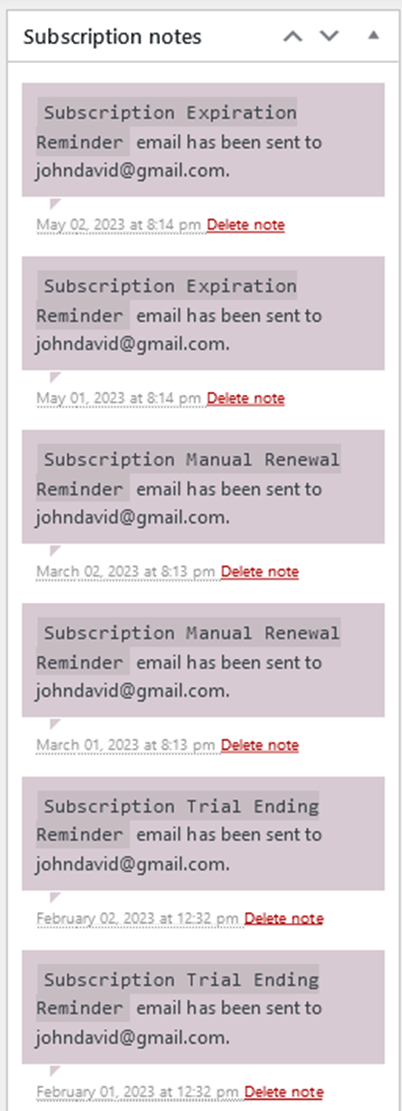
↑ Back to topAfter reminder emails are sent, the activity is recorded as subscription notes. These notes allow site administrators to track when reminder emails were sent to customers.