
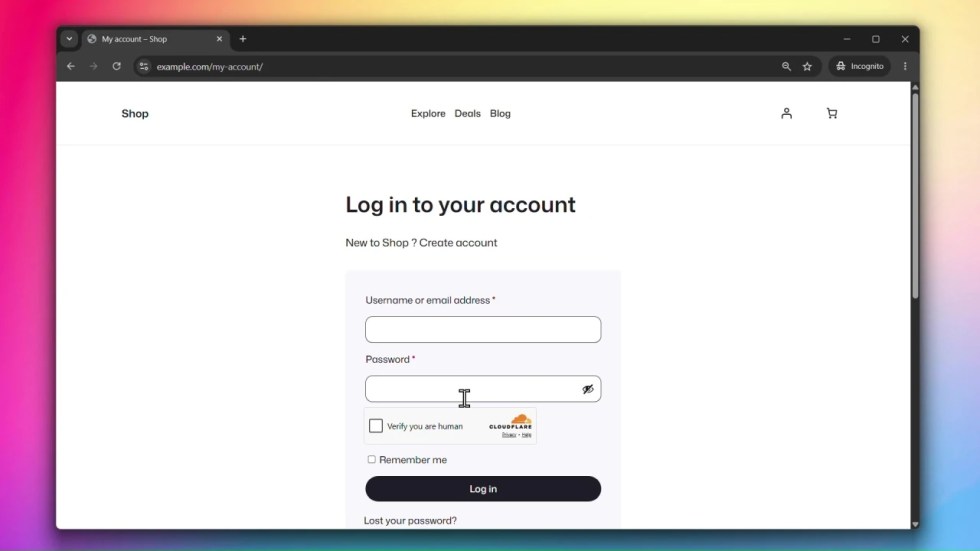
Cloudflare Turnstile protects your forms from spam and bot abuse without showing CAPTCHAs or puzzles to real users. It runs a challenge invisibly in the background and only interrupts users when suspicious behavior is detected.
Before You Start
↑ Back to topYou will need a free Cloudflare account to get your Site Key and Secret Key. Sign up or log in at cloudflare.com and go to Turnstile from the dashboard sidebar.
Accessing Cloudflare Turnstile Settings
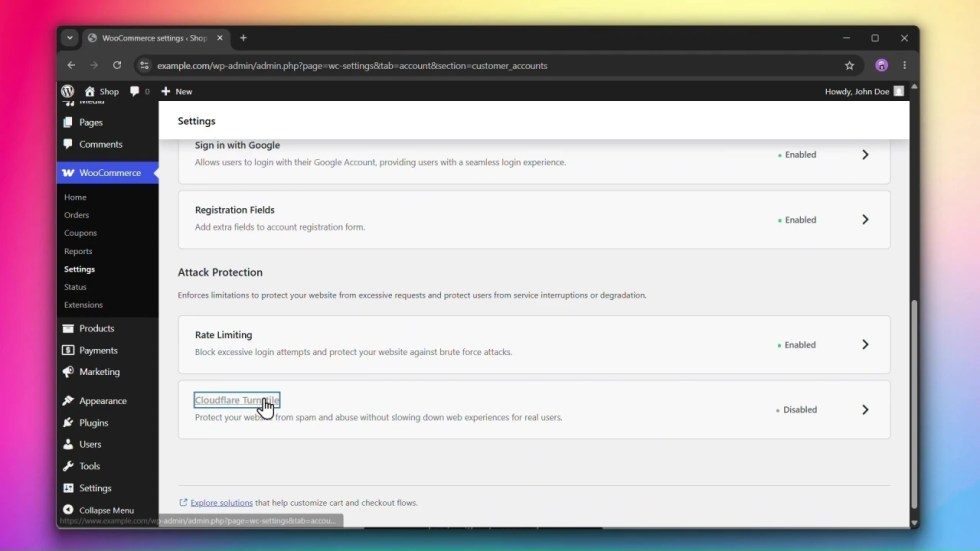
↑ Back to topGo to WooCommerce > Settings > Accounts & Privacy > Customer Accounts and click on Cloudflare Turnstile.
Steps
↑ Back to topStep 1: Get your Turnstile keys from Cloudflare
↑ Back to top- Log in to your Cloudflare dashboard.
- Go to Turnstile from the sidebar.
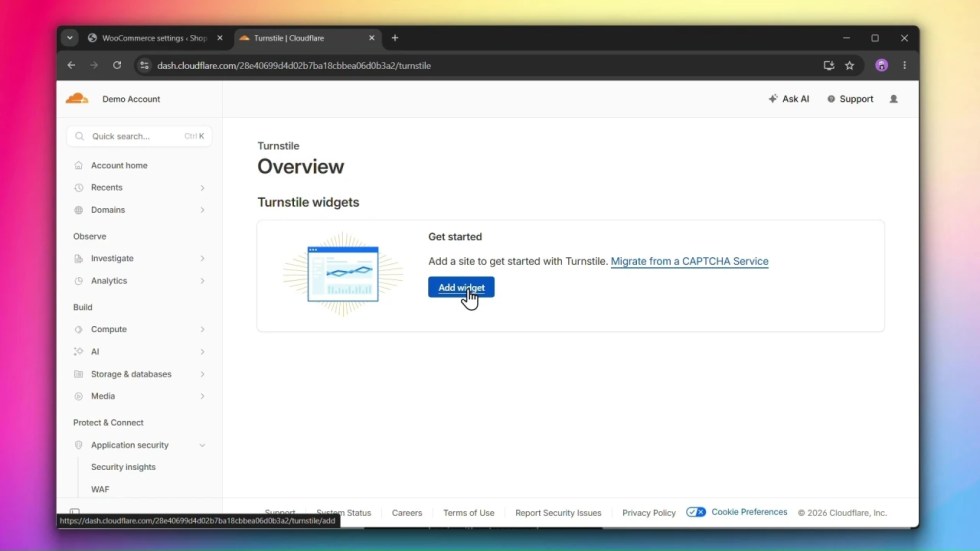
- Click Add widget.
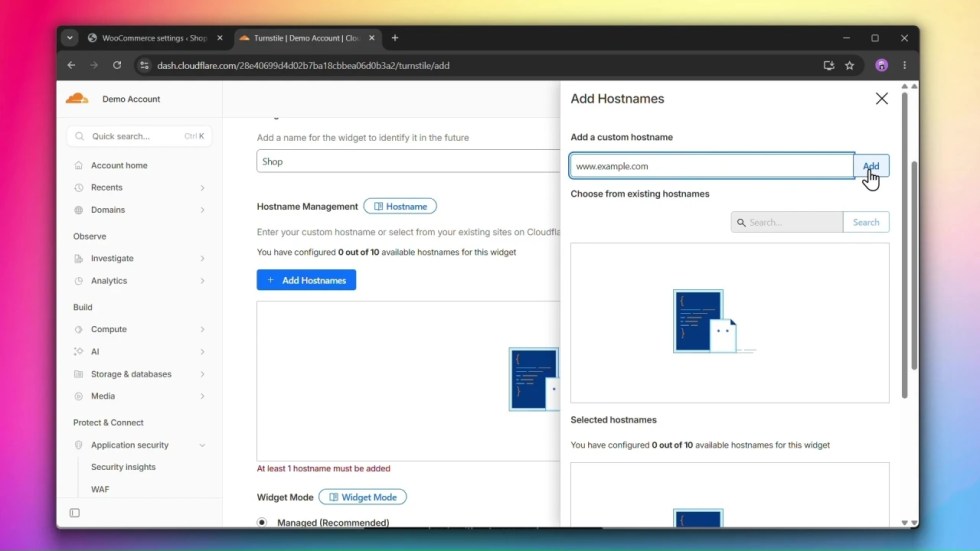
4. Enter widget name and add hostnames.
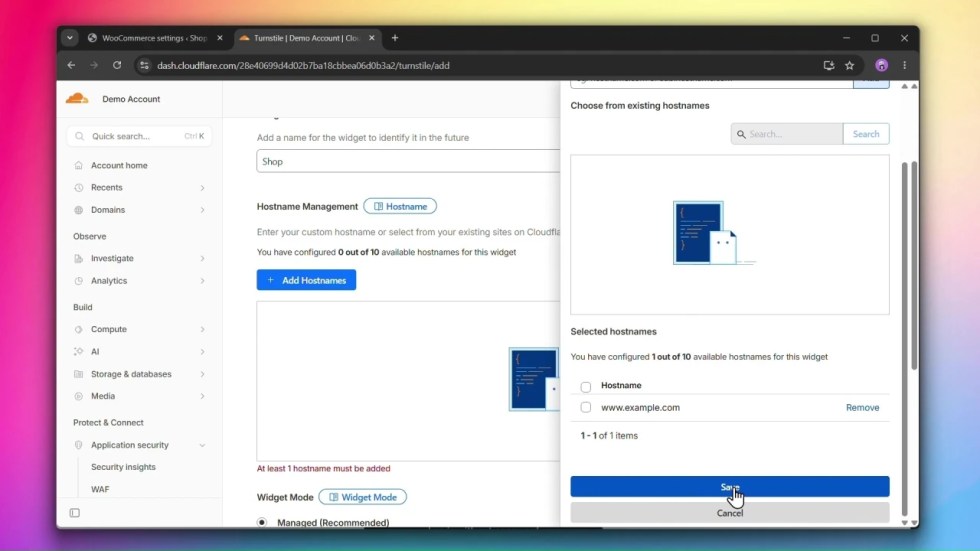
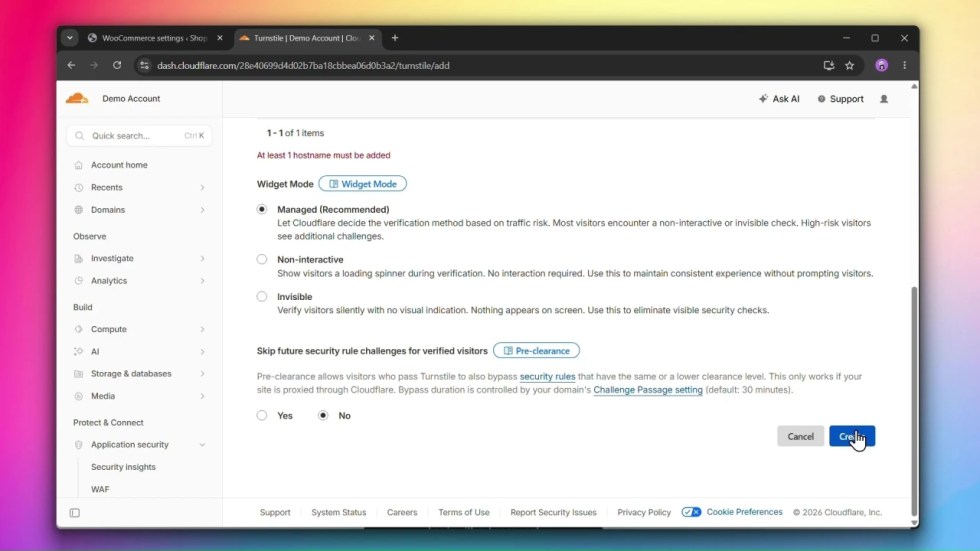
5. Choose managed widget mode
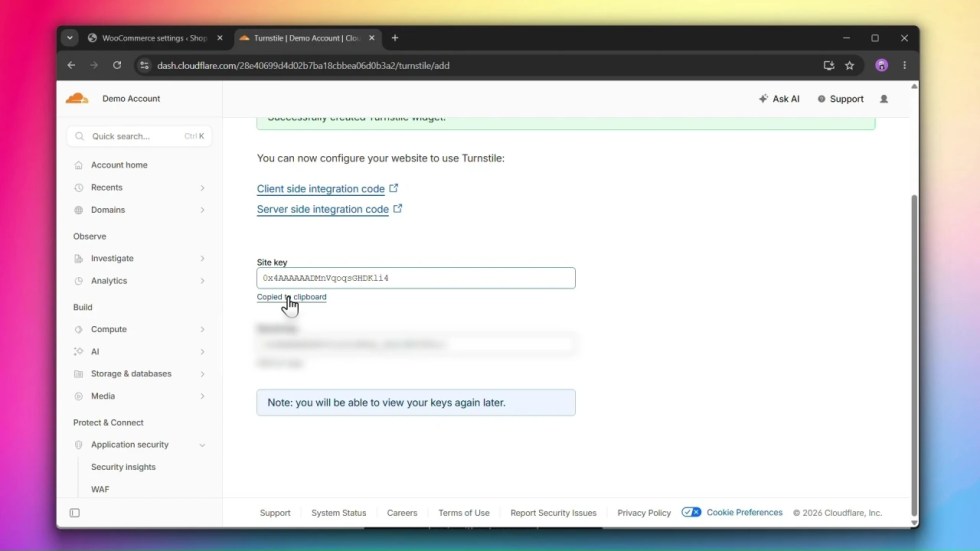
6. Copy the Site Key and Secret Key.
Step 2: Enable Cloudflare Turnstile
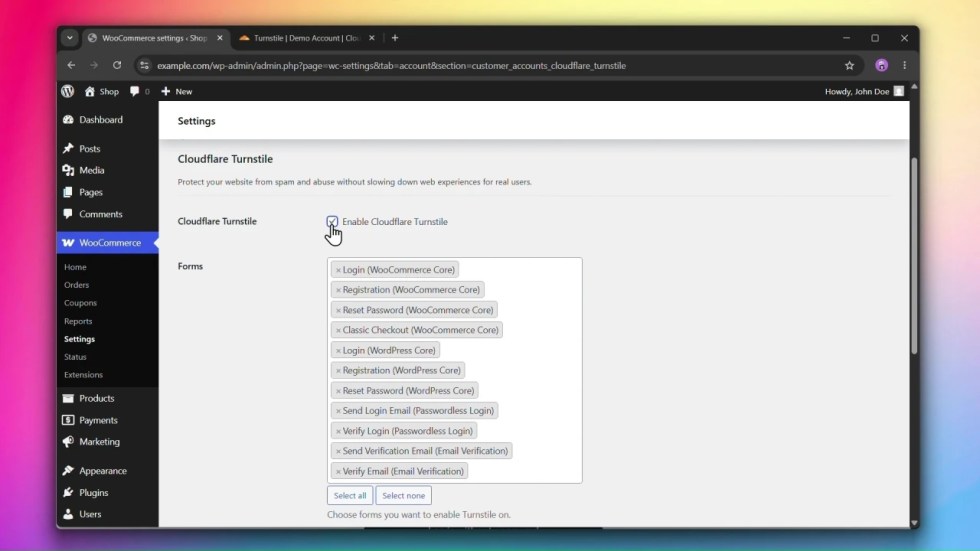
↑ Back to topUnder Cloudflare Turnstile, check Enable Cloudflare Turnstile.
Step 3: Select the forms to protect
↑ Back to topUnder Forms, select which forms you want Turnstile to appear on.
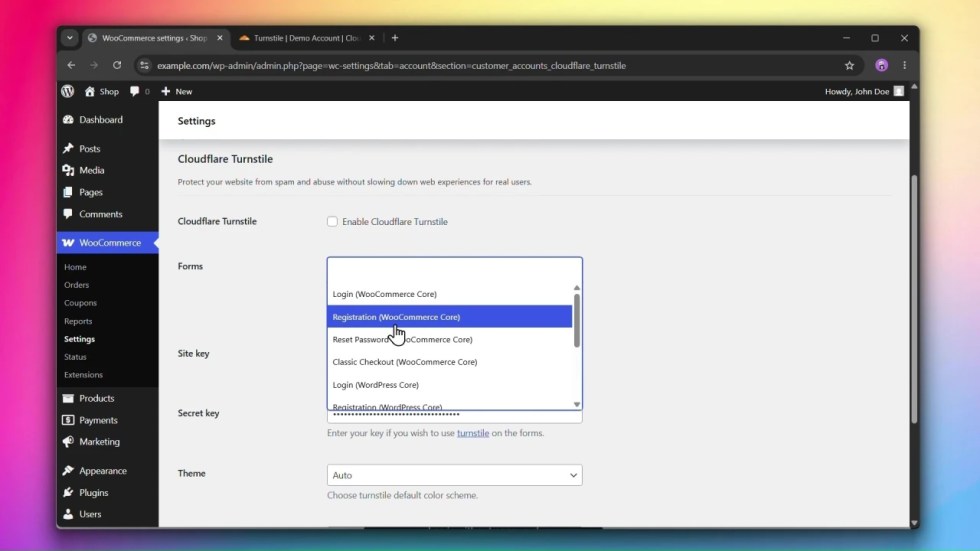
Supported forms
WooCommerce
- Login
- Registration
- Reset Password
- Classic Checkout
WordPress
- Login
- Registration
- Reset Password
Enhanced Customer Accounts for WooCommerce
- Send Login Email (Passwordless Login)
- Verify Login (Passwordless Login)
- Send Verification Email (Email Verification)
- Verify Email (Email Verification)
For stronger checkout protection, consider enabling the Modern Login experience on checkout — the checkout form is only shown after the user is logged in, reducing exposure to spam and bots.
Step 4: Enter your Site Key and Secret Key
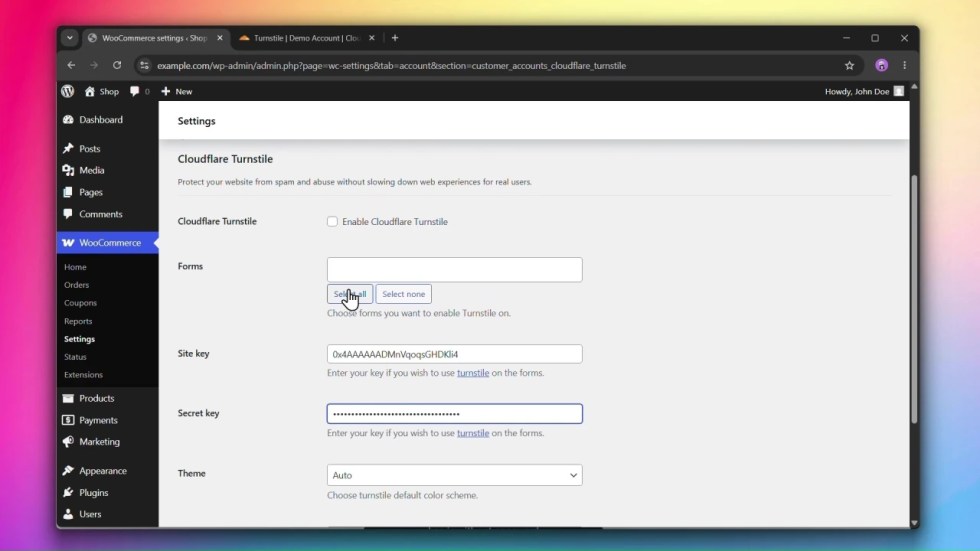
↑ Back to top- Paste your Site Key into the Site key field.
- Paste your Secret Key into the Secret key field.
Step 5: Configure the widget appearance
↑ Back to top- Theme — choose
Autoto match your site’s color scheme, or set it toLightorDarkmanually. Default:Auto. - Size — choose
Normalfor standard forms,Flexiblefor full-width layouts, orCompactfor tighter spaces. Default:Normal.
Step 6: Click Save changes
↑ Back to topClick Save changes to apply your settings.
Combining with Rate Limiting
↑ Back to topCloudflare Turnstile and Rate Limiting work well together. Turnstile blocks bots at the form level before a request is processed, while Rate Limiting caps request frequency by IP for anything that slips through. Using both provides layered protection.

