
Passwordless Login provides users with a seamless and more secure login experience without a password. Instead of entering a password, users receive a 6-digit login code or a login link sent via email.
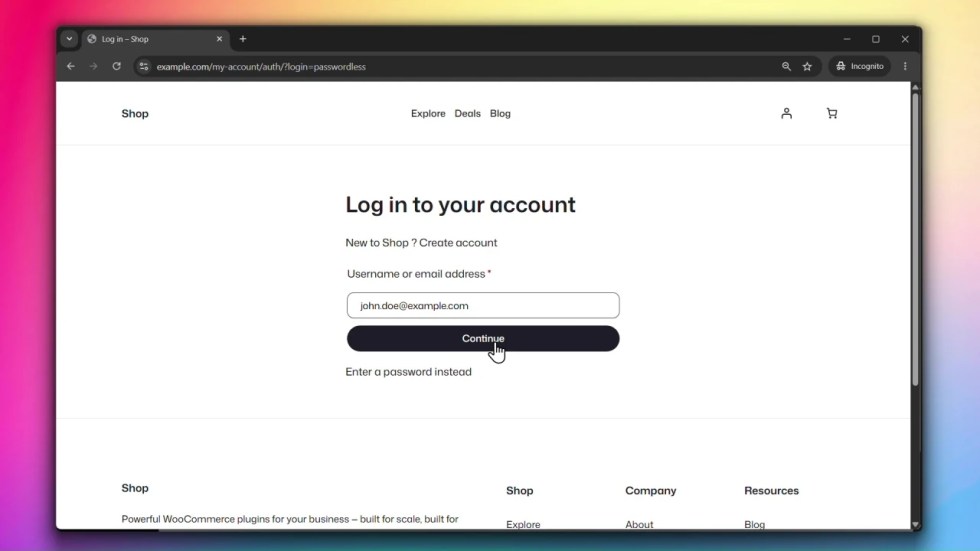
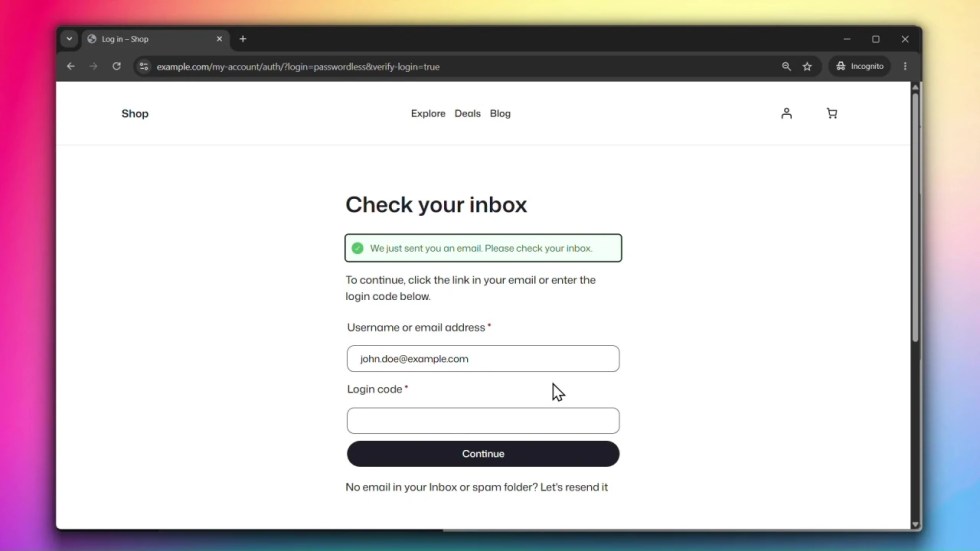
Accessing Passwordless Login Settings
↑ Back to topGo to WooCommerce > Settings > Accounts & Privacy > Customer Accounts and click on Passwordless Login.
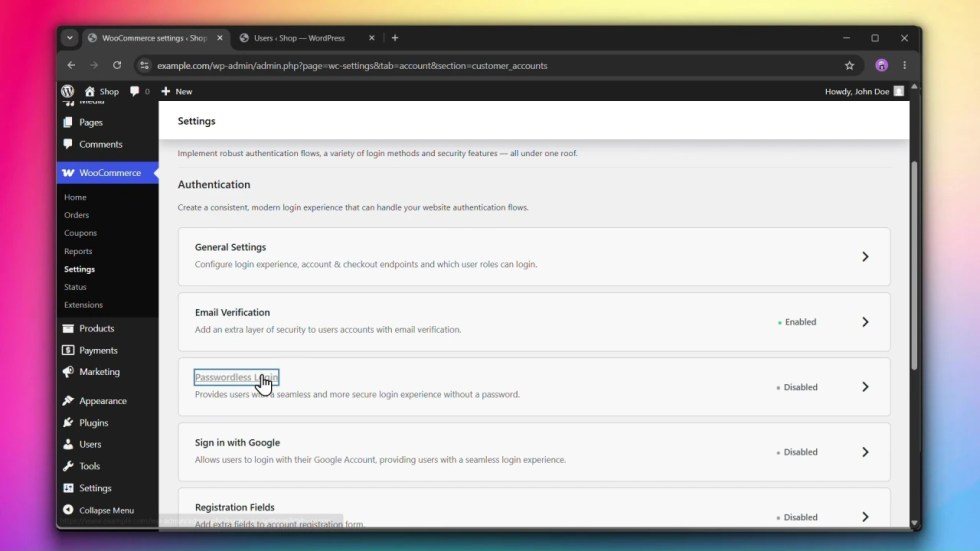
Steps
↑ Back to topStep 1: Enable Passwordless Login
↑ Back to topUnder Passwordless Login, check Enable passwordless login.
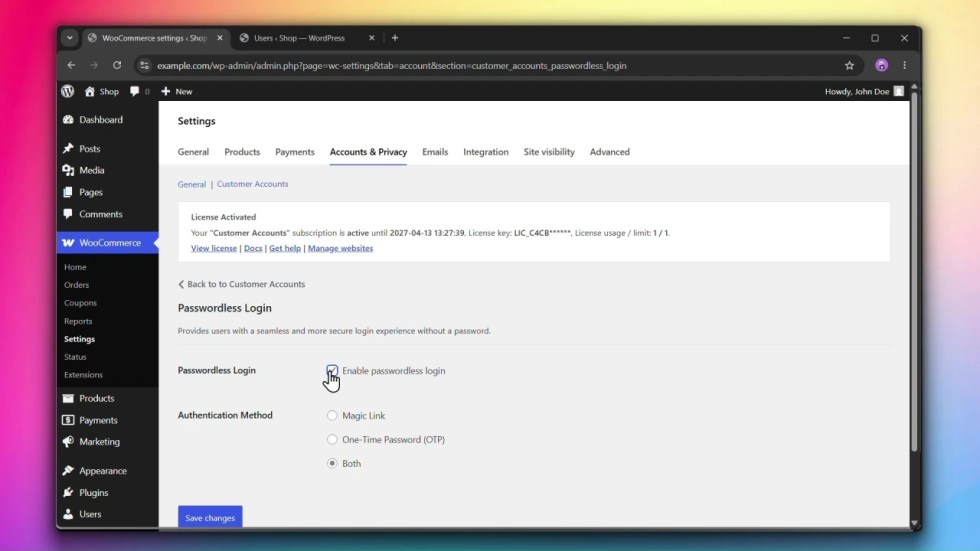
Step 2: Choose an Authentication Method
↑ Back to topUnder Authentication Method, select how users will authenticate:
- Magic Link — a one-click login link sent to the user’s email.
- One-Time Password (OTP) — a 6-digit code sent to the user’s email that they enter on the login page.
- Both — lets the user choose between a login link and a 6-digit code.
Step 3: Click Save changes
↑ Back to topClick Save changes to apply your settings.

