Let customers choose a personal trainer at either of two fitness-center locations. Use one bookable product per location, link the same trainer resources to both, and allow travel time between sessions.
Scenario
↑ Back to topDowntown and Uptown are about 30 minutes apart. Each trainer offers one-hour, one-to-one sessions at either location, with a one-hour gap for cleanup, travel, and preparation. The example locations open Monday through Friday, 9 am–5 pm.
Maya Chen charges $60 per session and Leo Martins charges $75. These example prices are in US dollars before tax. Use your own trainers, prices, currency, and opening hours. A trainer must not accept overlapping appointments at the two locations, but a different trainer can work at the same time.
Before you begin
↑ Back to topInstall and activate WooCommerce and WooCommerce Bookings. Confirm the WordPress time zone and store currency before entering hours and prices. Use a test store or a quiet test date to verify reservations without blocking real customers.
Set up both locations
↑ Back to topCreate a product for each location
↑ Back to top- Go to Products > Add new product. Name the first product Downtown Personal Training.
- In Product data, choose Bookable product and select Virtual and Has resources. Leave Has persons unchecked for these one-to-one sessions.
- Repeat for Uptown Personal Training. Apply the duration, resources, costs, and availability settings below to both products, then select Publish. For an existing product, select Update to save changes.
Set one-hour sessions
↑ Back to topIn each product’s General tab, set Booking duration to Fixed blocks of, with a block size of 1 and unit Hour(s). Leave Requires confirmation? unchecked for this example so customers can book directly.
Create one resource per trainer
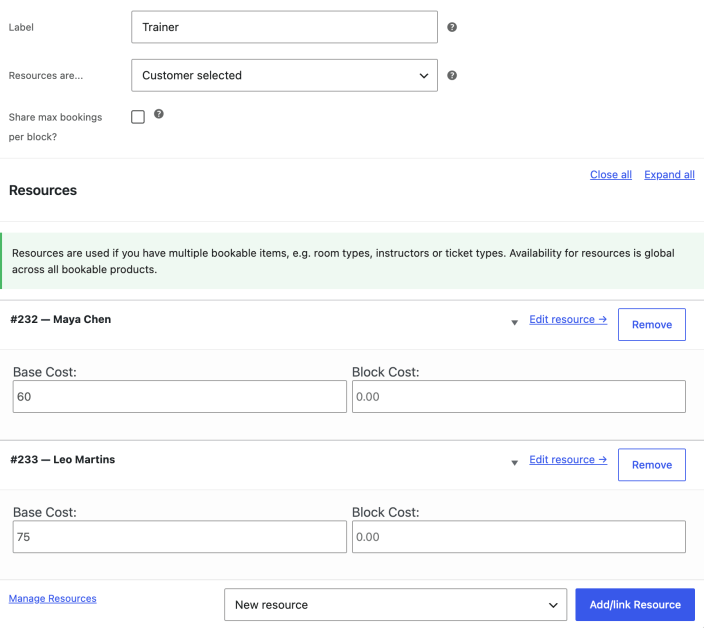
↑ Back to top- Open the Downtown product’s Resources tab. Enter Trainer in Label and set Resources are… to Customer selected.
- Leave Share max bookings per block? unchecked. Each trainer needs a separate allowance so Maya’s appointment does not block Leo.
- Choose New resource beside Add/link Resource, select that button, and enter Maya Chen when prompted. Repeat for Leo Martins. Save the product.
- Select Edit resource beside each trainer. Set Available Quantity to 1 and select Update. This trainer can serve only one customer at a time across every product that uses that resource.
Leave the resource availability table empty if the trainer follows the opening hours on both location products. Add resource availability rules only when a trainer needs a different schedule, and test those rules alongside the product and store availability settings.
Link the same trainers and set their prices
↑ Back to top- Open the Uptown product’s Resources tab. Set Label to Trainer, choose Customer selected, and leave Share max bookings per block? unchecked.
- In the list beside Add/link Resource, choose the existing Maya Chen resource, then select Add/link Resource. Repeat with the existing Leo Martins resource. Do not create new copies of the trainers.
- Compare the resource numbers shown beside the trainer names on both products. The same trainer must have the same resource number at Downtown and Uptown; matching names alone do not share a schedule.
- Expand each trainer’s row. On both products, set Maya’s Base Cost to 60 and Leo’s to 75. Leave each resource’s Block Cost at zero.
- In each product’s Costs tab, set product-level Base cost and Block cost to 0, with no extra cost rules. Save both products.
Resource prices are set on each product. Linking a trainer shares availability; it does not require the trainer to have the same price at every location. The example uses identical prices to make the test results easy to compare.
Set opening hours and travel time
↑ Back to topConfigure these settings in Availability on both location products:
- Keep Max bookings per block at 1. Each trainer’s available quantity controls the trainer’s capacity.
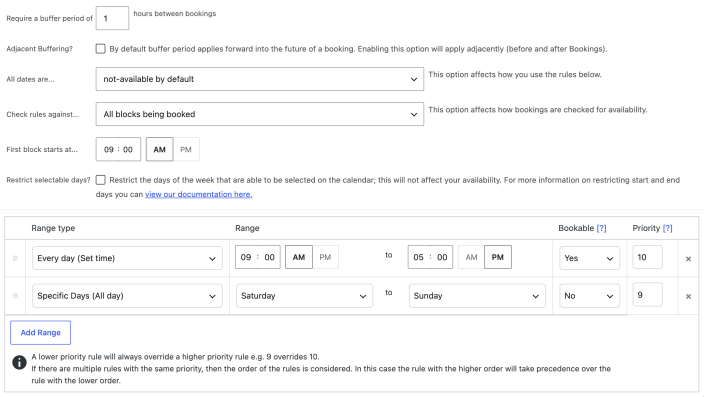
- Set Require a buffer period of to 1 hour. Leave Adjacent Buffering? unchecked for this example.
- Set All dates are… to not-available by default and Check rules against… to All blocks being booked.
- Set First block starts at… to 9 am. Choose minimum and maximum advance-booking windows that suit your business.
- Select Add Range twice and enter the following opening and closure rules. Save both products.
| Range type | From–to | Bookable | Priority |
|---|---|---|---|
| Every day (Set time) | 9 am–5 pm | Yes | 10 |
| Specific Days (All day) | Saturday–Sunday | No | 9 |
The weekend rule has a lower priority number, so it overrides the opening-hours rule. Leaving all dates unavailable without adding an opening-hours rule would leave customers with no bookable times.
With one-hour sessions and a one-hour buffer, this example offers start times of 9 am, 11 am, 1 pm, and 3 pm. A 9–10 am appointment leaves 10–11 am for travel, so the next session can start at 11 am. The gap applies even when the trainer stays at the same location; it does not calculate travel time between addresses. Adjacent buffering adds time on both sides, so leave it off when you want this one-hour gap.
Verify the shared schedule
↑ Back to topBefore accepting bookings, make a test reservation for Maya at Downtown, 9–10 am on an otherwise available weekday. You can use Bookings > Add Booking with Don’t create an order for this booking, or your store’s normal test checkout. Confirm the reservation is active, then refresh the customer-facing pages for both locations.
| Check | Expected result |
|---|---|
| Choose Maya at Downtown at 9 am | The reserved slot is unavailable |
| Choose Maya at Uptown on the same date | 9 am is unavailable; 11 am is the next offered start time |
| Choose Leo at Uptown at 9 am | The slot is available because Leo is a different resource |
| Select a valid Maya session, then a valid Leo session | $60 for Maya; $75 for Leo, before tax |
| Choose Saturday or Sunday | Neither location offers sessions |
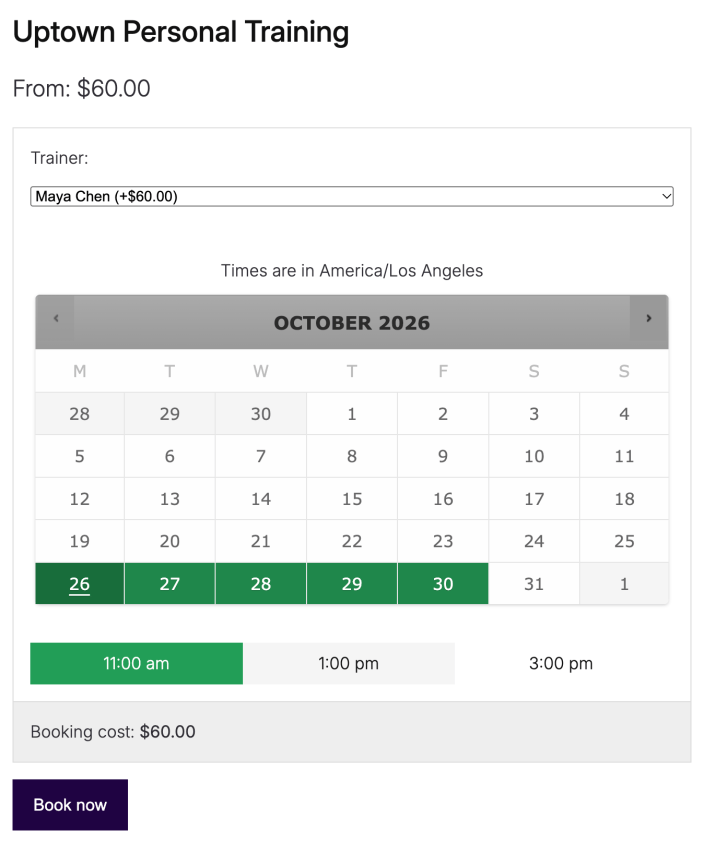
For a valid test selection, select Book now and check the product, trainer, date, time, and total in the cart. Cancel test reservations when you finish testing so they do not continue to block your schedule.
If the result differs
↑ Back to top- A trainer can be booked at both locations at once: compare resource numbers, not just names. Link the same existing resource to both products and confirm its Available Quantity is one. Check that the test reservation is active.
- Booking Maya also blocks Leo: clear Share max bookings per block? on both products and check the individual trainer quantities.
- No times appear: confirm the opening-hours rule is bookable, the date is within the advance-booking window, and no store or trainer rule closes it. Lower priority numbers override higher numbers.
- The gap is too long: check the buffer on both products and whether Adjacent Buffering? is enabled. Use the same session length, start time, and buffer at both locations for this setup.
- The price is higher than expected: check product-level costs, resource base and block costs, and other matching cost rules. Resource prices are added to the product’s costs.
Questions and support
↑ Back to topSomething missing from this documentation? Still have questions and need assistance?
- If you have a question about a specific extension or theme you’d like to purchase, contact us to get answers.
- If you already purchased this product and need some assistance, get in touch with a Happiness Engineer via our support page and select this product’s name from the Product dropdown.