
In some gallery templates (such as Template One), navigation buttons like Next and Previous are used to browse through variation images.
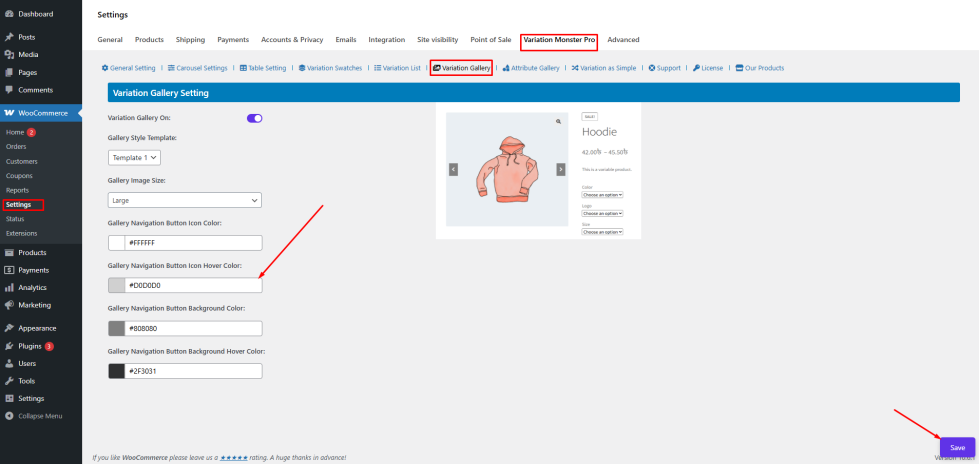
The Gallery Navigation Button Icon Color setting allows the admin to control the color of the navigation icons (arrows).
How to Configure
- Go to WordPress Admin Panel → WooCommerce → Settings
- Click the Variation Monster tab
- Navigate to the Variation Gallery section
- Locate Gallery Navigation Button Icon Color
- Select your desired color (e.g., #FFFFFF)
Click the Save button
Frontend Output
When a customer hovers over the navigation arrows, the icon color will change to the selected hover color.
Gallery Navigation Button Background Color
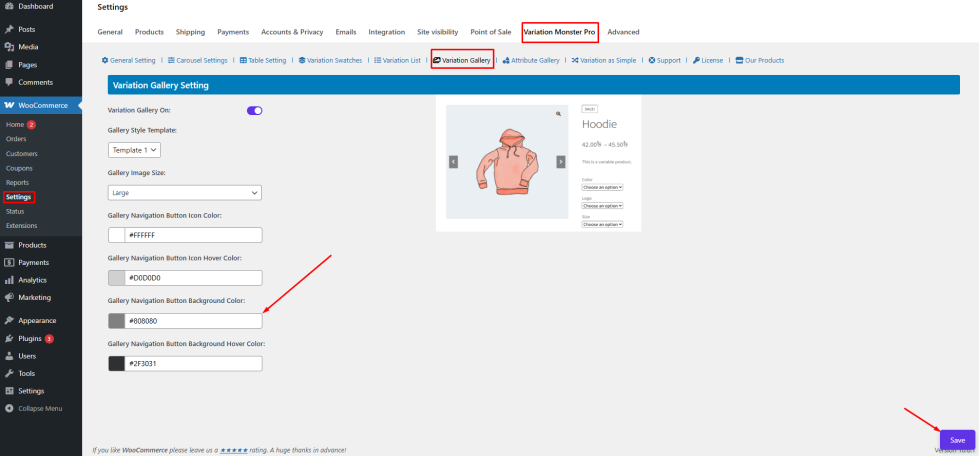
↑ Back to topThe Gallery Navigation Button Background Color setting allows the admin to control the background color of the navigation buttons.
This ensures that the buttons are clearly visible against the gallery images.
How to Configure
- Go to Variation Gallery settings
- Locate Gallery Navigation Button Background Color
- Select a background color (e.g., #808080)
Click Save
Frontend Output
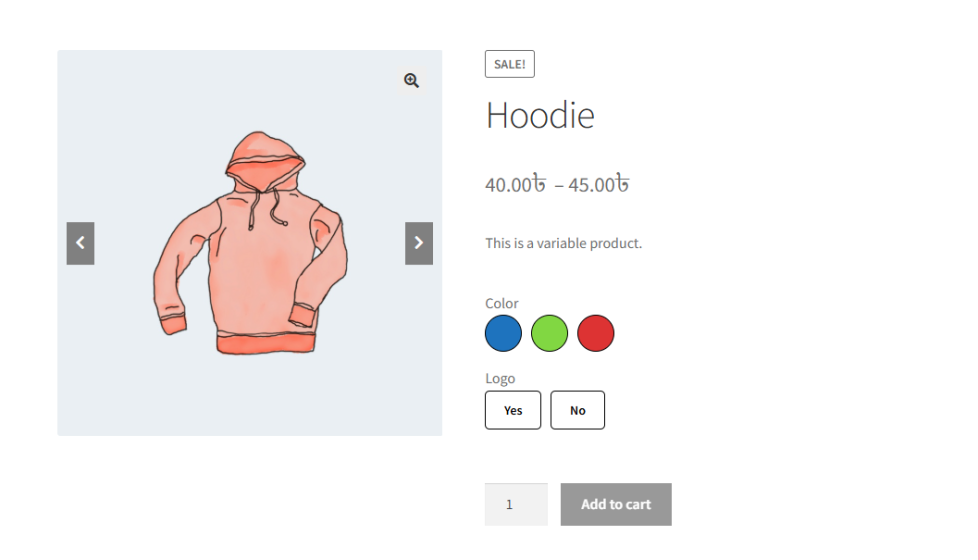
The navigation buttons (Next/Previous) will display with the selected background color in the gallery.
Gallery Navigation Button Background Hover Color
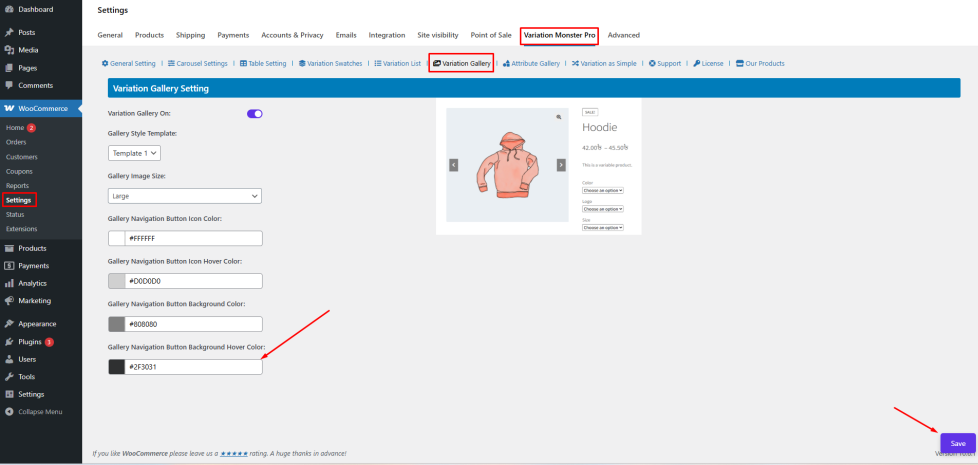
↑ Back to topThis setting controls the background color of navigation buttons when hovered.
It adds a smooth interaction effect and improves usability.
How to Configure
- Navigate to Variation Gallery settings
- Find Gallery Navigation Button Background Hover Color
- Choose your desired hover background color (e.g., #2F3031)
Click Save
Frontend Output
When a customer hovers over the navigation buttons, the background color will change to the selected hover color, providing a better interactive experience.

