
Right here, right now, and (almost) always right
↑ Back to topWooCommerce.com’s AI support assistant isn’t your typical bot! Our AI-powered assistant searches our library of WooCommerce-related information to intelligently answer any type of question you may have as you use WooCommerce.
WooCommerce’s AI support assistant is ideal for getting quick and detailed help with questions you have about your store. Artificial Intelligence won’t replace the professional, human support we’ve always provided to our customers.
Instead, we provide AI support as an additional tool to provide you with faster guidance than it would take for a human reply. It’s also not just fast. We care deeply about quality and do hundreds of quality reviews per week. The very same Happiness Engineers who provide personal support also work to ensure the quality and accuracy of our AI answers.
In more than 90% of AI interactions our assistant provided the right help.
If your chat with our AI assistant was not helpful, let us know! We make improvements to our AI assistant several times each week based on feedback because we believe you should get the same level of attention and care when interacting with our AI assistant as you would with any of our team members.
What if I get stuck in an AI loop?
↑ Back to topYou won’t. It’s a bold statement, but we do not lock you in. Any time you interact with our assistants, they can and will explain how to contact our humans. You can also reply to any AI-powered email and it’ll arrive in our inbox.
If you somehow do find yourself stuck, we consider it a bug. We believe in the right help at the right time so please let us know if you encounter an endless loop so we can fix it.
You can read more about our philosophy of AI in support here: https://woocommerce.com/posts/ai-in-woocommerce-support/
Where to find the WooCommerce Support AI Assistant
↑ Back to topThe WooCommerce Support AI assistant is available in all pages of our documentation and the pages of the My Account area. Just click the AI chat bubble icon to begin the conversation.
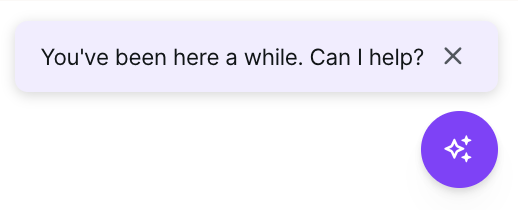
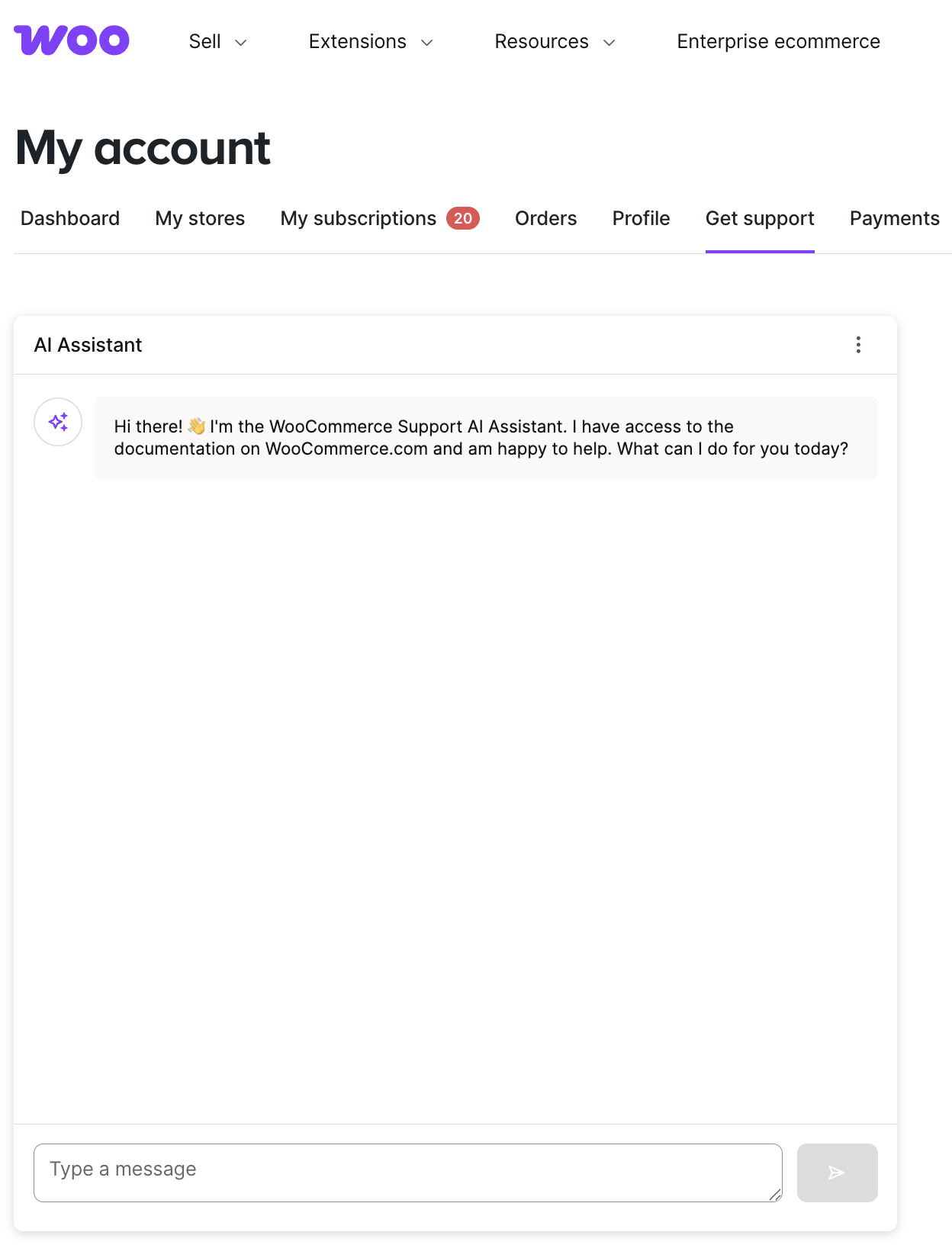
We know that AI isn’t perfect, so feel free to proceed to human support when you need to. We don’t provide AI to replace human support, only to help provide you with a quick answer in an automated way, leaving our staff of Happiness Engineers to resolve more complex requests that need a human touch.
Are you a ChatGPT user?
WooCommerce also has a custom GPT available on chatgpt.com which can help with store questions. Though it does not have the full features of the AI support assistant on WooCommerce.com
Store-specific context
↑ Back to topIf you’ve enabled usage tracking in the WooCommerce settings on your shop, and your store is connected to Jetpack, the assistant can use various points of context from your shop to inform its answers.
If you’ve also enabled the Remote Logging feature under WooCommerce > Settings > Advanced > Features then the AI assistant can read recent error messages logged on your site to help you quickly debug specific issues
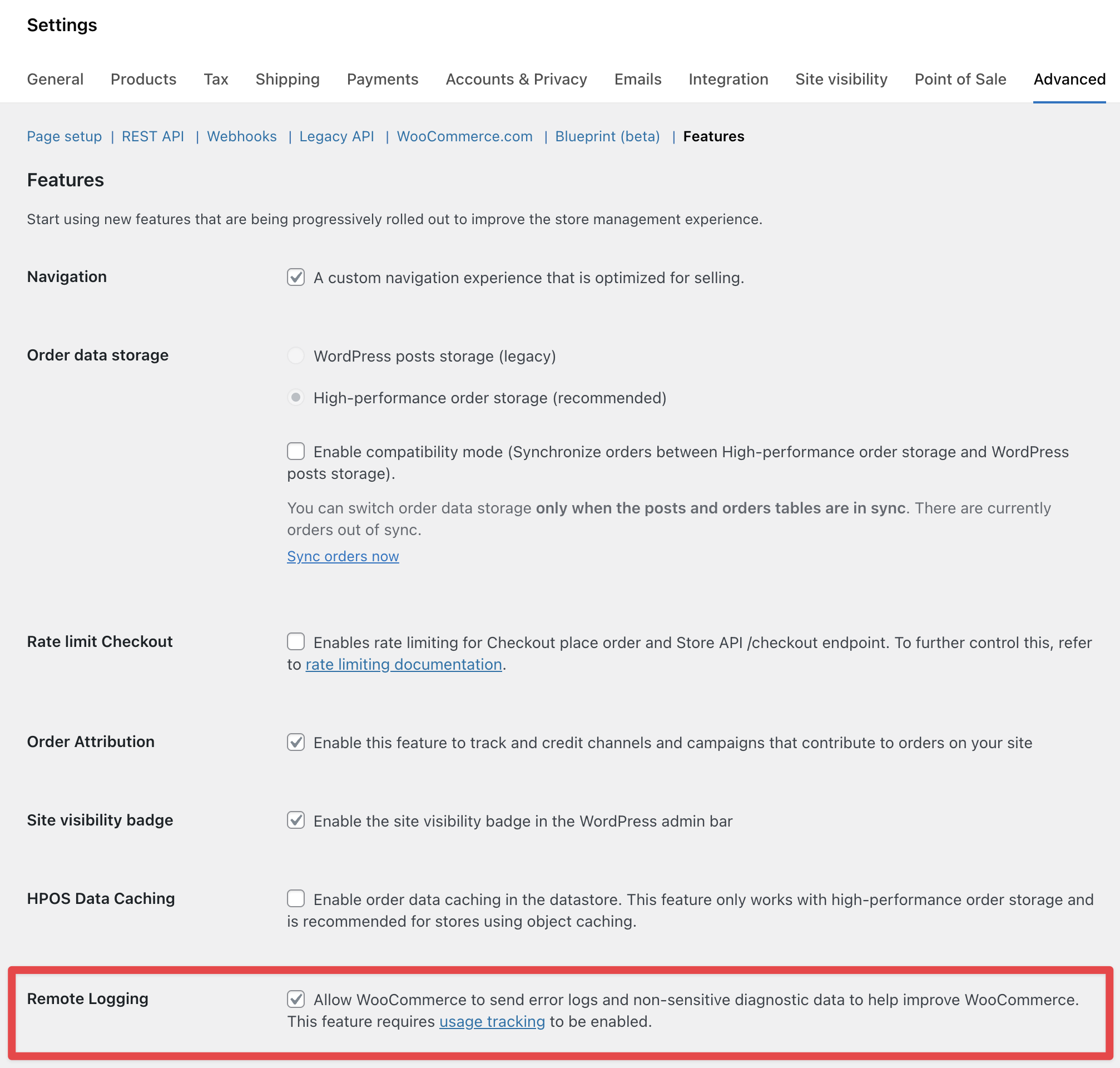
This feature requires usage tracking to be enabled.
Getting the most from AI support
↑ Back to topBefore reaching for human support, here are some tips on how AI can help you get the answers you need faster than waiting for a Happiness Engineer.
Be specific
↑ Back to topLike with any AI tool, vague questions will result in vague answers. To ensure our support assistant can craft a solution to your issue, provide a detailed description of the issue or question you have, including what went wrong and what you expected to happen instead.
For example:
- Vague request: “I need help with my subscriptions.”
- Specific request: “I need help with my customer’s subscriptions on my shop, not all renewals are processing automatically after I made some plugin updates. The latest note on a subscription with issues says… ”
Share your shop’s URL
↑ Back to topOur AI assistant can use context from your store to give you personalized help. If you’d like help with a specific store, include the shop’s URL in your message so our assistant knows which site you’re asking about.
For security reasons, our assistant cannot check store context unless you are logged into your account on WooCommerce.com, and also have the administrator role on the site you’re mentioning.
Use familiar words
↑ Back to topWooCommerce.com’s support assistant is trained on the existing WooCommerce interface. Therefore, it recognizes the same terms that you already see around your shop.
For example: If you use the word “app”, our support assistant may not recognize that you are asking about a WooCommerce Extension.
Share exact error messages
↑ Back to topIf you received an error on your shop that you need help with, copy and paste the exact logged message of that error message to share with our support assistant. Our support assistant has likely seen the error message before and can guide you to a solution.
One question at a time
↑ Back to topJust like us humans, our support assistant doesn’t always multitask well. You’ll get the best results if you try to tackle one topic at a time. If you have several questions you want to ask, submit just one and give our support assistant the space to share its answer. Once you’ve received your answer, proceed with your next question.
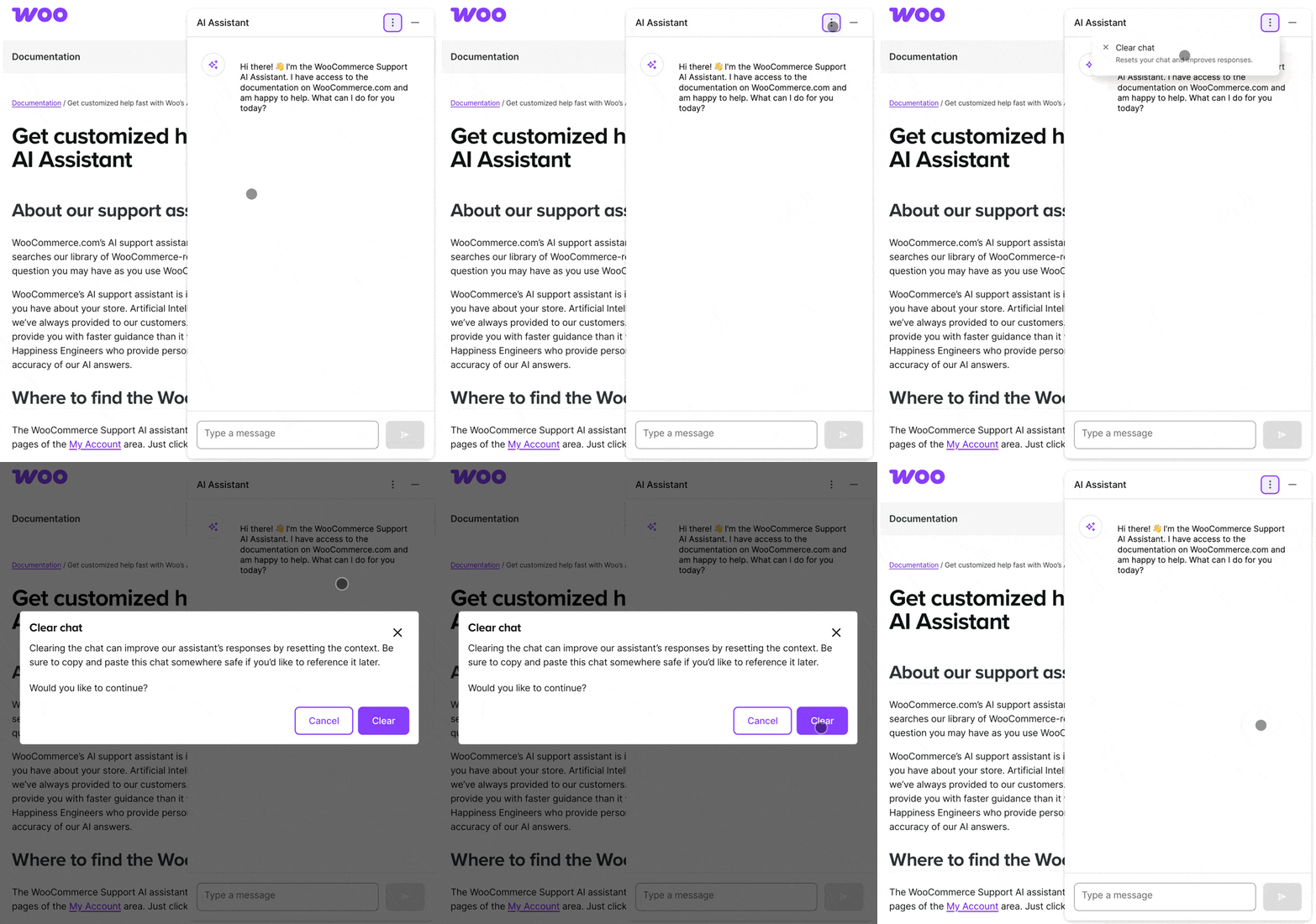
Clearing the chat for a fresh start
Our AI assistant reviews prior messages in the chat when forming its next answer, if you’ve had a long conversation with the assistant, or are changing topics, it can be helpful to clear the chat context and start the conversation with a fresh slate.
Trust, but verify
↑ Back to topThough we’re continually making improvements to ensure quality answers, sometimes our AI assistant can make mistakes, verify answers with primary sources before implementing changes on a production site.
Perform conflict tests on a staging or local site
↑ Back to topOften the issues we see in support are the result of conflicts between plugins and themes. If the WooCommerce Support AI assistant recommends a conflict test to isolate an issue on your site, remember to always test on a staging or local site first if possible. Also be sure to have a backup of your site available before making changes. Jetpack Vaultpress Backup is an excellent option for backups of WooCommerce stores
Further reading: AI Guidelines