
In Variation Monster for WooCommerce, admins can configure the Variation List template to control how variations are displayed on the single product page. The plugin offers two different templates, allowing store owners to choose the style that best fits their website design and user experience.
How to Configure Globally:
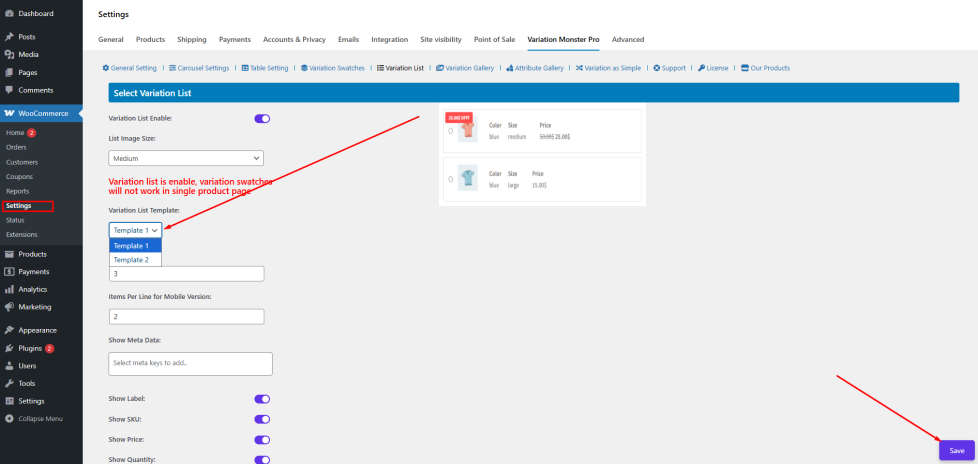
- Navigate to your WordPress Admin Panel → WooCommerce → Settings → Variation Monster Pro → Variation List.
- Enable the Variation List feature if it is not already active.
- Select your preferred template type from the available options.
Click Save Changes to apply the template across all products where the variation list is enabled.
How to Configure for Individual Products:
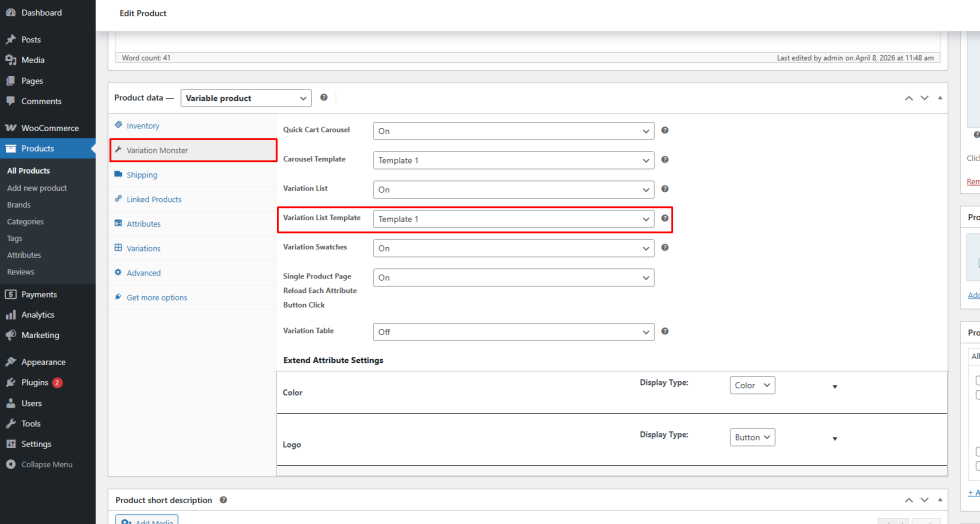
- Go to the Edit Product page for the product you want to configure.
- Open the Variation Monster tab.
- Locate the Variation List Template option.
- Select your desired template for this specific product.
- Update or publish the product.
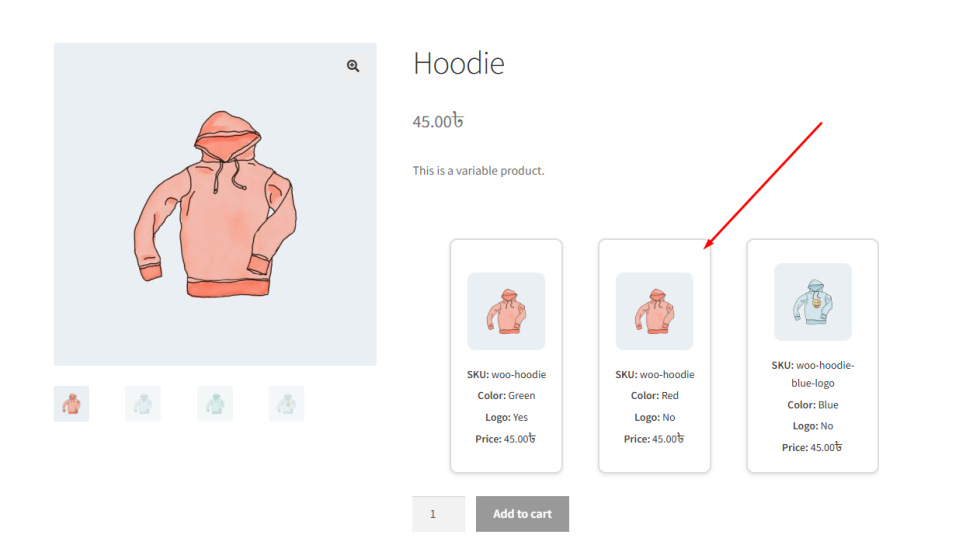
Once configured, the selected template will be applied to the single product page, displaying all variations in the chosen layout. This ensures a clear and professional presentation for customers, allowing them to easily identify and select the variation they want.
Item Per Pages Setup
↑ Back to topThe Items Per Page setting allows the admin to control how many variation items are displayed at a time in the Variation List.
When a product has many variations, displaying all of them at once can make the page look cluttered and difficult to navigate. This setting helps improve usability by limiting the number of items shown per page and organizing them into manageable sections.
Note: This setting applies specifically to desktop devices.
For example:
- If you set the value to 5, only 5 variations will be displayed at a time
- Additional variations will be accessible through pagination (next/previous navigation)
This ensures a cleaner layout and a better browsing experience for customers.
How to Configure
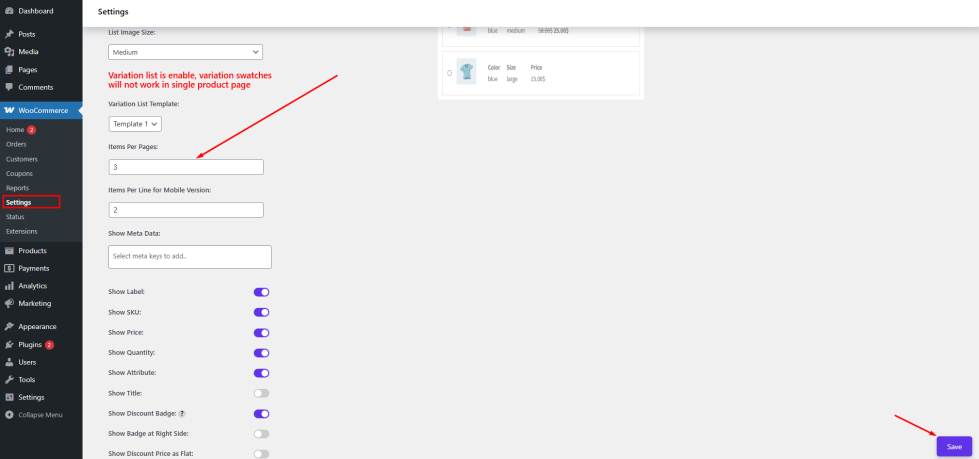
- Go to WordPress Admin Panel → WooCommerce → Settings
- Click the Variation Monster tab
- Navigate to the Variation List section
- Locate the Items Per Page option
- Enter the number of items you want to display per page
- Click the Save button
After saving the settings, the variation list on the single product page (desktop view) will display the specified number of items per page, improving readability and navigation.
Item Per Line for Mobile Version
↑ Back to topThe Items Per Line for Mobile Version setting allows the admin to control how many variation items are displayed in a single row on mobile devices.
Since mobile screens are smaller, displaying too many items in one line can make the layout look crowded and difficult to use. This setting helps optimize the layout for better readability and user experience on mobile devices.
For example:
- Setting the value to 1 will display one item per row (full width)
- Setting the value to 2 will display two items per row
- Higher values will show more items in a single line, depending on screen size
Choosing the right number ensures that variation items remain clear, clickable, and visually well-organized.
How to Configure
- Go to WordPress Admin Panel → WooCommerce → Settings
- Click the Variation Monster tab
- Navigate to the Variation List section
- Locate the Items Per Line for Mobile Version option
- Enter the desired number of items per line
Click the Save button
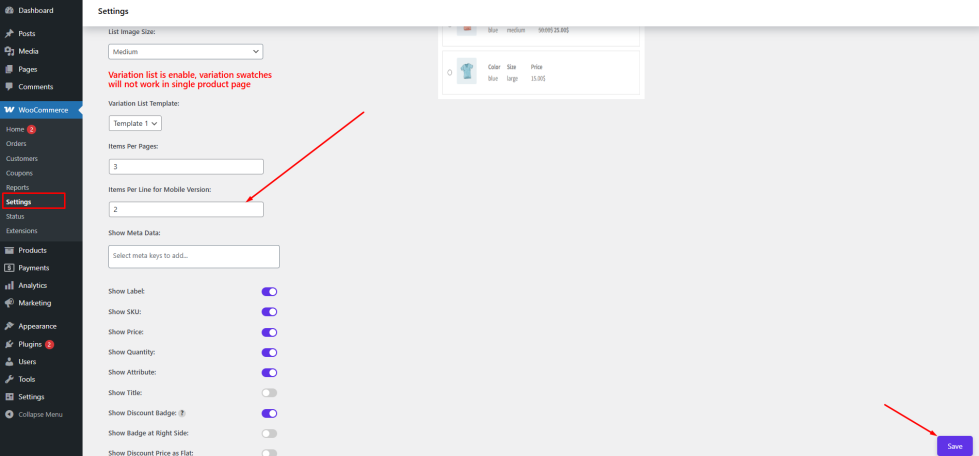
After saving the settings, the variation list will display the specified number of items per row on mobile devices, ensuring a responsive and user-friendly layout.

