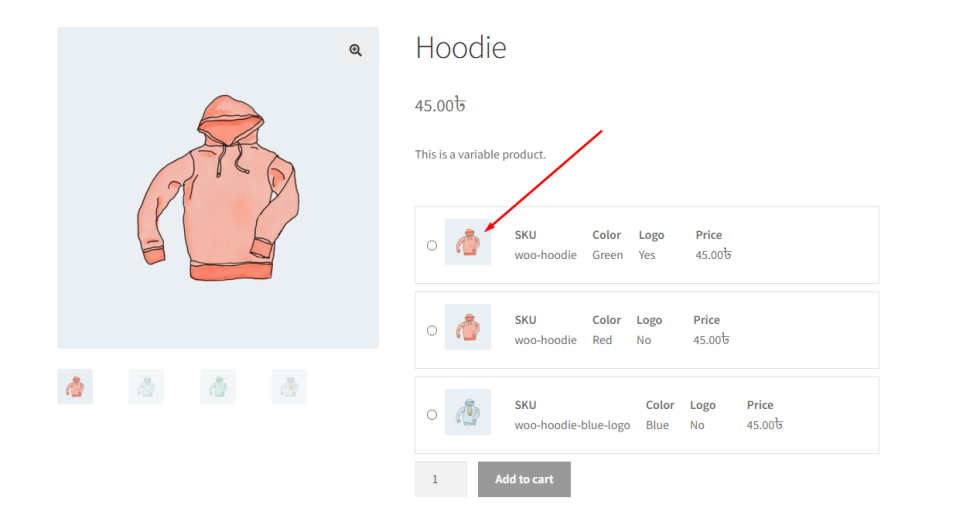
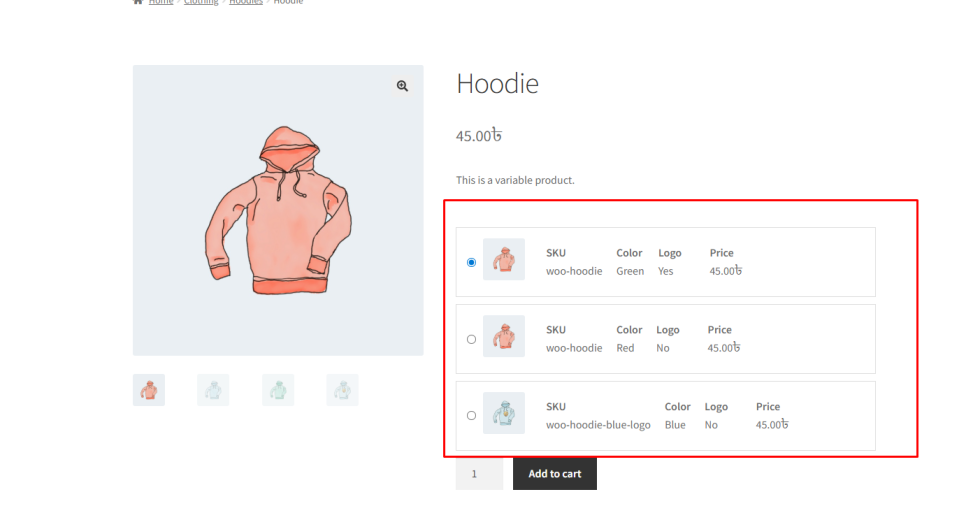
The Variation List is a powerful feature in Variation Monster that allows you to display product variations in a list format instead of the default WooCommerce dropdown.
In many cases, dropdowns hide important information and require multiple clicks. With the Variation List, all variation details are displayed in a clear and organized layout, making it easier for customers to understand and select their desired option.
Each row in the list can show key variation details such as:
- Color
- Size
- Other attributes
- Price and additional information
This allows customers to quickly compare and identify the correct variation without confusion.
Additionally, the plugin provides two different styles for the Variation List, giving you flexibility to match your store’s design.
Why Use Variation List?
↑ Back to topEliminates the need for dropdown selection
Displays all variation details at once
Improves product clarity and user experience
Helps customers make faster purchasing decisions
Let’s first access the settings.Navigate to your WordPress Admin Panel → WooCommerce → Settings.
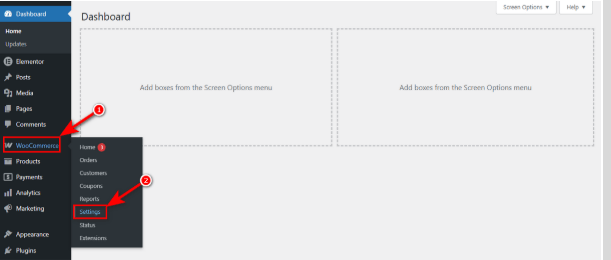
Next, click on the Variation List tab to open the plugin settings.
Variation List Enable
↑ Back to topThe Variation List Enable setting allows you to activate the Variation List feature for your variable products.
When this feature is enabled:
- The default WooCommerce dropdown selection is removed
- The Variation List layout is displayed on the single product page
- If Variation Swatches are enabled, they will be automatically disabled for that product
This ensures that only one variation selection method is active at a time, avoiding conflicts and keeping the interface clean.
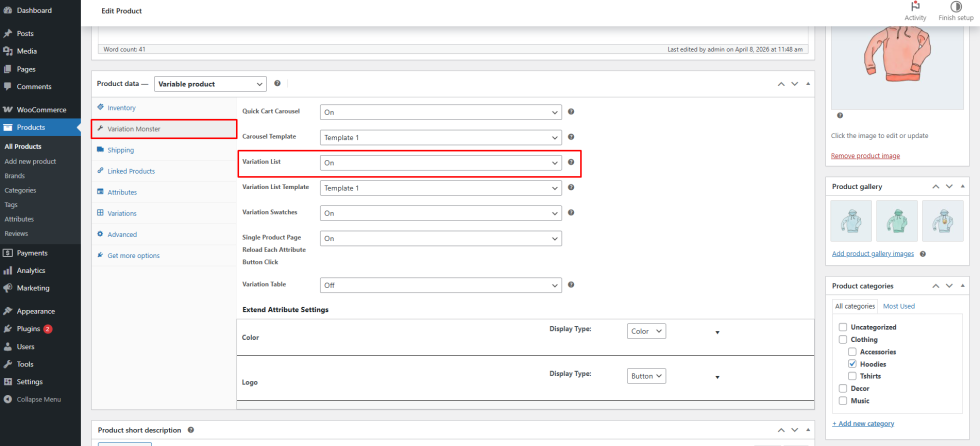
Per-Product Control
In addition to the global setting, Variation Monster also provides flexibility at the product level.
If you want to disable the Variation List for a specific product:
- Go to Products → Edit Product
- Open the Variation Monster tab
- Locate the Variation List option
- Turn it ON or OFF as needed
- Update the product
This allows you to use the Variation List globally while still having control over individual products.
How to Configure (Global Setting)
- Go to WordPress Admin Panel → WooCommerce → Settings
- Click the Variation Monster tab
- Navigate to the Variation List section
- Enable the Variation List option
Click the Save button
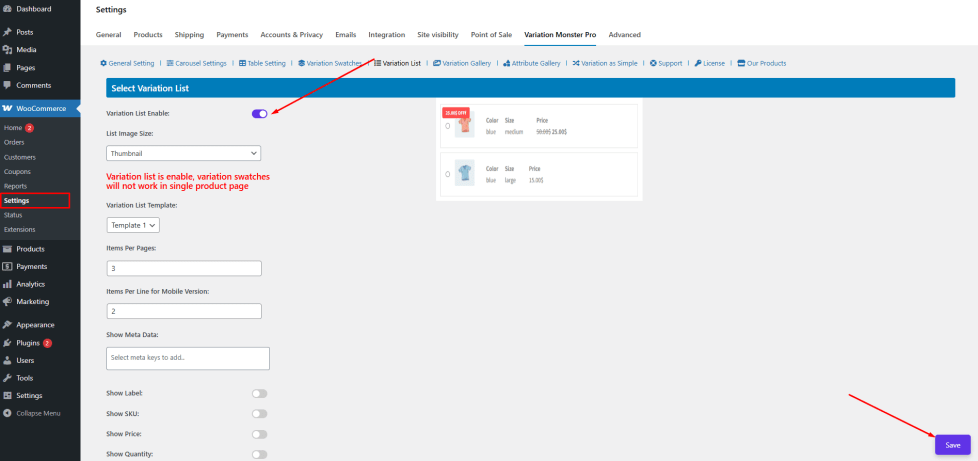
After saving, the Variation List will replace the default variation selection method on the single product page, providing a clearer and more user-friendly experience.
List Image Size
↑ Back to topThe List Image Size setting allows the admin to control the size of variation images displayed in the Variation List.
Choosing the right image size is important for both clarity and layout. If images are too small, customers may not clearly recognize the variation. If they are too large, they can disrupt the layout and make the list look cluttered.
With this setting, you can select an appropriate image size such as:
- Thumbnail
- Medium
- Large
- Or any custom image size available in your WooCommerce setup
This ensures that variation images are displayed clearly while maintaining a clean and organized list layout.
How to Configure
- Go to WordPress Admin Panel → WooCommerce → Settings
- Click the Variation Monster tab
- Navigate to the Variation List section
- Locate the List Image Size option
- Select your preferred image size from the dropdown
Click the Save button
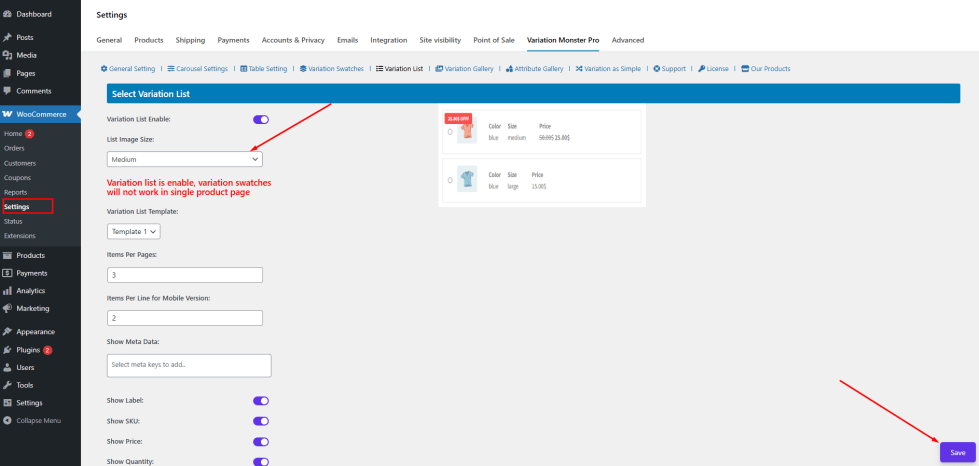
After saving the settings, the selected image size will be applied to all variation images in the Variation List on the single product page, helping customers easily identify each variation.