The standard WooCommerce setup relies on clunky menus. Customers hate digging for information. If they cannot immediately see what is in stock, they click away.
You need a faster way to present your product variations.
This setting acts as the master switch.
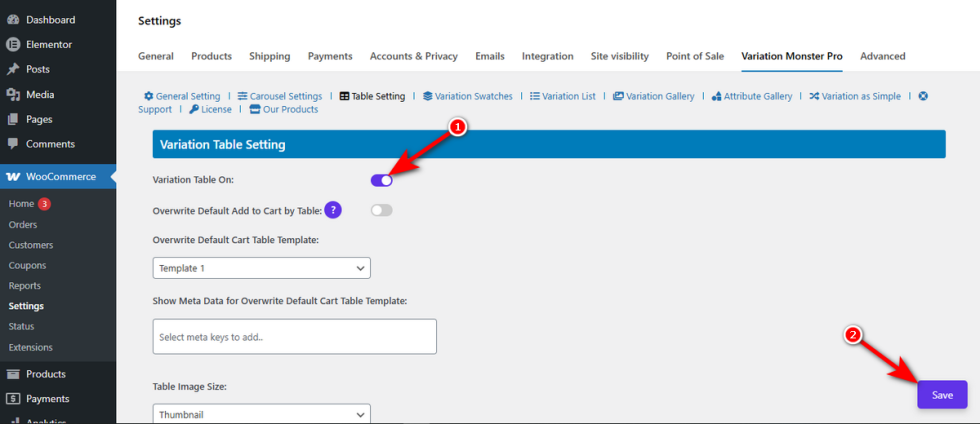
It instantly replaces the standard dropdowns with a clean, organized data table on your variation product pages.
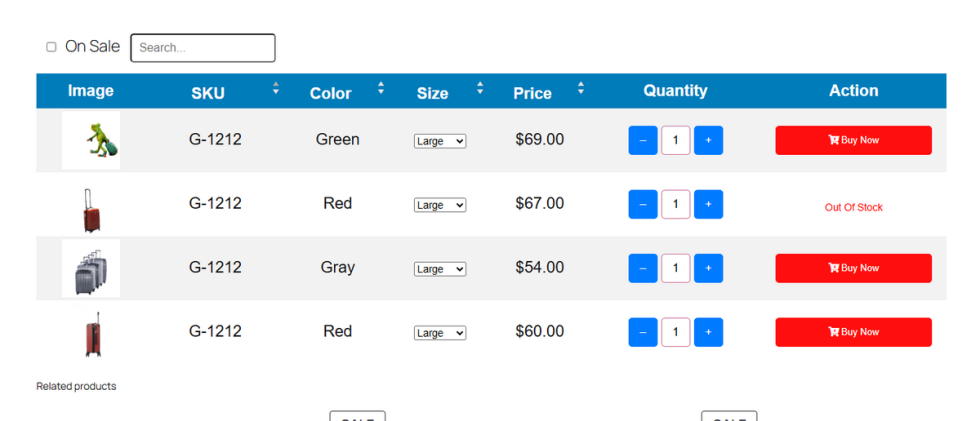
Variation Table Position
↑ Back to topPlacement dictates visibility. If your table sits too far down the page, shoppers might never scroll far enough to see it.
You need to position the table where it naturally catches the eye. The Variation Table Position setting gives you total control over its placement.
This feature lets you align the grid perfectly within your existing page structure.
Find the “Variation Table Position” dropdown menu.
Click it to reveal three specific placement options: “Before Single Product Summary“, “After Single Product Summary“, or “After Single Product“. Select the one that fits your layout best.Finally, hit the ‘Save‘ button to apply this change.
Variation Table Template (Pro)
↑ Back to topDoes your variation table look completely out of place? A default grid design often clashes with custom WooCommerce themes.
When visual elements don’t match, it breaks the shopper’s immersion. A jarring layout makes your brand look unpolished. Buyers might even question the quality of your store if the interface looks pieced together.
You need styling options that fit your specific aesthetic. The Variation Table Template feature gives you exactly that.
It offers two pre-designed layouts to help you upgrade your store look instantly.
Find the “Variation Table Template” dropdown menu. Pick a layout that complements your store’s design.Finally, hit the ‘Save‘ button.
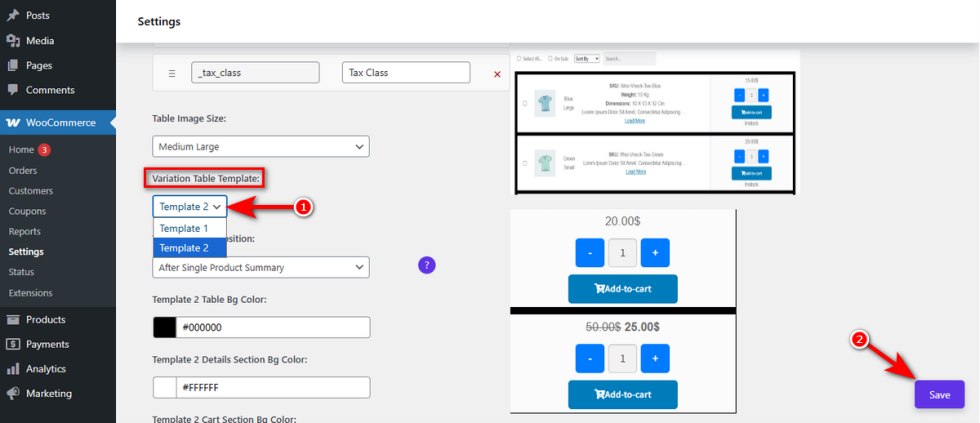
Now, check your variable product page. The table will feel like a natural, intentional part of your website.
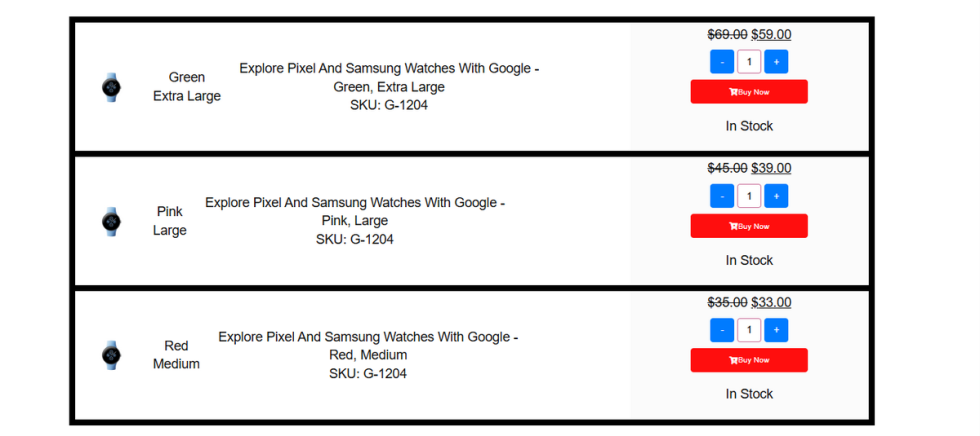
Table Image Size
↑ Back to topImages inside a table can easily break your layout. If pictures are too large, the grid looks messy and stretches off the screen.
A disorganized table confuses shoppers. They cannot easily compare variations if massive images take up all the space. This clunky design pushes potential buyers away.
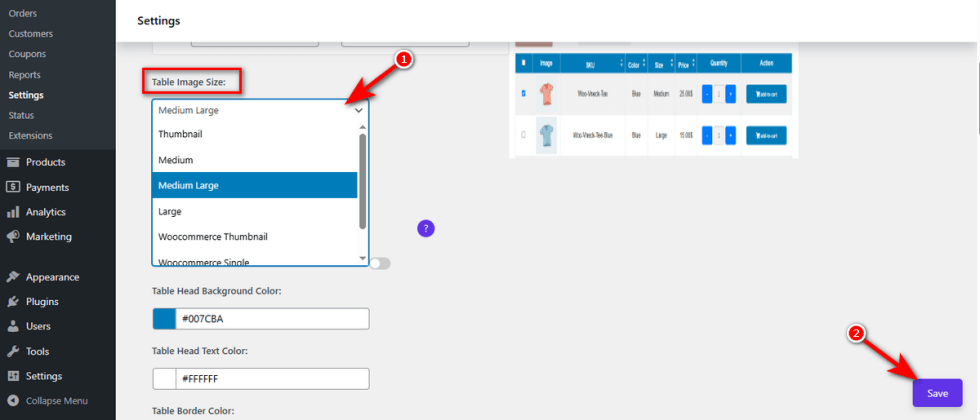
You need complete control over how variation pictures appear. Variation Monster’s Table Image Size setting allows you to scale these photos perfectly.
Click on the “Table Image Size” dropdown menu. Select an appropriate dimension for your store, such as ‘Thumbnail’.
Finally, hit the ‘Save‘ button to apply this change.
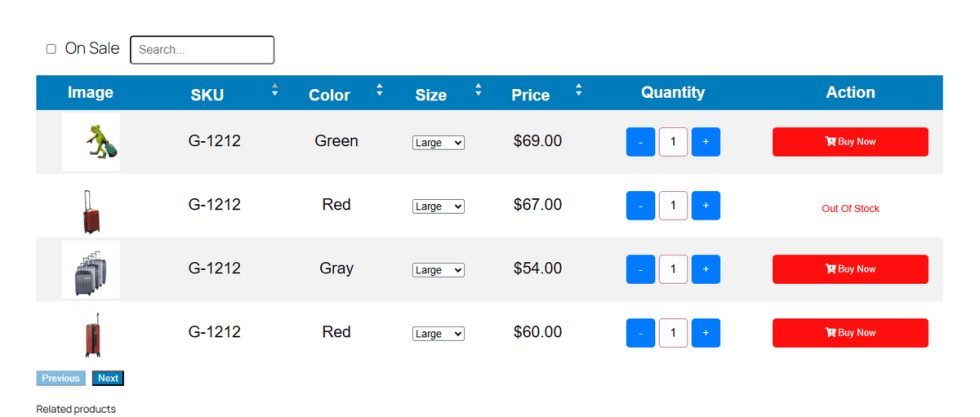
Now, visit a variable product page, and you will see your variation images neatly sized within the table layout.
Show Meta Data for Table Template (Pro)
↑ Back to topStandard product tables often miss backend technical details. Customers might need specific data like exact price breakdowns or download limits.
Leaving these fields out forces buyers to guess. A hesitant buyer rarely completes checkout. They will simply leave your site to find the information elsewhere.
You can display this hidden data directly in your grid. The “Show Meta Data for Table Template” feature pulls custom fields right into your layout.
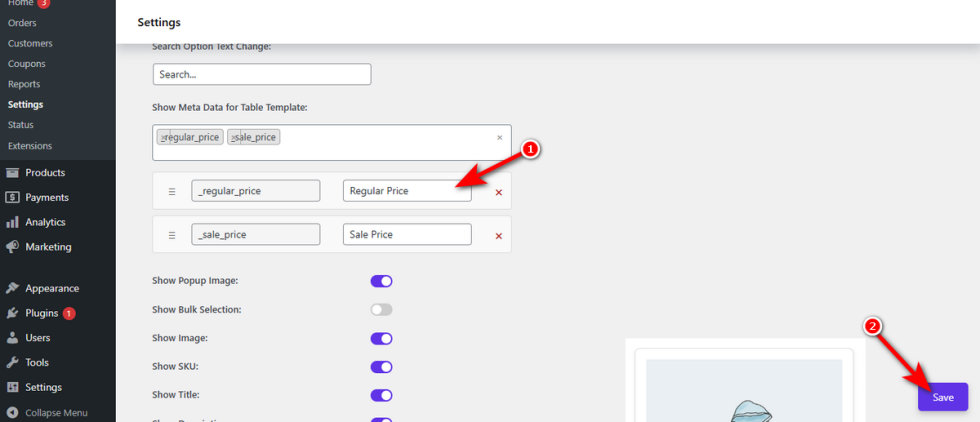
Click inside the “Show Meta Data for Table Template” input box. Select the specific meta keys you want to display from the dropdown list.
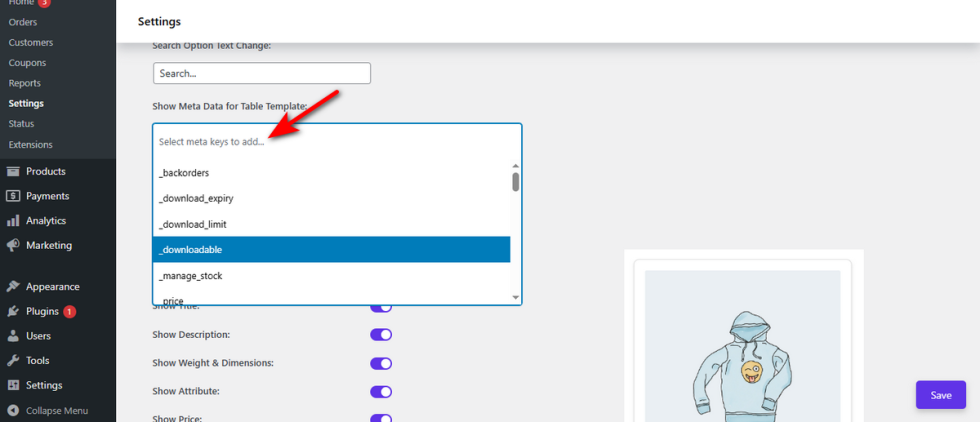
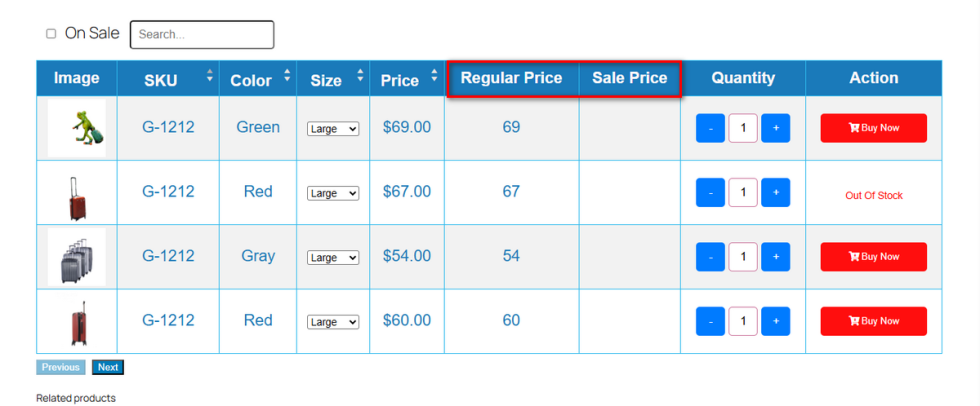
Next, type clear, customer-friendly names into the label boxes next to your chosen keys. For example, write “Regular Price” next to the _regular_price key.Finally, hit the ‘Save‘ button to apply this change.
Visit your variable product page. You will see your custom data fields beautifully aligned as new columns inside the table.