
WooCommerce Bookings includes a built-in CSV exporter and importer for bookings. Store managers can download a CSV file containing all, or a filtered subset, of their bookings. They can also create or update bookings in bulk by uploading a CSV file directly from the WordPress admin without needing third-party plugins or database access.
The export screen mirrors the WooCommerce core product export experience: a dedicated screen, batched processing with a progress bar, and a download link once the file is ready.
Export Bookings
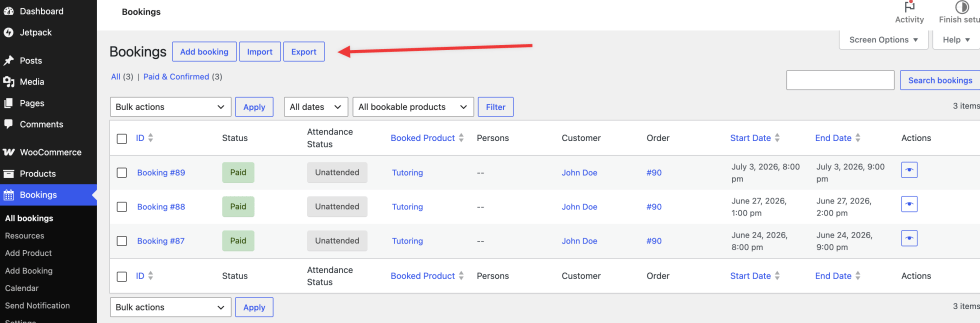
↑ Back to topNavigate to WP Admin > Bookings > All Bookings. An Export button appears next to the page title in the list-table toolbar. Click it to open the Export Bookings screen.
Configure the export
↑ Back to top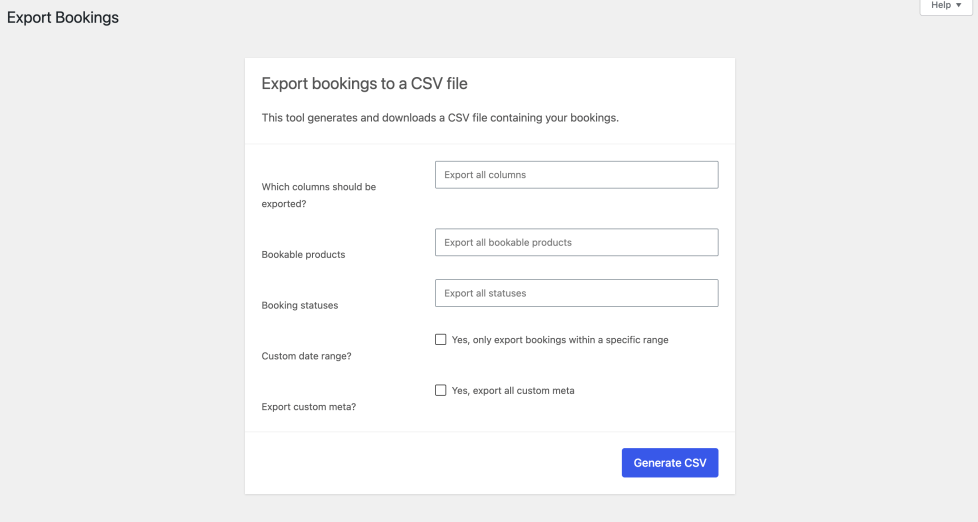
The export form offers the following options:
| Option | Description |
|---|---|
| Which columns should be exported? | Leave empty to export all columns, or pick specific columns to limit the output. |
| Bookable products | Filter the export to bookings belonging to specific bookable products. Leave empty to include all products. This option is hidden when exporting a manual selection. |
| Booking statuses | Filter by one or more booking statuses. Leave empty to include all statuses. This option is hidden when exporting a manual selection. |
| Custom date range? | Enable it to export bookings within a date range |
| Export custom meta? | When enabled, it appends one additional column for every non-core meta key found on each booking. |
Generate and download
↑ Back to topClick Generate CSV. A progress bar fills as the file is generated in batches. When it reaches 100%, the CSV file downloads automatically.
Export from a filtered Booking list
↑ Back to topThe Export button on the All Bookings page is context-aware. When you have active filters applied to the All Bookings list table (month dropdown, status filter, or product/resource filter), clicking Export carries those filters through to the export screen automatically.
Export a Manual Selection
↑ Back to topTo export only specific bookings:
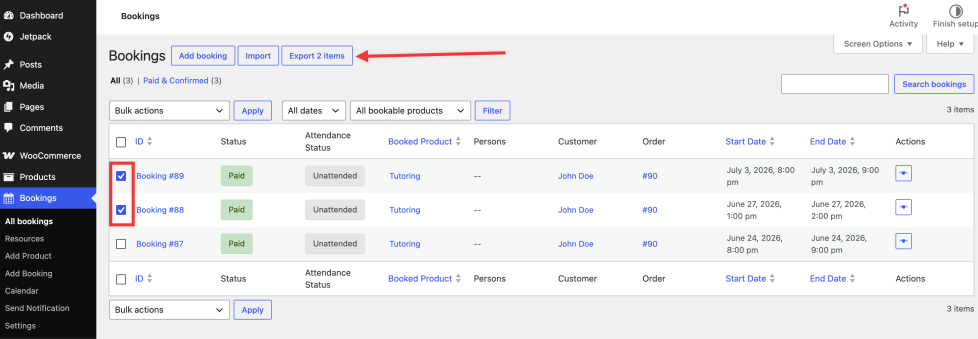
- On the All Bookings list table, tick the checkboxes next to the bookings you want to export.
- The Export button at the top (e.g., Export N items)
- Click it. The Export screen opens with a notice confirming how many bookings you are about to export.
- Click Generate CSV.
When exporting a manual selection, the product filter, status filter, and date range options are hidden. The explicit selection takes precedence over all filters.
Import Bookings
↑ Back to topThe importer accepts a CSV file in the same format the exporter produces. A CSV exported from one store can be uploaded directly to another without any manual preparation.
Open the Import page
↑ Back to topNavigate to WP Admin > Bookings > All Bookings. An Import button appears in the list-table toolbar alongside the Export button. Click it to open the Import Bookings screen.
The importer is also accessible from WP Admin > Tools > Import > WooCommerce Bookings (CSV), which redirects to the same screen.
Open the Bookings Import page
Upload a CSV file
↑ Back to topOn the upload screen, select a CSV or TXT file from your computer. The following options are available:
| Option | Description |
|---|---|
| Choose a CSV file from your computer | Select the file to upload. |
| Update existing bookings | When enabled, rows with an ID matching an existing booking will update that booking. Rows whose ID does not match any existing booking are skipped rather than creating a new one. |
Click Show advanced options to reveal additional settings:
| Advanced Option | Description |
|---|---|
| Enter the path to a CSV file on your server | Provide a file path instead of uploading a file if the CSV is already on the server. |
| CSV Delimiter | Change the column separator if your file uses something besides a comma. Defaults to ,. |
| Use previous column mapping preferences | Reuses the column mapping saved from your last import. |
Map columns
↑ Back to topThe importer reads the CSV header row and presents a mapping table. Each column in your CSV gets a dropdown where you assign it to a booking field or select Do not import to skip it.
Columns that match the exporter’s default header labels are mapped automatically. If you are uploading a CSV that was produced by the Bookings exporter, the mapping should be complete without any manual adjustment.
The following columns from an exported CSV are not available in the mapping table because the importer does not use them: Product name, Resource name, Persons total, Order status, Customer name, Customer email, and Modified date.
These are read-only values that the exporter resolves at export time.
Import progress
↑ Back to topThe import runs in batches with a progress bar. Once complete, the results screen shows a summary:
- Bookings imported
- Bookings updated
- Bookings skipped
- Bookings failed
- Warnings
If any rows have problems, a View import log link will appear. Click it to expand two tables: one listing failures and skipped rows with reasons and one listing warnings for rows that imported but required attention.
CSV Columns Reference
↑ Back to topThe following columns are available in the exporter and importer. Columns marked as export only are resolved at export time and are not available as import fields.
All date and time values are formatted as ISO 8601 with the site’s UTC offset (for example, 2026-05-02T09:00:00-04:00).
| Column | Header Label | Notes |
|---|---|---|
id | ID | Booking post ID |
status | Status | Booking status slug (e.g., confirmed, paid) |
attendance_status | Attendance status | |
all_day | All day | yes or no |
start | Start date | Required for new bookings on import |
end | End date | Required for new bookings on import. End must be later than start. |
local_timezone | Customer timezone | Timezone identifier stored at booking time |
cost | Cost | |
product_id | Product ID | Required for new bookings on import |
product_name | Product name | Export only. Resolved from the linked product at export time. |
resource_id | Resource ID | |
resource_name | Resource name | Export only. Resolved from the linked resource at export time. |
person_counts | Person counts | JSON object mapping person type ID to count (e.g., {"1":2,"2":1}) |
persons_total | Persons total | Export only. Sum of all person counts. |
order_id | Order ID | |
order_item_id | Order item ID | |
order_status | Order status | Export only. Resolved from the linked order at export time. |
parent_id | Parent booking ID | Set for sub-bookings |
customer_id | Customer user ID | WordPress user ID; 0 for guests |
woo_customer_id | Analytics customer ID | WooCommerce Analytics customer ID |
customer_name | Customer name | Export only. Resolved from the order at export time. |
customer_email | Customer email | Export only. Resolved from the order at export time. |
google_calendar_event_id | Google Calendar event ID | Set when the booking is synced to Google Calendar |
note | Customer note | |
date_created | Created date | |
date_modified | Modified date | Export only. |
date_cancelled | Cancelled date | Empty if not cancelled |
meta:<key> | Meta: (key) | On export, included when Export custom meta is enabled. On import, any meta: column is saved as post meta on the booking. |
Permissions
↑ Back to topThe Export button requires both the manage_woocommerce and export capabilities. The Import button requires both the manage_woocommerce and import capabilities. Users without the relevant capability will not see the corresponding button and cannot access the screen directly.
Developer Reference
↑ Back to topDeveloper-focused hooks, filters, and code examples for customizing Bookings imports and exports are maintained in the Bookings Developer Docs.
Questions and support
↑ Back to topSomething missing from this documentation? Still have questions and need assistance?
- If you have a question about a specific extension or theme you’d like to purchase, contact us to get answers.
- If you already purchased this product and need some assistance, get in touch with a Happiness Engineer via our support page and select this product’s name from the Product dropdown.