Use the Costs tab in WooCommerce Bookings to set a booking’s base cost, cost per duration block, and displayed starting price. You can also add pricing rules for particular dates, times, numbers of persons, or booking lengths.
This reference assumes you have a bookable product with its duration and availability configured. Go to Products, edit the product, and select Product data > Costs. Save changes with Update, or Publish for a new product.
Base cost, block cost, and display cost
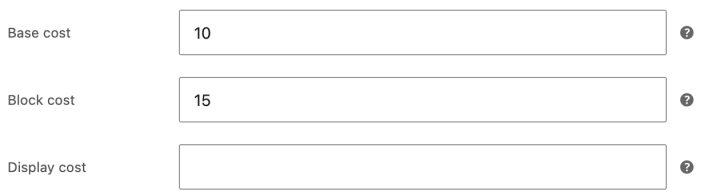
↑ Back to top- Base cost: a one-off cost for the booking as a whole. It is added once, rather than once per duration block. Pricing rules and persons settings can change the final amount.
- Block cost: the cost for each duration block configured in the General tab. For example, with one-hour blocks, a two-hour booking contains two blocks.
- Display cost: the price shown before a customer chooses a booking. It does not change the calculated booking cost or the amount charged. Leave it blank for Bookings to calculate the displayed price. A product with varying costs displays a From: price.
Without pricing rules, persons costs, or resource costs, the booking total is the base cost plus the block cost multiplied by the number of blocks. For example, a $10 base cost and $15 block cost give a two-block booking a total of $40: $10 + ($15 × 2). Taxes and other checkout adjustments can affect the amount due.
Configure a custom cost range
↑ Back to topUse the table below the cost fields to adjust the base or block cost when a customer’s booking matches a range:
- Select Add Range.
- Choose a Range type and enter its start and end values.
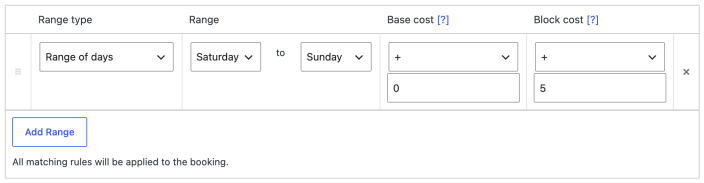
- For Base cost and Block cost, choose an operation and enter the amount. Use + to add, − to subtract, × to multiply, ÷ to divide, or = to replace the cost. Use a nonzero amount when dividing. Leave an unchanged cost at + 0.
- Select Update to save the product, then test a matching booking on the product page.
For a weekend surcharge, choose Range of days, set the range from Saturday to Sunday, leave the base adjustment at + 0, and set the block adjustment to + 5. With the $10 base cost and $15 block cost above, two hourly blocks on a weekend cost $50: $10 + (($15 + $5) × 2). The same two blocks on a weekday cost $40.
Range types
↑ Back to top- Date range: choose start and end dates with the date pickers.
- Range of months: choose months from January to December.
- Range of weeks: choose week numbers from 1 to 52.
- Range of days: choose days of the week.
- Time Range or Time Range (all week): enter start and end times. The weekday options under Time Ranges restrict a time range to that day. Time-based cost rules apply to products with hourly or minute-based durations.
- Date Range with time: enter the dates and the time range that applies on those dates.
- Person count: enter the minimum and maximum number of persons. Enable Has persons on the product to use persons in a booking.
- Block count: enter the minimum and maximum number of duration blocks.
Matching rules and row order
↑ Back to topNote:
By default, all matching cost rules apply in table order, from top to bottom. The Costs table has no priority field. A later = operation replaces the amount calculated so far for that base or block cost; rows after it can change the amount again.
For example, starting with a $15 block cost, a matching = 20 row followed by a matching + 5 row produces a $25 block cost. Reverse those rows and the result is $20 per block. A matching base-cost adjustment applies once to the booking; a block-cost adjustment applies to the relevant blocks.
To reorder a rule, drag its handle on the left of the row. To remove it, select the × control on the right. Select Update after either change.
Resource and person costs
↑ Back to topPersons and resources can add costs beyond the product’s base and block costs. Use Persons for Bookable Products to configure per-person or person-type pricing, including whether to multiply booking costs by the person count. Use Resources in Bookings to set costs for a selected resource.
Check the calculated price
↑ Back to topAfter saving, open the product page and select an available date, time, duration, and any required persons or resource. Wait for Booking cost to finish updating. Compare a booking that matches your rule with one outside the range, and check longer bookings if customers can choose several blocks.
If the total is unexpected, check the duration block size, every matching cost row and its operation, row order, and any persons or resource costs. A custom Display cost changes only the starting price shown before selection. If the selected booking cannot be priced because no slot is available, check availability and existing bookings before changing costs.
Questions and support
↑ Back to topSomething missing from this documentation? Still have questions and need assistance?
- If you have a question about a specific extension or theme you’d like to purchase, contact us to get answers.
- If you already purchased this product and need some assistance, get in touch with a Happiness Engineer via our support page and select this product’s name from the Product dropdown.