Use WooCommerce Bookings, Groups, Groups Integration for WooCommerce, and WooCommerce Subscriptions to offer a bookable class to gym members. This example uses a dedicated simple subscription product to grant access to a group and restricts the class to that group.
Scenario
↑ Back to topA gym sells a monthly membership and offers a free one-hour Spin Class on weekends. Members book a class in advance; visitors without access to the group cannot view the class product.
Products used
↑ Back to top- WooCommerce
- WooCommerce Bookings
- Groups
- Groups Integration for WooCommerce
- WooCommerce Subscriptions
Before you begin, install and activate these extensions. This example uses the dedicated Simple subscription product type. Subscriptions 9.0 and later recommend subscription plans for new products; the dedicated type remains supported for existing and other use cases. See Creating a Subscription Product for the options.
Setup and configuration
↑ Back to topCreate a group
↑ Back to top- Go to Groups > Capabilities and select New Capability. Enter a unique capability such as gym_membership and select Add.
- Go to Groups > Groups and select New Group.
- Name the group Gym Membership Activities, select gym_membership under Capabilities, and select Add.
Create a subscription
↑ Back to topIf Simple subscription is not available when creating a product, go to WooCommerce > Settings > Subscriptions > Subscription product creation, enable Simple subscription, and save. This is a storewide setting for creating the dedicated product type.
- Go to Products > Add new product and name it Gym Membership.
- In Product data, select Simple subscription. On the General tab, set the price and billing interval, for example $75 every month.
- Select the Groups tab. Under Add to Groups, select Gym Membership Activities.
- Complete the product details and select Publish.
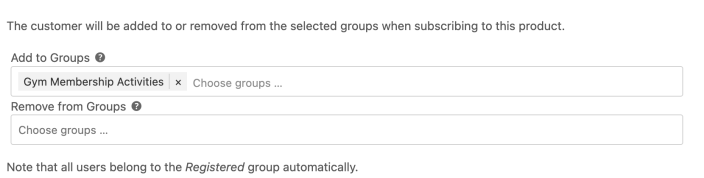
Groups Integration adds the customer to the selected group when the subscription becomes active. Access after a cancellation or suspension depends on the subscription status and the integration’s settings; check Groups Integration settings and test the lifecycle on your store.
Create a bookable product
↑ Back to top- Go to Products > Add new product and name the product Spin Class.
- In Product data, select Bookable product. Set a fixed booking duration of one hour and configure the cost for your class.
- In Availability, set dates to not-available by default and add bookable time ranges for Saturday and Sunday. Set the hours and booking capacity to match your classes. See Bookings Availability Settings for the rules.
- In the product editor’s Groups panel, select Gym Membership Activities in the Read field. This restricts the product’s visibility to members of the chosen group.
- Complete the product details and select Publish.

Test member access
↑ Back to topTest with separate customer accounts rather than an administrator account. Confirm that a member with the active subscription can view the class and select an available time, and that a customer without the group cannot view the restricted product. Check the weekend availability and cost before accepting real bookings. Test the access outcome after cancellation or an on-hold subscription as well, using your store’s Groups Integration settings.
If a member cannot view the class, check the subscription status, the customer’s group membership, and the class’s Read setting. If the class appears but the expected time is unavailable, review its availability rules and any global or resource rules that apply.
Questions and support
↑ Back to topSomething missing from this documentation? Still have questions and need assistance?
- If you have a question about a specific extension or theme you’d like to purchase, contact us to get answers.
- If you already purchased this product and need some assistance, get in touch with a Happiness Engineer via our support page and select this product’s name from the Product dropdown.