
Set up two recording rooms with customer-selected session lengths, evening pricing, a five-person limit, and optional equipment rental. This example uses WooCommerce Bookings with Product Add-Ons for the equipment choices.
Before you begin
↑ Back to topInstall and activate WooCommerce, WooCommerce Bookings, and Product Add-Ons. Confirm your store currency and WordPress time zone before entering hours. Prices below are in US dollars, before any applicable taxes. Use the equivalent amounts for your currency.
Scenario
↑ Back to topAlexi runs Cedar Sound Recording Studio. Customers choose Studio 1 or Studio 2 and reserve the whole room for their group.
- Open Monday through Saturday, 9 am–1 pm and 5–11 pm. Close on Sundays and selected public holidays.
- Studio 2 is also closed on Saturdays.
- Sessions last one to three hours, in one-hour increments.
- The room costs $7 per hour before 6 pm and $10 per hour from 6 pm. The price is per room, not per person.
- Each booking includes one to five people. Each room accepts one booking at a time.
- Guitar, bass, drums, cables, and amplifier rental are optional. Each selected option adds a $5 flat fee per booking.
Create the bookable product
↑ Back to topGo to Products > Add new product, enter a product name, and choose Bookable product in Product data. Configure the sections below, then select Publish when you are ready to test the product. For an existing product, select Update to save changes.
Set the session length
↑ Back to top- Select Virtual, Has persons, and Has resources beside the product type. Virtual removes shipping requirements for the studio session.
- In General, set Booking duration to Customer defined blocks of, with a block size of 1 and unit Hour(s).
- Set Minimum duration to 1 and Maximum duration to 3.
- Leave Requires confirmation? unchecked for this example, so customers can book directly.
Add the two rooms
↑ Back to top- Open Resources. Set Label to Room and Resources are… to Customer selected.
- Leave Share max bookings per block? unchecked. Each room needs its own booking allowance.
- Choose New resource beside Add/link Resource, select that button, and enter Studio 1 when prompted. Repeat to create Studio 2. Leave both rooms’ base and block costs at zero.
- Save the product, then select Edit resource for each room. Set Available Quantity to 1. This makes a session exclusive to one group in that room.
- For Studio 2, select Add Range. Choose Specific Days (All day), Saturday to Saturday, Bookable: No, and Priority: 9. Select Update on each resource to save.
Resource availability applies wherever that resource is used. Create separate resources if these rooms should not share availability with another product.
Set the opening hours
↑ Back to top- Open the product’s Availability tab. Set Max bookings per block to 1; the room’s available quantity controls its capacity.
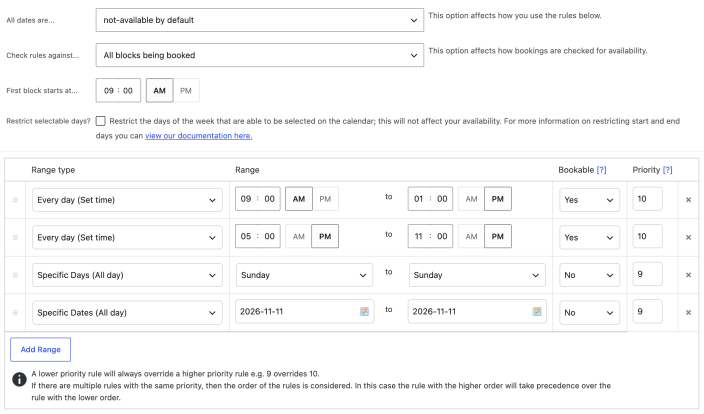
- Set All dates are… to not-available by default.
- Set Check rules against… to All blocks being booked. This prevents a session from continuing into the lunch closure or past closing time.
- Set First block starts at… to 9 am. Leave the buffer at zero for back-to-back sessions. Adjust the minimum and maximum advance-booking window to suit your business.
- Select Add Range twice and enter the two opening periods below.
| Range type | From–to | Bookable | Priority |
|---|---|---|---|
| Every day (Set time) | 9 am–1 pm | Yes | 10 |
| Every day (Set time) | 5 pm–11 pm | Yes | 10 |
The gap between these periods stays unavailable because dates are unavailable by default. Add the Sunday and holiday closures in the next section before testing.
Close Sundays and public holidays
↑ Back to topFor closures that apply only to this studio product, add these rows to the same Availability table:
- Specific Days (All day): Sunday to Sunday, Bookable: No, Priority: 9.
- Specific Dates (All day): enter a holiday’s start and end dates, Bookable: No, Priority: 9. For a single-day closure, use the same date in both fields. Repeat for each closure.
A lower priority number wins: 9 overrides the opening periods at 10. The screenshot uses November 11 as an example closure; enter your own dates and review them each year.
If these closures should affect every bookable product, configure them under Bookings > Settings > Store Availability instead. Check existing store rules before changing them, and avoid adding the same closure at both levels.
Set daytime and evening prices
↑ Back to top- Open Costs. Set Base cost to 0 and Block cost to 7. Leave Display cost blank to calculate the starting price automatically.
- Select Add Range. Choose Time Range (all week) and enter 6 pm–11 pm.
- Leave the range’s base-cost adjustment at + 0. Set its block-cost adjustment to + 3.
Each one-hour block from 6 pm costs $10. A 5–7 pm session costs $17: $7 for the first hour plus $10 for the second. Keep resource costs at zero to avoid extra room charges.
Limit the group size
↑ Back to topIn Persons, set Min persons to 1 and Max persons to 5. Leave Multiply all costs by person count, Count persons as bookings, and Enable person types unchecked. The group reserves one room; adding people should neither multiply its hourly price nor consume separate room bookings.
Add optional equipment
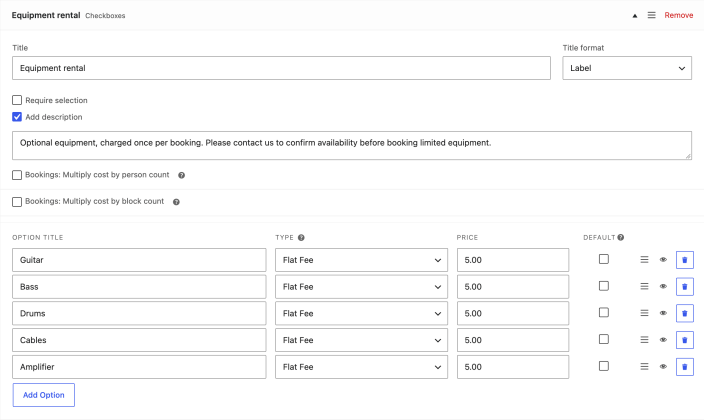
↑ Back to top- Open Add-ons. In Add field…, choose Checkboxes.
- Enter Equipment rental as the Title, choose Label for the title format, and leave Require selection unchecked.
- Select Add description and explain the rental terms. If equipment is limited, ask customers to confirm availability before booking.
- Add five options: Guitar, Bass, Drums, Cables, and Amplifier. Use Add Option for additional rows. Set each option’s Type to Flat Fee and Price to 5.00. Leave the default selections unchecked.
- Leave both Bookings: Multiply cost by person count and Bookings: Multiply cost by block count unchecked. Those controls apply to quantity-based prices; flat fees are charged once for each selected option.
- Save the product.
Product Add-Ons does not reserve or track equipment stock. A description explains that limitation but does not prevent two customers from choosing the same item. If equipment must never be double-booked, this add-on setup alone does not meet that requirement.
Verify the customer experience
↑ Back to topOpen the product page and choose a room, date, group size, and start and end times. Run these checks before accepting bookings. The expected prices exclude tax and assume no other pricing adjustments.
| Check | Expected result |
|---|---|
| Studio 1, weekday, 9–11 am, no equipment | $14 |
| Studio 1, weekday, 5–7 pm, no equipment | $17 |
| Studio 2, weekday, 6–8 pm, four people, guitar and cables | $20 room + $5 guitar + $5 cables = $30 subtotal |
| Change that evening session to one hour, keeping the same equipment | $10 room + $10 equipment = $20 subtotal |
| Choose Studio 1, then Studio 2, on a Saturday | Studio 1 offers times; Studio 2 is unavailable |
| Choose Sunday or a holiday you blocked | Neither room offers a session |
| Try a session crossing 1–5 pm or ending after 11 pm | The unavailable hours cannot be booked |
| Try fewer than one or more than five people, or a session outside one to three hours | The form prevents the invalid booking |
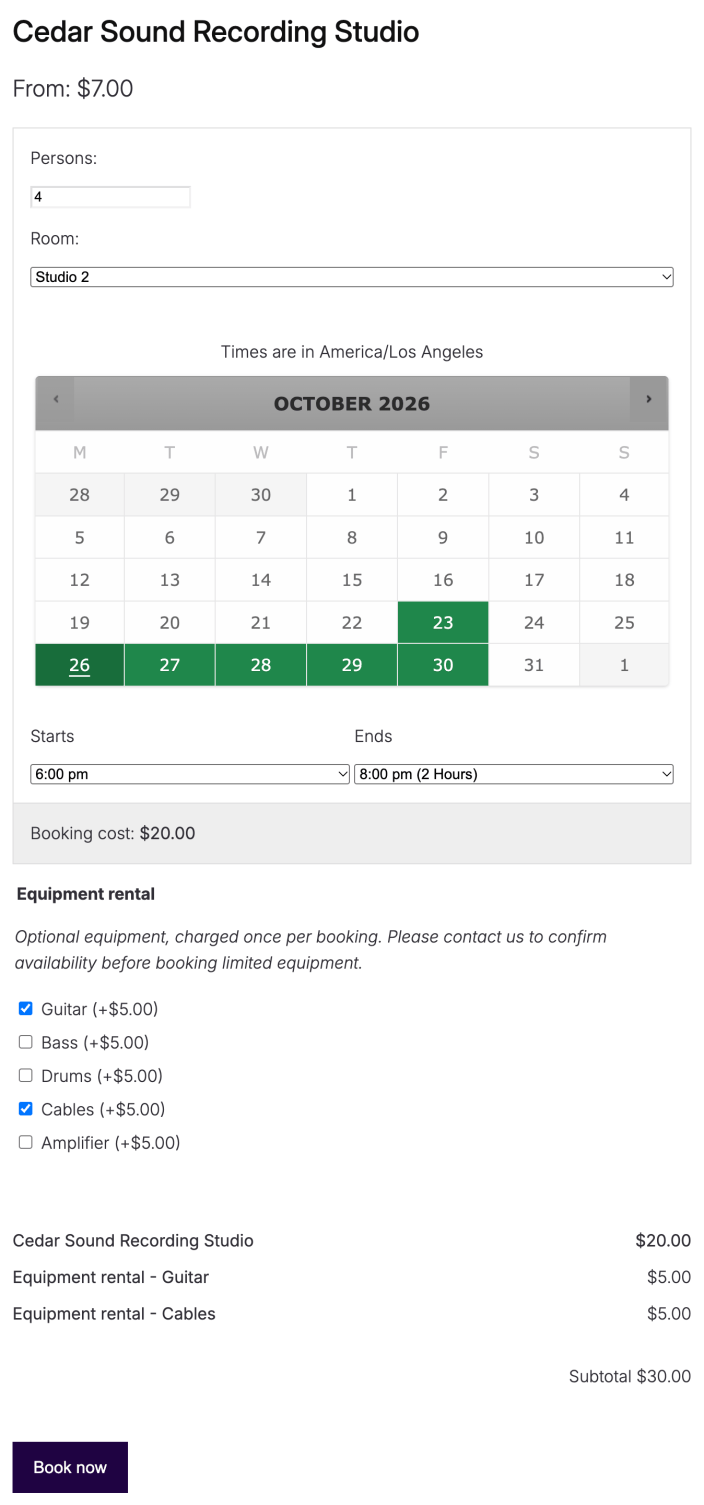
Select Book now for a valid test selection. In the cart, confirm the room, times, people, equipment choices, and total. The booking-cost line covers the room; the equipment charges appear separately in the subtotal. Use your store’s test payment process if you also want to check checkout.
If the result differs
↑ Back to top- No times appear: check the selected room, advance-booking window, store time zone, existing bookings, and all store, product, and resource availability rules. A lower priority number overrides a higher number.
- A session crosses a closure: confirm All blocks being booked is selected and that the closure has a lower priority number than the opening rule.
- The room price rises with the group size: clear Multiply all costs by person count. Check for nonzero resource costs and other matching cost rules.
- Equipment charges repeat: confirm each option uses Flat Fee, then check for duplicate product or global add-on fields.
- One room’s reservation blocks the other: confirm each room has quantity one and Share max bookings per block? is unchecked. Recheck the product after saving.
Questions and support
↑ Back to topSomething missing from this documentation? Still have questions and need assistance?
- If you have a question about a specific extension or theme you’d like to purchase, contact us to get answers.
- If you already purchased this product and need some assistance, get in touch with a Happiness Engineer via our support page and select this product’s name from the Product dropdown.

