
After purchasing an extension or theme from the Woo Marketplace, the next step is to install it on your site. You can install your purchase automatically or manually using a .zip file.
We recommend using one of the automatic installation methods, as they require fewer steps and ensure your site is connected to WooCommerce.com for updates and support.
Before you begin
↑ Back to topTo use automatic installation or receive automatic updates for paid extensions and themes, your site needs the WooCommerce.com Update Manager plugin. This plugin oversees product updates and support for paid extensions and themes purchased from the Woo Marketplace.
You are prompted to install the WooCommerce.com Update Manager the first time you install a paid Woo Marketplace product. If you are already using paid Woo Marketplace extensions, a prompt appears on the Plugins page of your WP Admin or at WP Admin > WooCommerce > Extensions > My Subscriptions.
If you need to install the WooCommerce.com Update Manager manually, use the following link:
→ Download the WooCommerce.com Update Manager
Note: The WooCommerce.com Update Manager is required for automatic updates of paid Woo Marketplace products and for managing those updates within WordPress. You do not need it if you prefer to manually download .zip files and upload them yourself. However, we recommend installing it to keep your paid extensions up to date.
Free extensions: Free Woo Marketplace extensions such as WooPayments are hosted on the WordPress.org plugin repository and receive updates through the standard WordPress update system. They do not require the WooCommerce.com Update Manager or an active subscription to receive updates. To update free extensions, go to Plugins in your WP Admin and update them manually or automatically as you would any other WordPress plugin. For more details, see Updating free WooCommerce extensions/plugins.
Automatic installation
↑ Back to topThere are three ways to install a Woo Marketplace purchase automatically.
Option 1: From the order confirmation page
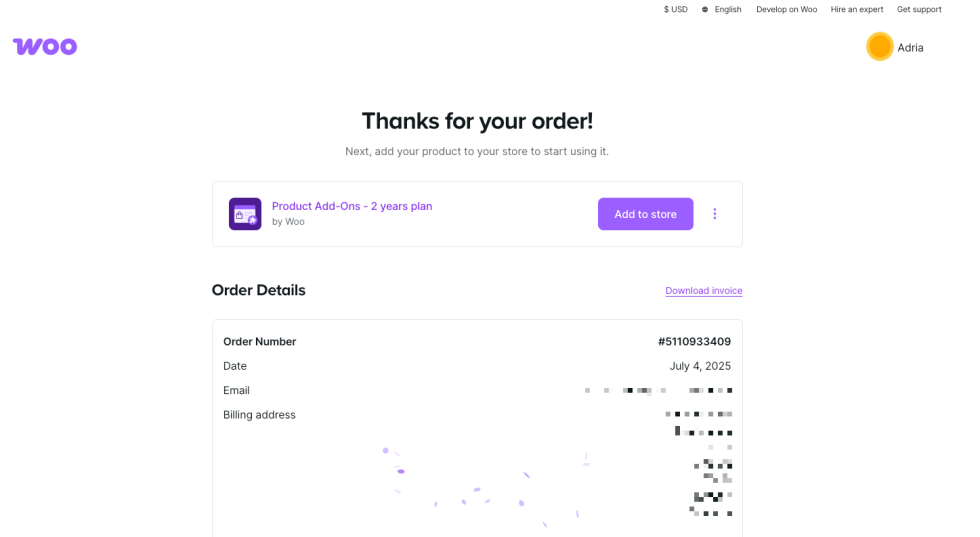
↑ Back to topAfter completing your purchase on WooCommerce.com, you can install your product directly from the order confirmation page.
- Look for the Add to store button on the order confirmation page.
- If you have not yet connected a site, enter your store URL when prompted.
- Approve the connection between your site and WooCommerce.com.
- The product begins installing on your site automatically.
For future purchases, your connected site is available for selection, and installation requires fewer steps.
Option 2: From your WooCommerce.com dashboard
↑ Back to topYou can install a product at any time from the My Subscriptions section of your WooCommerce.com account.
- Go to My Subscriptions on WooCommerce.com.
- Click the Add to store button next to the product you want to install.
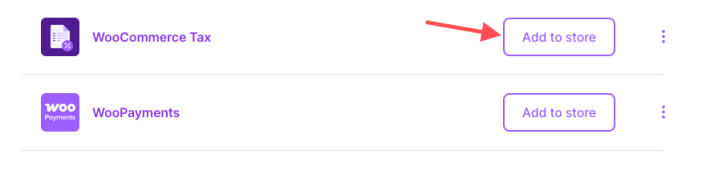
- Choose a connected store, or connect a new store.
- Follow the prompts to install and set up the product.
Option 3: From your site’s WP Admin
↑ Back to topIf your site is already connected to WooCommerce.com and the WooCommerce.com Update Manager plugin is installed, you can install extensions directly from WP Admin.
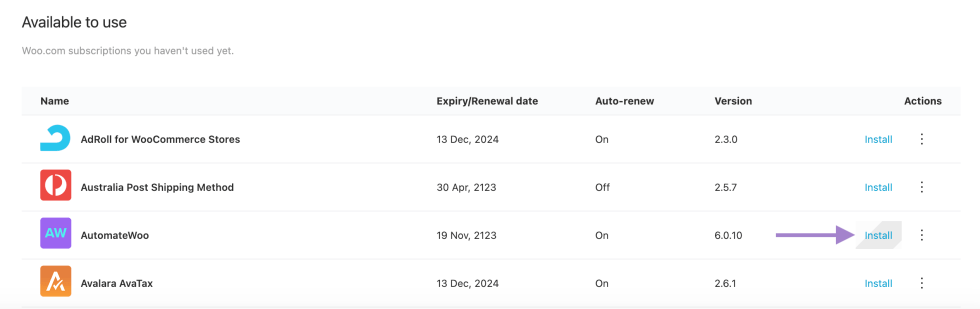
- In your site’s WP Admin, go to WooCommerce > Extensions > My Subscriptions.
- Find the extension you want to install under Available to use.
- Click the Install button.
- The extension or theme installs automatically.
Manual installation
↑ Back to topIf you prefer to install your purchase manually, or if automatic installation is not available for your setup, you can download the product as a .zip file and upload it to your site.
Step 1: Download the .zip file
↑ Back to topDownload the extension or theme .zip file from one of two places:
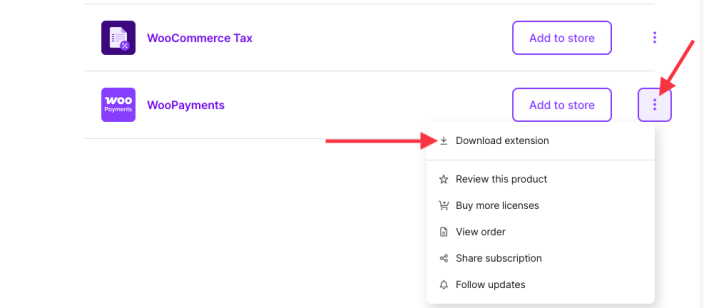
- From My Subscriptions: Click the three-dot (ellipsis) menu next to the product, then select Download extension.
- From Downloads: Click Download in the row for each extension to download the
.zipfile.
Safari users: Safari unzips downloaded files by default. To keep the .zip file intact (as required by WordPress), go to Safari > Preferences > General and uncheck Open “Safe” files after downloading.
Step 2: Upload and install the product
↑ Back to topExtensions (plugins):
- In your site’s WP Admin, go to Plugins > Add New Plugin.
- Click Upload Plugin.
- Click Choose File and select the
.zipfile you downloaded. - Click Install Now.
- Click Activate to activate the extension.
Themes:
- In your site’s WP Admin, go to Appearance > Themes.
- Click Add New Theme.
- Click Upload Theme.
- Click Choose File and select the
.zipfile you downloaded. - Click Install Now.
- Click Activate to activate the theme.
For more information, see the WordPress.org guides for managing plugins and using themes.
REST API requirement for automatic installation
↑ Back to topTo connect your site to WooCommerce.com and use automatic installation, your site’s REST API must be accessible.
If your site is hosted on WordPress.com and is set to Private, the automatic installation feature is not available. To use automatic installation, set the site to Coming Soon instead. See the WordPress.com privacy settings guide for instructions.
Alternatively, you can install extensions and themes manually using the .zip file method described above.
After installation
↑ Back to topOnce your extension or theme is installed, it needs to be connected to your WooCommerce.com account to receive updates and support.
- If your site is already connected to WooCommerce.com, the product connects automatically after installation.
- If your site is not yet connected, a Connect button appears. Click it to link the product to your account and enable updates and support.
For more details about connecting your site, see Connect your site to WooCommerce.com.
Related documentation
↑ Back to top- What are WooCommerce.com subscriptions?
- Connect your site to WooCommerce.com
- Activate and manage your subscriptions
- Troubleshoot common issues
- WooCommerce.com Update Manager introduction
Questions and support
↑ Back to topDo you still have questions and need assistance?
- Get in touch with a Happiness Engineer via our Help Desk. We provide support for extensions developed by and/or sold on WooCommerce.com, and Jetpack/WordPress.com customers.
- If you are not a customer, we recommend finding help in the WooCommerce support forum or hiring a Woo Agency Partner. These are trusted agencies with a proven track record of building highly customized, scalable online stores. Learn more about Woo Agency Partners.