Paid content must never be cached and then served to someone who has not bought it. TIV Paywall prevents that for you. With a supported cache plugin there is nothing to configure; for everything else, the steps below cover it.
How it works (in one line)
↑ Back to topPaid pages are always marked “do not cache” (the safety floor – independent of any setting), and shoppers/buyers carry a woopaywall_no_cache cookie so they get a fresh page while anonymous visitors still get the fast cached one.
This only touches pages that show paywall products: the product pages themselves, the catalog/shop pages (shop, category, tag), and any page that displays WooCommerce product blocks. Your other pages (posts, landing pages, and so on) keep caching exactly as before.
Supported plugins
↑ Back to topPaywall configures these automatically when active:
WP Rocket, WP Super Cache, W3 Total Cache, Hummingbird, WP Fastest Cache, Jetpack Boost, Cache Enabler, WP-Optimize.
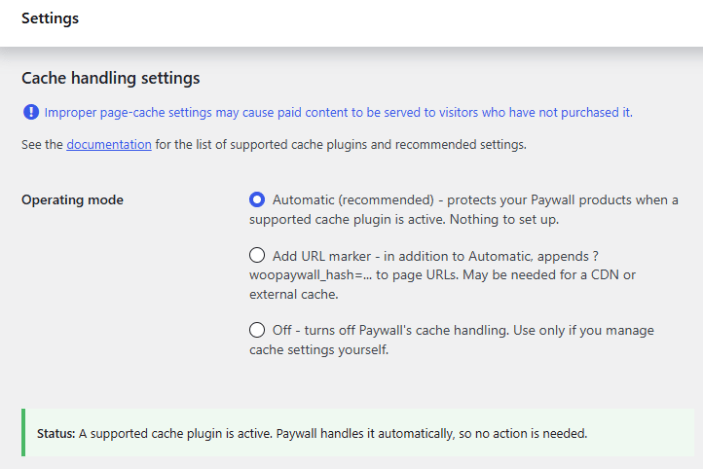
The Cache settings panel shows a Status line under the mode control: it states what Paywall detects – a supported cache, an unrecognized cache, or none – and what to do, if anything.
Further reading:
- WooCommerce: Configuring Caching Plugins – general practice for keeping the cart, checkout and account pages out of the cache.
External / edge caches (Cloudflare, NitroPack, …)
↑ Back to topPaywall cannot configure these. Most of them already skip a page when it carries the “do not cache” headers Paywall sends, so usually there is nothing to do.
The exception is a service set to cache full pages and ignore those headers (Cloudflare calls this a “Cache Everything” page rule; other CDNs have a similar “force/aggressive full-page cache” option). There you must tell it to skip pages that carry the buyer cookie. Look for a setting named “bypass cache by cookie”, “exclude by cookie”, or similar, and enter this cookie name:
woopaywall_no_cacheWhere to set it:
- Cloudflare: a Cache Rule’s Bypass cache setting.
- NitroPack: Exclude from optimization by cookie.
Managed hosts (WP Engine, Kinsta, and similar)
↑ Back to topThese run their own page cache and already skip it for logged-in users (the wordpress_ cookies) and for shoppers who carry a WooCommerce session cookie. That covers both kinds of paywall buyer for their whole access period – a logged-in customer stays logged in, and a guest’s access lasts exactly as long as their WooCommerce session – so on these hosts there is normally nothing to set up.
If you want to be explicit, you can still add the woopaywall_no_cache cookie as a custom exclusion. Note that an edge/full-page cache layer may ignore custom cookie rules, so ask the host’s support if you rely on one.
Where to set it:
- WP Engine: Cache exclusions (Sites > your environment > Cache), type “cookie”.
- Kinsta: exclusions are set by Kinsta support, not self-serve – ask them to bypass cache on the
woopaywall_no_cachecookie.
The “Operating mode” setting
↑ Back to topThis controls how Paywall works with caching. Most of what it does is integration: it tells your cache plugin not to cache a buyer’s pages. Adding a marker to URLs is one extra step that only the ‘Add URL marker’ option turns on.
- Automatic (default, recommended) – on when a supported cache is detected, off otherwise.
- Add URL marker – also adds the URL marker, for a cache or CDN that keys pages by their URL and sits in front of your cache plugin. Once a visitor puts a paywall product in the cart (or has already bought one), Paywall appends a marker (
?woopaywall_hash=...) to the WooCommerce links on the page. The upstream cache then sees a different URL for that visitor and cannot hand them a cached copy of the paid content. Use this with URL-keyed front caches such as Cloudflare full-page caching. - Off – turns off Paywall’s handling of caching plugins, even when a supported plugin is active. The safety floor still applies, so paid content is never cached or shown to someone who has not bought it; the only effect is that a buyer may briefly see the cached public page until they refresh. Use this only if you manage cache freshness yourself (external cache, managed host, and so on).
Quick check
↑ Back to topThis mirrors how our automated test confirms both halves – the buyer stays fresh, the public stays cached. You need two visitors that are both logged out and have separate cookies. The reliable way is two different browsers (both logged out), or one logged-out window plus one private/incognito window. Avoid two private windows of the same browser: in Chrome and Firefox all private windows share one cookie jar, so the cart would show up in both and there would be nothing to isolate.
- Prime the cache. In browser 1 (no cart), open a paywall product page. You see the public view with the “Add to cart” button. This also stores the public page in the cache.
- Become a buyer. In browser 2, open the same product and add it to the cart. This window now shows the in-cart / paid view – served fresh, not the cached public page. (A completed purchase behaves the same way.)
- Confirm no leak. Reload the product in browser 1. It still shows the public “Add to cart” view – browser 2’s state never leaked into the cache and was never served to anyone else.