
The Product Gallery block shows a product’s images, and optionally its videos, on the Single Product template. Shoppers browse the gallery with a set of thumbnails and a larger viewer that supports zoom, a full-screen pop-up, and next/previous navigation.
Use this block in the Single Product template or inside a Single Product block on a block theme. Product images and videos themselves are added from the product edit screen; see Adding Product Images and Galleries.
Block structure
↑ Back to top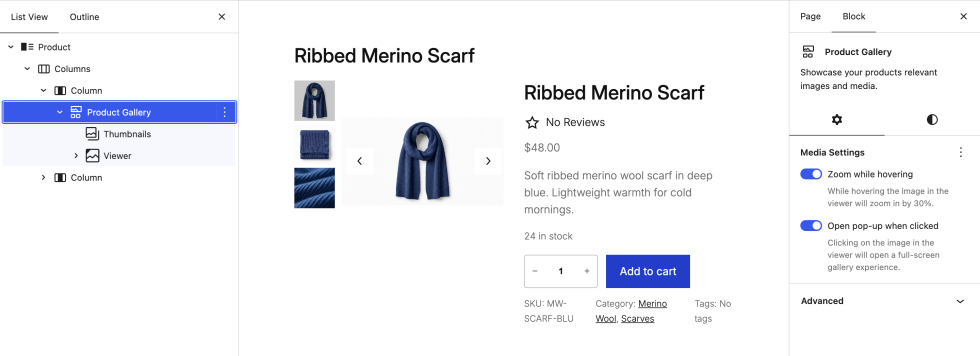
The block is made of two inner blocks:
- Thumbnails – Shows a preview of every image and video in the gallery. Selecting a thumbnail loads that item in the Viewer.
- Viewer – Shows the selected image or video, the On-Sale Badge, and the Next/Previous Buttons.
In the editor, when the selected product has no images or only one image, the gallery hides the thumbnails and next/previous buttons. Add more images to the product to see those controls.
Block settings
↑ Back to topSelect the Product Gallery block to see its settings in the sidebar. The settings are split between the Settings and Styles tabs.
Media Settings
↑ Back to top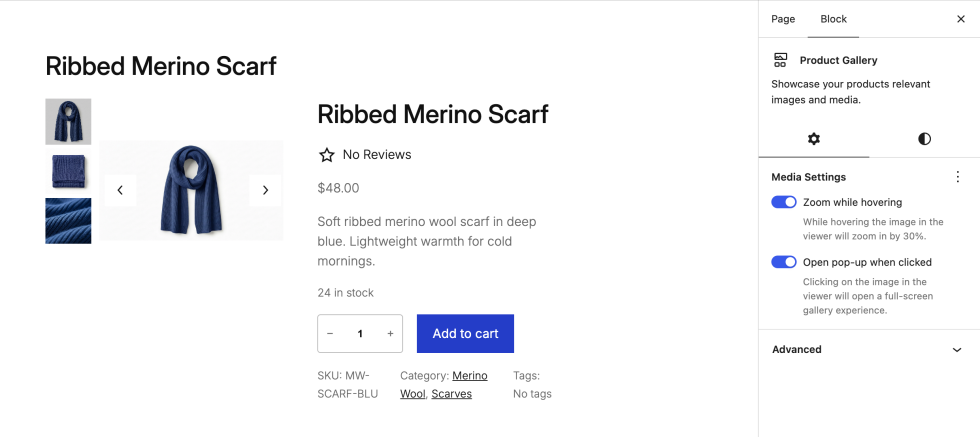
Found in the Settings tab. Both options are on by default.
- Zoom while hovering – When a shopper moves the pointer over the image in the Viewer, the image zooms in by 30%. This does not apply to videos.
- Open pop-up when clicked – Clicking the image or video in the Viewer opens a full-screen gallery. Shoppers can move between items and close the pop-up with the close button or the Escape key.
Layout
↑ Back to top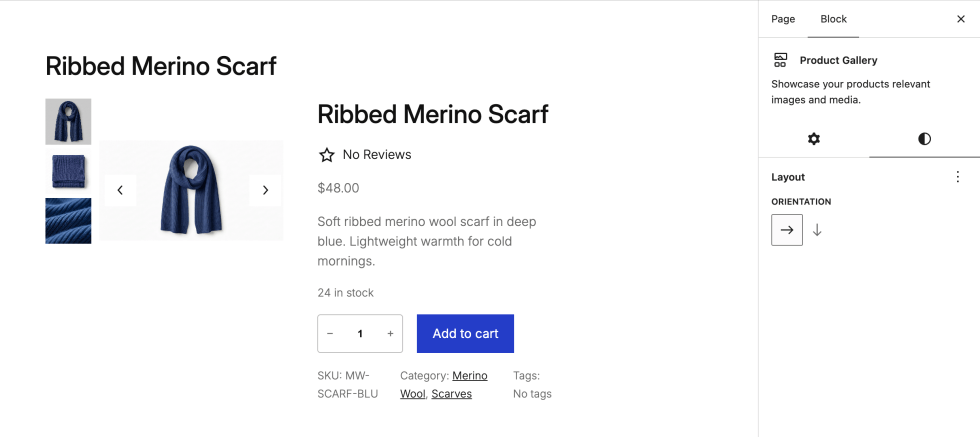
Found in the Styles tab under Layout.
- Orientation – Horizontal places the Thumbnails and Viewer side by side; vertical stacks them. Drag the Thumbnails block above or below the Viewer in the List View to change which side the thumbnails appear on.
- Wrapping – Open the Layout panel’s options menu (the three-dot icon) and choose Wrapping to reveal Allow to wrap to multiple lines. Turn it on to let thumbnails wrap onto more than one row or column instead of scrolling.
Inner blocks
↑ Back to topThumbnails
↑ Back to top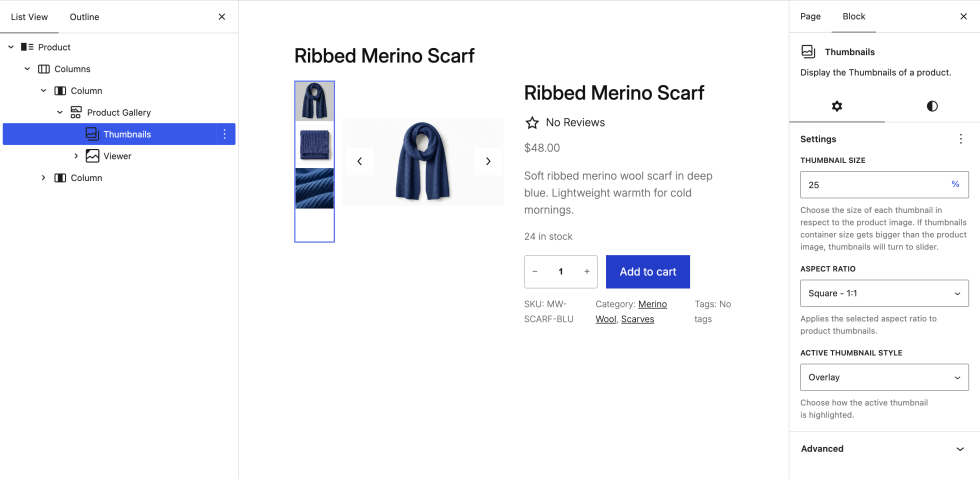
The Thumbnails block lists every image and video in the product gallery. When there are more thumbnails than fit beside the Viewer, they become a scrollable strip. Select the block to change these settings:
- Thumbnail Size – The size of each thumbnail as a percentage of the product image. The default is 25%.
- Aspect Ratio – Auto, Square (1:1), Standard (4:3), Portrait (3:4), Classic (3:2), Classic Portrait (2:3), Wide (16:9), or Tall (9:16). The default is Square.
- Active Thumbnail Style – How the selected thumbnail is highlighted: Overlay (default) or Outline.
To show the gallery without thumbnails, remove the Thumbnails block from the Product Gallery block. You can add it back later from the block inserter.
Viewer
↑ Back to top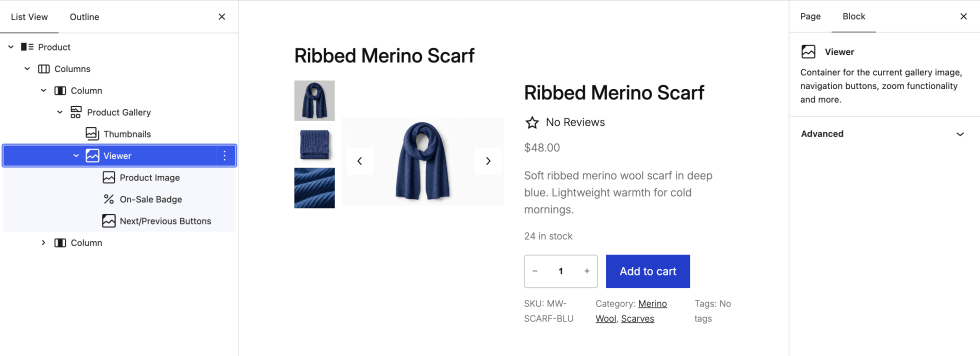
The Viewer block holds the selected gallery item and contains three inner blocks:
- Product Image – Shows the current image. Set its aspect ratio here and the whole gallery adjusts to match. When a video is selected, the Viewer shows the video in place of the image.
- On-Sale Badge – Appears automatically when the product is on sale. Customize its color, typography, and dimensions from the block settings. Developers can change the badge text with a filter; see the On-Sale Badge block developer documentation.
- Next/Previous Buttons – Let shoppers move through the gallery. Customize the color, border radius, size, shadow, and dimensions from the block settings.
Scope of support:
We are unable to provide support for customizations under our Support Policy. If you need to customize a snippet or extend its functionality, we recommend working with a Woo Agency Partner or a WooCommerce developer on Codeable.
Product videos (beta)
↑ Back to topStarting with WooCommerce 11.1, the product gallery can include videos. The feature is experimental, turned off by default, and supports videos uploaded to your Media Library only. Videos hosted on YouTube, Vimeo, or other services are not supported yet.
To turn it on, go to WooCommerce > Settings > Advanced > Features and enable Product gallery videos. Then add videos to a product from its Product gallery box on the product edit screen. For the full workflow, including how to set a poster image and reorder or remove a video, see Add videos to the product gallery.
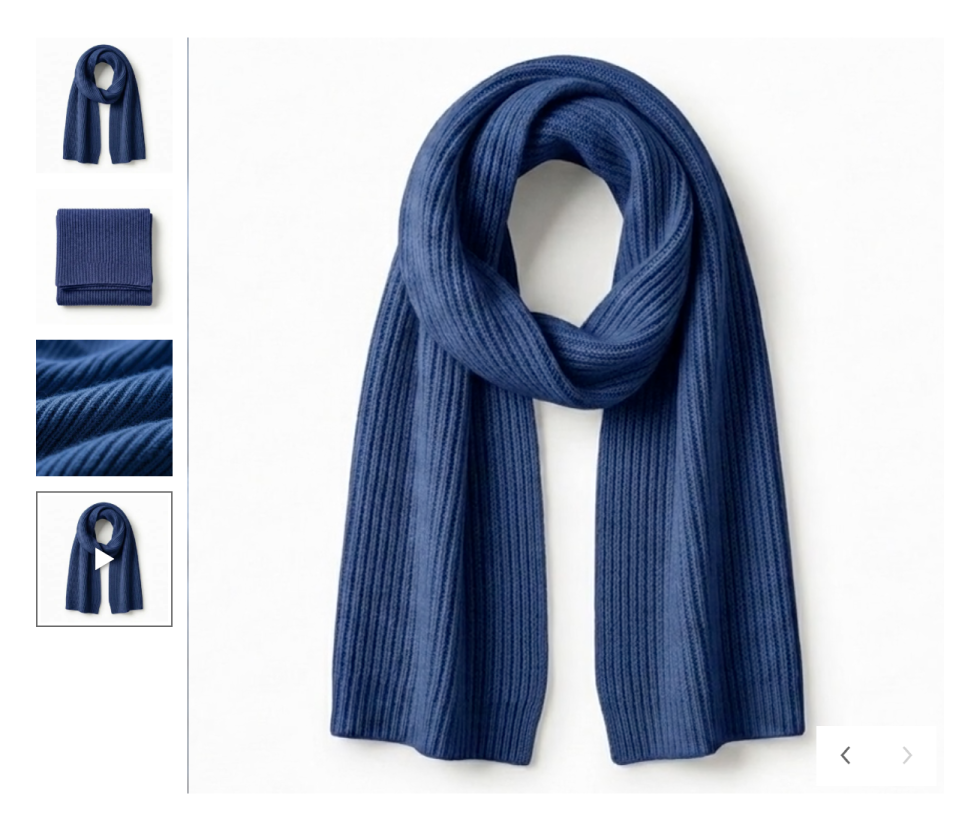
The Product Gallery block needs no extra setup. Once the feature is on and a product has a video, the block shows it like this:
- Thumbnails – The video appears in gallery order with a play icon over its thumbnail. The thumbnail uses the video’s poster image; if the video has no poster, it shows a frame from the video.
- Viewer – When a shopper selects the video, it plays automatically, muted and on a loop, with no playback controls. Only the selected item plays; other videos in the gallery pause.
- Zoom while hovering – Hover zoom applies to images only. Videos do not zoom.
- Open pop-up when clicked – Clicking a video opens the full-screen gallery, where the video plays while it is in view.
To confirm it is working, open a product that has a video on your store and select its thumbnail. If the video is missing, check that Product gallery videos is enabled and that the video is an uploaded file rather than an embed. Turning the feature off hides videos from the gallery but does not remove them from the product.
Because this feature is experimental, its behavior may change in future releases. Share feedback in the product gallery videos discussion on GitHub.
Compatibility with the Add to Cart + Options block
↑ Back to topThe Product Gallery block is the recommended gallery for templates that use the Add to Cart + Options block. When a shopper selects a variation, the gallery updates to show that variation’s images.
The older Product Image Gallery block does not support this. Starting with WooCommerce 11.1, if a template contains both the Product Image Gallery block and the Add to Cart + Options block, the editor shows a warning in the sidebar of each block.
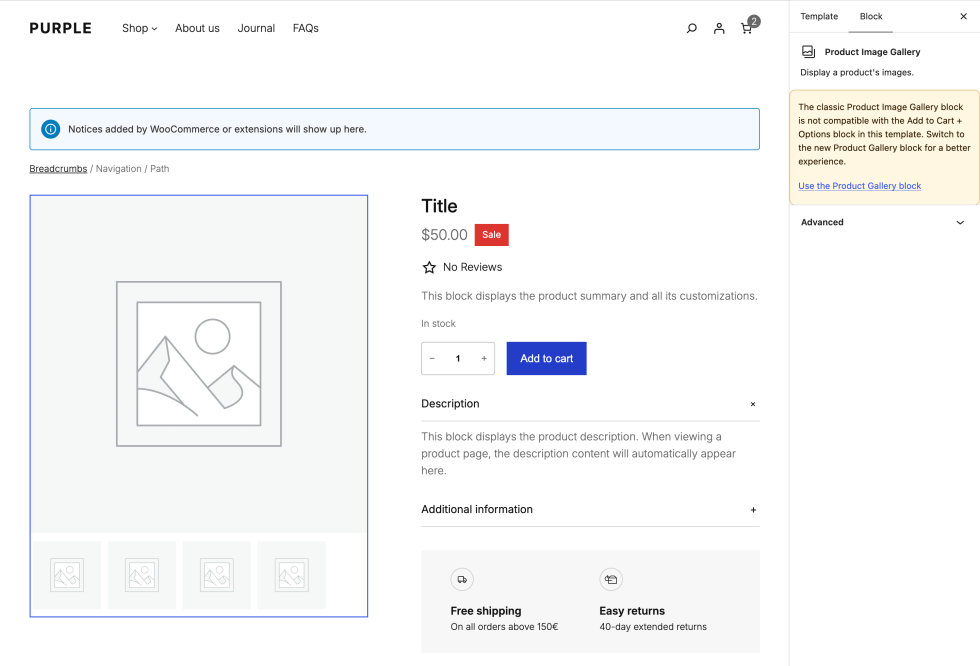
To fix it, select the Product Image Gallery block and click Use the Product Gallery block (or select the Add to Cart + Options block and click Upgrade to the Product Gallery block). The Product Image Gallery block is replaced with a Product Gallery block using the default settings, so review the settings above and save the template. The warning disappears once the classic block is gone.
Questions and support
↑ Back to topDo you still have questions and need assistance?
This documentation is about the free, core WooCommerce plugin, for which support is provided in our community forums on WordPress.org. By searching this forum, you’ll often find that your question has been asked and answered before.
If you haven’t created a WordPress.org account to use the forums, here’s how.
- If you’re looking to extend the core functionality shown here, we recommend reviewing available extensions in the WooCommerce Marketplace.
- Need ongoing advanced support or a customization built for WooCommerce? Hire a Woo Agency Partner.
- Are you a developer building your own WooCommerce integration or extension? Check our Developer Resources.
If you weren’t able to find the information you need, please use the feedback thumbs below to let us know.