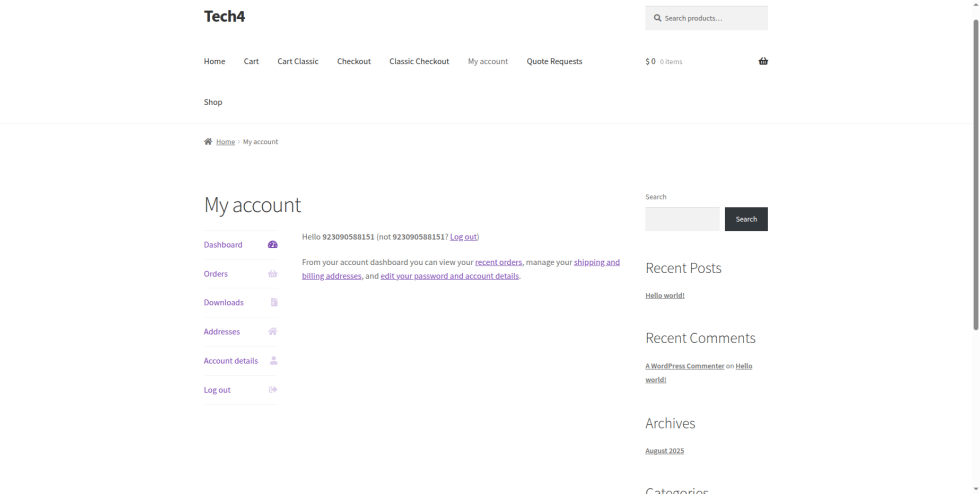
Registration & Login with Mobile Phone Number plugin
This guide shows how to get the three credentials the plugin needs (Access Token, Phone Number ID and WhatsApp Business Account ID), create the OTP message template, and connect WhatsApp Meta as the OTP service provider.
Part 1: Create a Meta Developer App
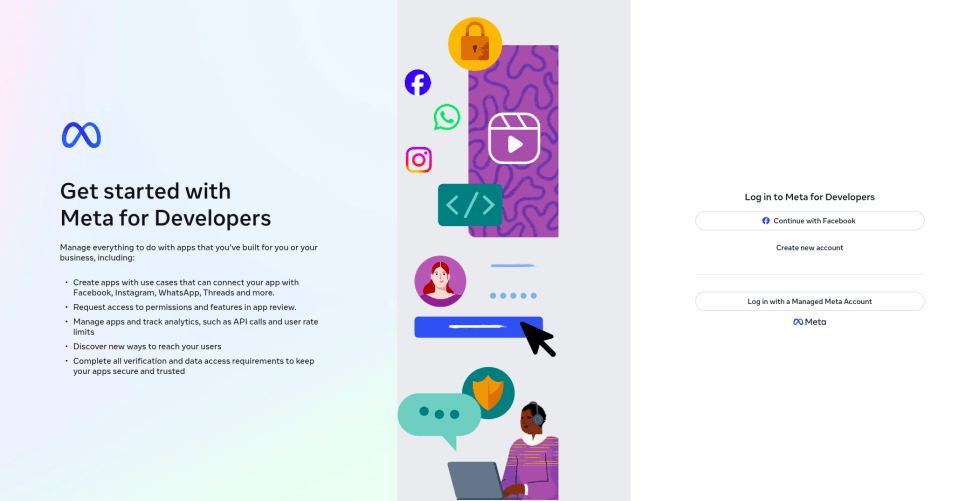
↑ Back to topStep 1: Go to developers.facebook.com and log in with the Facebook account that manages (or will manage) the business.
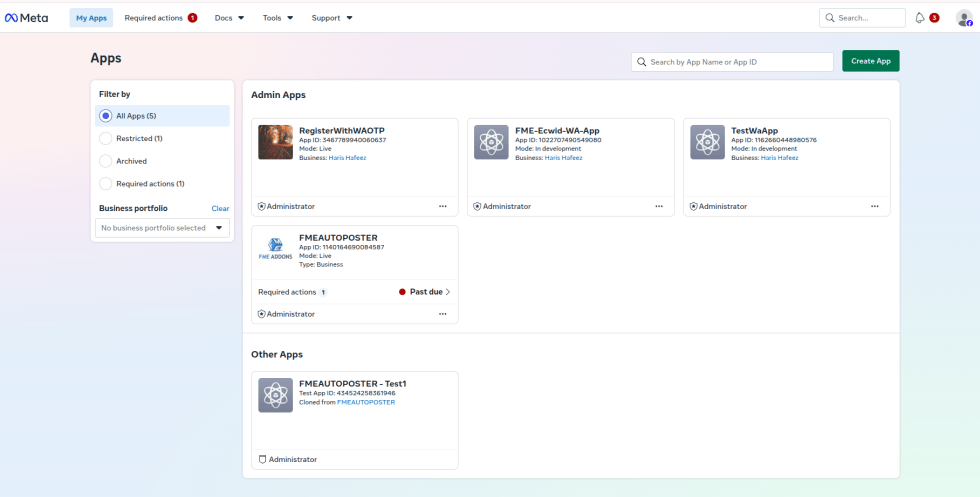
Step 2: Click My Apps in the top menu, then click Create App.
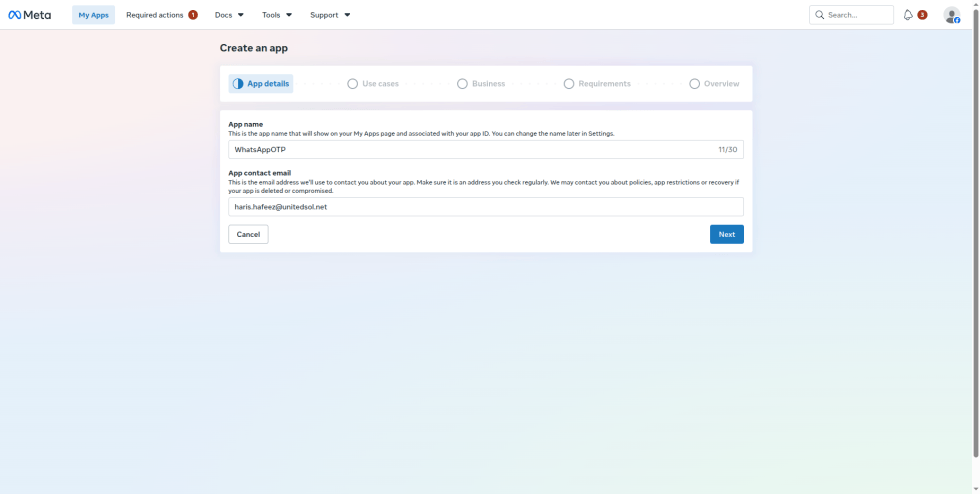
Step 3: On the App details screen, enter the App name and App contact email, then click Next.
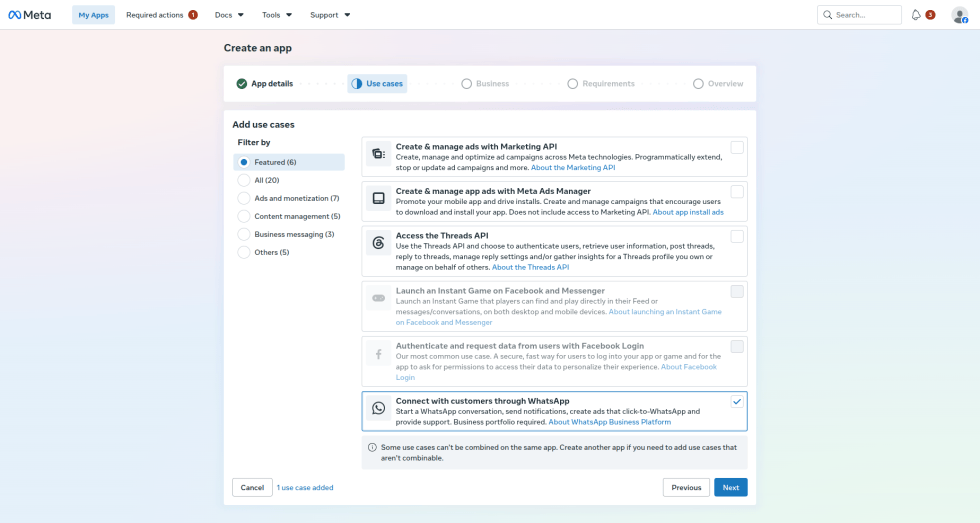
Step 4: On the Use cases screen, select Connect with customers through WhatsApp, then click Next. This adds WhatsApp to the app, so there is no separate “Add Products” step.
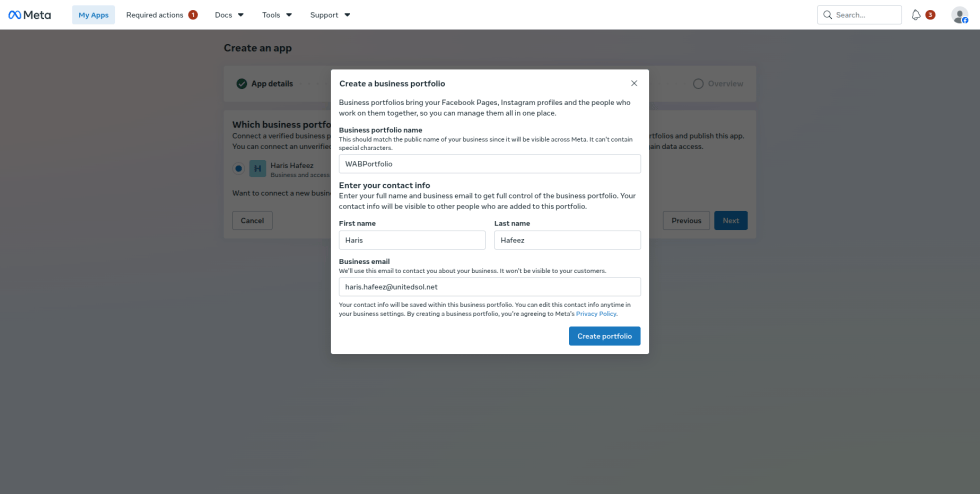
Step 5: On the Business screen, select the business portfolio to connect to the app. If you don’t have one, create it: enter the Business portfolio name, your First name, Last name and Business email, then click Create portfolio. Click Next.
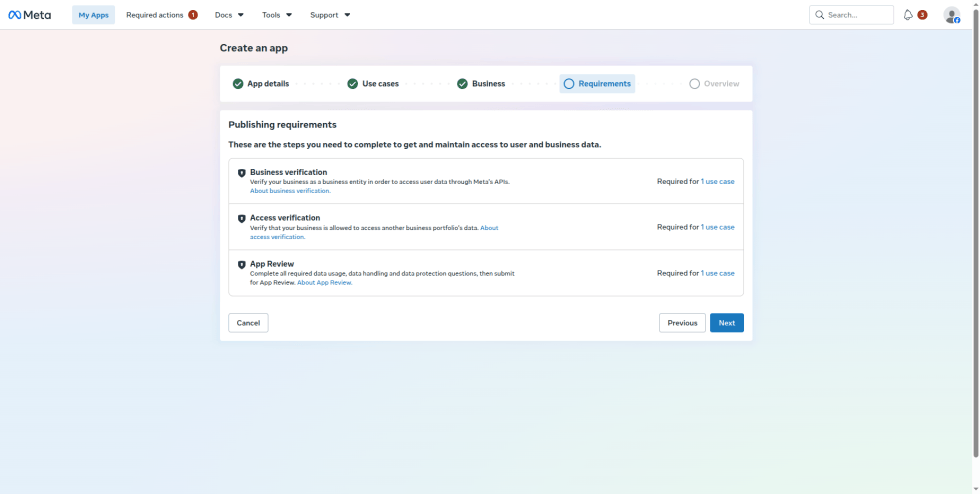
Step 6: On the Requirements screen, review the publishing requirements (Business verification, Access verification and App Review), then click Next.
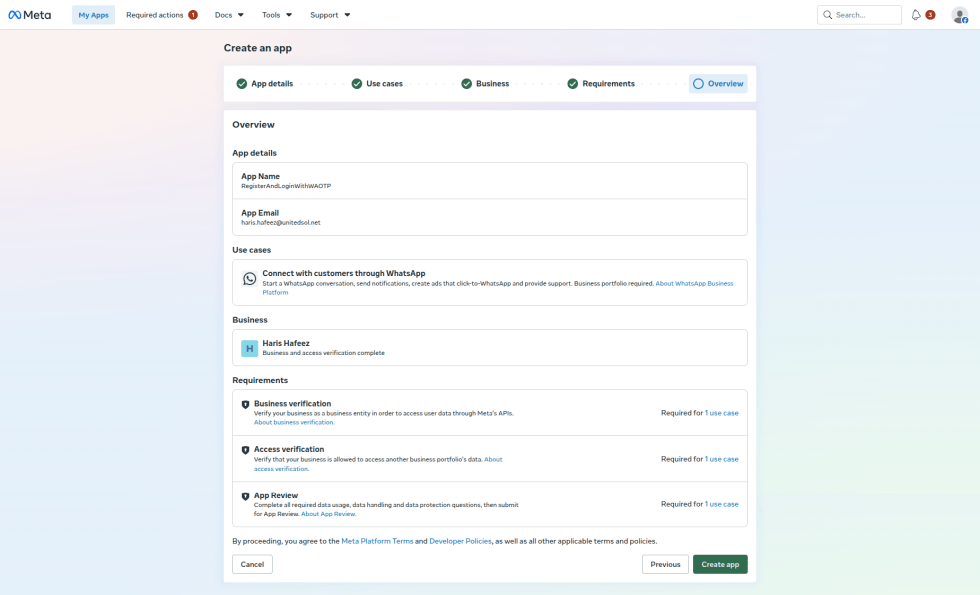
Step 7: On the Overview screen, check the app details, use case and business, then click Create app. Confirm your password if Meta asks for a security check.
Part 2: Open the WhatsApp Use Case and API Setup
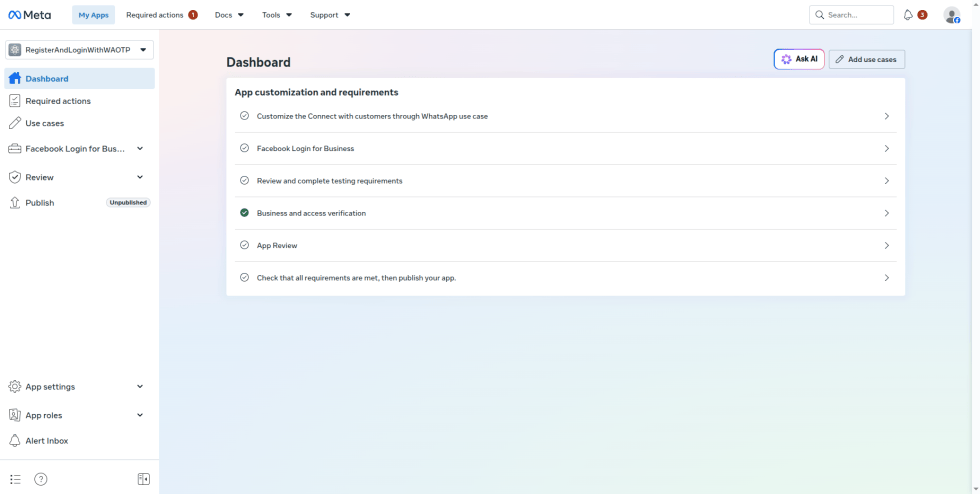
↑ Back to topStep 8: On the app Dashboard, under App customization and requirements, click Customize the Connect with customers through WhatsApp use case. You can also open it from Use cases in the left sidebar.
Step 9: The Customize use case page opens on Quickstart. The left menu includes Permissions and features, Quickstart, API Setup and Configuration. Message templates and phone numbers are managed in WhatsApp Manager, which you can open from Manage message templates and Manage phone numbers on this page.
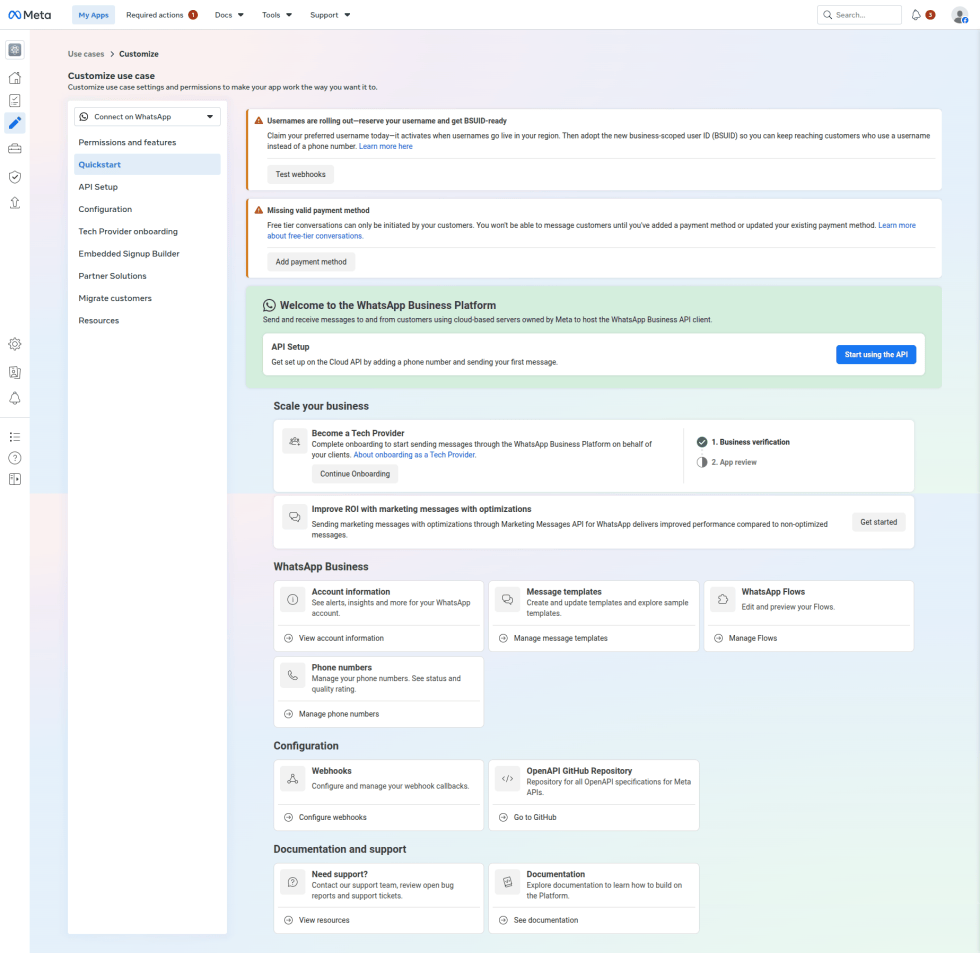
Note: If you see “Missing valid payment method”, add a payment method to your WhatsApp Business account. Without one, you can’t send messages to customers.
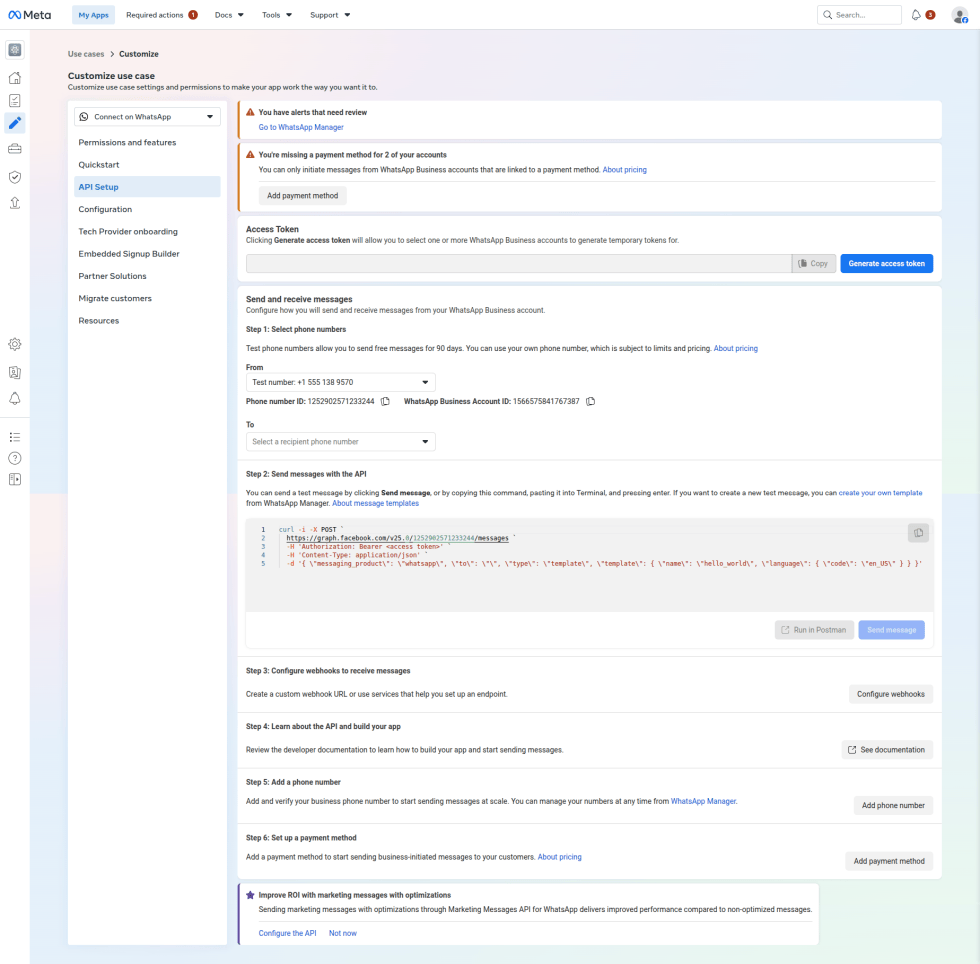
Step 10: Open API Setup. This page shows:
- Access Token: Click Generate access token to create a temporary token. Use it for testing only. You will create a permanent token in Part 3.
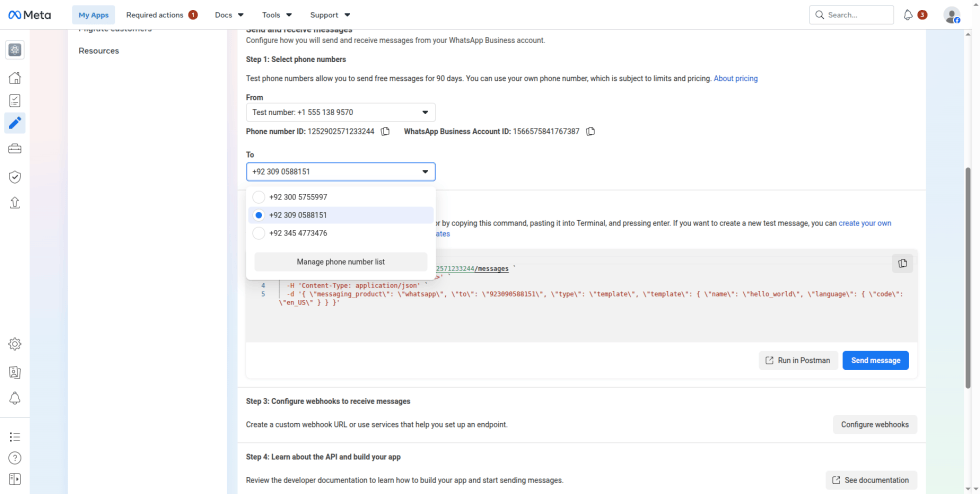
- From: A test phone number from Meta. Test numbers can send free messages for 90 days.
- Phone number ID and WhatsApp Business Account ID, shown under the From field.
Step 11: To send from your own number, open the From dropdown and select it, or click Add phone number (see Part 5).
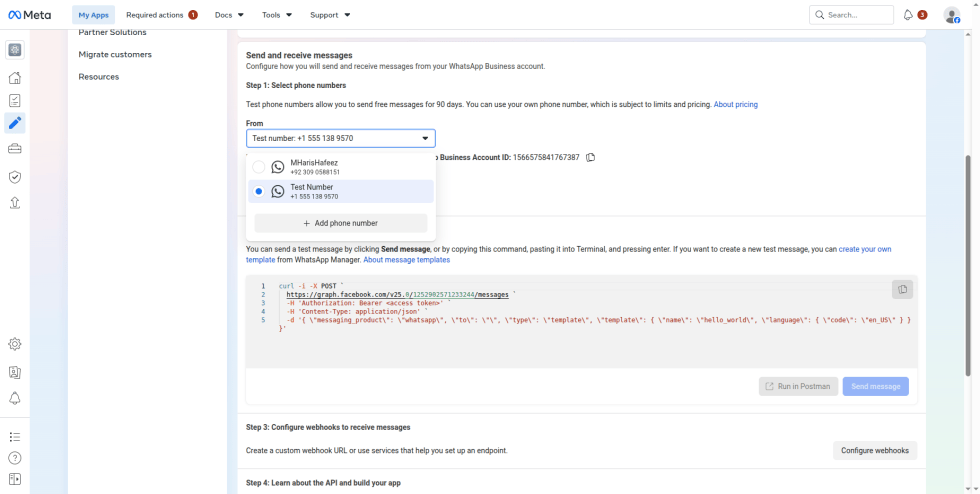
Step 12: To send a test message, select a recipient in the To field and click Send message. Use Manage phone number list to add recipient numbers.
Part 3: Create a Permanent Access Token (System User)
↑ Back to topThe token from API Setup is temporary. For the plugin to keep working, create a permanent token with a system user.
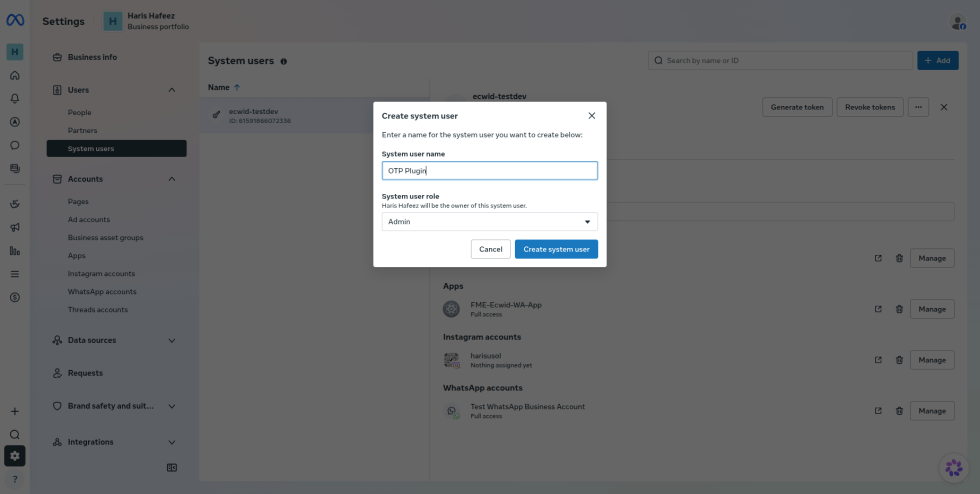
Step 13: Go to business.facebook.com/settings and select your business portfolio. In the left menu, go to Users > System users and click + Add. Enter a System user name (e.g., OTP Plugin), set System user role to Admin, and click Create system user.
Step 14: Select the new system user and assign assets to it:
- Apps: Select your app and give it full control.
- WhatsApThis guide shows how to get the three credentials the plugin needs (Access Token, Phone Number ID and WhatsApp Business Account ID), create the OTP message template, and connect WhatsApp Meta as the OTP service provider.p accounts: Select your WhatsApp Business Account and give it full control.
Important: If no WhatsApp account is available to select, there is no WhatsApp Business Account in this portfolio yet. Follow Part 3A, then come back to this step.
[Screenshot to add: Assign assets screen with the app and WhatsApp account selected]
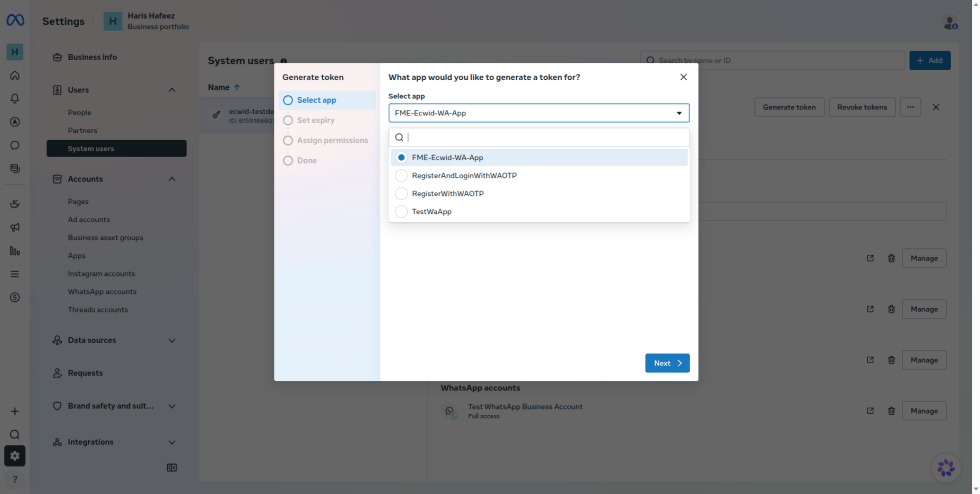
Step 15: Click Generate token. In Select app, choose your app and click Next.
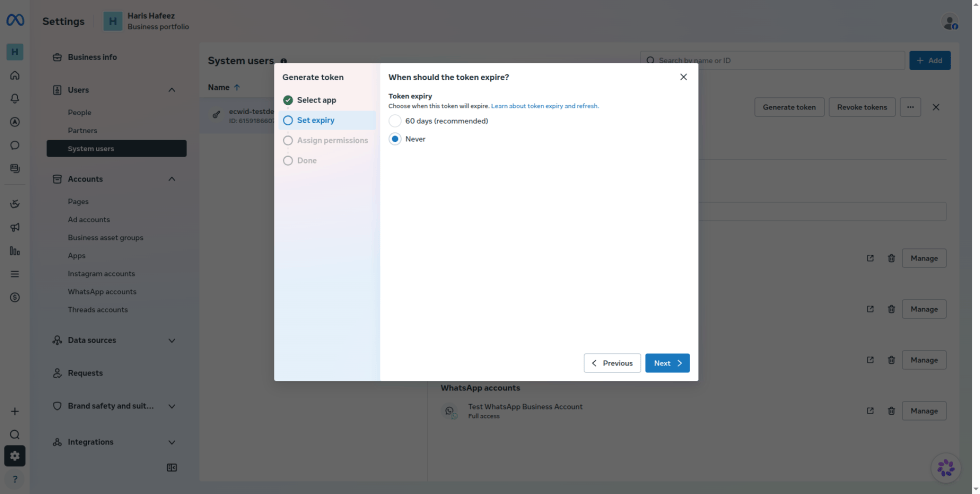
Step 16: In Set expiry, select Never so the token doesn’t need renewing. If you choose 60 days, you will need to generate a new token and update it in the plugin before it expires. Click Next.
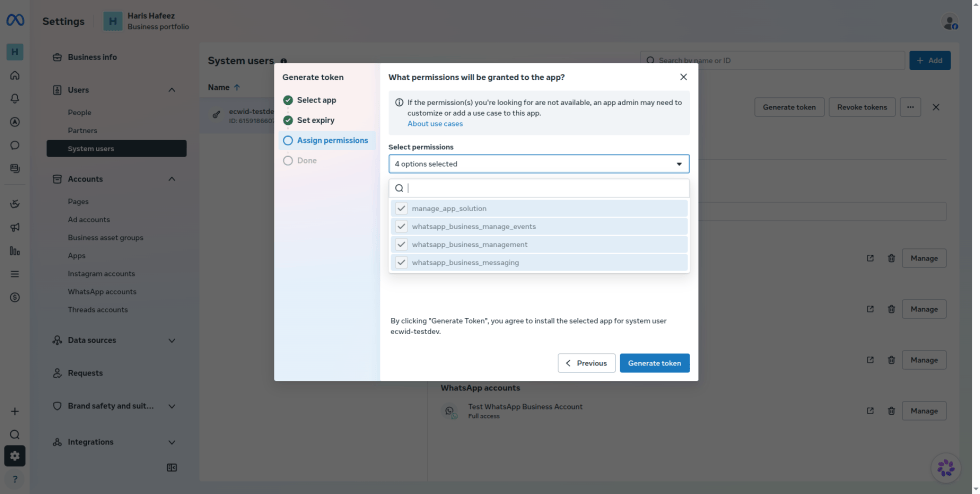
Step 17: In Assign permissions, select whatsapp_business_messaging and whatsapp_business_management, then click Generate token.
Step 18: Click Copy to copy the token, then click Done. Save the token somewhere safe.
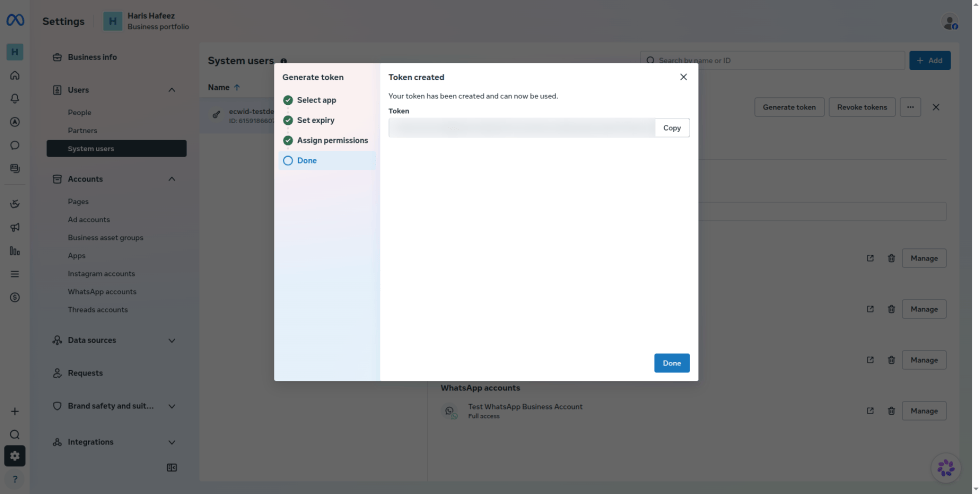
Warning: Anyone with this token can send messages from your WhatsApp Business number. Keep it private.
Part 3A: Fix “Unable to access WhatsApp Manager” (No WhatsApp Business Account).
↑ Back to topThis guide shows how to get the three credentials the plugin needs (Access Token, Phone Number ID and WhatsApp Business Account ID), create the OTP message template, and connect WhatsApp Meta as the OTP service provider.iness Account)
This error means there is no WhatsApp Business Account (WABA) in the business portfolio yet.
Step 19: Go to Business Settings > Accounts > WhatsApp accounts. If the page says “No WhatsApp accounts added”, a WABA hasn’t been created yet.
[Screenshot to add: WhatsApp accounts page]
Step 20: Click + Add and choose Create a new WhatsApp Business account, or add an existing one if you already have it elsewhere.
[Screenshot to add: Add dropdown on the WhatsApp accounts page]
Step 21: Fill in the business details and submit. This creates a new WABA in the current business portfolio.
Step 22: Refresh the WhatsApp accounts page and check that the new WABA is listed.
Step 23: Go back to the app Dashboard > Use cases > Connect with customers through WhatsApp and make sure the new WABA is linked to the app.
Step 24: Go back to Part 3 and assign the WhatsApp account to the system user.
Part 4: Collect the Credentials the Plugin Needs
↑ Back to topYou need these three values for the plugin settings:
| Plugin field | Where to find it |
| Access Token | The permanent token from Part 3 |
| Phone Number ID | API Setup, under the From field |
| WhatsApp Business Account ID | API Setup, next to the Phone number ID |

Note: The Phone Number ID changes when you select a different number in the From field. Copy the ID for the number you will send OTPs from.
Part 5: Add Your Own Sending Number (Optional)
↑ Back to topThe Meta test number is fine for testing. For a live store, add your own business number.
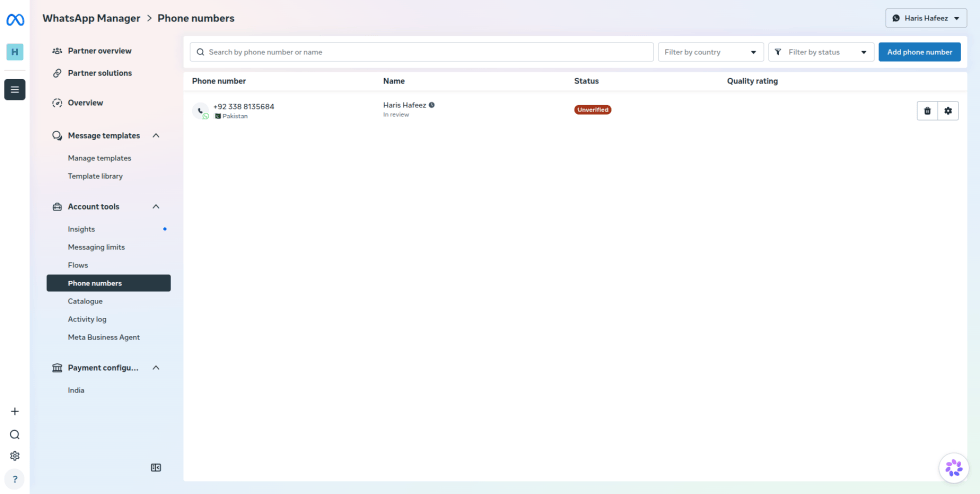
Step 25: In WhatsApp Manager, go to Account tools > Phone numbers and click Add phone number.
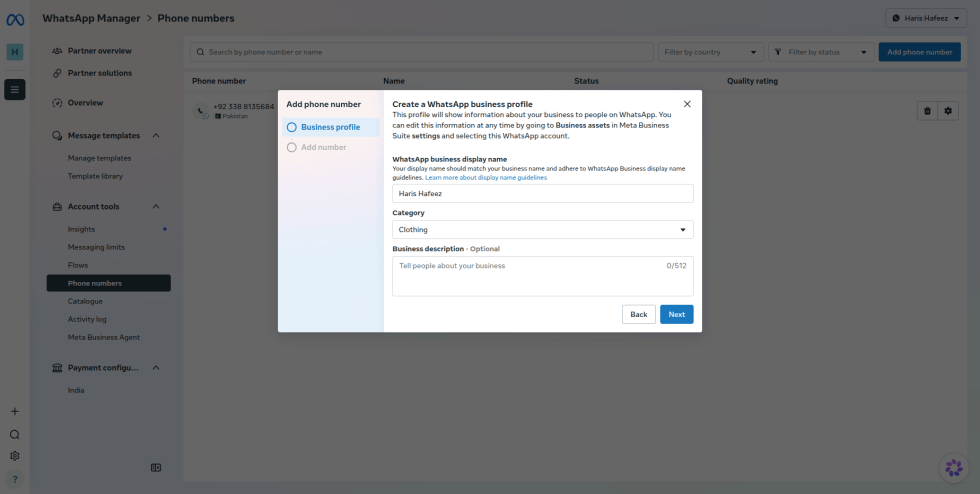
Step 26: Create the WhatsApp business profile: enter the WhatsApp business display name, choose a Category, and add a Business description (optional). Click Next.
Step 27: Enter your phone number with the country code and click Next, then verify it with the code Meta sends.
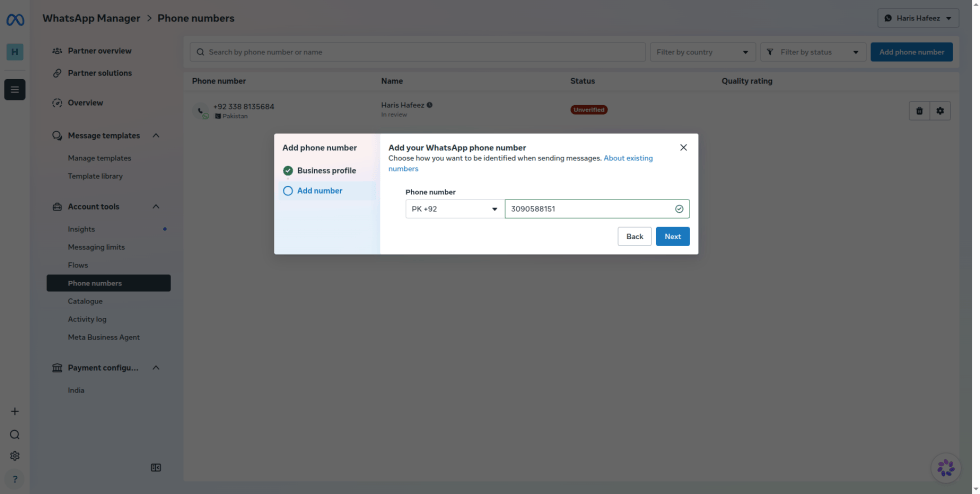
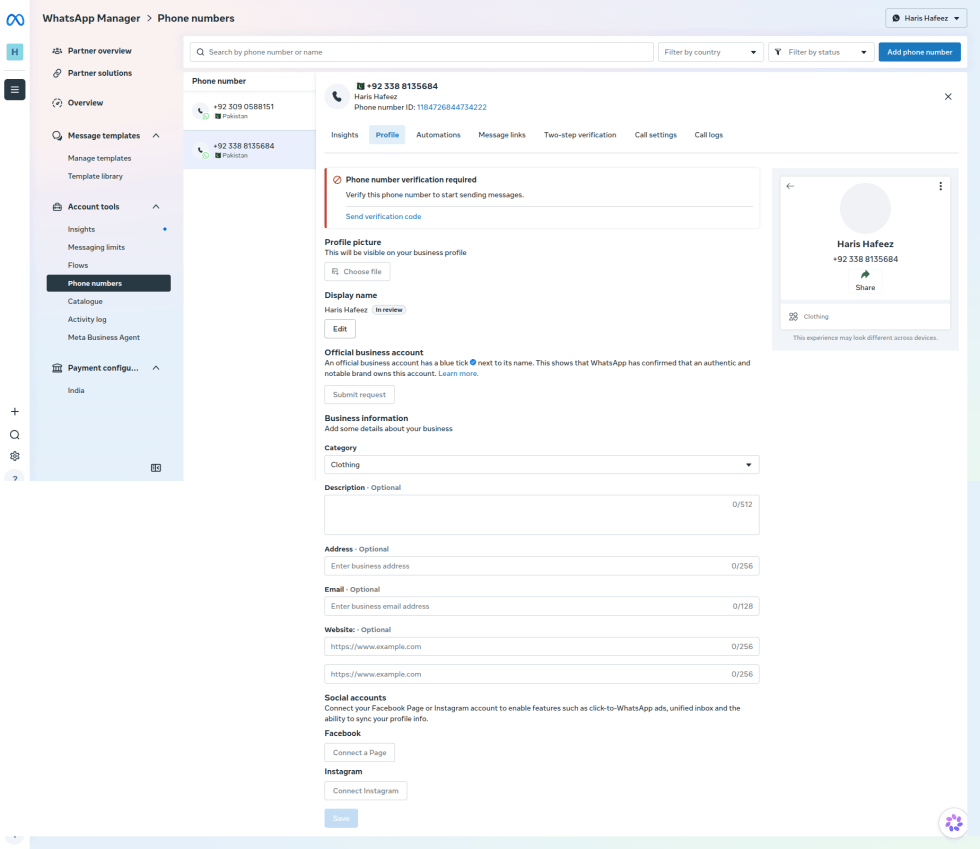
Step 28: If the number shows as Unverified, select it, open the Profile tab and click Send verification code. The display name stays In review until Meta approves it.
Step 29: To remove messaging limits, verify your business: go to Business Settings > Security Center, click Start Verification and upload the requested business documents.
[Screenshot to add: Business verification page in Security Center]
Part 6: Create the OTP Message Template
↑ Back to topWhatsApp only sends OTPs through an approved template. Free-text OTP messages are not allowed.
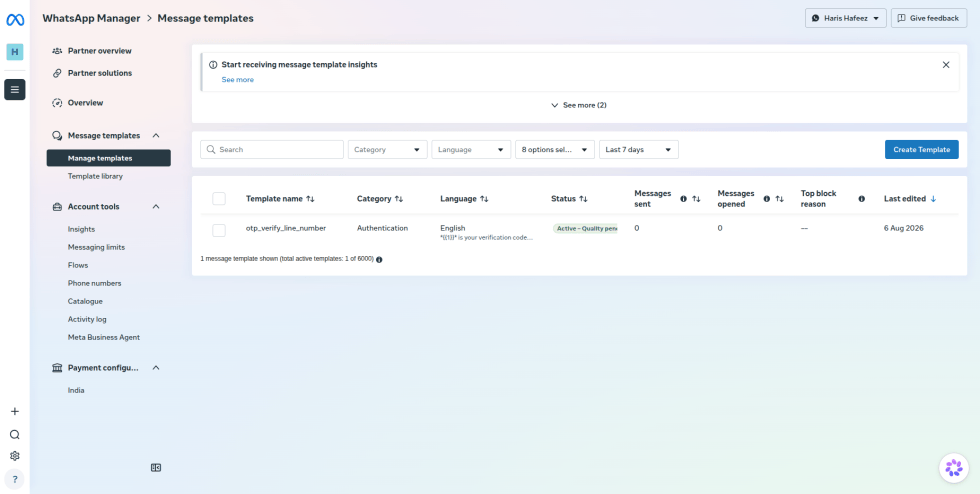
Step 30: In WhatsApp Manager, go to Message templates > Manage templates and click Create Template. You can also open this page from Manage message templates on the use case Quickstart page.
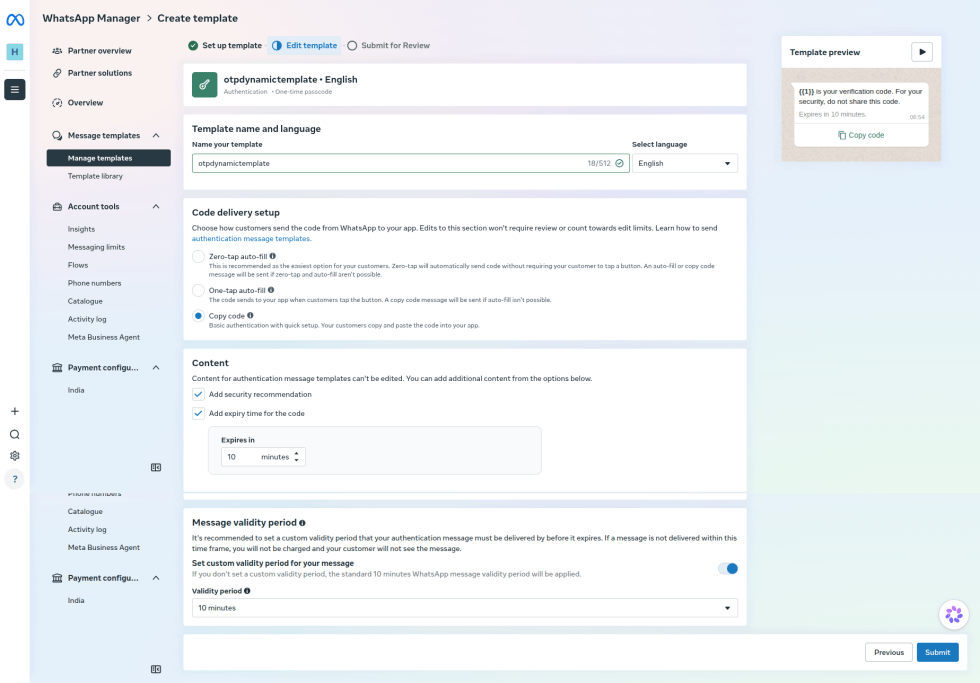
Step 31: On Set up template, select Authentication, then One-time passcode. Click Next.
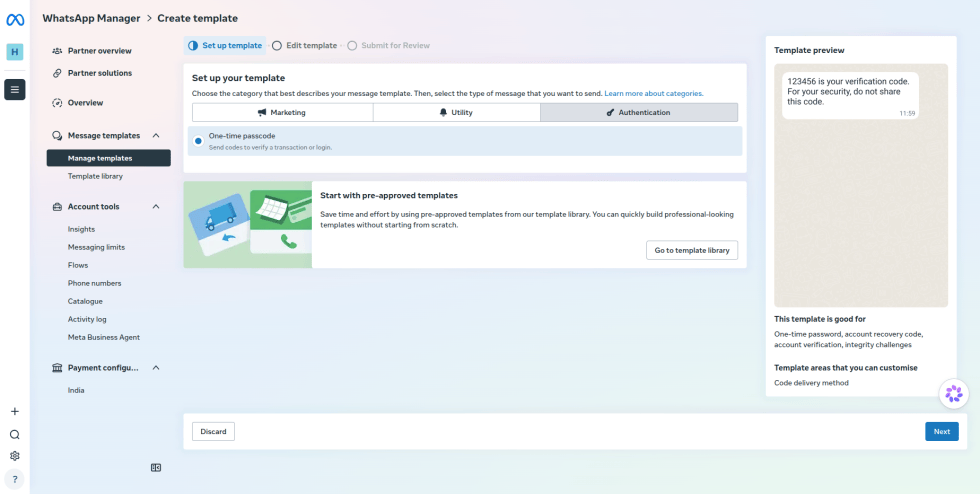
Step 32: On Edit template, set up the template:
- Name your template: Enter a name in lowercase (e.g., otp_verify_line_number) and select the language.
- Code delivery setup: Select Copy code. Customers tap the button to copy the code and paste it on your site.
- Content: The message text is fixed: “{{1}} is your verification code.” Select Add security recommendation and Add expiry time for the code, then set Expires in (e.g., 10 minutes).
- Message validity period: Optionally set how long WhatsApp keeps trying to deliver the message.
Click Submit.
Step 33: Meta reviews the template, which usually takes from a few minutes to a few hours. When it’s approved, its status in Manage templates changes to Active.
Part 7: Configure the Plugin
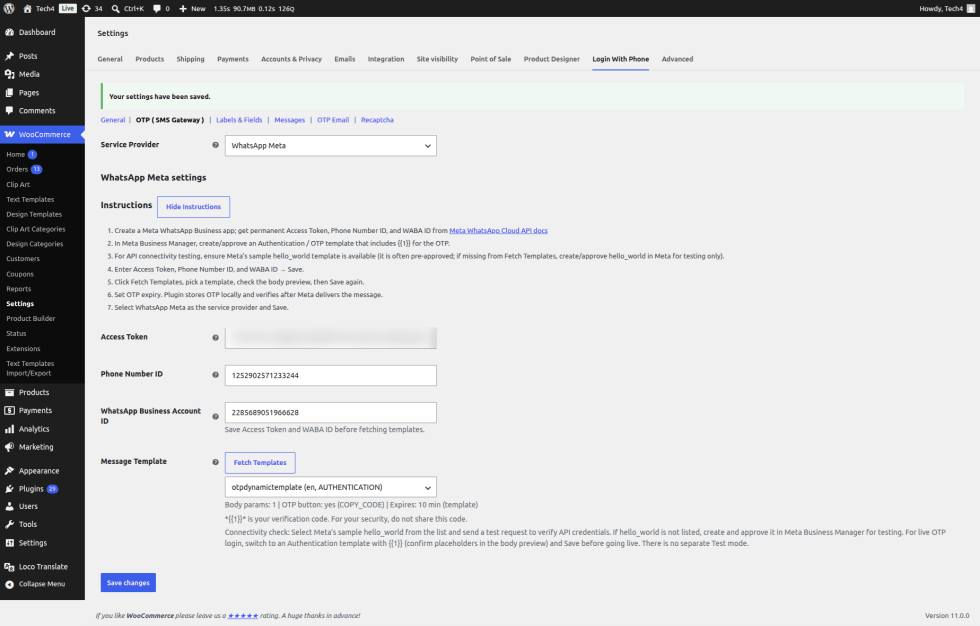
↑ Back to topStep 34: In WordPress, go to WooCommerce > Settings > Login With Phone > OTP (SMS Gateway).
Step 35: Set Service Provider to WhatsApp Meta.
Step 36: Paste the Access Token, Phone Number ID and WhatsApp Business Account ID from Part 4, then click Save changes. Save before fetching templates.
Step 37: Click Fetch Templates to load your approved templates from Meta, then select your OTP template. The plugin shows the template’s body parameters, whether it has a Copy Code button, and its expiry time. Click Save changes again.
Part 8: Test the Connection
↑ Back to topStep 38: To check your credentials, select Meta’s sample hello_world template in the plugin and send a test request. If hello_world isn’t in the list, create and approve it in WhatsApp Manager first. There is no separate test mode.
Step 39: Switch back to your Authentication template and click Save changes before going live.
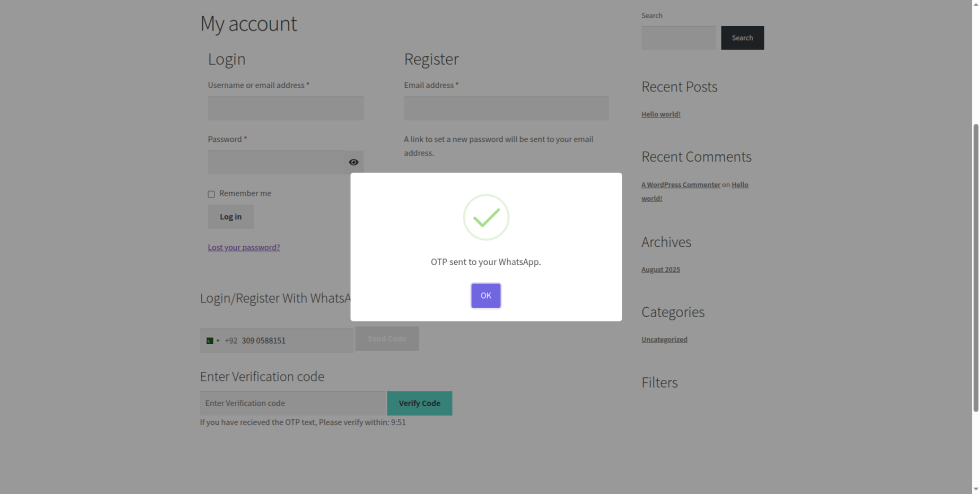
Step 40: On your store’s My account page, enter a phone number under Login/Register With WhatsApp and click Send Code. A message confirms “OTP sent to your WhatsApp.”
Step 41: Enter the code from WhatsApp in Enter Verification code and click Verify Code before the timer runs out.
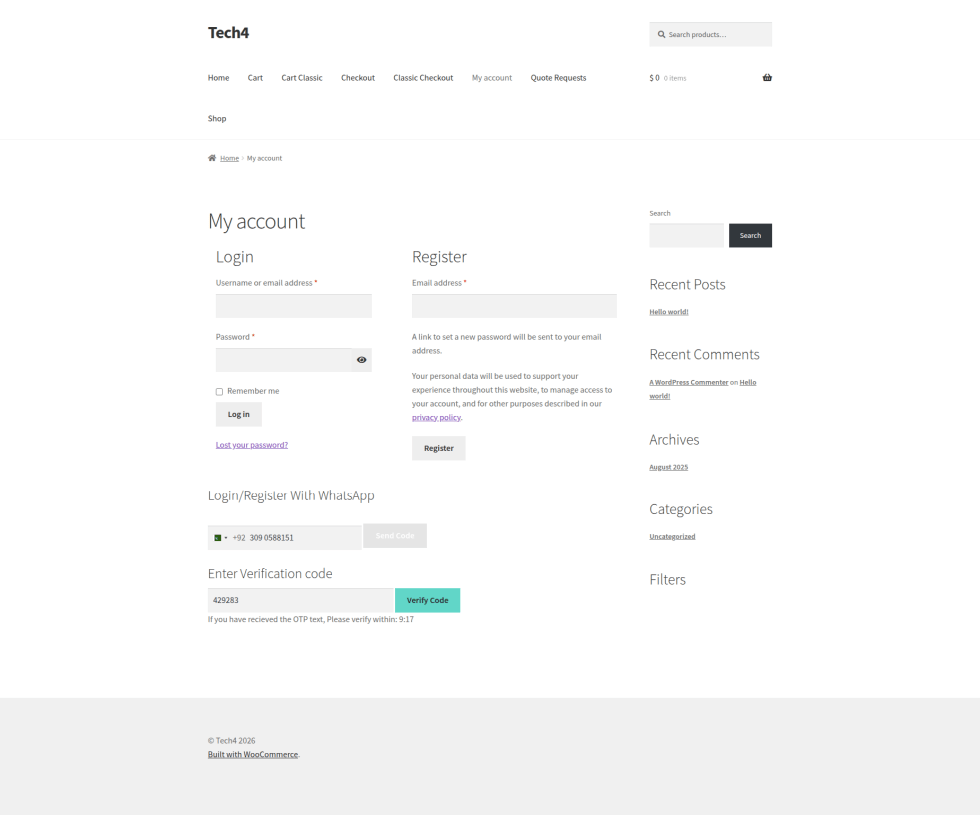
Step 42: The customer is logged in to their account. New customers are registered with their phone number.