
Use linked products in WooCommerce to recommend alternatives and complementary products to customers. You choose upsells and cross-sells for each product; WooCommerce generates related products from shared categories and tags.
Upsells
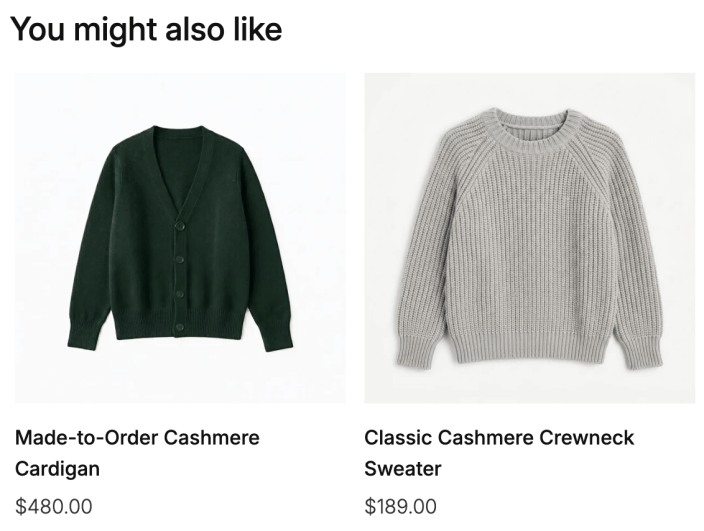
↑ Back to topUpsells are products that you recommend instead of the product a customer is viewing. They are typically higher-quality or higher-priced alternatives. For example, you might recommend a cashmere cardigan as an alternative to an alpaca wrap.
Upsells appear where your theme or product template displays them, often below the product details. The heading and layout depend on your theme.
Cross-sells
↑ Back to topCross-sells are complementary products that you recommend based on items in a customer’s cart. For example, you might recommend a scarf or wool wash with a wrap.
You choose cross-sells in the product editor. They appear when the cart page includes a cross-sells section. For a Cart block, this can be a Product Collection block using the Cross-Sells collection. Assigning products does not add a missing section to your cart layout.
Related products
↑ Back to topWooCommerce automatically generates related products based on categories or tags shared with the product being viewed. They appear when the product template includes related products.
You cannot choose related products in the Linked Products tab. To influence the recommendations, group similar products in the same category or give them the same tags. The theme or Product Collection settings determine how the recommendations are displayed.
Add upsells and cross-sells to a product
↑ Back to topBefore you begin, create the products you want to recommend. To assign both upsells and cross-sells, open a simple or variable product:
- Go to Products > All Products and edit the product whose recommendations you want to set.
- In the Product data panel, select Linked Products.
- In Upsells, search for and select the alternative products you want to recommend.
- In Cross-sells, search for and select complementary products.
- Select Update to save the product.
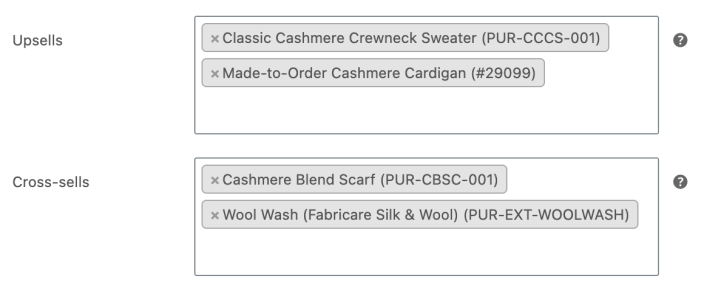
To remove a recommendation, select the × beside its name and update the product.
Check your recommendations
↑ Back to top- Open the product page in your store and check that the upsells section displays the alternatives you selected.
- Add the original product to your cart, then open the cart page to check its cross-sells.
- Check related products on the product page. They should share a category or tag with the current product; they do not need to match your manually selected upsells or cross-sells.
If recommendations are missing, confirm that you updated the correct product and that the recommended products are published and visible in your catalog. Stock visibility settings and the collection’s filters can also affect which products appear. Cross-sells already in the cart are excluded from the cart’s recommendations.
If an entire section is missing, check the product template or cart layout. With a block theme, use the Site Editor to check product templates; edit the cart page to check its Cart block. Confirm that the relevant product collection is present and uses the intended collection. For a classic theme, check its WooCommerce display options or contact the theme developer.
The order and number of recommendations can vary with your theme and collection settings. Selecting products in a particular order does not guarantee that display order.
Customization
↑ Back to topFor changes that require code, see Change the number of related products displayed and Remove related products. These customizations are intended for developers.
Questions and support
↑ Back to topDo you still have questions and need assistance?
This documentation is about the free, core WooCommerce plugin, for which support is provided in our community forums on WordPress.org. By searching this forum, you’ll often find that your question has been asked and answered before.
If you haven’t created a WordPress.org account to use the forums, here’s how.
- If you’re looking to extend the core functionality shown here, we recommend reviewing available extensions in the WooCommerce Marketplace.
- Need ongoing advanced support or a customization built for WooCommerce? Hire a Woo Agency Partner.
- Are you a developer building your own WooCommerce integration or extension? Check our Developer Resources.
If you weren’t able to find the information you need, please use the feedback thumbs below to let us know.