Smart Coupons provide a powerful, “all-in-one” solution for gift cards, store credits, discount coupons, and vouchers, extending the core functionality of WooCommerce coupons.
This doc article explains how to display the product’s original and discounted prices in the cart.
How to enable display of discounted prices in the cart
↑ Back to top- Go to your WordPress Dashboard.
- Navigate to WooCommerce > Settings > Smart Coupons tab.
- Under the General section, look for the option Display Discounted Price.

- Enable this setting.
- Click Save changes.

How this appears on the cart page:
↑ Back to topWhen a discount coupon is applied, customers will see:
- The original product price will appear with a strike-through price.
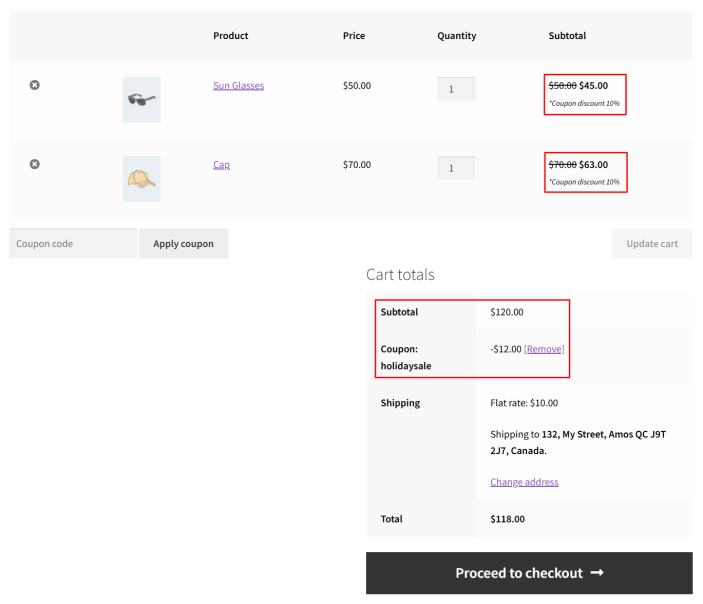
- This makes discounts more visible and improves customer confidence during checkout.
That’s it.