Smart Coupons provides a powerful, all-in-one solution for gift cards, store credits, discount coupons, and vouchers, extending the core functionality of WooCommerce coupons.
This document explains how to allow customers to upload an image to send with the gift card.
Smart Coupons allows customers to upload an image when purchasing a gift card, which is then included in the gift card email sent to the recipient.
Enable image upload for gift cards
↑ Back to top- Go to Products in your WordPress dashboard.
- Create a new gift card product or edit an existing one.
- In the Product data section, enable the Image upload option.
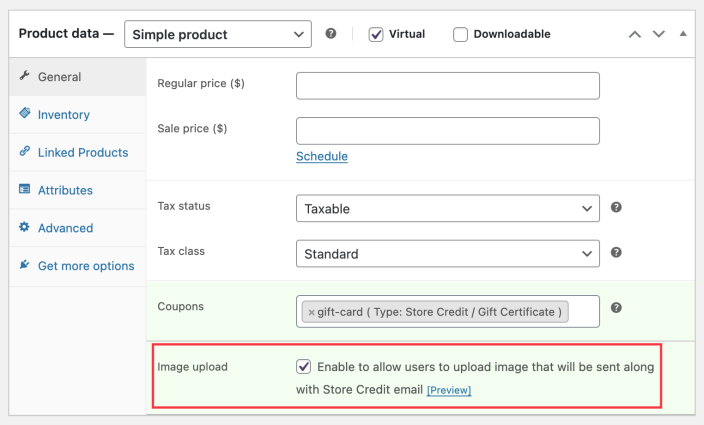
- Save or update the product.
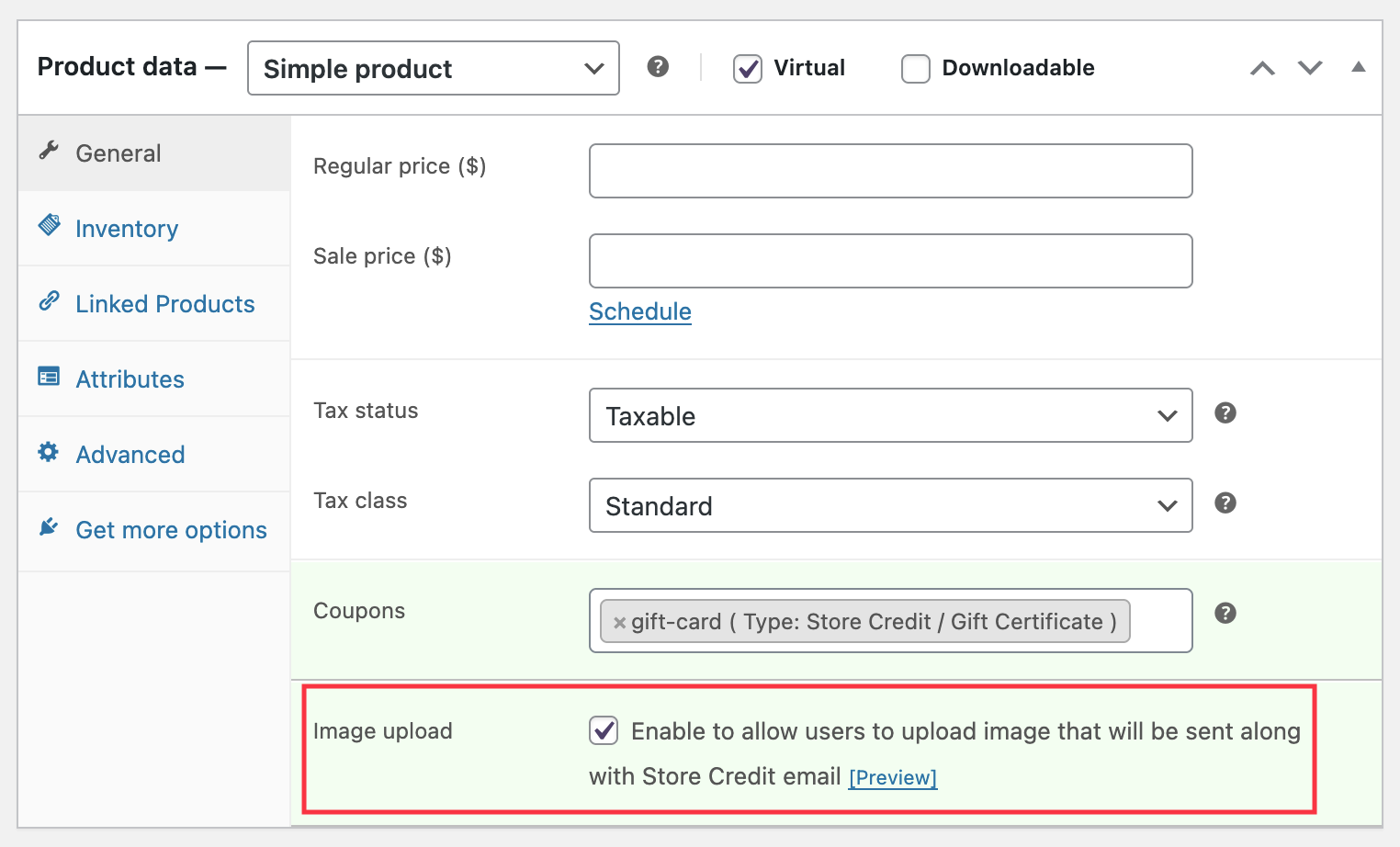
Tips: By default, the limit is 2 MB. If you want to upload an image larger than 2 MB, you can use the filter below on your website. The value in the filter should be in bytes.apply_filters( 'wc_sc_custom_gift_max_file_size', 2097152 );
How it works for customers
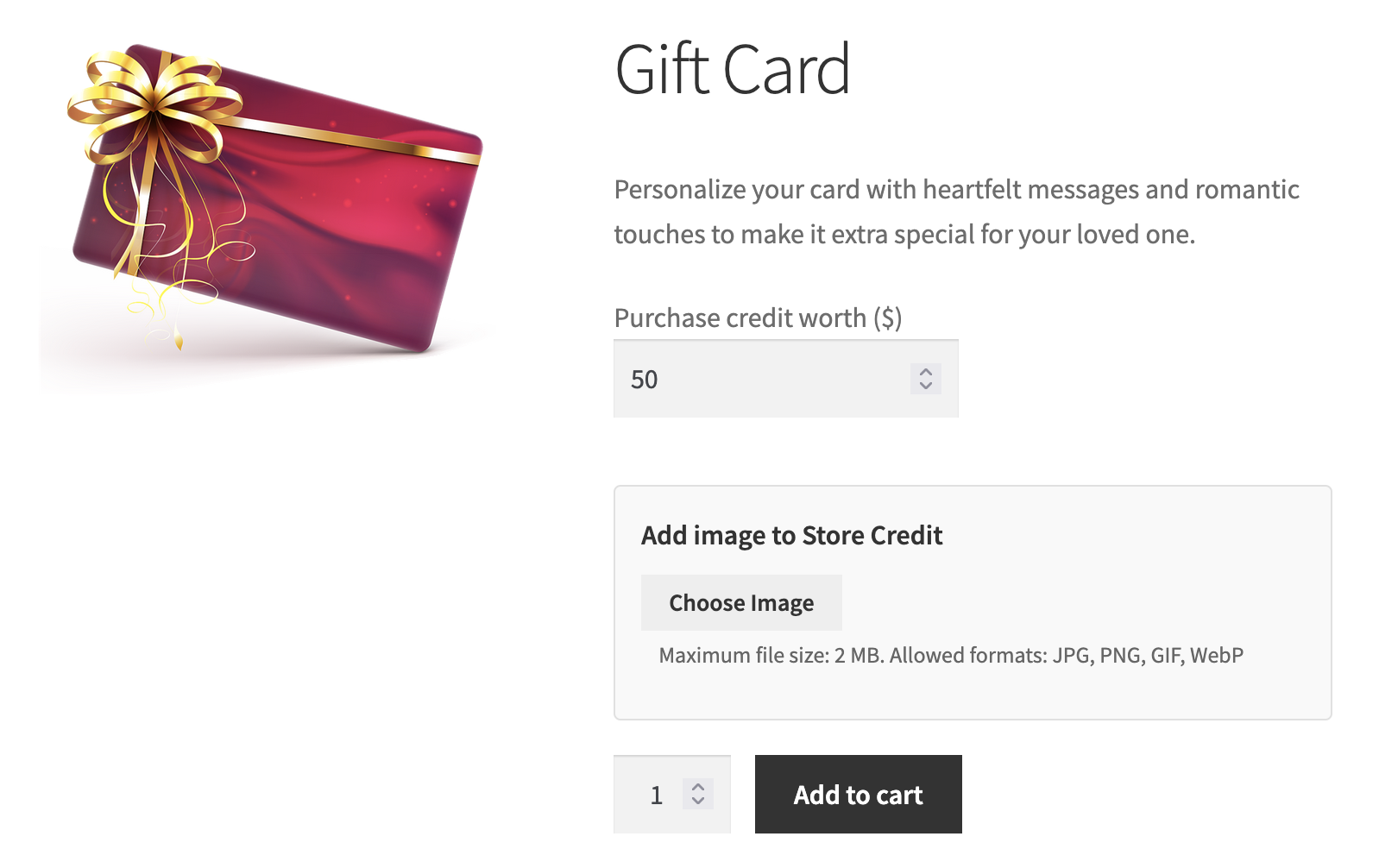
↑ Back to top- An image upload field appears on the gift card product page.
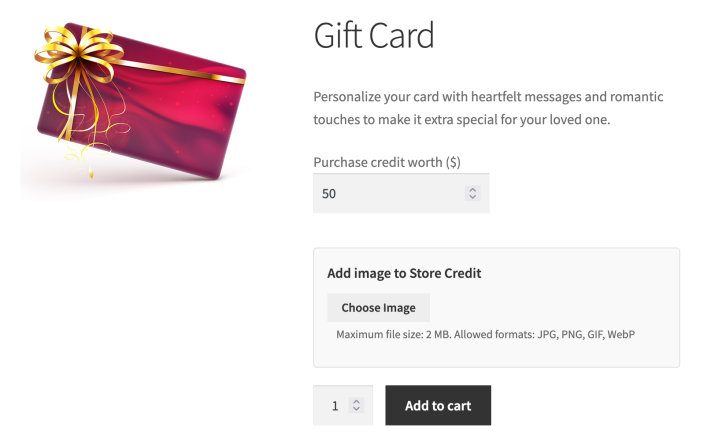
- Customers can upload an image while purchasing the gift card.
- After completing the purchase, the uploaded image is automatically included in the gift card email sent to the recipient.
- Here is a sample email that shows how it looks.


That’s it!
Customers who enable this feature can use images to personalize their gift card purchases, making for a more meaningful gift experience.