
Many of our premium shipping methods, especially those that calculation shipping costs via the carrier’s API, have built-in Box Packers that determine which box or envelope is the best fit for all the items being purchased.
How Box Packers work:
Box Packers look at the dimensions of available boxes/envelopes (using the “Inner” dimensions, if specified) and the dimensions of all products in the Cart and attempts to pack the order into the fewest number of boxes. If a single box cannot hold all the items, the largest box those products can fit inside will be packed first and then additional boxes will be used to pack the remaining items.
In addition to dimensions, Box Packers also consider the weight of the items being purchased and the Max Weight of available boxes/envelopes. This can help with more accurate packing and prevent overly-heavy boxes, as packages will not be filled beyond their maximum weight limit. If an order is too heavy to be packed into a single box/envelope, multiple packages will be used.
Some shipping extensions allow you to choose between two different Box Packer Libraries:
- Speed Packer: The Speed Packer is mainly volume-based. After confirming that product dimensions are equal to or less than the box/envelope, this Box Packer calculates the volume of the items (L x W x H) and compares it to the volume capacity of the package to find the best fit. Since this Box Packer uses math, calculations are faster and use fewer resources- especially with large quantities. However, math doesn’t always match real-world box packing, so slight adjustments to product or package dimensions may be needed to have orders packed correctly.
- Accurate Packer: The Accurate packer is mainly rotation-based. After confirming that product dimensions are equal to or less than the box/envelope, this Box Packer rotates each product multiple times before adding them to a package, similar to the video game “Tetris”. With large quantities, these calculations are a bit more intensive and not quite as fast as the Speed Packer but it’s typically more accurate since humans pack boxes in a very similar way.
Product Dimensions vs. Shipping Dimensions
↑ Back to topThe most important part of all calculators is the individual product page – specifically, the “Shipping” tab available. There, you’ll see weight, length, width, and height, all in the units chosen in your WooCommerce Settings.
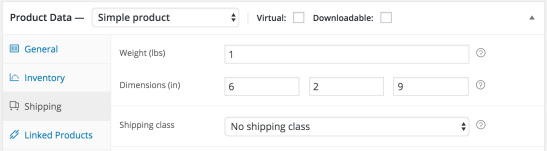
It’s important to realize that this area is where you input the shipping dimensions of the product, not the actual, laid out dimensions. Whatever size the item or package will be when it’s shipped will be what you input here, including any extra padding or wiggle room you choose to have.
As an example scenario, let’s say you’re selling movie poster One Sheets – laid out, these posters are 27″ wide, 41″ tall, and 0.01″ thick. However, if we entered those dimensions, we would need a box at least 27.01″ by 41.01″ by 0.02″ thick, something that would certainly result in wasted space and an extremely inflated fee.
Instead, you would likely roll the poster and place it in a tube. One Sheets are rolled so the smallest edge is the height – this means it will roll into a package approximately 27″ by 3″ by 3″. It would be circular, but by establishing these measurements, you’re sure that it fits into the tightest, most reasonable packaging possible.
Box Selection
↑ Back to topFor most methods, default box sizes will be used depending on the methods you select. These sizes can be found at the following websites.
Using Custom Boxes
↑ Back to topIn some methods, you can also use your own boxes and envelopes. For this, you’ll need to measure both the exterior dimensions of the packages at their widest points as well as interior dimensions and maximum weight. Note that these boxes will be used alongside the default boxes, not entirely in place of them.
How to see the Calculated Boxes
↑ Back to topAll shipping methods have a debug mode – this shows the information sent to and from the shipping provider’s calculator, along with what boxes were selected for shipping. The output will vary depending on the method. See the documentation covering Shipping Methods & Debug Mode here.
Questions and support
↑ Back to topDo you still have questions and need assistance?
This documentation is about the free, core WooCommerce plugin, for which support is provided in our community forums on WordPress.org. By searching this forum, you’ll often find that your question has been asked and answered before.
If you haven’t created a WordPress.org account to use the forums, here’s how.
- If you’re looking to extend the core functionality shown here, we recommend reviewing available extensions in the WooCommerce Marketplace.
- Need ongoing advanced support or a customization built for WooCommerce? Hire a Woo Agency Partner.
- Are you a developer building your own WooCommerce integration or extension? Check our Developer Resources.
If you weren’t able to find the information you need, please use the feedback thumbs below to let us know.