
Some stores require more detailed product information directly inside the variation table. The standard layout may only show basic attributes like price or SKU, which is not always enough for customers making detailed comparisons.
If buyers cannot quickly view key details like variation descriptions, weight, or product dimensions, they may hesitate to purchase. They might open multiple product pages just to verify specifications, which slows down the buying process.
The Table Template Two Settings solve this problem by providing a more detailed variation table layout. This template is designed to present additional information in a clean and structured format.
By enabling Table Template Two, customers can instantly see variation descriptions, weight, and dimensions along with the standard variation details. This makes it easier for them to compare options and choose the correct variation without leaving the page.
You can customize the design and appearance of this template using the settings below.
Template Two Table Background color (Pro)
↑ Back to topA consistent background color improves readability and ensures the table blends smoothly with your store’s overall design. If the background color clashes with your theme, it can make the table look disconnected from the rest of your product page.
This setting allows you to change the main background color of the Template Two variation table.
Here is how you can configure it:
- Locate the Template Two Table Background Color option in the settings panel.
- Click the color input box to open the visual color picker.
- Select your preferred color or enter a specific hex code.
Click the ‘Save’ button.
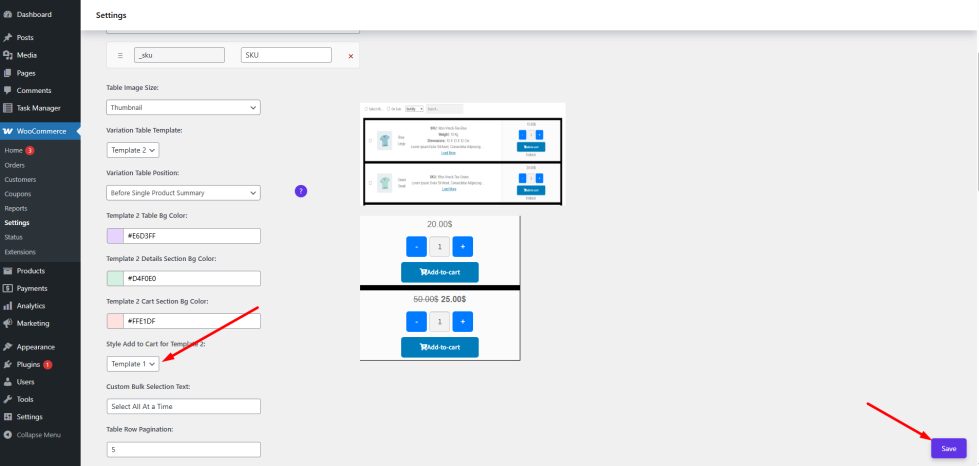
Now visit your variable product page to see the updated table background.
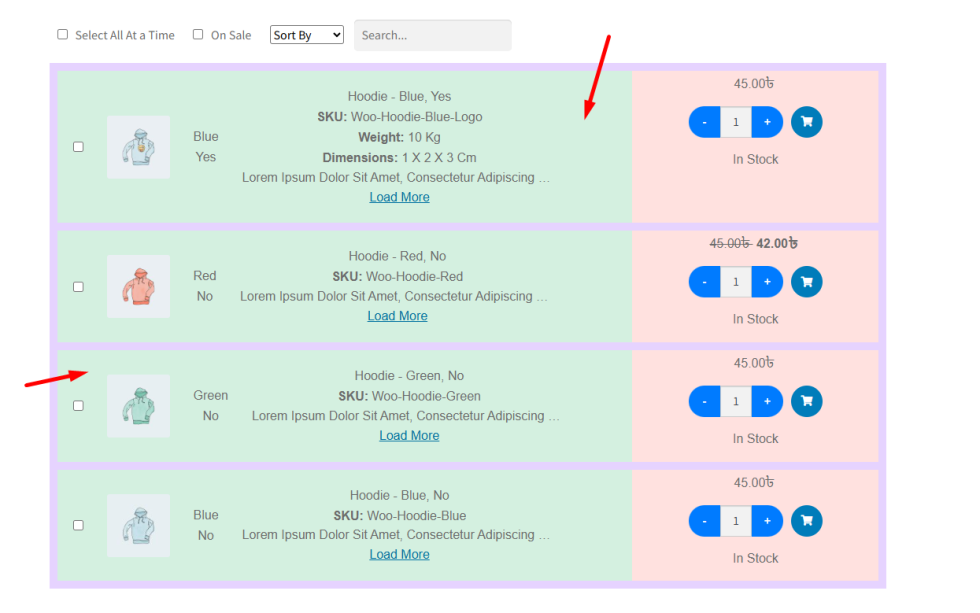
Template Two Table Details Section Background Color (Pro)
↑ Back to topTemplate Two separates product details from the cart section to create a cleaner layout. The Details Section typically contains variation information such as description, weight, dimensions, and attributes.
If both sections share the same color, the layout may feel cluttered. Assigning a different background color helps visually separate the product information from the purchasing controls.
This setting lets you customize the background color of the Details Section inside Template Two.
Follow these steps:
- Find the Template Two Table Details Section Background Color option.
- Click the color field to open the color picker.
- Choose a color that complements your theme and maintains readability.
Click ‘Save’ to apply the changes.
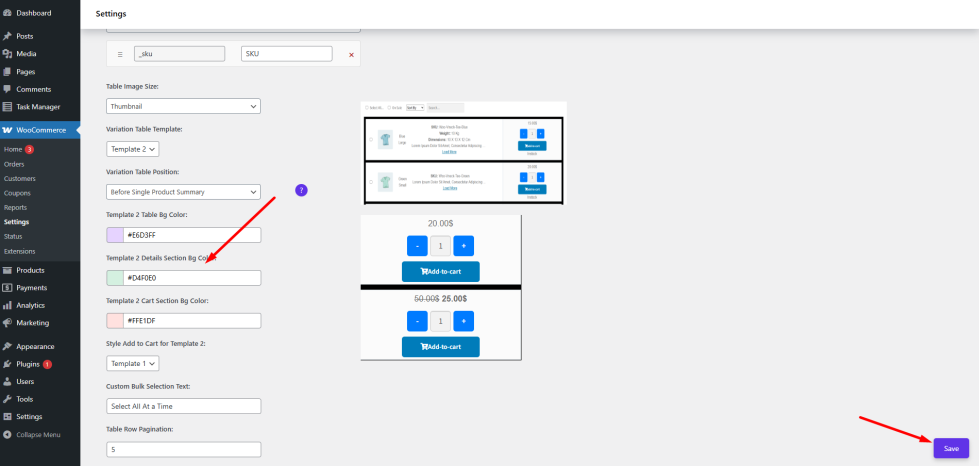
After saving, check the variable product page to see how the new color highlights the details area.
Template Two Table Cart Section Background Color (Pro)
↑ Back to topThe Cart Section is where customers interact with the purchasing controls such as quantity selectors and the add-to-cart button.
If this section does not stand out, shoppers may overlook the purchase options. Highlighting the cart section with a distinct background color improves usability and encourages faster purchasing decisions.
This setting allows you to customize the background color of the Cart Section inside Template Two.
To configure it:
- Locate the Template Two Table Cart Section Background Color option.
- Click on the color box to open the color picker tool.
- Choose a color that draws attention without overwhelming the design.
Press the ‘Save’ button.
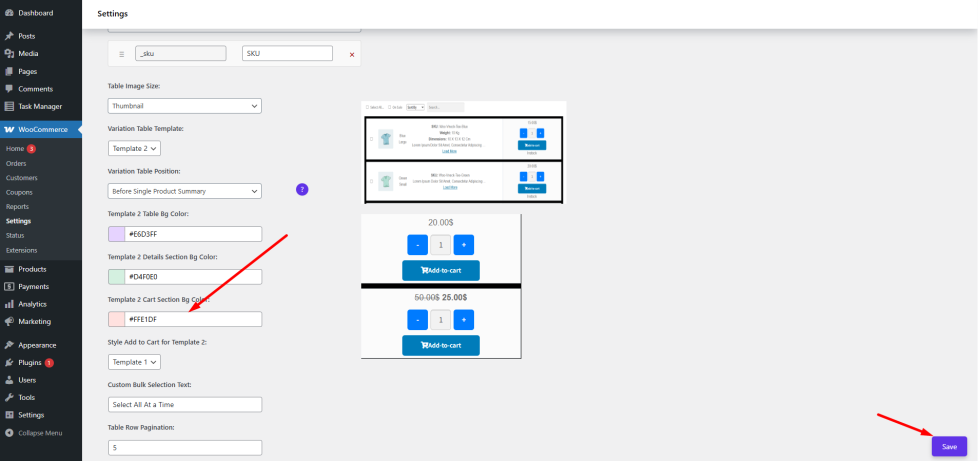
Style Add to Cart for Template Two (Pro)
↑ Back to topDifferent stores prefer different styles for their purchase buttons. Some designs emphasize a bold call-to-action, while others prefer a more minimal interface.
The Style Add to Cart for Template Two setting allows you to choose how the add-to-cart button appears within the Template Two layout.
Variation Monster provides two built-in styles for this button. Each style offers a slightly different layout and visual presentation.
To change the button style:
- Locate the Style Add to Cart for Template Two dropdown option.
- Select your preferred style from the available choices.
Click the ‘Save’ button.
After saving, visit a variable product page to preview how the selected style looks within the table layout.
Template One:
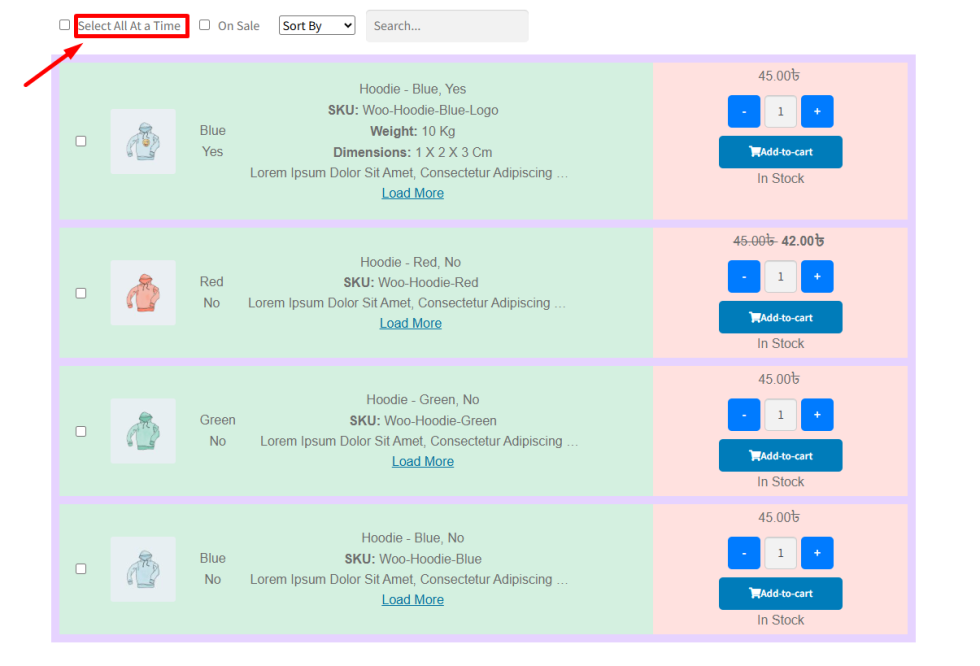
Template Two:
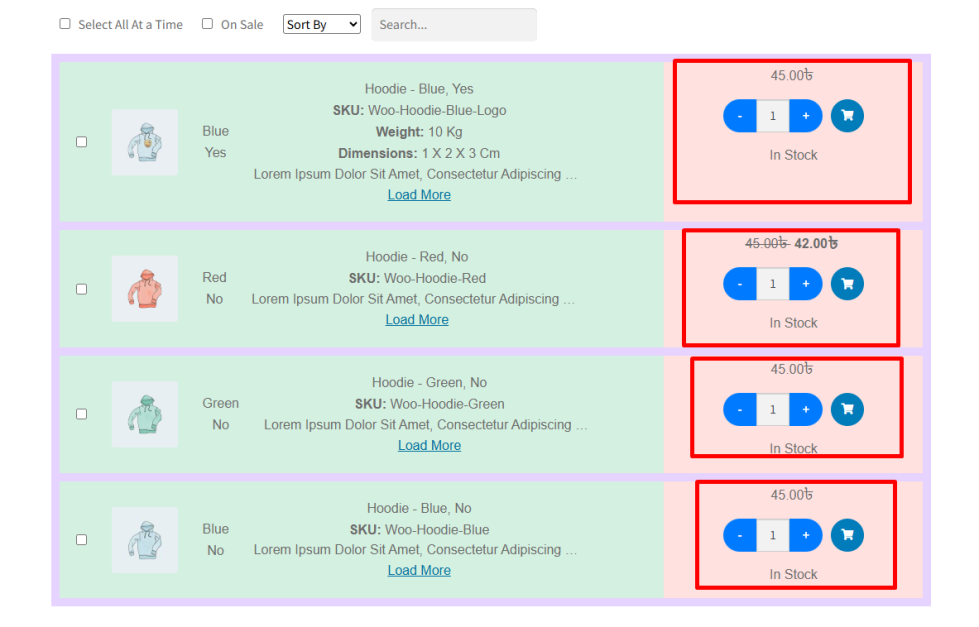
Custom Bulk Section Text for Table Template Two (Pro)
↑ Back to topWhen customers purchase multiple variations at once, the Bulk Add to Cart section becomes an important part of the table interface.
The default text used in this section may not always match your store’s tone or promotional message. Customizing the text allows you to guide customers more effectively and encourage larger orders.
This setting lets you define a custom label for the bulk purchase section in Template Two.
Here is how to configure it:
- Find the Custom Bulk Section Text for Table Template Two input field.
- Replace the default text with your preferred phrase.
- Example: “Select All At a Time”
- Example: “Select All At a Time”
- Click the ‘Save’ button.
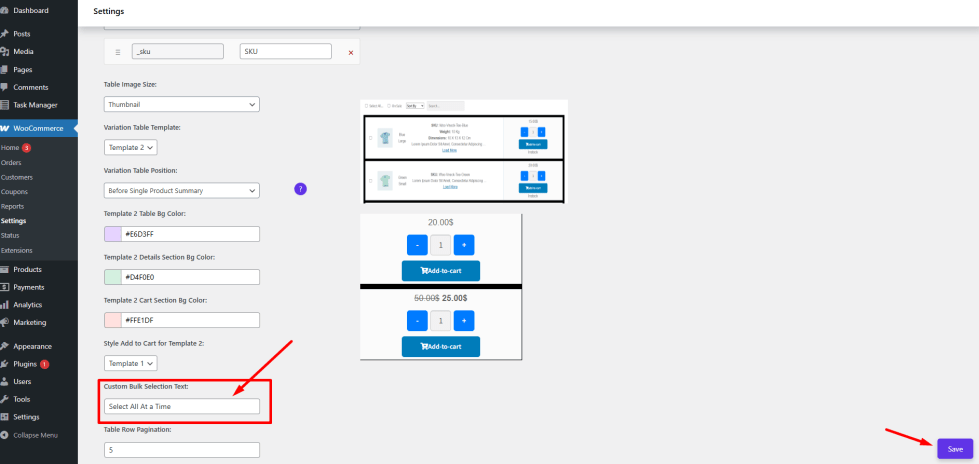
After saving, check your product page to see the updated text displayed in the bulk add-to-cart section.

