Subscription includes
Support
AI Image Generator and Virtual Try-On add two AI tools to your store. You can generate product images with Google Gemini (Imagen) from the product edit screen, without a photoshoot or design software.
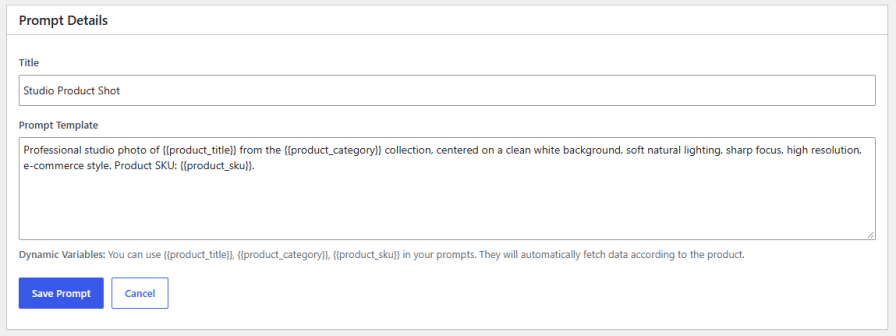
Shoppers get a “Try it on Yourself” button on product pages. They upload a photo or take one with their camera, and the AI shows the product on them. Seeing how an item looks on them helps shoppers buy with more confidence.
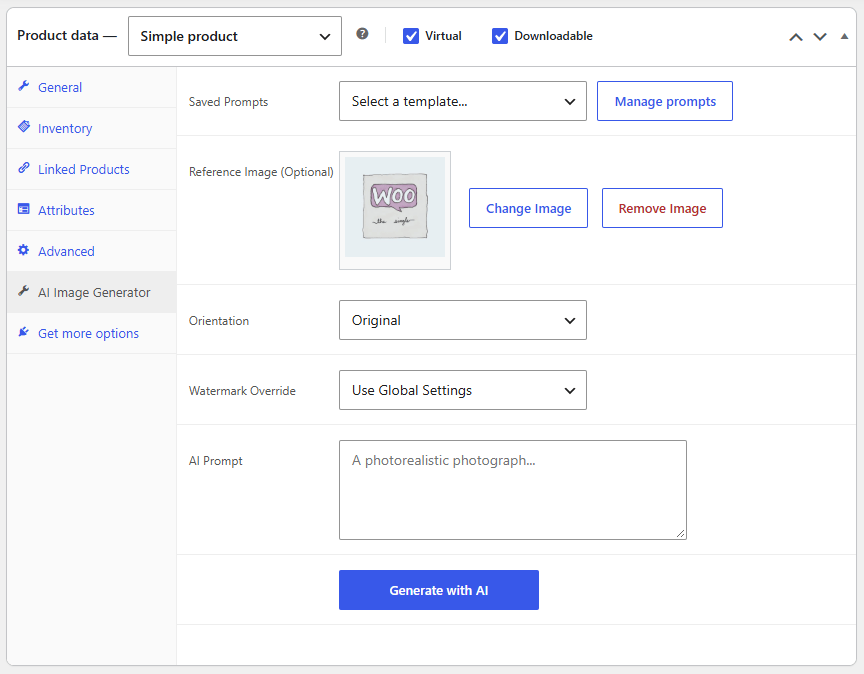
Open the AI Image Generator tab in any product’s data panel, write a prompt, and click Generate with AI. To guide the result, you can add a reference image, such as your current product photo. Choose from eight orientations so the image fits where it will be used: square for catalog grids, horizontal for banners, or vertical for mobile and social.
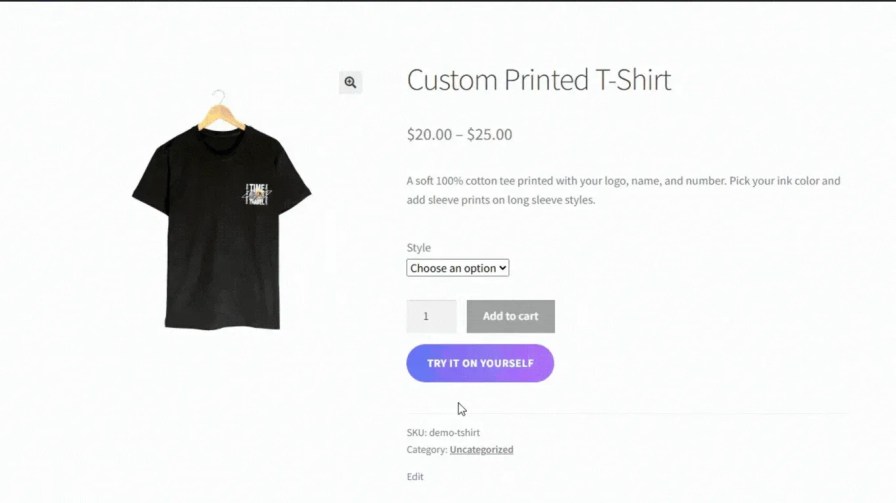
Create AI prompt templates once and use them for any product. Templates can include {{product_title}}, {{product_category}} and {{product_sku}}, which fill in each product’s details automatically. This keeps your images consistent and saves you from writing a new prompt for every product.
Create new product images with AI right from the product edit screen. Describe the image you want, or start from a saved template, and add a reference image such as your current product photo to guide the result. Choose from eight aspect ratios so each image fits where it will be used: square for catalog grids, horizontal for banners, and vertical for mobile and social. Set the result as the featured image or add it to the product gallery in one click.
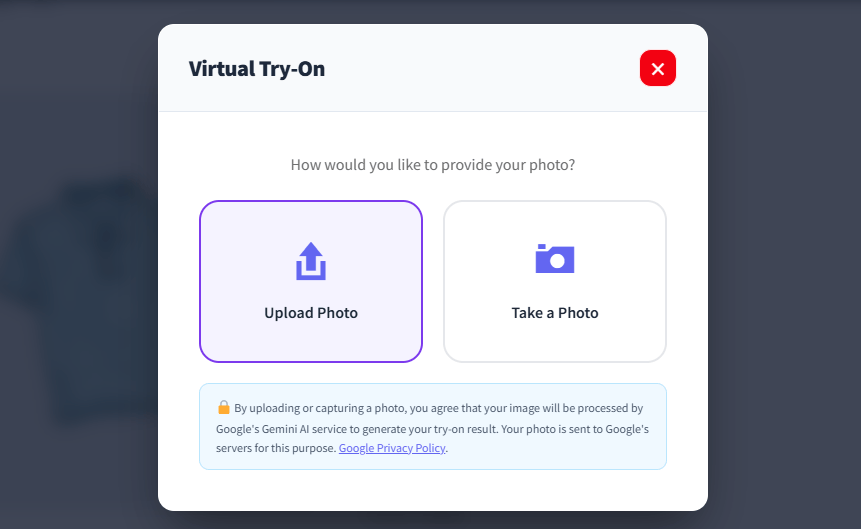
Let shoppers see how a product looks on them before they buy. They can upload a photo or take one with their camera, and the AI generates an image of them with the product, which they can download. Try-on rules let you show the feature only on the products or categories where it makes sense, such as apparel or accessories.
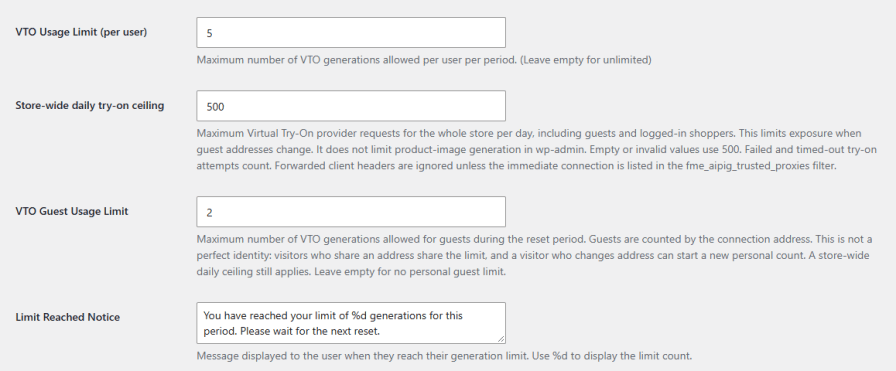
Every AI generation uses your API quota, so the plugin gives you limits at several levels:
Failed and timed-out attempts count toward the limits, and you can set your own message for users who reach theirs.
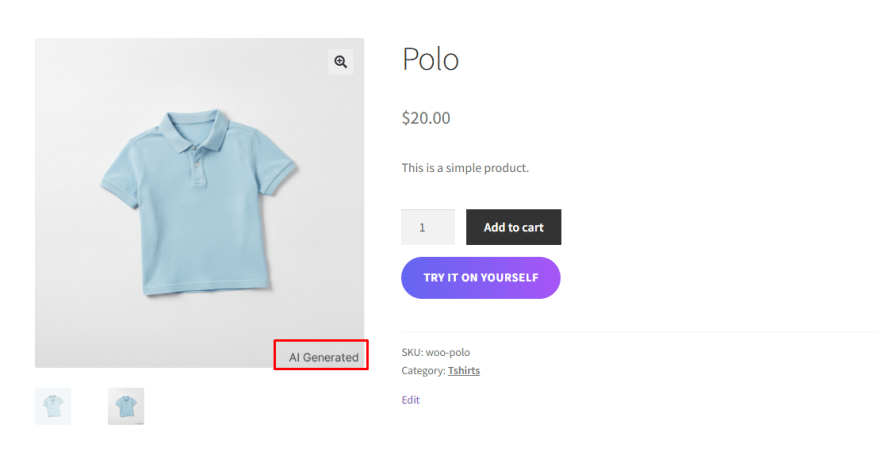
Add a text or image watermark to every AI-generated image and set its size, opacity, and position. A live preview shows the result as you change the settings. For individual products, you can keep the global watermark, set a custom one, or turn the watermark off.
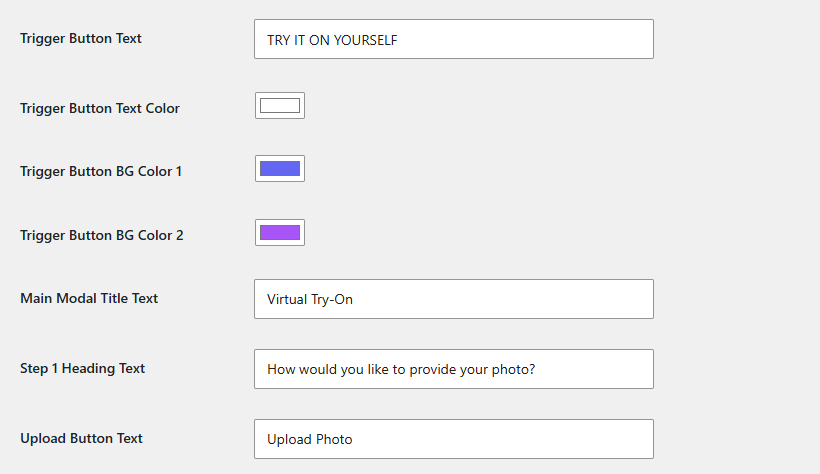
You can edit the text and colors of every part of the try-on experience. This includes the trigger button, popup title, upload, and capture buttons, progress bar, loading message, and download button, so the feature looks like part of your store.
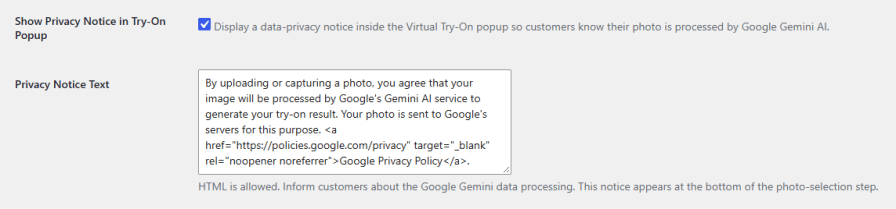
Show a privacy notice in the try-on popup telling shoppers their photo is processed by Google Gemini AI. The notice text is editable and supports HTML, so you can link to your privacy policy. You can also set a maximum upload size for customer photos.
It uses Google Gemini (Imagen). You need your own Google Gemini API key, which you add in the plugin settings.
Yes. Guests can use it within a separate guest usage limit, and the store-wide daily limit still applies.
Yes. Customers can upload an existing photo or take a new one with their device camera.
Yes. Try-on rules let you turn it on for specific products or whole categories.
Set a per-user limit, a per-guest limit and a store-wide daily ceiling. Usage counts reset on the schedule you choose.
Yes. Each product has a Watermark Override option to use the global watermark, add a custom one or remove it.
You can keep the original ratio or choose Square (1:1), Horizontal (16:9, 4:3, 3:2) or Vertical (9:16, 3:4, 2:3).
Yes. Save prompts as templates and use {{product_title}}, {{product_category}} and {{product_sku}} to fill in each product’s details automatically.
Categories
Quality Checks
Countries