
Active installs
900+
Product comparison
Subscription includes
Support
Give customers a reason to place their next bid. Sell antiques, collectibles, artwork, classic cars, and other sought-after items through auctions on your own WooCommerce store.
Auctions for WooCommerce brings individual auctions and complete auction events into one place. Set your bidding rules, keep customers informed with live updates, and manage winning orders through WooCommerce.
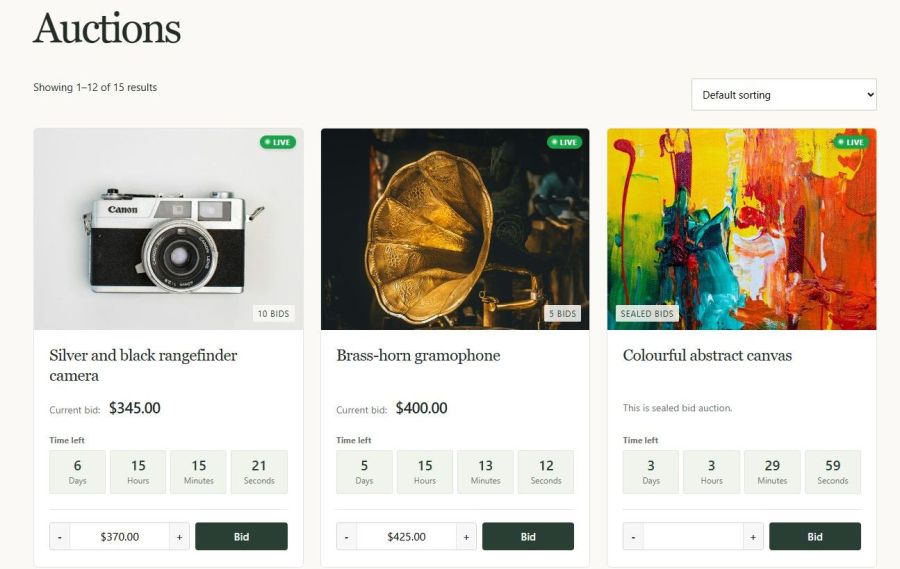
Auction a rare watch on its own, release a collection of artwork, or organize a classic car sale with scheduled bidding sessions. You can display auctions alongside regular products or give them a dedicated page.
Auctions use a dedicated WooCommerce product type, so your product images, descriptions, customers, and orders stay in the store you already manage.
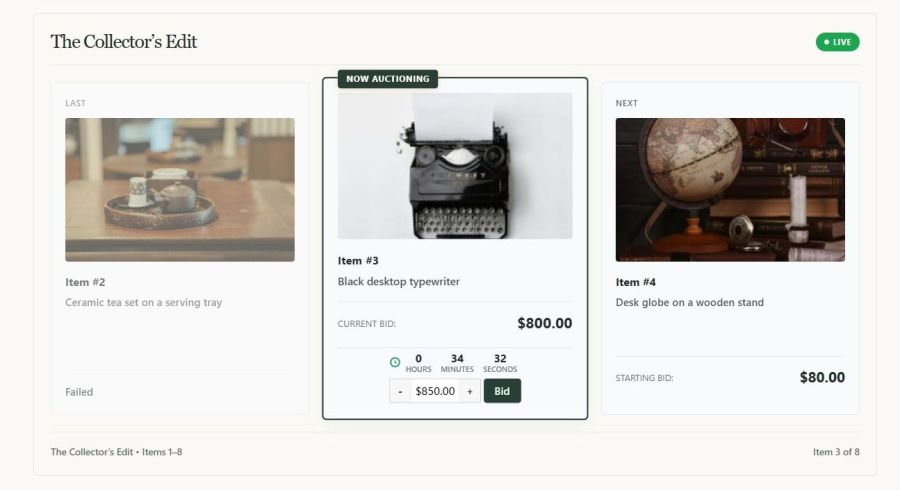
Group related items into an auction lot: a collection of auctions with a shared event page and schedule. Run items together in parallel, or auction them in sequence so customers can follow the next item as it opens.
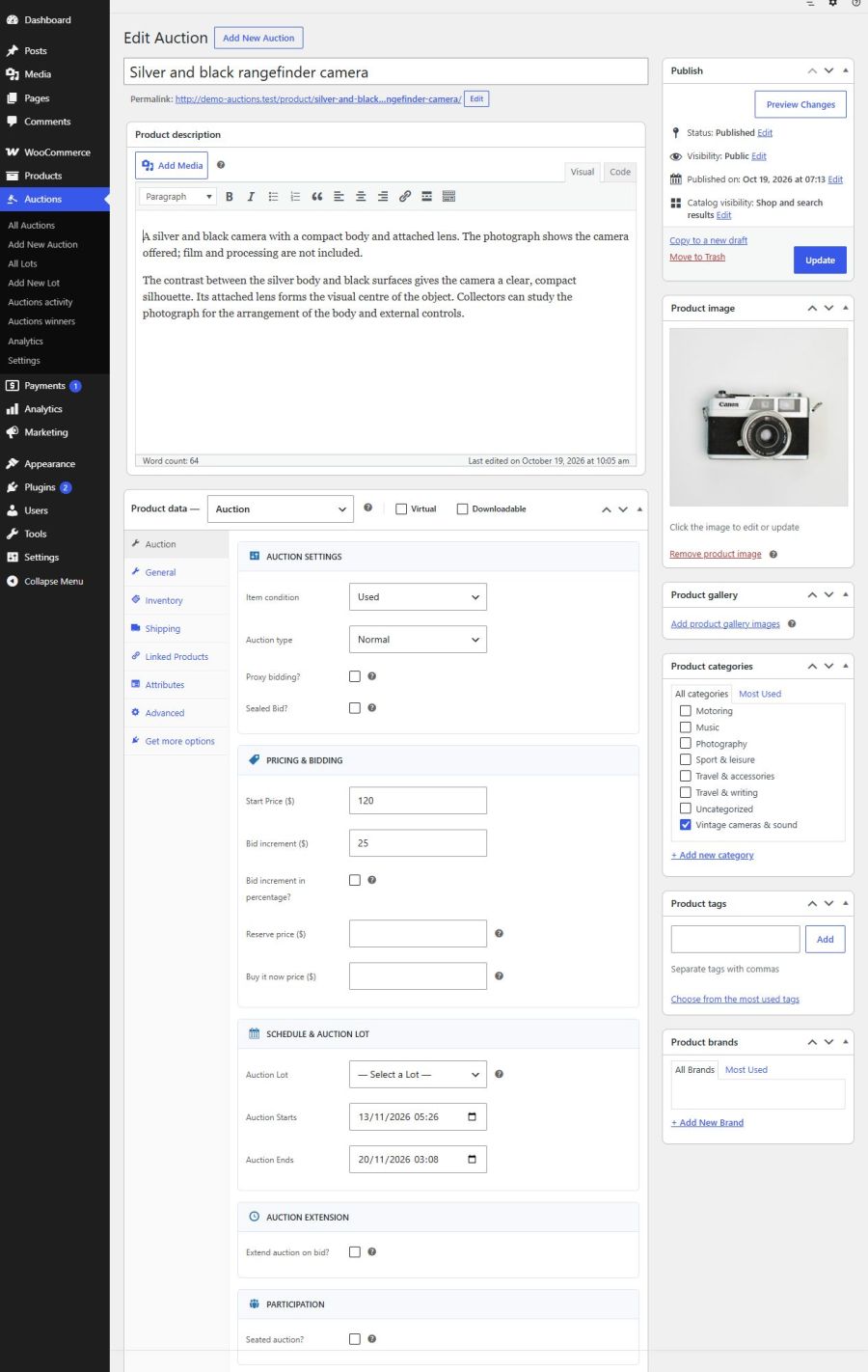
Set the starting bid, reserve price, bid increments, start and end times, and an optional Buy It Now price. Choose fixed, variable, or percentage-based increments to suit the value of your items.
Give bidders time to respond. Enable anti-sniping, also called soft close, to extend an auction when a bid arrives near its scheduled end. You control the extension window and duration.
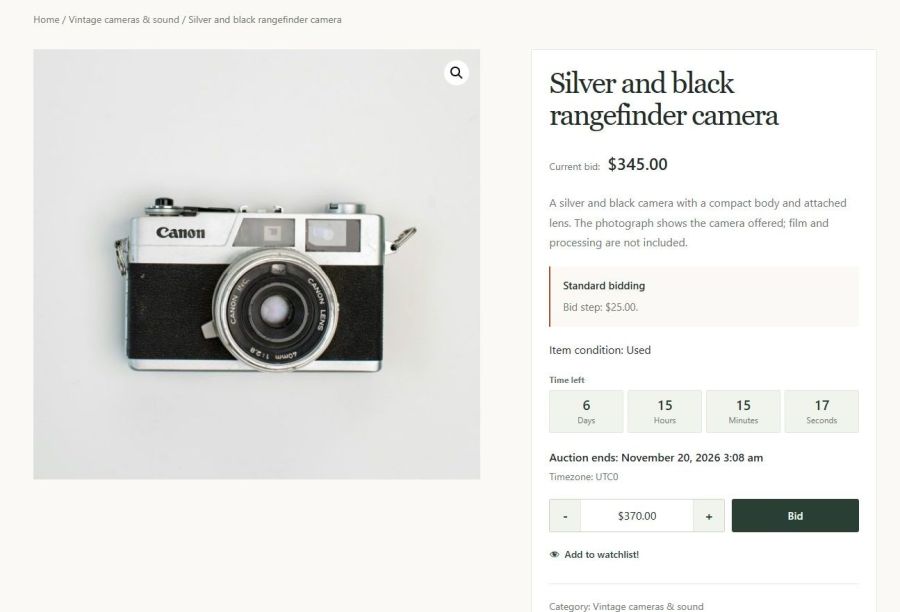
Live bid updates and on-screen notifications let customers follow bidding without a full page reload. Countdown timers make the remaining time clear, while Winning and Outbid badges help bidders see where they stand.
Customers can save favorites to a watchlist and follow active and won auctions from My Auctions. Editable email notifications cover key moments of auction, including outbids, auctions ending soon, wins, and payment reminders.
Manage auction payments through WooCommerce orders. For events, a combined order gives each winner one place to pay for multiple items from the same lot.
Saved-card restrictions and automatic charging require the Stripe gateway and a saved payment method (this feature can be added to any payment gateway that supports card saving and automatic payments). Automatic payment remains subject to the gateway’s implementation.
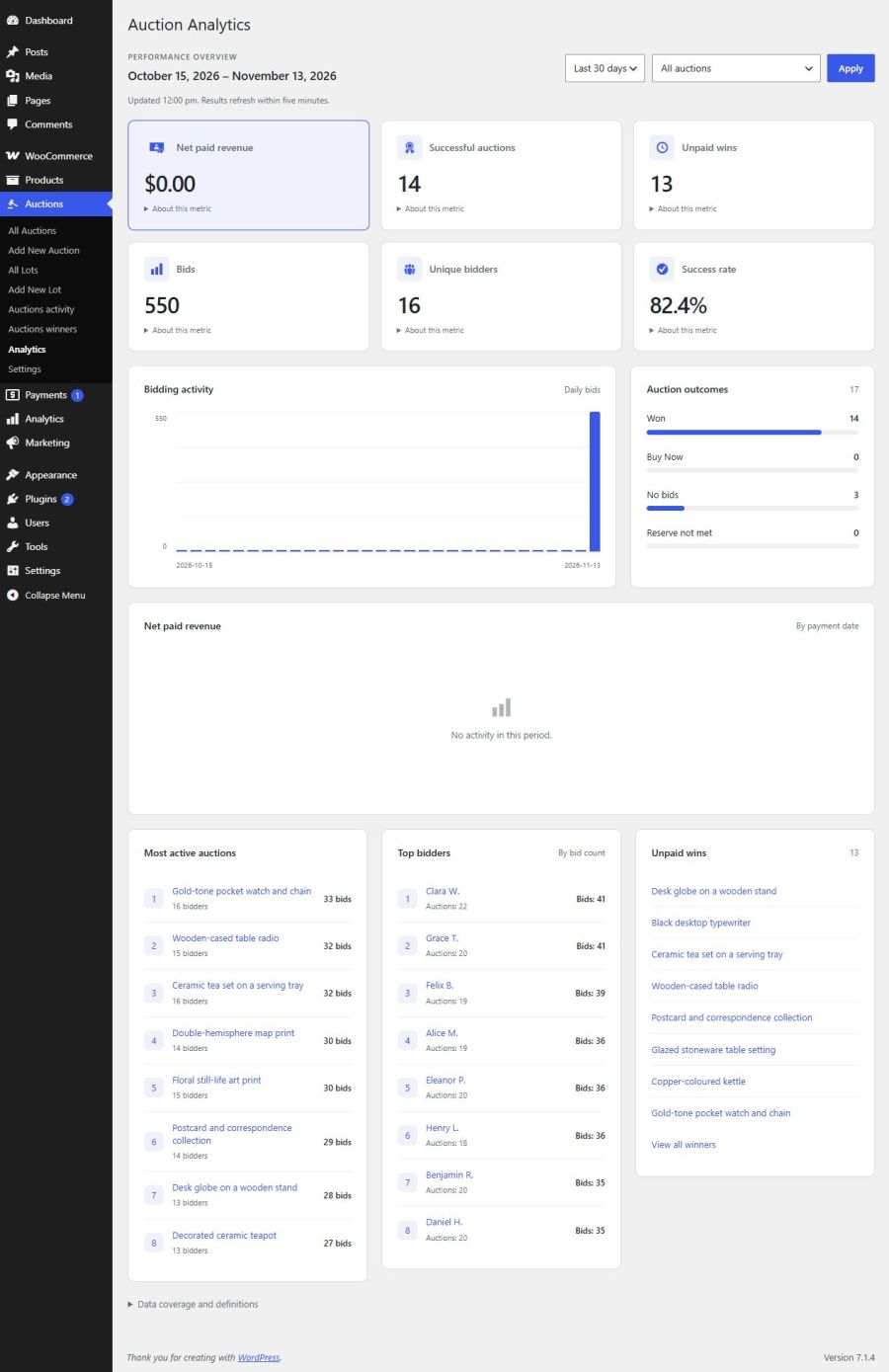
Review auction status, bids, bidders, winners, and lot results from the WordPress dashboard. Use auction analytics to review bid activity, top bidders, revenue, and auction outcomes.
Import auction data with CSV files, duplicate auctions and lots, and relist eligible auctions. Shortcodes, widgets, Elementor support, template overrides, and hooks give you options to fit auctions into your store.
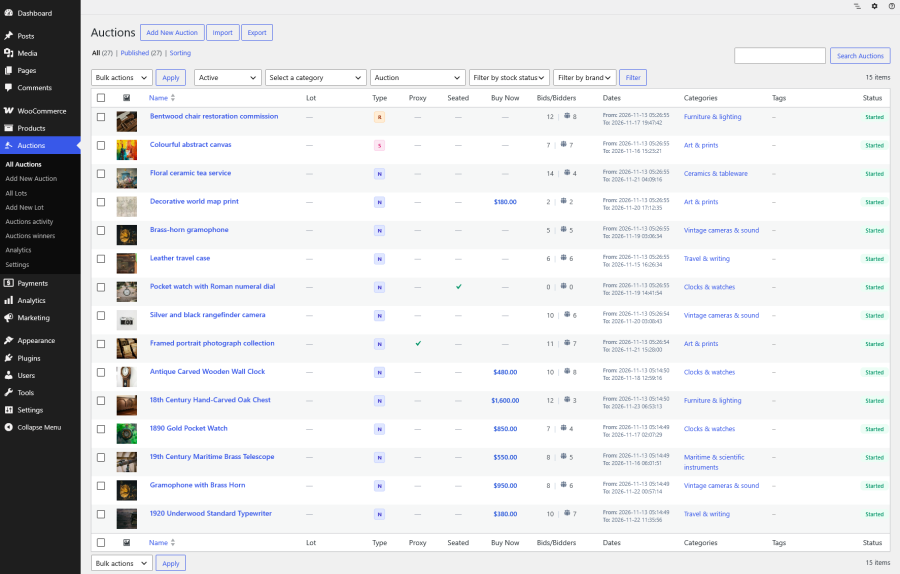
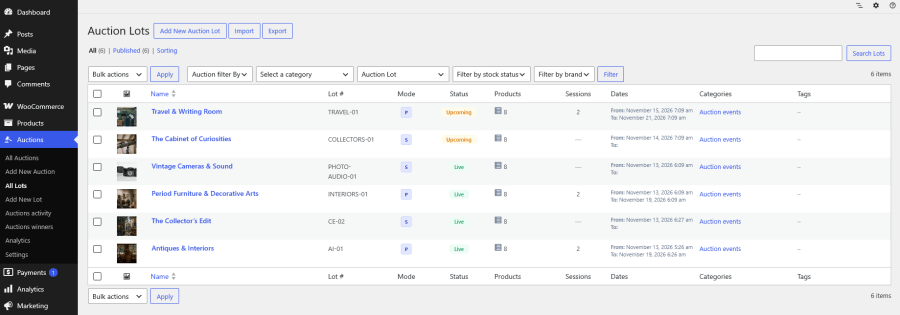
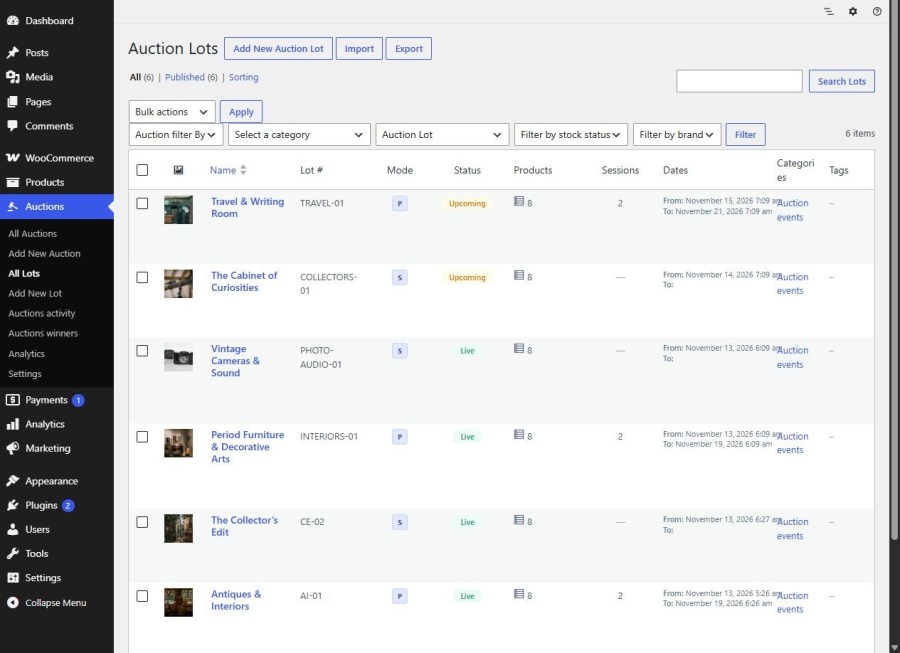
Keep every auction event in view. The Auction Lots dashboard brings your collections together, with each lot’s ID, bidding mode, status, item count, sessions, and dates in one list.
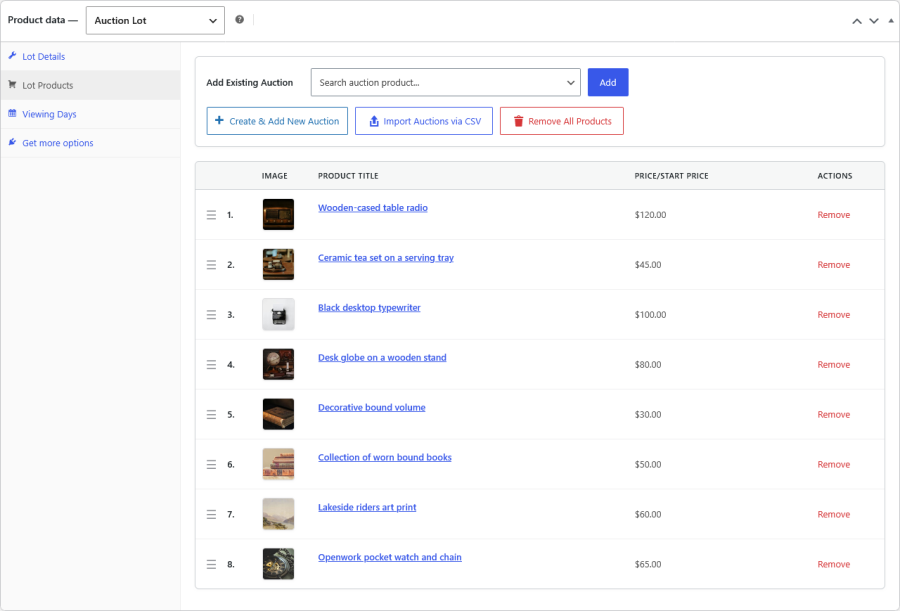
Add existing auctions to a lot, create new auction items, or import auctions from a CSV file. The Lot Products panel keeps item images, titles, and starting prices together so you can review the collection before the event.
Drag items into the order you want for the sale, or remove items from the lot as you prepare the catalog.
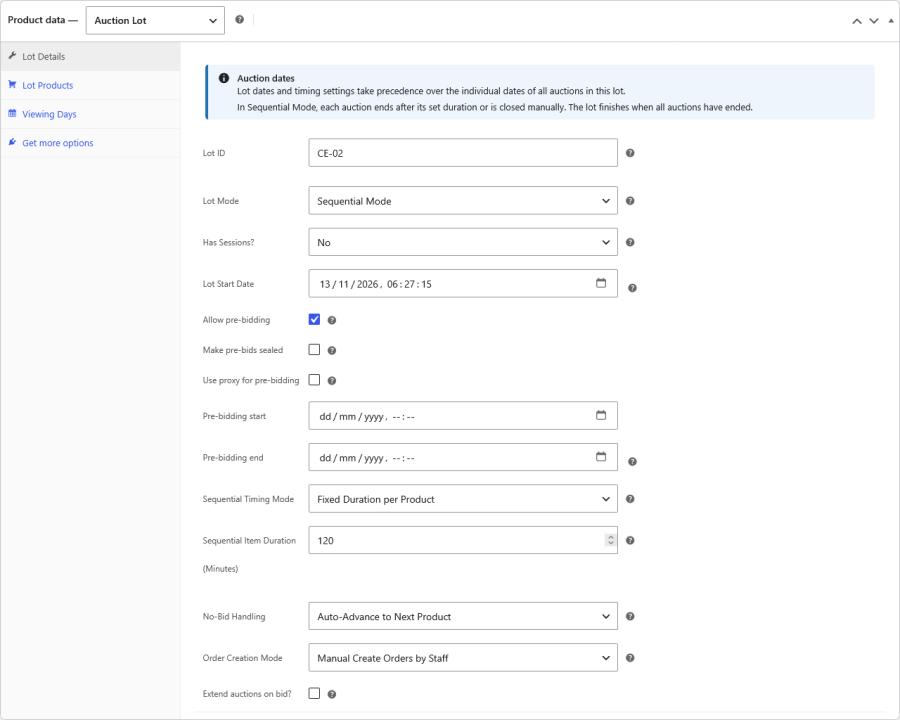
Configure the lot’s start date, bidding mode, and sessions in Lot Details. For sequential auctions, choose the timing mode and item duration, decide how the sequence handles items without bids, and select automatic or managed order creation for won auctions.
Optional pre-bidding lets customers place bids before the live event. Set the pre-bidding window and carry accepted bids into the live auction.
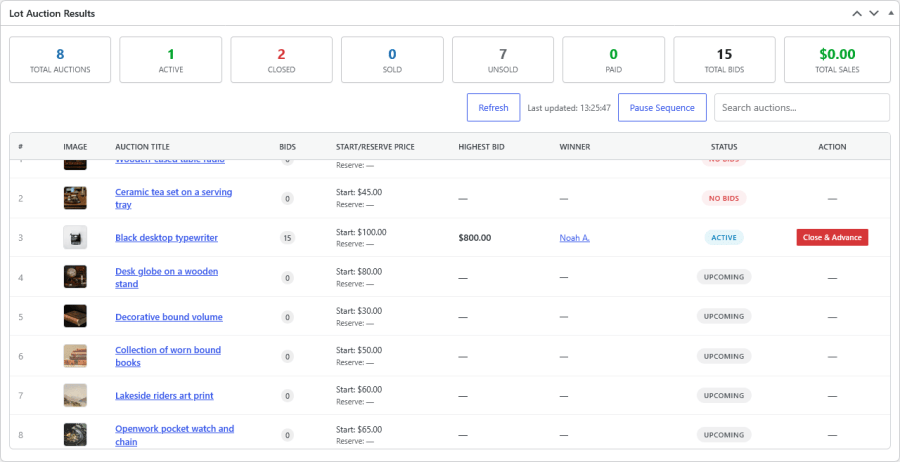
Inside each lot, the Lot Auction Results panel shows auction totals, bid counts, highest bids, winners, and item statuses. Review which items are active, sold, unsold, or paid without opening each auction separately.
For sequential lots, staff can pause the sequence or close the current item and advance to the next. Search the items and refresh the results as the sale progresses.
Explore the auction settings, manage auction lots, and review results from the WordPress dashboard. Select a screenshot for the full view.
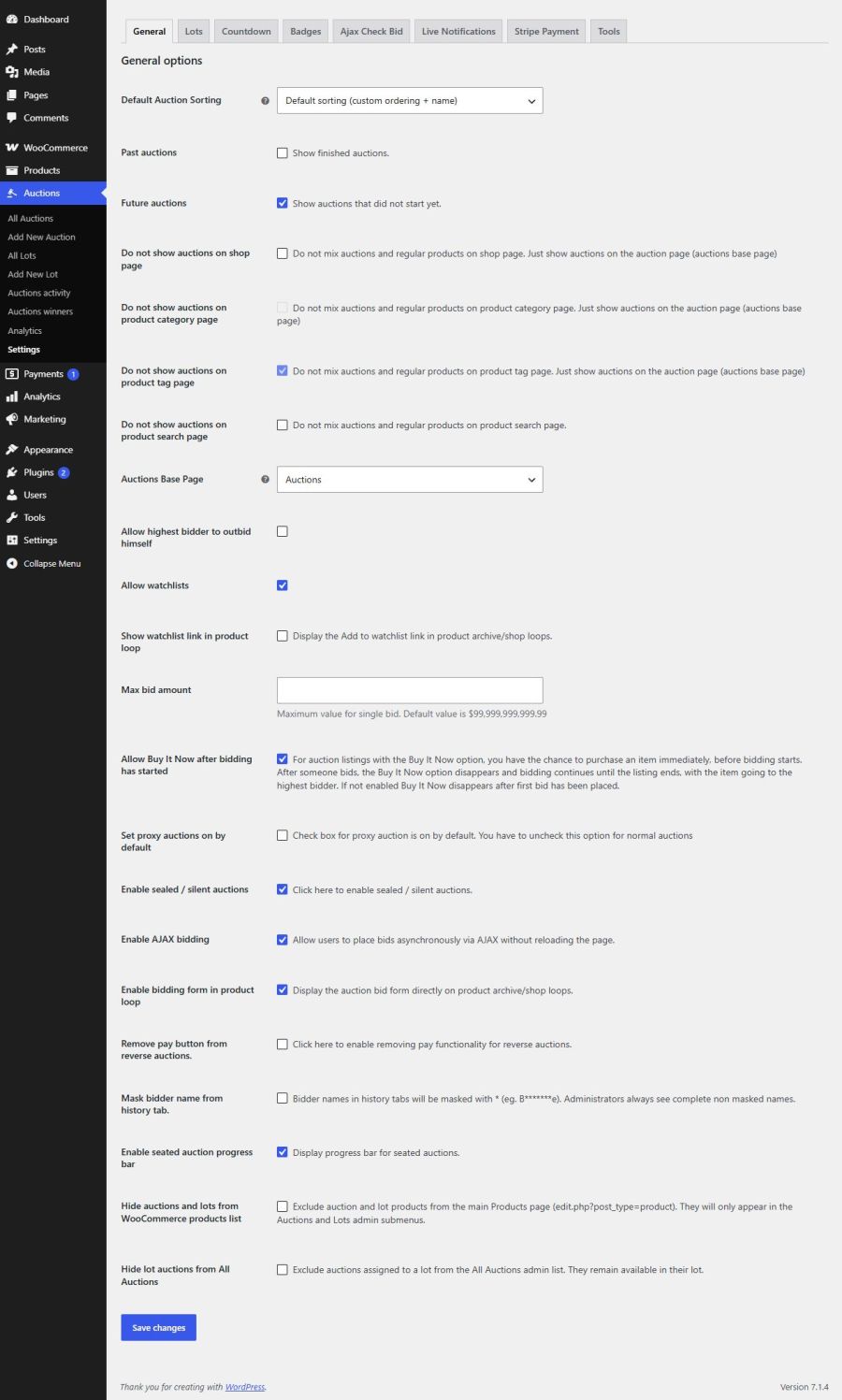
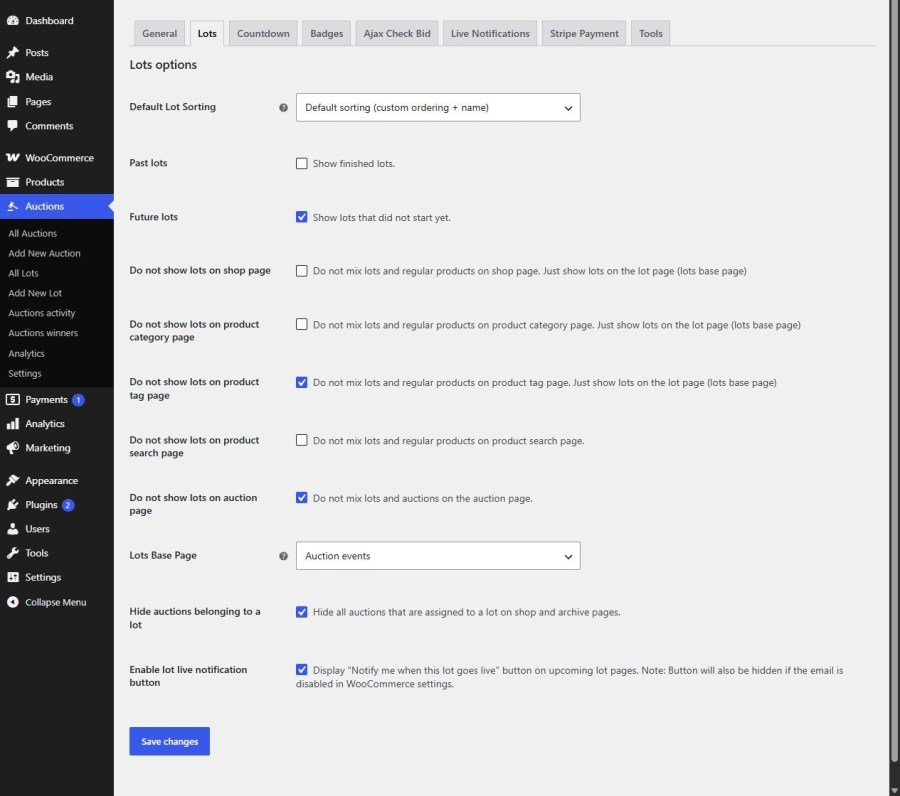
Yes. Display auctions alongside regular WooCommerce products or use a dedicated auction page. You can also control whether upcoming and completed auctions appear in your catalog.
Yes. Auction lots group items into one event. Choose parallel or sequential bidding, divide the event into sessions, and combine each winner’s purchases from the lot into one order.
Yes. Anti-sniping extends an auction when a bid arrives within your configured closing window, so other bidders have time to respond.
No. Stripe is required only for the saved card bidding restriction and automatic charging features. Standard winner payments use your WooCommerce checkout and its configured payment methods.
Yes. The plugin supports object caching, WooCommerce REST API, WooCommerce High-Performance Order Storage (HPOS) and WPML. Auctions use a single currency, so WPML compatibility does not include multi-currency bidding.
You need WordPress, WooCommerce, and a WooCommerce compatible theme. Configure the required scheduled tasks for auction processing and email notifications, as described in the documentation.
Start with one item or plan a complete auction event. Give customers the tools to bid, follow their favorites, and pay for their wins in your WooCommerce store.
Explore the documentation and setup guide
Yes, go to edit auction then check "Extend auction on bid" option and set "Extend auctions in last seconds" and "Extend auctions for seconds" values.
Yes, using auction lots you can create grouped events and issue single invoice for all won items from one lot to winner. Events can have auctions all run in parallel or sequentially one group after the other in predefined intervals.
Those are auctions which require seat to be purchased in order to bid - bidders have to purchase seat in order to participate in auction. Auctions for WooCommerce support this feature. You define simple product called "Buy Seat" and check option "Seated auction?" on edit auction page. Then in dropdown you need to select simple product called "Buy Seat" which you defined earlier. Number of seats is defined by stock of simple product "Buy Seat".
Yes, you can use this code snippet for that.
Yes, go to item details, section Auction where auction log is and click on delete.
Yes, check this tutorial - working code example is included.
Yes, please check it here https://wpinstitut.com/auctions-for-woocommerce-documentation
Yes, auction lots and auctions in lot can be imported using CSV. We have sample data for import in directory /plugins/auctions-for-woocommerce/sample-data where you can see and test example CSV for importing.
Please check faq item no 24 here https://wpinstitut.com/auctions-for-woocommerce-documentation
Yes, this can be enabled in auction settings.
User has to be logged in because we don’t have reliable way to track its bid(s) otherwise. If you have real auction site at one moment user(s) will have to enter details for shipping, payment etc, it’s also a way to filter serious bidders and block fake accounts more easily.
There is option in auction settings for that called “Mask bidder name from history tab”.
You can delete that winning bid and next highest bidder will be winner and will see pay now button for auction. There is auto relist option that can relist auction: “Relist if not paid after n hours”.
Please check this sample code snippet.
If you use persistent like Redis / Memcache object cache go to Auctions > Settings > Tools and scroll down to Object Cache Status to enable and save "Disable persistent caching for plugin data only".
Categories
Extension information
Quality Checks
Countries
Requirements