
Please forward all your questions that are beyond the scope of this help file to our email via contact form.
If you override default templates in your_theme/woocommerce/ you need to make sure that templates are compared and updated with originals – otherwise new features might not show up.
Auctions for WooCommerce – Feature List
↑ Back to topAuctions
↑ Back to top- WooCommerce Integration: Fully integrated with WooCommerce through a custom Auction product type.
- Auction Types: Normal, Reverse, Silent (sealed-bid – see screenshot), and Proxy (automatic) bidding.
- Seated Auctions: Bidders must purchase a seat to participate in the auction (see screenshot).
- Auction Parameters: Configure starting bid, bid increment (fixed amount or percentage), reserve price, Buy It Now price, start/end dates & times, and item condition.
- Anti-Sniping Protection: Anti-sniping (soft close) automatically extends the auction duration when a bid is placed in its final seconds.
- Real-Time AJAX Bidding: Live bid updates and AJAX bidding without page reloads.
- Display & Visibility Controls: Choose to display auctions alongside regular products or on a dedicated auction page, with options to show or hide past and upcoming auctions.
- Auction History & Privacy: Includes an Auction History tab on every auction page, with optional masking of bidder names for privacy.
- Shop & Archive Page Integration: Displays bid forms, countdown timers, and watchlist links directly on shop and archive pages.
- Sorting Options: Sort auctions by date (latest), Buy It Now price, current bid, ending date (ending soonest), start date (recently started), and activity.
- On-Screen Audio & Live Alerts: On-screen live notifications with optional sound alerts (when a bid is placed, a new auction starts, or an auction ends)
Auction Lots
↑ Back to top- Grouped Auction Events: Group multiple auctions into a single event using the Auction Lot product type.
- Parallel & Sequential Modes: Choose between Parallel Mode (where all auctions in a lot run at once), or Sequential Mode (where items are auctioned one after another with a fixed bidding window)
- Session Blocks: Split an auction lot into sessions, each with its own time window and range of items. Sessions work in both Parallel and Sequential Mode.
- Viewing days: Viewing days for in-person inspection, shown on the lot page.
- Display & Visibility Controls: Options to display lots alongside regular products or on lots-only page, whether to show past and future lots, and to hide all auctions that are assigned to a lot on shop and archive pages
- Lot Live Notification button: “Notify me when this lot goes live” button and email for upcoming lots.
Auctions & Auction Lots Management
↑ Back to top- Auctions Menu in WP admin, with the following submenu items: All Auctions, Add New Auction, All Lots, Add New Lot, Auctions Activity, Auctions Winners, and Settings.
- Auctions and auction lots can be easily duplicated, and data can be imported using the CSV importer (you can also start with the included demo data)
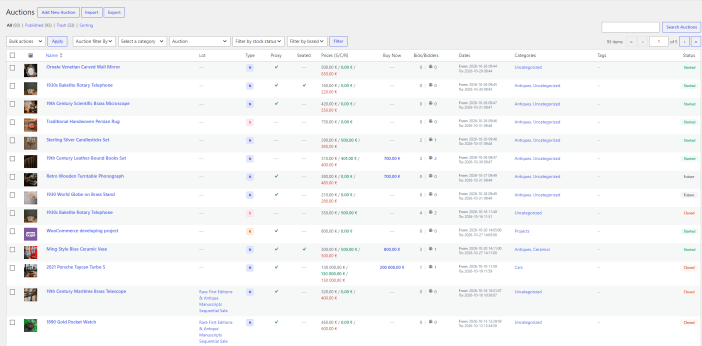
- New admin panel (All auctions) with info about single auctions: Lot ID, Type, Proxy, Seated, Prices (Bids: starting, current, reserve), Buy Now, Bids and Bidders, Dates, Categories, and Status; and option to filter auctions by status: Active, Finished, Fail, Sold, Paid, and Buy Now.
- New Auction panel on the auction product’s edit screen in the WP admin, with auction status information and auction history, with options to manually delete any bid, and export data to CSV and Excell
- Auction Relisting: Manual or automatic relisting of failed and unpaid auctions
- New Admin panel (All lots) with info about auction lots: lot ID, mode (parallel / sequential), status, number of auctions, sessions, dates.
- Lot Auction Results: new panel under Product Data meta box, provides an overview of a lot’s auctions, including totals, relisting details, and a table of each auction’s bids, prices, winner, and status.
- Lot Order Creation: Create single order to winning user for all won items in auction lot, with invoice emails.
- Lot Relisting: Lot relisting for all products or unsold products only.
- Email Notifications (with editable email templates) for: outbid note, auction won, payment reminder, auction fail, reserve fail, auction buy now, auction finish, administrator bid notification (bid note), customer bid notification, auction relist admin notice, auction relist user notice, auctions ending soon notification (two timers available), and auction lot live notification (sent to subscribed customers when an auction lot goes live)
- Badges: Customizable badges (Auction, Lot, Winning, Outbid, Live, Ended, Sold, Upcoming) with a live preview.
- Stripe Payment Gateway Integration: Allow bidding only for users that have stored card, and auto charge for won auctions
- Widgets: ending soon, future, recent / latest, featured, random, and recently viewed auctions, auction search, recent bids, my auctions, and watchlist.
- Shortcodes for [auctions_watchlist], [my_auctions_activity], [ending_soon_auctions], [recent_auctions], [featured_auctions], [auctions ids=”1,2,3,4,5″], [auctions_for_woocommerce_my_auctions], [future_auctions], [past_auctions], [all_user_auctions], [auction_lot] and [auction_lots] – scroll to List of Shortcodes
- Shortcode to display parts of the template – you can use any visual builder that supports shortcodes to design your auction templates – [auctions_templates template=”add-to-cart|pay|bid-form|dates|condition|countdown|max-bid|reserve|auction-sealed|ajax-conteiner-start|ajax-conteiner-end|auctions_seated_progressbar_template”]
- Elementor support (from version 2.0) – tutorial here – works with any visual builder with Shortcode that displays every part of the template
- HPOS support, WPML compatibility (single currency), and WooCommerce REST API support – tutorial
Installing Auctions for WooCommerce plugin, Prerequisites & Cronjobs
↑ Back to topPrerequisite for this plugin is working WordPress and WooCommerce installation with theme that supports WooCommerce. You can install plugin via WordPress “Add New” plugin or upload plugin directory to using FTP / SFTP client to path to_your_website/wp-content/plugins/ directory. Once you installed and activated it go to WooCommerce > System Status and make sure that you don’t have red colored errors (specially for WP memory limit). Make sure to enable inventory management in WooCommerce.
Auctions for WooCommerce plugin requires cronjobs and you have to setup min. two cronjobs (mails and check) while others are optional (auto relist and ending soon notification):
- every minute: /usr/local/bin/curl –silent http://www.your-domain.com/?auction-cron=check
- every 30 mins: /usr/local/bin/curl –silent http://www.your-domain.com/?auction-cron=closing-soon-emails
- every hour: /usr/local/bin/curl –silent http://www.your-domain.com/?auction-cron=relist
- once a day: /usr/local/bin/curl –silent http://www.your-domain.com/?auction-cron=mails
- once a day: /usr/local/bin/curl –silent http://www.your-domain.com/?auction-cron=remind-to-pay
Path to curl can be /usr/local/bin/curl or /usr/bin/curl depending on your hosting setup, please pay attention that path is correct. Cronjobs should be setup by your hosting support since they are familiar with cronjob details like curl path.
Creating a New Auction
↑ Back to topSetting up a new auction with Auctions for WooCommerce is similar to adding a standard WooCommerce product, with a few additional auction-specific parameters.
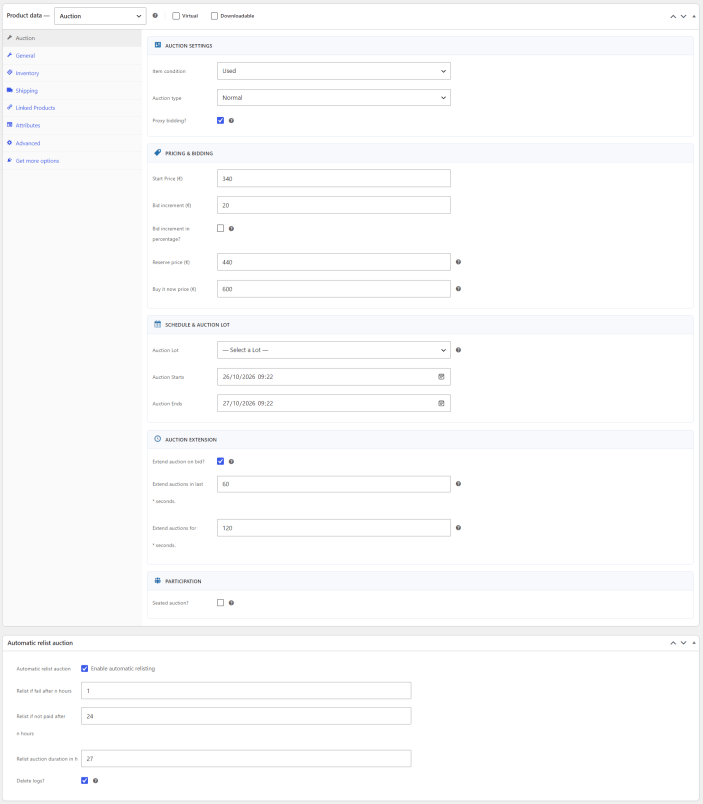
1. Add a New Auction Product
In your WordPress Admin Menu, go to Auctions > Add New Auction.
This automatically creates a new product template with two auction-specific sections:
- Auction Product Data Meta Box: pre-selects Auction as the product type and opens the Auction tab containing all bidding and scheduling parameters.
- Automatic Relist Auction Meta Box: dedicated panel for managing automated relisting rules if an auction ends without a winner or payment.
2. Fill in Basic Product Details
Just as you would when adding a standard product, fill in the following details:
- Product Title & Description: Enter the title and full description of the auction item.
- Product Images & Gallery: Set the featured product image and add additional images to the product gallery.
- Categories & Tags: Assign appropriate product categories and tags in the right sidebar.
3. Configure Auction Product Data
Navigate to the Product Data metabox below the main editor. Under the Auction tab, the settings are divided into five key sections:
- Auction Settings: Configure basic options such as item condition (New or Used), auction type (Normal or Reverse), proxy bidding, or sealed bid auction.
- Normal auction: The highest bid wins
- Reverse auction: The lowest bid wins
- Proxy bidding: The buyer sets a maximum bid, and the system bids automatically up to that maximum. If a reserve price is set, the first proxy bid is raised to the reserve price.
- Sealed bid: Bids are hidden during the auction. On frontend, the bid input field is empty, and bidders submit their bid without knowing what others have offered.
- Pricing & Bidding: Define the start price, bid increments (fixed or percentage), reserve price, and Buy It Now price.
- Schedule & Auction Lot: Set the start and end dates / times for bidding. You can also add the auction to an auction lot.
- Important: When an auction is part of an auction lot, the individual auction start/end time is hidden, as they are managed by the lot
- Auction Extension: Anti-sniping protection (soft close). If a bid is placed during the final moments of an auction, the auction can be extended for a specified amount of time.
- Participation: Option to enable a seated auction, where users must purchase a seat to participate. Any product can be used as a seat for the auction.
- Important: If a product is designated as a seat for a specific auction, its stock is tied to that event, meaning it should be used exclusively for that auction to prevent inventory conflicts.
4. Configure Automatic relist auction
Here you can enable automatic relisting and specify how many hours to wait before relisting a failed or unpaid auction, set the duration of the relisted auction, and choose whether to delete the auction logs (this action is irreversibe).
Live Auction (Frontend)
↑ Back to topPublishing the auction
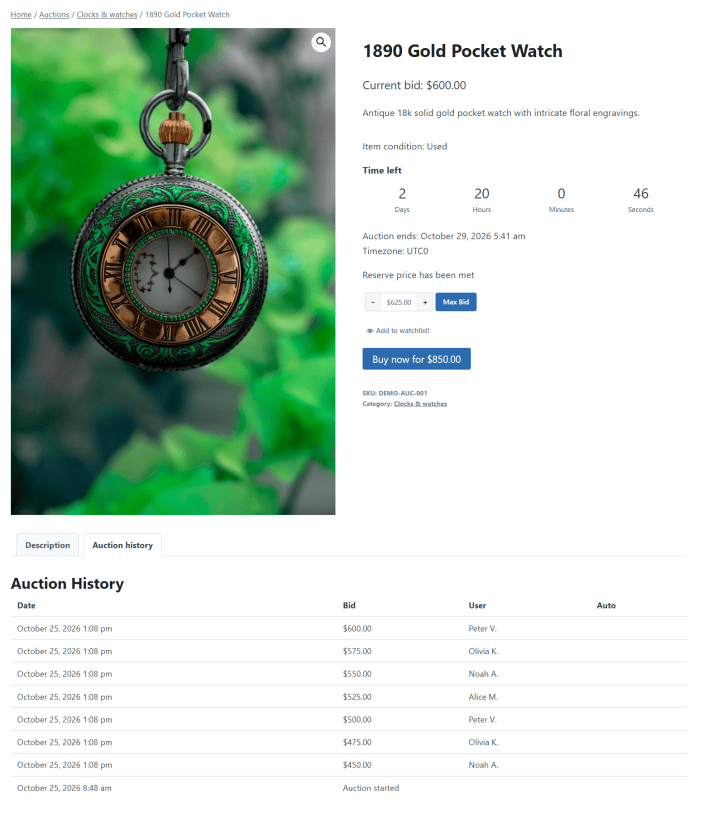
↑ Back to topOnce you publish the auction, the auction single page shows:
- Auction details: title, starting or current bid, item condition, and a countdown (“Starting in” before the auction opens, “Time left” while it runs).
- Bid form: a bid field with − and + buttons, plus a bid button (Max Bid when proxy bidding is enabled). Shown only while the auction is live.
- Add to watchlist link (if Allow watchlists is enabled in Auctions > Settings > General)
- Buy Now button (if Buy-it-now price is set in auction product data)
- Auction history tab: every bid with date, bid amount, bidder name, and whether it was placed automatically by proxy bidding.
Note: Bidder name in Auction history can be masked (option in Auctions > Settings > General options)
- Outbid / Winning badges, visible to users participating in the auction (if Auction Badges are enabled in Auctions > Settings > Badges)
If the auction belongs to a lot, the page also shows:
- a Part of Lot box above the title, with a link back to the lot and the item’s position (for example, Item 15 of 20)
- an Auctions in the same lot section with the other items in the lot and their status
When the auction ends, the bid form is replaced by Auction finished and the winning bid. The winner sees a Pay Now button.
On the shop page, or on the dedicated auctions base page, users can filter auctions by date (latest), buy now price, current bid, ending date (ending soonest), start date (recently started), and activity.
Auction products in the product loop / archive consist of:
- Images & Badges: Displays the item thumbnail, alongside dynamic badges: product type badge (AUCTION), status badges (LIVE, CLOSED, SOLD, UPCOMING), and participant badges (WINNING!, OUTBID!).
- Title & Price: Shows the product title and current or starting bid.
- Countdown (optional)
- Bid form (optional)
- Add to watchlist (optional)
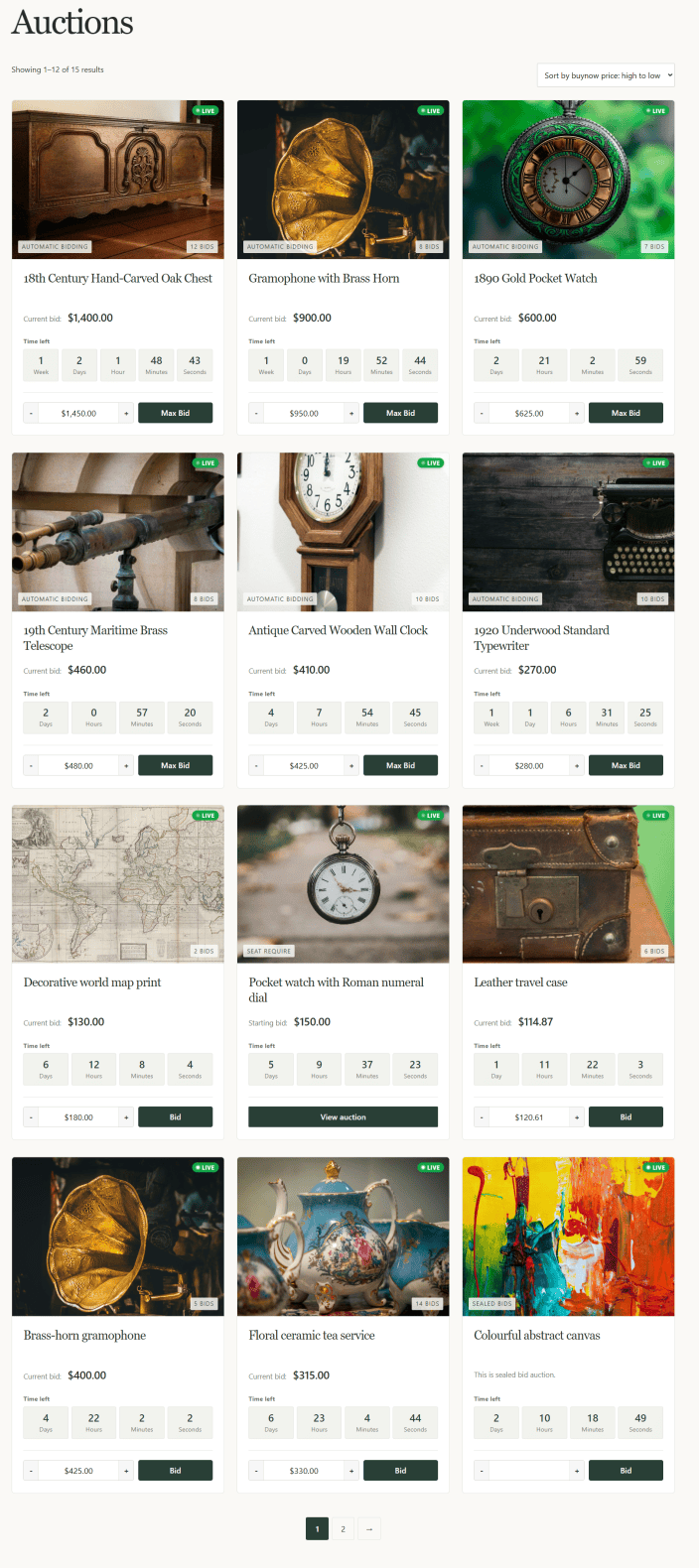
Note: Badges, Countdown, Bid form and Add to watchlist are optional in the shop loop, and are set in Auctions > Settings.
Published & Finished Auction Admin Management
↑ Back to topPublished Auction Management
Once the auction is published, on the auction product’s edit screen in the WordPress admin, a new Auction panel appears.
Auction panel displays auction status and bidding information. It contains two sections:
- Auction Status: Displays the auction’s current status (scheduled / active / finished), highest bid, and highest bidder, and whether this is a proxy auction. When auction is finished, the last field is changing to winner notification (option to send another winning mail to user), and order status (pending / paid).
- Auction History: Displays auction activity in a table, with controls for searching, selecting entries, managing column visibility, deleting selected entries, printing, and export to CSV and Excel.
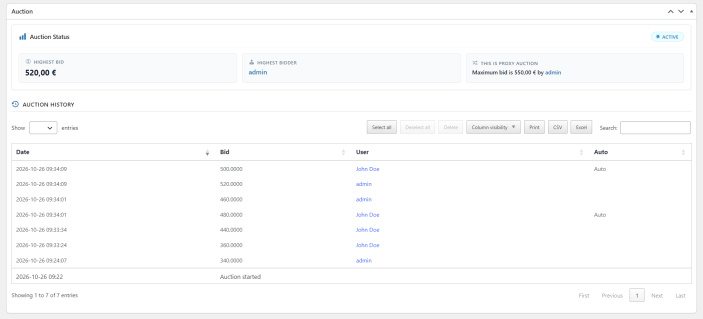
If the auction was relisted, the Auction panel shows the relist date. If auction is relisted with option “Keep bid history / logs”, then there’s also auction data prior relist.
Finished Auction Management
Once an auction has ended, additional sections appear below the product data tabs, providing different controls depending on whether a winner was determined:
- Auction Has Finished (No Winner / Relist Options): If the auction finishes without a winning bid (or after completion), you can configure the relisting parameters directly:
- Bid Logs: Choose how to handle history data (Keep / Delete bid history).
- Relist Start Date / Relist End Date: Set the new schedule for restarting the auction.
- Generate Winner Order (When a Winner Exists): If the auction successfully closes with a winning bidder, a winner summary card is displayed showing the winner’s username, winning bid amount, and status:
- Email Winner: Select whether or not to automatically send a WooCommerce order invoice email to the winner upon order generation (e.g., Send order invoice email to winner).
- Create & Send Winner Order: Click this button to automatically generate a WooCommerce order for the winning item.
Auctions are also listed in Auctions > All Auctions with prices, bids, dates and status, and every placed bid is logged in Auctions > Auctions activity with user details, bid amounts and timestamps. In Auctions Menu > Auctions Winners admin can look for a dedicated report listing of all concluded auctions along with their winning bidders.
Creating a New Auction Lot
↑ Back to topSetting up a new auction lot with Auctions for WooCommerce is similar to adding a new auction product:
1. Add a New Auction Lot Product
↑ Back to topIn your WordPress Admin Menu, go to Auctions > Add New Lot
This creates a new auction lot product template, with two new sections:
- Auction Lot Product Data Meta Box: pre-selects Auction Lot as the product type and opens the Auction Lot tab, with: Lot Details, Lot Products and Viewing Days
- Lot Auction Results: new panel under Product Data meta box, provides an overview of a lot’s auctions, including totals, relisting details, and a table of each auction’s bids, prices, winner, and status.
2. Fill in Basic Auction Lot Details
Add a title, description, featured image, and select a category – just as you would when adding a regular product.
3. Configure Auction Lot Product Data
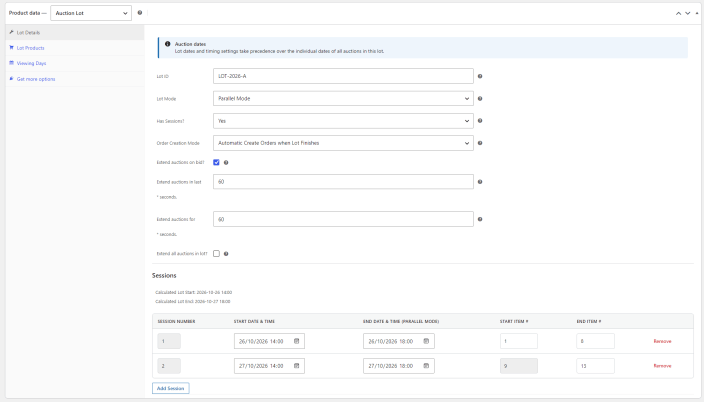
↑ Back to top- Lot details: Lot ID, Lot Mode (Parallel Mode or Sequential Mode), Sessions, Lot start and end date, Order creation mode, and antisniping protection
- Lot ID: Unique identifier for the auction lot, for example LOT-2026-F. Shown on the lot page and in the lots list.
- Parallel Mode: all auctions in the lot run at the same time. If the lot is split into sessions, all auctions in the session run at the same time.
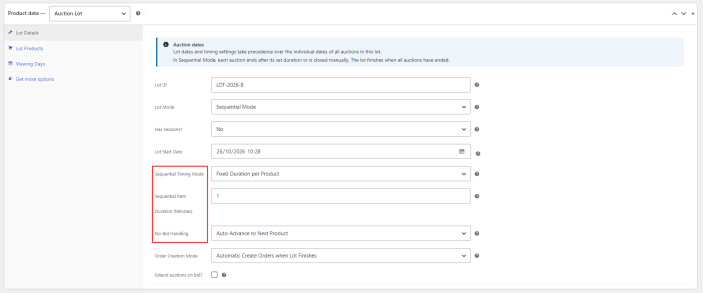
- Sequential Mode: auctions in the lot run one after another in a set order. If the lot is split into sessions, auctions in the session run one after another.
Only one auction is open for bidding at a time, and each auction ends after its set duration or is closed manually, then the lot moves to the next one. The lot finishes when all auctions have ended.
Sequential Timing Mode: How long each auction in the sequence runs. There are two options:
Fixed Duration Per Product, with option to set Sequential item duration (the duration in minutes for each auction in the sequence), or Manual Close by Stuff
- No-Bid Handling: Action to take if a sequential auction ends with no bids. There are two options:
Auto-Advance to Next Product and Pause Sequence for Manual Intervention
- Has Sessions: Option to group auctions from the lot into specific sessions, each with different start and end date & time.
You can organize auctions into sessions for both parallel and sequential mode.
- Lot Start and End Date: When the auction lot opens and closes for bidding.
Important: In sequential mode there’s no option for Lot end date (The lot automatically finishes when all auctions have ended).
In both parallel and sequential mode, Lot start and end date are hidden when sessions are enabled
- Order Creation Mode: How WooCommerce orders are created for winners, with two options:
Automatic Create Orders when Lot Finishes creates orders once the whole lot has ended, and Manual create orders by staff
- Extend auctions on bid: Anti-sniping protection (soft close). If a bid is placed during the final moments of an auction, the auction can be extended for a specified amount of time.
In parallel mode, there’s additional Extend all auctions in the lot option. If enabled, extending any auction in the lot, will extend all other active auctions in the lot.
- Lot Products: you can add existing auction, create & add new auction, or import auctions to lot via CSV (sample data included). Once uploaded, you can easily change position of the auction in the lot (drag&drop), or remove auction from the lot.
- The single auction page will indicate if an auction is part of a lot.
Important: Lot dates and timing settings take precedence over the individual dates of all auctions in the lot.
- Viewing days: add viewing days, with exact timeframe when in-person inspection is possible. This information is visible on single auction lot product page.
Live Auction Lot (Frontend)
↑ Back to topPublishing the auction lot
↑ Back to top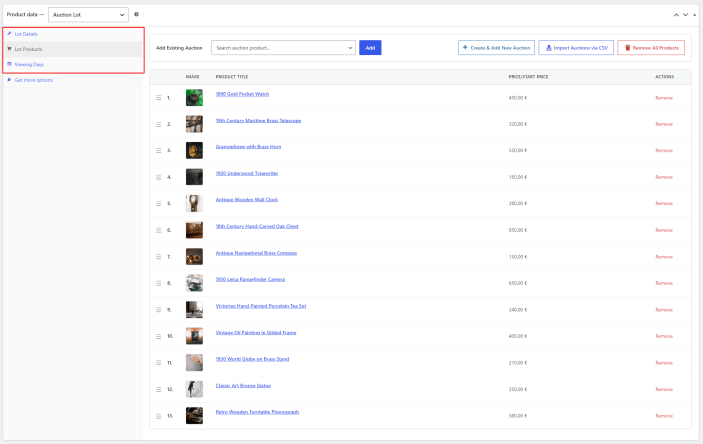
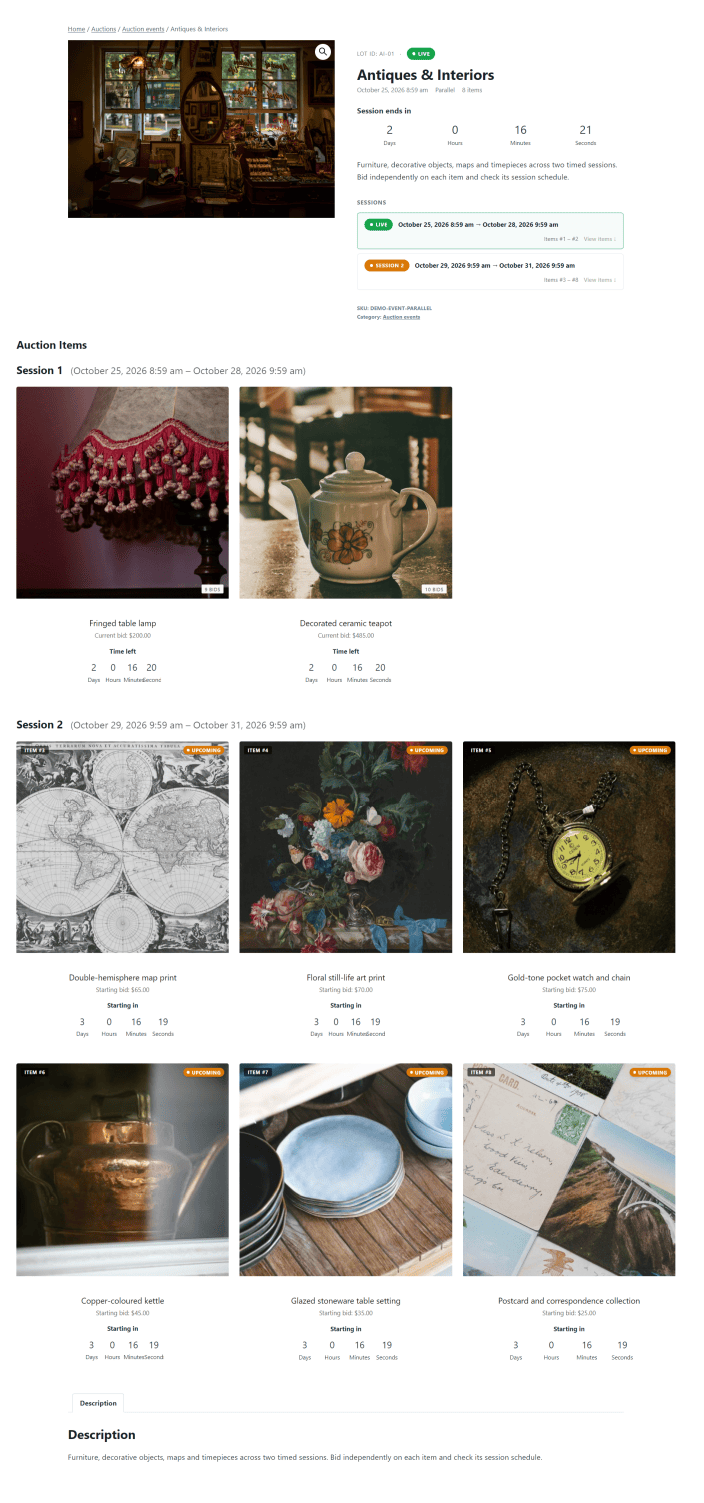
Once your auction lot is published, the lot page shows:
- Lot details: Lot ID, status badge (Upcoming, Live or Ended), title, start date, lot mode, number of items in a lot, and a countdown (Starts in before the lot opens, Ends in while it runs).
- Viewing Days, if set, with dates and times.
- Notify me when this lot goes live button, on upcoming lots only. (Note: this option must be enabled in Auctions > Settings > Lots)
- Auction Items: a grid of all auctions in the lot. Each item shows: image, item number, status badge (Upcoming, Live or Ended/Sold), title, starting or current bid, and an Add to watchlist link.
Parallel Mode. All items are live at the same time. Each item has its own bid field and Max Bid button, so bidders can bid on any item until the lot ends.
Sequential Mode. Only one item is open for bidding at a time.
- A carousel at the top shows the previous item (with its result, for example Sold or Failed), the item now being auctioned, and the next item.
- The current item has its own countdown, bid field and Max Bid button.
- In the item grid, the current item is marked Live, items not yet open show Auction not started, and closed items show Auction finished with the winning bid.
- A bar at the bottom of the page shows the item now being auctioned and the next one.
Lots with sessions also list each session with its dates, item range and status, and group the items by session.
Published & Finished Auction Lot Admin Management
↑ Back to topPublished Auction Lot Management
↑ Back to top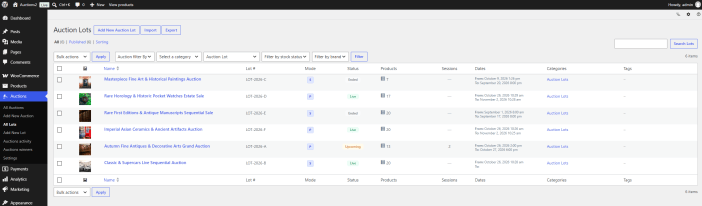
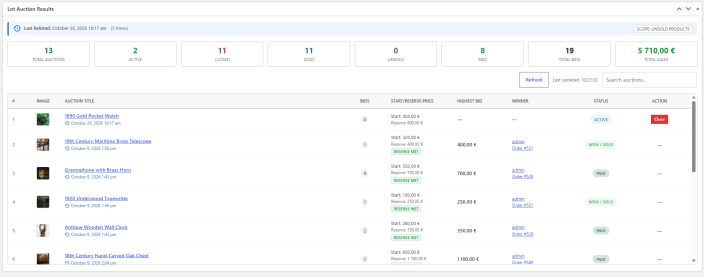
The Lot Auction Results box on the lot edit screen shows results once the lot goes live:
- Totals: total auctions, active, closed, sold, unsold, paid, total bids and total sales.
- Relist info: when the lot was last relisted, how many times, and the relist scope (all products or unsold products).
- Auctions table: each auction in the lot with its position, image, title, number of bids, start and reserve price (with information Reserve met / Reserve not met), highest bid, winner and status. There’s also an option to close active auction while the lot is running.
Finished Auction Lot Management
When the lot has finished, two more panels appear:
- Generate Winner Orders: choose how to group orders and whether to email winners, then click Create & Send Winner Orders.
- Relisting: choose the relist scope and new start and end dates, then click Relist Lot Now.
Auctions Settings
↑ Back to topSettings are split into eight tabs: General options, Lots, Countdown, Badges, Ajax Check Bid, Live Notifications, Stripe Payment and Tools.
Settings are mostly self-explainable.
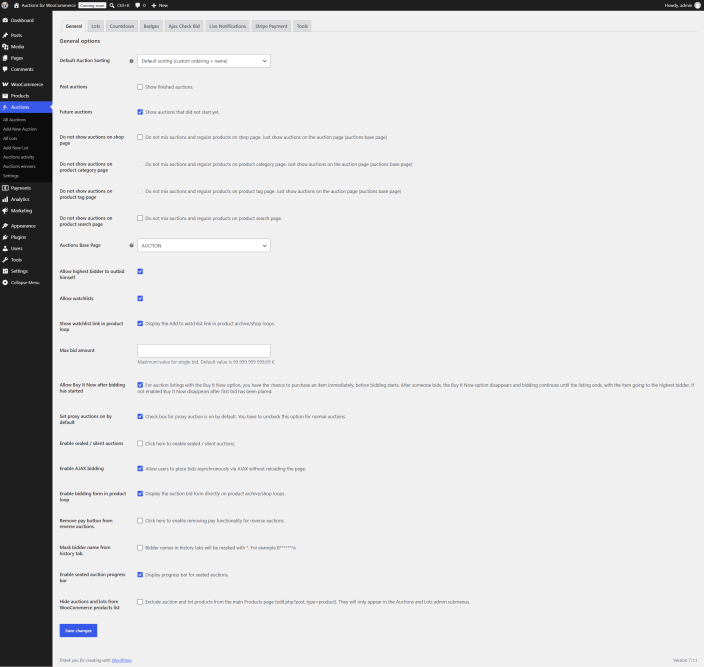
Settings > General options: allows administrators to configure core auction display, sorting, and visibility settings across the site, including separating auction items from regular products. It provides controls for user bidding behavior and auction features, such as enabling proxy, sealed, or AJAX bidding, setting maximum bid limits, and managing watchlists or “Buy It Now” availability.
Settings > Lots: allows administrators to set default sorting, base page locations, and visibility rules for past or upcoming auction lots across shop, category, tag, and search pages. It also includes settings to separate lots from standard auctions or products, hide individual auctions assigned to a lot, and enable live notifications for upcoming lots.
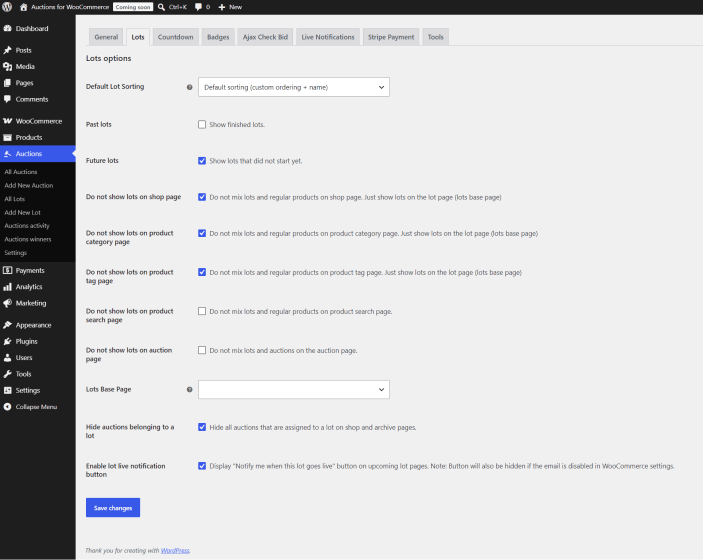
Settings > Countdown: allows administrators to customize the format, size, and visibility of auction timers across product pages and shop loops.
Settings > Badges: allows administrators to customize auction badge appearance and settings, with live badge preview. There are badges for item type (Auction, Lot), and status badges (Winning, Outbid, Live, Closed, Sold, Upcoming).
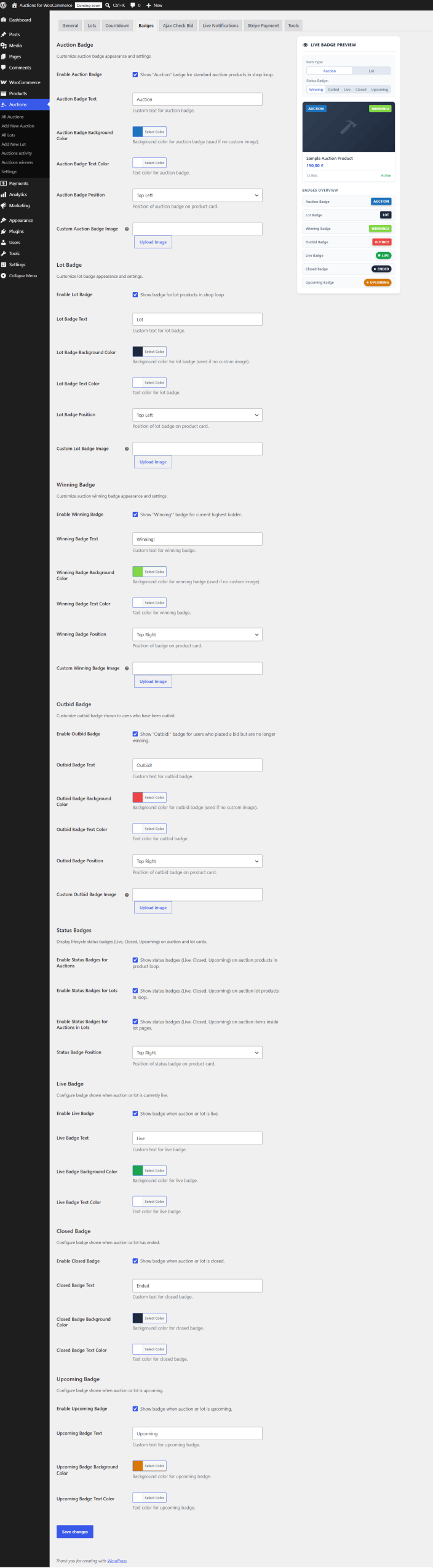
Each badge can be individually enabled and customized in terms of text, background and text colors, position, or custom badge images.
Settings > Ajax Check Bid: allows administrators to enable real-time current bid updates without refreshing the page, defining the refresh interval in seconds. It also includes an option to restrict these automatic updates to active browser tabs to help manage server load.
Settings > Live Notification: allows administrators to enable real-time alerts for live bids as well as the start and end events of auction lots or individual auctions. It also provides controls to customize popup positions, themes, and audio alerts, with option to allow logged-in users to disable or customize live notifications in their account settings.
Settings > Stripe Payment: allows administrators to enforce credit card verification before bidding and enable automatic charges for won auctions (only for Stripe Payment Gateway).
Settings > Tools: Re-sync Lots Visibility feature, which recalculates and synchronizes the display status of all auction lots based on their current state. This ensures that upcoming, active, or finished lots are correctly filtered and accurately displayed across shop, search, and category pages.
Settings > Fees: Enables you as site owner to charge a fee on checkout for auction won. Charge buyers either per auction or once per order. Fees apply to auction purchases, including Buy Now, and exclude ordinary products and seat purchases. Existing orders retain their recorded fees.
Email Notifications
Auction emails are managed alongside all other store emails under WooCommerce > Settings > Emails. Click Manage next to an email to enable or disable it, configure the recipient, subject line, and heading, or edit its template.
Email Notifications Sent to Admin
- Bid Note: Sent when a bidder places a bid.
- Auction Fail: Sent when an auction fails.
- Auction Finish: Sent when an auction finishes.
- Auction Relist Admin Notice: Sent when an auction is relisted.
Email Notifications Sent to Customer
- Auction Buy Now: Sent when a customer buys an item using Buy It Now.
- Auction Closing Soon Email Reminder: Reminder sent to all participating bidders, or to users who have an auction in their wishlist, that an auction is closing soon. It’s possible to set two reminders before the auction ends.
- Auction Relist User Notice: Sent to the winning bidder when an auction is relisted.
- Reminder to Pay: Reminder sent to the winning bidder to complete their payment.
- Auction Won: Sent when a bidder wins an auction.
- Customer Bid Notification: Confirmation email sent to a bidder after placing a bid.
- Reserve Fail: Sent to bidders when an auction ends without meeting the reserve price.
- Outbid Note: Sent when a bidder’s bid has been outbid.
- Auction Lot Live Notification: Sent to subscribed users when an auction lot goes live. Must be enabled for the Notify me when this lot goes live button to appear on lot pages.
List of Widgets
List of available widgets in Auctions for WooCommerce:
- auction search
- ending soon auctions
- featured auctions
- future auctions
- my auctions
- my watchlist
- random auctions
- recent (latest) auctions
- recent bids
- recently viewed auctions
List of Shortcodes
List of available shortcodes in Auctions for WooCommerce. Some shortcodes accept optional orderby and order attributes.
- shows user’s auction watchlist – [auctions_watchlist], [auctions_watchlist per_page=”12″ columns=”4″ order=”desc” orderby=”meta_value”order=”desc”]
- shows my auctions activity as log entries – [my_auctions_activity], [my_auctions_activity limit=”100″] shows activity in all auctions that user placed a bid, limit to 100 auction log entries
- shows ending soon auctions – [ending_soon_auctions], [ending_soon_auctions per_page=”12″ columns=”4″ order=”desc” orderby=”meta_value”future=”no”]
- shows recently added auctions – [recent_auctions], [recent_auctions per_page=”12″ columns=”4″ orderby=”date” order=”desc”]
- shows featured auctions – [featured_auctions], [featured_auctions per_page=”12″ columns=”4″ orderby=”date” order=”desc”]
- shows auctions with specific product ID – [auctions ids=”1,2,3,4,5″ columns=”4″ orderby=”title” order=”asc”]
- shows auctions with specific SKU code – [products skus=”foo, bar, baz” orderby=”date” order=”desc”] – SKU for auction can be changed using quick edit in products list
- shows user’s auctions – [auctions_for_woocommerce_my_auctions] shortcode shows active auctions in which user participates along with won auctions
- shows future auctions – [future_auctions], [future_auctions per_page=”12″ columns=”4″ orderby=”date” order=”desc”]
- shows past / finished auctions – [past_auctions], [past_auctions per_page=”12″ columns=”4″ orderby=”date” order=”desc”]
- shows all auctions in which user participates – [all_user_auctions], [all_user_auctions limit=”100″]
Custom Templating
↑ Back to topIf you need to customize plugin templates first thing to do is to copy content of plugin_dir/templates to your_theme/woocommerce so you do not overwrite changes when you update plugin. All changes and modifications should be done on files located in your_theme/woocommerce/.
FAQ
↑ Back to top- Do you have list of hooks and filters? – Yes, hook list is below:
auctions_for_woocommerce_before_place_bid
auctions_for_woocommerce_outbid
auctions_for_woocommerce_place_bid
auctions_for_woocommerce_started
auctions_for_woocommerce_finished
auctions_for_woocommerce_close
auctions_for_woocommerce_fail
auctions_for_woocommerce_reserve_fail
auctions_for_woocommerce_close
auctions_for_woocommerce_won
woocommerce_before_bid_form
woocommerce_before_bid_button
woocommerce_after_bid_button
woocommerce_after_bid_form
woocommerce_product_options_auction
auctions_for_woocommerce_do_relist
woocomerce_before_relist_failed_auction
woocomerce_after_relist_failed_auction
woocomerce_before_relist_not_paid_auction
woocomerce_after_relist_not_paid_auction
auctions_for_woocommerce_pay_reminder
auctions_for_woocommerce_close_buynow
auctions_for_woocommerce_delete_bid
auctions_for_woocommerce_pay_reminder
Example:
<?php add_action( 'auctions_for_woocommerce_before_place_bid, 'custom_function' ); ?>Here is list of all filters:
auctions_for_woocommerce_before_place_bid
auctions_for_woocommerce_proxy_curent_bid_value
auctions_for_woocommerce_proxy_bid_value
auctions_for_woocommerce_item_condition
auctions_for_woocommerce_get_current_bid
auctions_for_woocommerce_get_increase_bid_value
auctions_for_woocommerce_get_condition
auctions_for_woocommerce_get_auction_end_time
auctions_for_woocommerce_get_auction_start_time
auctions_for_woocommerce_get_seconds_remaining
auctions_for_woocommerce_get_seconds_to_auction
auctions_for_woocommerce_bid_value
auctions_for_woocommerce_is_user_biding
auctions_for_woocommerce_get_user_max_bid
auctions_for_woocommerce_is_sealed
wsa_default_auction_orderby_options
auctions_for_woocommerce_auction_bage
auctions_for_woocommerce_pay_now_button
woocommerce_auction_history_heading
woocommerce__auction_history_data
auction_history_started_text
auction_history_starting_text
auctions_for_woocommerce_placed_bid_message
auctions_for_woocommerce_winning_bid_message
auctions_for_woocommerce_empty_cart - How to use auctions_for_woocommerce_item_condition filter? – In your functions.php file add:
add_filter('auctions_for_woocommerce_item_condition', 'my_example_filter_1' );
function my_example_filter_1( $array ){

    $array['old']='Old';

    return $array;
}
and in product data you will get new product condition option available to select named “Old”.
- How to increase bid step for bid increment value to be more than 1? Bidding increment is done so you can bid in increments of 1, because otherwise if you set bid step of say 5, you would be able to bid 5, 10, 15… instead you can bid 7, 13, 22, etc. If you insist on different behaviour, you need to edit templates\single-product\bid.php and change:
step="any"

becomes

step="<?php echo ($product->get_auction_bid_increment()) ? $product->get_auction_bid_increment() : '1' ?>" - Can I delete fake bid? – Yes, go to item details, section Auction where auction log is and click on delete.
- Can users create their own auctions like on eBay? Can I charge fee for auctions published by users? – Yes but you need 3rd party plugin for implementing WooCommerce multivendor / marketplace. Then your users will be able to post auctions and you can charge fee for their sales. You can use Woo Product Vendors.
- Do I need to use cronjobs? – Yes, check installation instructions. Cronjobs are used to finish auctions consistently for all users and at right time, send email notifications and automatically relist expired / failed auctions (optional). Auction check cron has to be run every minute, script will be loading for almost 1 minute, then it stops with HTTP 200 response code – there should be no output just blank page.
- Where can I edit email notification templates? – Go to WooCommerce > Settings and click on Emails tab.
- Does this plugin work with caching plugins? – Yes, WP Super Cache and others work fine with our plugin but we advise no caching for logged in users. All of our plugins have same requirements for caching as WooCommerce – check it here https://woocommerce.com/document/configuring-caching-plugins/
- What is auto bidding / proxy bidding? – User enters max bid, however current bid is not raised to max bid instantly but gradually after other bidders come and place their bids. Initially proxy will just confirm starting bid or if reserve price is set will raise current bid to confirm reserve price (if max bid is equal or higher than reserve price).
- What is reserve price? – A reserve price is the lowest price at which you are willing to sell your item. If you do not want to sell your item below a certain price, you can a set a reserve price. The amount of your reserve price is not disclosed to your bidders, but they will see that your auction has a reserve price and whether or not the reserve has been met. If a bidder does not meet that price, you are not obligated to sell your item.
- I want auction countdown timer everywhere, what should I do? – In auction settings enable option called “Use countdown in loop”.
- Bidder beat another bidder with same amount? – When Proxy Bidding is in effect, it can appear as if one bidder has beat another bidder with the same bid amount. This is normal and occurs when a bidder has a proxy bid in effect and a second bidder comes along and makes their bid at the exact same amount the current proxy bid is at. Since the proxy bid was placed earlier, that is the bid that will succeed. For the second bidder to succeed in placing a bid, they must bid higher than the proxy bid that is in effect.
- How can I show only finished auctions? – Create page called for example “Past Auctions” and add shortcode [past_auctions] to that page.
- I can’t do anything because I get “out of stock message”? – Auctions for WooCommerce needs inventory / stock to be enabled, check installation instructions.
- I want to enable users to bid even if they are allready highest bidder? – In settings enable “Allow highest bidder to outbid himself”.
- How can I update plugin with new version? Is auto updating possible? – Manual updating can be done by downloading new version of plugin and overwrite old files with new ones or deleting old plugin and installing new one or deleting old version and uploading new one. All data will be preserved.
- How to increase bid input field? – Easiest way is by using CSS. You can use this CSS to add it to your theme’s custom CSS input:
input[name=bid_value] { width: 195px !important; } - The Sort by price does not work. Is it posible to sort the auctions based on what has the highest or lowest bid? – Yes, we have added auction specific sorting. Frontend auction sorting is availabe, you can sort auctions by current bid, date, buy now price, activity, ending date (ending soonest) and start date (recently started).
- I want to remove automatic relist option for users (for example when using multi vendor / sellers plugin)? Use this code to do that (add code to your theme’s functions.php file):
function remove_post_custom_fields() {
    remove_meta_box( 'Automatic_relist_auction' , 'product' , 'normal' );
}
add_action( 'add_meta_boxes', 'remove_post_custom_fields', 20); - Is there a way to enable confirmation before placing a bid? Yes, you can use this code:
function print_my_inline_script() {
  if ( is_product()) {
    ?>
    <script type="text/javascript">
        jQuery('.auction_form.cart').submit(function() {
            var c = confirm("Click OK to continue?");
            return c; //you can just return c because it will be true or false
        });
    </script>
    <?php
  }
}
add_action( 'wp_footer', 'print_my_inline_script' ); - Does Auctions for WooCommerce work with WordPress import / export tools? – Yes, you can export and import auctions with standard WordPress import / export tools that are located in Admin -> Tools menu.
- How can I enable user registration on login page? – You need to enable that feature in Woocommerce settings.
- I have installed your plugin but images are not aligned, buttons are too small / big, input fields should be smaller / bigger, can you help? – It’s your task as web developer / designer to modify plugin template to match your style and theme. Themes can implement different ways how they customize pages and parts of WooCommerce but in majority of cases it will be all good.
- What are custom meta fields for auction product type (useful for CSV Product Import)?
_auction_item_condition
_auction_type
_auction_proxy
_auction_start_price
_auction_bid_increment
_auction_reserved_price
_auction_dates_from
_auction_dates_to
_auction_current_bid
_auction_current_bider
_auction_max_bid
_auction_max_current_bider
_auction_bid_count
_auction_closed
_auction_has_started
_auction_fail_reason
_order_id
_stop_mails
_auction_wpml_language
_auction_automatic_relist
_auction_relist_fail_time
_auction_relist_not_paid_time
_auction_relist_duration
You can use Import tool which imports products to your store via a CSV file.
We have CSV with sample data in auctions-for-woocommerce/sample-data/ for importing sample auctions and lots. - Is it possible to set proxy auctions on by default for all auctions? – Yes, this can be enabled in auction settings.
- How can I remove auction history tab or any WooCommerce tab on single auction page? – Add code below to your_theme/functions.php (on the bottom):
add_filter( 'woocommerce_product_tabs', 'woo_remove_product_tabs', 98 );

function woo_remove_product_tabs( $tabs ) {
    unset( $tabs['auctions_for_woocommerce_history'] );
    return $tabs;
}
To remove other WooCommerce tab(s) you can consult sample code below:
add_filter( 'woocommerce_product_tabs', 'woo_remove_product_tabs', 98 );

function woo_remove_product_tabs( $tabs ) {

    unset( $tabs['tab_name'] );        // list of tabs can be found in WooCommerce documentation
    return $tabs;
} - I can’t see auctions on shop page? I have defined auction base page and I still don’t see anything? – If you want auctions on shop page in auctions settings make sure that you have not checked settings “do not mix auctions and regular products”. There are other causes for this:
- Stock management has to be enabled otherwise you won’t see auctions.
- If you use WPML you need to define auction base page and make its translation in order to see auctions.
- Some rouge plugin that modifies WP query in some weird way. Try disabling all plugins and leave only WooCommerce and Auctions for WooCommerce.
- Poorly coded theme that modifies WP query. Change theme to default one which comes with WordPress to test if that’s the problem.
- How can I translate plugin to my language? Do you have translations? – We only maintain english translation. POT lang file that you will edit is located in: plugins/auctions-for-woocommerce/languages/auctions-for-woocommerce.pot
In filename auctions-for-woocommerce-en_GB.po suffix en_GB must match your language settings in WordPress, otherwise language will not be loaded. So for example you can have auctions-for-woocommerce-en_AU.mo, auctions-for-woocommerce-af.mo or auctions-for-woocommerce-en_CA.mo, complete list of available suffixes are here https://make.wordpress.org/polyglots/teams/
- Where can I find max proxy bid for auction? – In wp-admin -> products -> auction details.
- The user / customer has to be logged in to be able to bid? Why? – User has to be logged in because we don’t have reliable way to track its bid(s) otherwise. If you have real auction site at one moment user(s) will have to enter details for shipping, payment etc, it’s also a way to filter serious bidders and block fake accounts.
- 3rd party plugin is causing problems? Its developers tell you that we need to fix our plugin? – WooCommerce extensions should be transparent – meaning one extension should work with another without introduction of special code that makes them compatible.
- Can I include winner user info in admin auction finished email notification? You would need to copy template \auctions-for-woocommerce\templates\emails\auction_finish.php to your_theme\woocommerce\emails\auction_finish.php and then add something like this:
$wining_user_id = get_post_meta( $product_id, '_auction_current_bider', true );
$user = get_userdata ( $wining_user_id );
you will then have all user info available in that template – https://codex.wordpress.org/Function_Reference/get_userdata
- Does it work with currency switching plugins? – We decided not to support currency switching support because each currency switching plugin uses its own hooks which we would have to implement into plugin and maintain through updates. We did some testing and found out that free version of Currency Switcher displays different currecies fine, while paid does not for some reason, Aelia Currency switcher does not work at all and fails with fatal error. If you need different currency auctions we think it is better to setup whole new auction site for different market / country with its own currency.
- Winning badge is hidden behind auction thumbnail? – You need to change z-index for winning badge:
span.winning {z-index: 1000} - Can I charge buyers fee on auctions? – Yes, go to Auctions > Settings > Fees tab.
- Auction ended but user (bidder) still can see countdown timer? Noticed that time left was out of sync on some computers? – Auctions use server time which is then translated to local time via JavaScript and considering computer’s local time. So auction will be finished on exact time set, however if client (bidder) has wrong clock set (which is rare nowadays since all computers are automatically synced to Internet time) they can see that auction has ended (but it didn’t in fact) or that auction has still going on but in fact has ended). They will try to bid but they will get error message. You need to instruct them to sort their clock issue and set aucto sync to Internet time.
- How can I hide usernames in auction history list? – There is option in auction settings for that called “Mask bidder name from history tab”.
- I see products out of stock in related products? Why? I want to hide out of stock products from related products! – This is WooCommerce related issue and not Auctions for WooCommerce. You have to change WooCommerce setting called “Out of stock visibility” which is located in WooCommerce Settings -> Products -> Inventory tab.
- How can I place “Add to Watchlist” link to product archive page for all auctions? – You can add this code (thx Mike) to your functions.php:
// display "add to watchlist" on all product archive pages
add_action( 'woocommerce_shop_loop_item_title', 'add_to_watchlist', 50 );
function add_to_watchlist() {
    global $product;
    if (isset($product) && $product == true) {
        wc_get_template('single-product/watchlist-link.php');
    }
} - I see two drop down sort boxes? How can I remove one? – You need to find appropriate action and remove it with code something like this:
remove_action('woocommerce_before_shop_loop', 'woocommerce_catalog_ordering', 30, 0);Note that this action could have custom name because it was usually added by theme devs.
- Orders are not automatically created after user has won auction? – Order is created when winner clicks pay now button. If user does not click on pay now button order will not be created. Once order is created users will see it under My account -> Orders. Before order is created user will see auction on pages where you display my auctions shortcode with pay now button. All winners will also receive email notification pay for auction reminder (how often depends on cronjob setting for cron named mails). In that reminder to pay notification winner will receive pay now link. Along that administrator will receive email notification when auction is finished or failed with info who won auction or why auction failed.
- What happens if winner does not want to pay for auction? – You can delete that winning bid and next highest bidder will be winner and will see pay now button for auction. There is auto relist option that can relist auction: “Relist if not paid after n hours”.
- What happens when you manually delete winner (winning bid) and want next highest bidder to become winner? Is email automatically sent? – When current highest bidder does not pay and you delete winning bid, mails are not sent automatically to the next highest bidder / winner. You would have to manually contact next higest bidder / winner and send auction url where they can see pay now button and make payment.
- When I click on bid button page loads slowly. Is there anything that can be done to speed up bid button request? – Sluggish website response (high TTFB times) on bid requests are 99% caused by slow mail server. When you click on bid button two mail notifications are sent (unless you have disabled them) – bid notification for administrator and for customer (and in some cases outbid note). If your mail server is slow, this can be a problem. Another cause might be slow server but in that case all requests will be slow. Email notifications are: outbid note, bid note, Customer bid notification. They can be disabled in WooCommerce Settings -> Emails.
- I’m missing sealed bid checkbox in edit product details page but sealed auctions are enabled? – This happens when you have enabled proxy bidding by default for all auctions – then sealed bid option is disabled in product details.
- I want to export order(s) data. How can I do that? – There are plugins that allow exporting of various order data as CSV file which you can then import to some other software you use for order management. We can suggest you to use WooCommerce Customer / Order CSV Export or Advanced Order Export For WooCommerce. These plugins work with custom product types which are used in this plugin.
- Can you recommend any credit / wallet plugin for WooCommerce that works with this plugin? – Yes, you can use WooWallet plugin which adds new credit payment gateway and works with our plugin just fine. Users or admins can top up wallet credit balance with regular payment gateways or manually.

