Active installs
1K+
Product comparison
Subscription includes
Support
The File Upload WooCommerce plugin lets shoppers attach files with their orders so you get exactly what you need to fulfill them. It’s built for stores selling customizable products, where store owners need customer-specific input, such as designs, logos, or documents.
Add the upload button anywhere in the order flow: product page, cart page, checkout page, or even the Thank You / Order View page, so you can collect files at the point that makes sense for your workflow.
Set file type and size limits, restrict the upload option by product, category, or user role, and choose whether files are required or optional. Customers submit everything they need in one place, cutting down on back-and-forth emails and order mix-ups.
The result is a store that closes the communication gap between customers and your team, reduces fulfillment errors, and speeds up order processing.
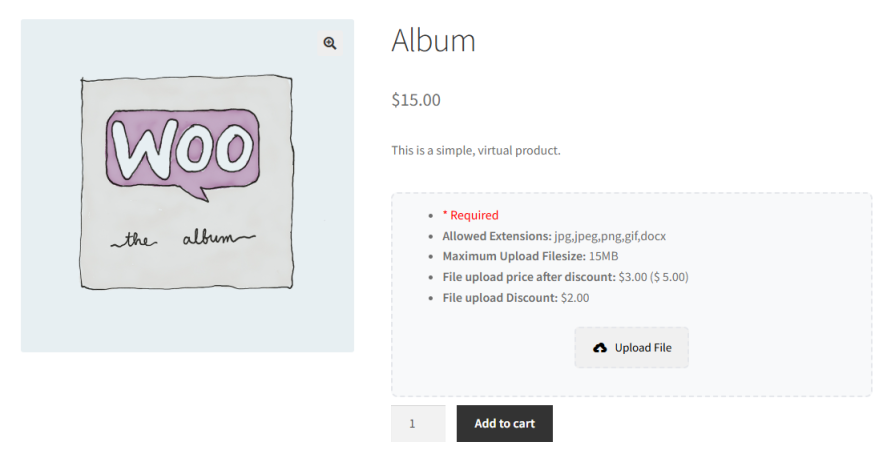
Let customers upload files directly on the product page. This is the right spot for custom designs, reference images, or documents tied to a specific product, so you capture requirements right when the customer is making their selection.
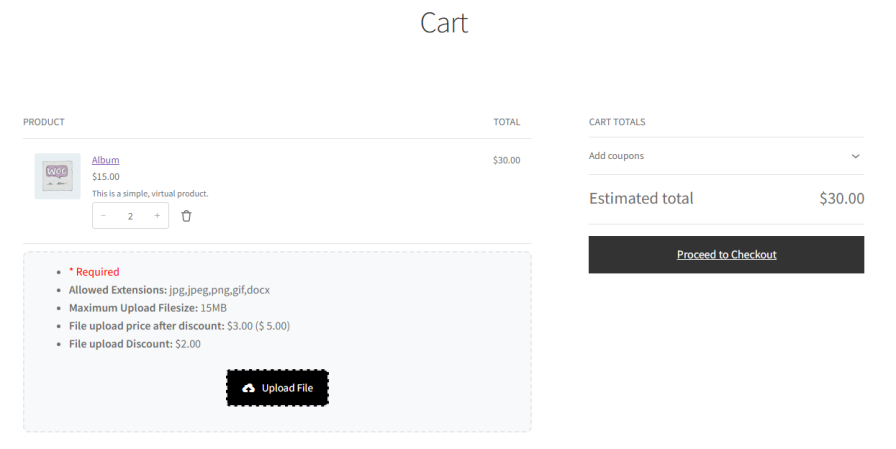
Enable file uploads on the cart page so customers can attach files before they head to checkout. This cuts down on follow-up emails and vague order notes, and it means the right files are already tied to the order before payment.
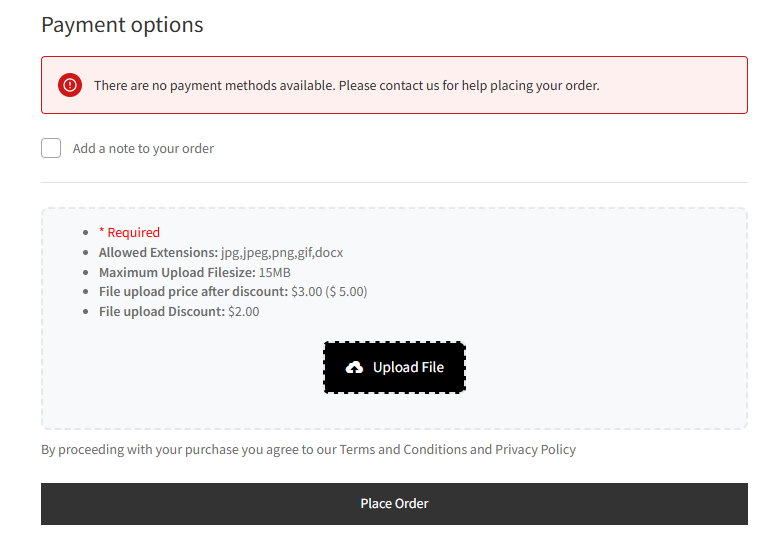
Add a dedicated upload button during checkout. Customers attach specifications or required documents as part of the checkout flow, so you get everything you need without a single order missing its files.
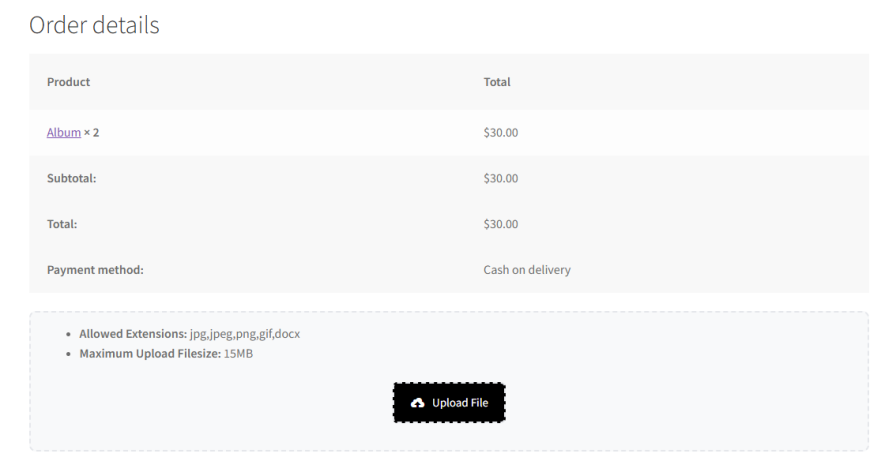
Not every customer has their file ready at checkout. With this plugin, you can also enable uploads on the Thank You page and the Order View page in My Account, giving customers a second chance to attach files after the order is placed, without you having to chase them down.
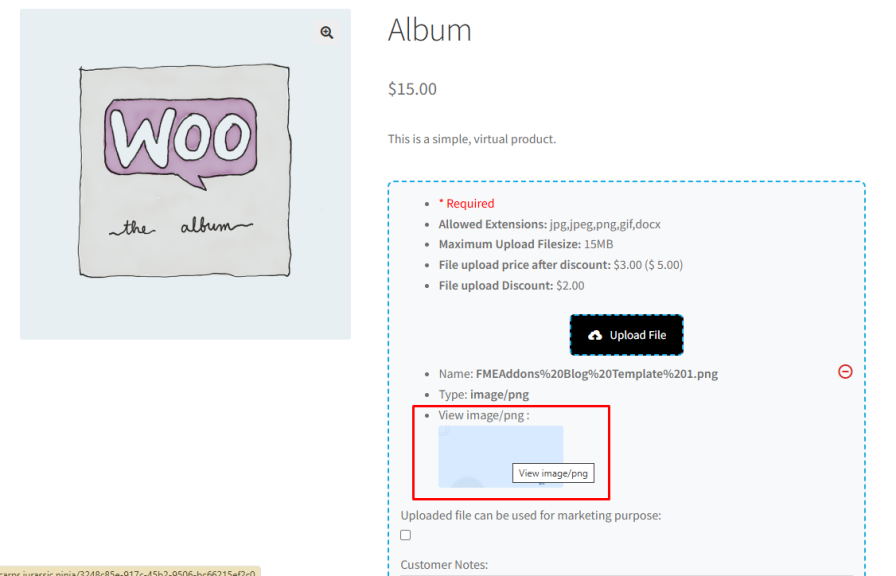
Shoppers can view their uploaded files before submitting to confirm they picked the right ones. Files can be removed and re-uploaded as needed, which cuts down on support requests over wrong attachments.
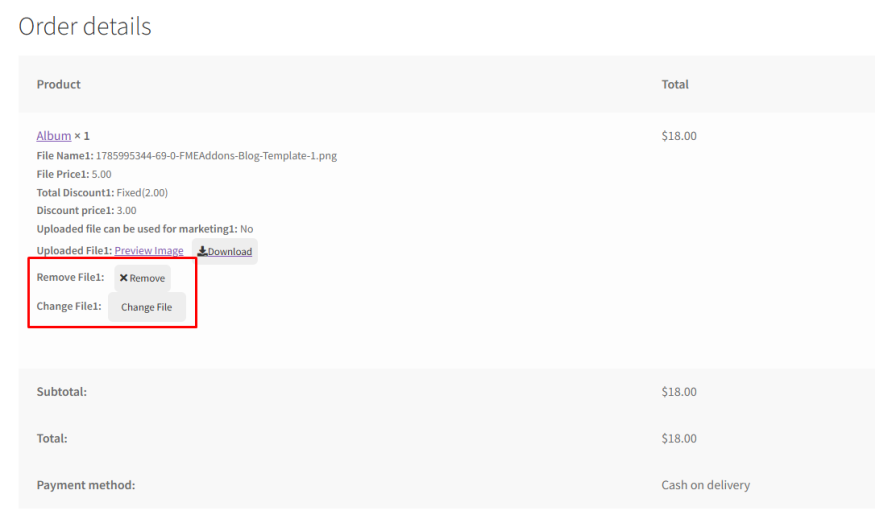
If an order is still pending or on hold, customers can update or remove their uploaded files from the My Account page. No need to cancel or edit the whole order for a last-minute file correction.
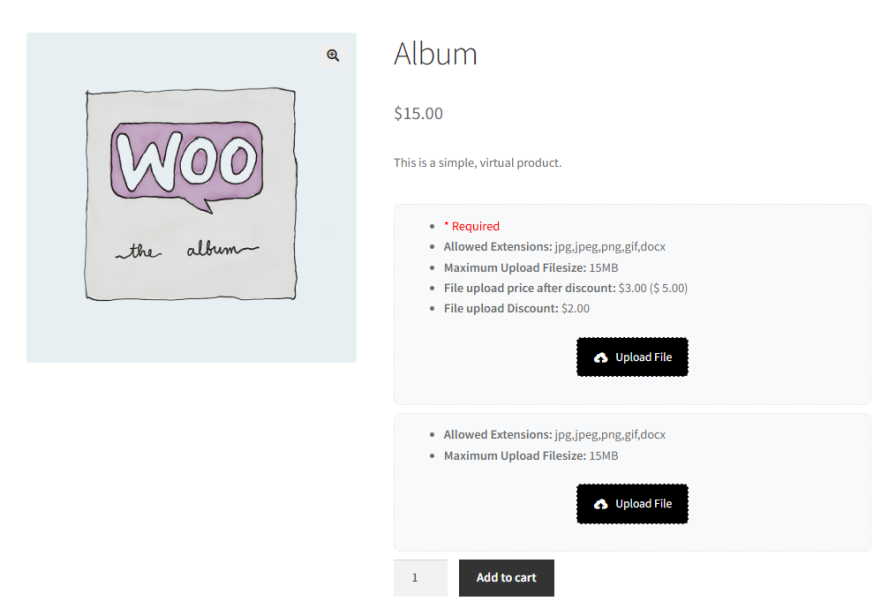
Allow customers to attach more than one file per product. Choose whether to show one upload button that opens a popup with several file fields, or several upload buttons side by side, whichever fits your store’s layout best.
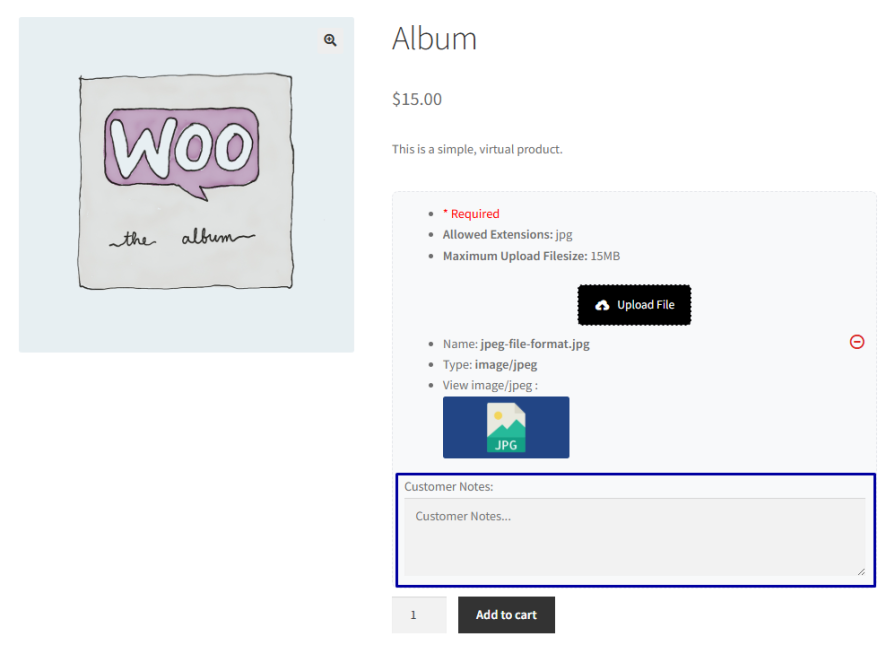
Let customers add a note alongside each uploaded file to explain instructions or requirements. Admins can make the note field mandatory, so nothing important gets left out.
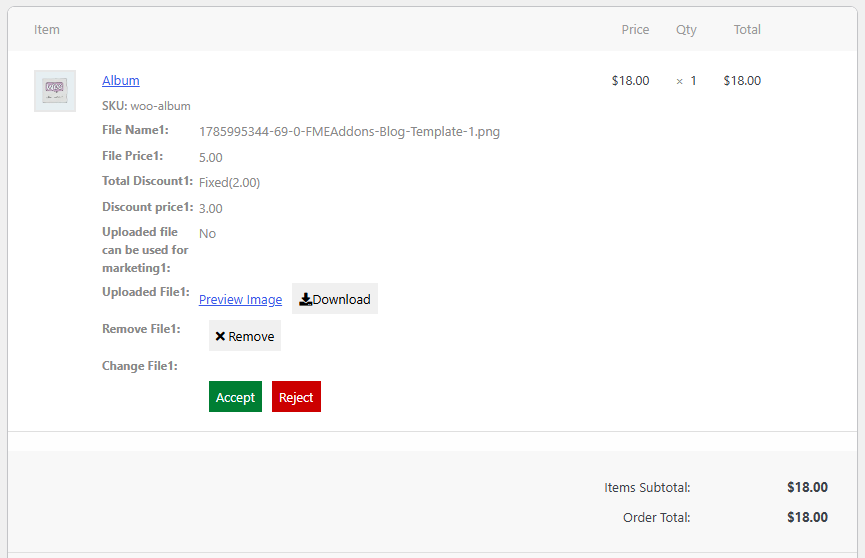
Review every customer-uploaded file from the order details page and approve or reject it. Add a feedback note explaining your decision, and the plugin automatically emails the customer once you update the order.
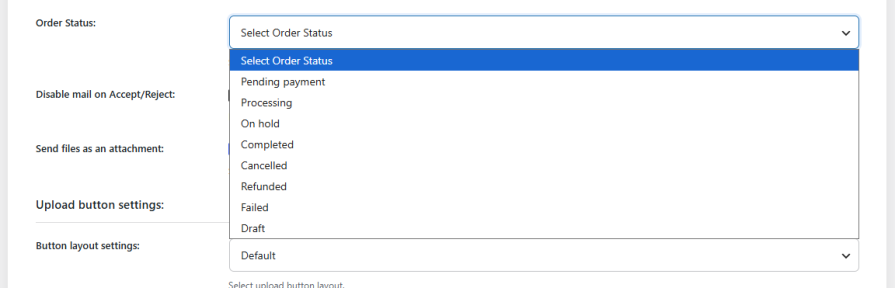
Decide exactly when the file upload step applies to an order: pending payment, on hold, processing, completed, cancelled, refunded, failed, or draft. This gives you control over when uploads are expected in your fulfillment workflow.
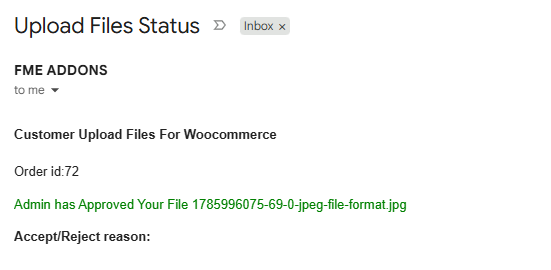
Customers are notified by email as soon as their file is approved or rejected. You can also configure the plugin to send the uploaded file itself as an email attachment, or turn off accept/reject emails entirely if you prefer to manage communication another way.
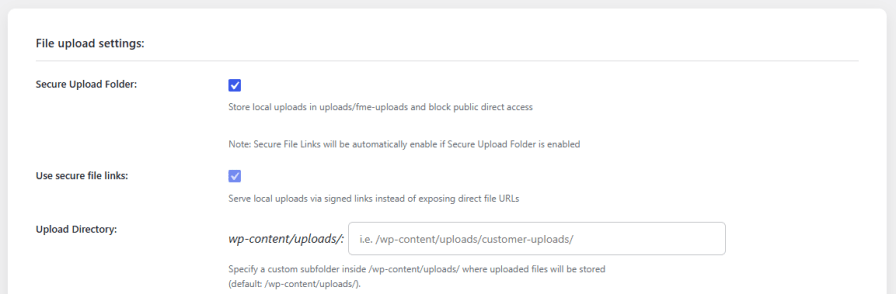
Keep customer uploads private. Enable the Secure Upload Folder setting to store local files somewhere the public can’t access directly, and serve them through signed links instead of exposing raw file URLs. You can also set a custom upload directory inside /wp-content/uploads/ to organize files your way.
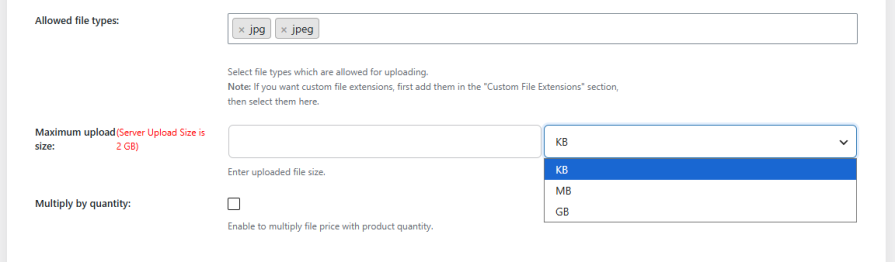
Define which file types you accept, like JPEG, PNG, and more, and set size limits in KB, MB, or GB. You can also add custom file extensions beyond the plugin’s defaults, so unusual file types aren’t a blocker.
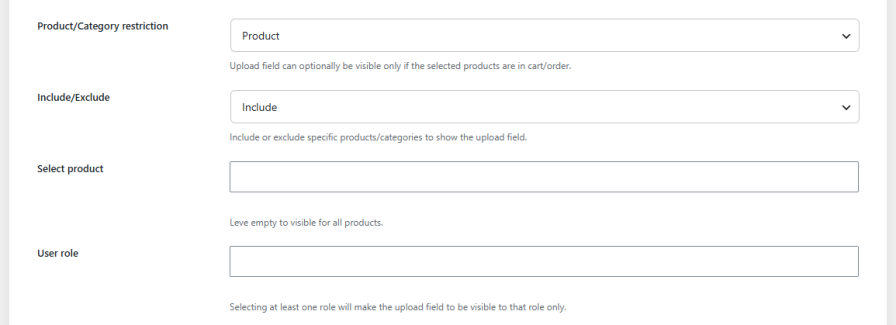
Control exactly where the file upload option shows up. Restrict it to specific products or categories, and choose whether that restriction includes or excludes the items you select. You can also limit uploads to specific user roles, so customers see the option while contributors or other roles don’t.
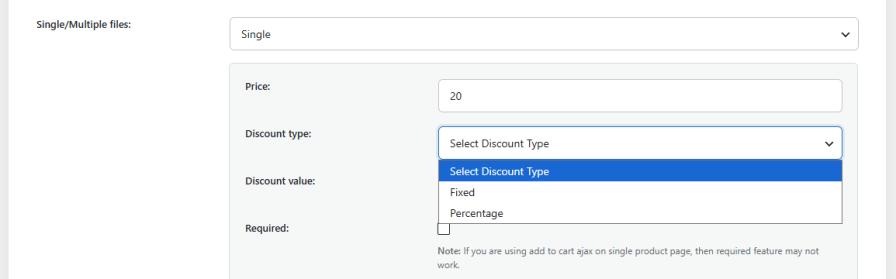
Set a fixed or percentage price for file uploads and charge customers for customization requests. Enable Multiply by Quantity to scale the price with the number of items ordered, or apply a discount to encourage more uploads.
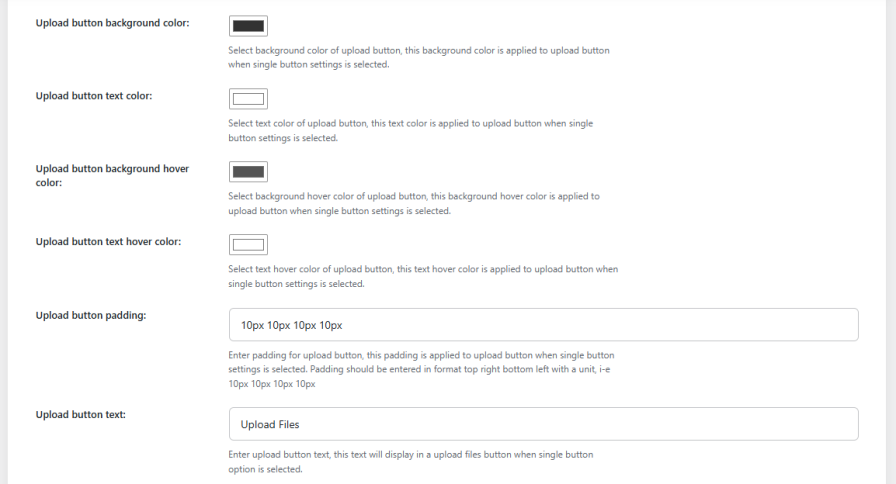
Make the upload button match your store. Choose the button layout (Default, Minimal, or Simplistic), pick an icon, set background and text colors along with hover states, adjust padding, and write your own button and popup header text.
Select how uploaded files appear to customers: Default, Name Only, Name and Image, or Icons Only. Pair this with your choice of upload preview style, thumbnail or icon, for a consistent look across your store.

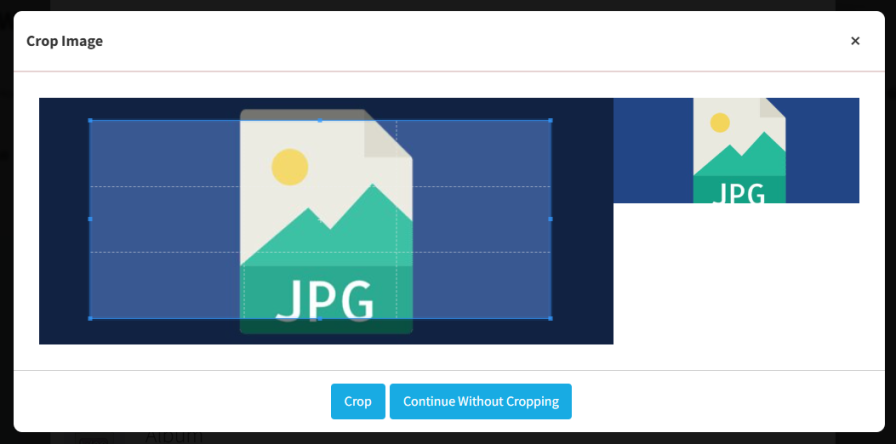
Let customers crop their images before submitting so only the relevant part of the file gets uploaded. This keeps submissions clean and reduces miscommunication over what was actually sent.
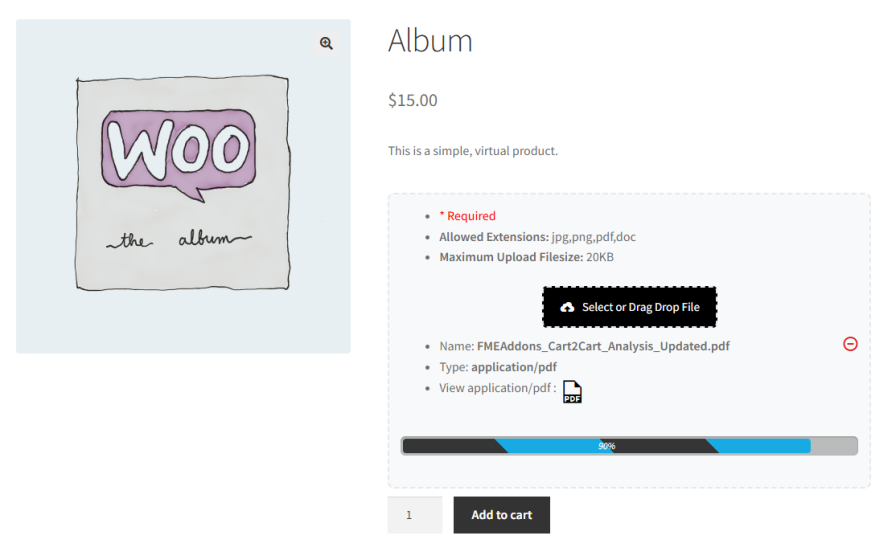
Customers see a real-time progress bar while their file uploads, with multiple style options to choose from. This is especially useful for larger files like images, audio, or video, and it keeps the experience smooth and reassuring.
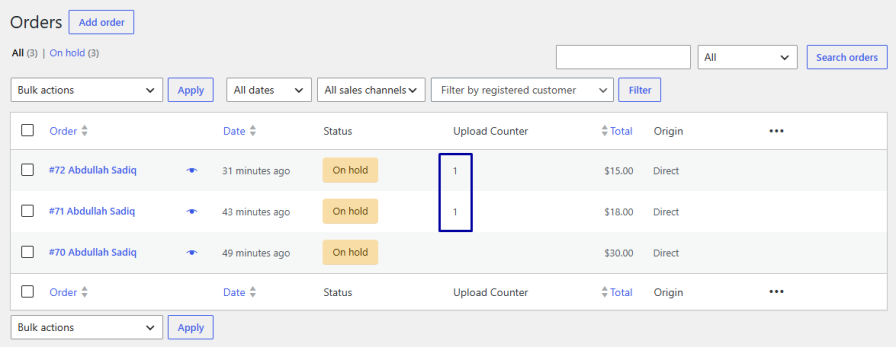
See which customers uploaded files and how many, directly in the WooCommerce Orders list. No need to open every order to check.
Open any order to view, download, and approve or disapprove uploaded files. Files uploaded from the product page appear in the order’s Item section, while files uploaded from the cart or checkout page appear in a dedicated Upload File section at the bottom of the order.
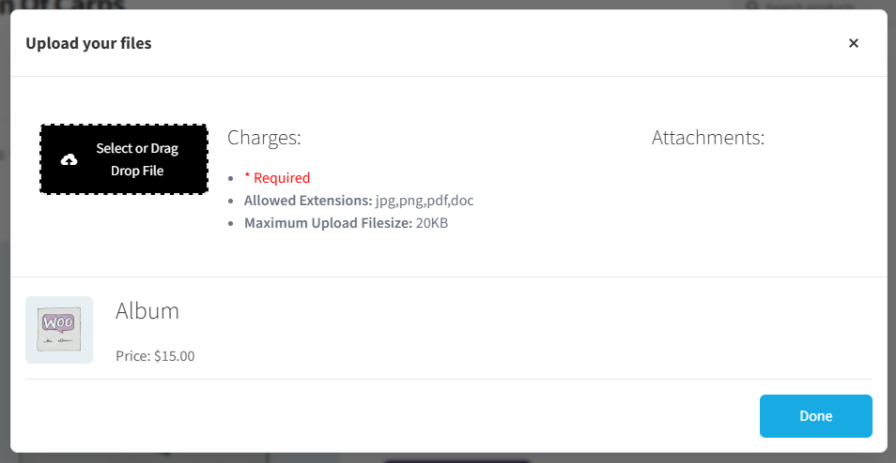
Enable users to upload multiple files through a single upload button. When clicked, the button triggers a pop-up containing multiple file upload fields. This keeps the interface clean while allowing multiple file uploads. Admins can also include a checkbox to request user consent for using the uploaded files in future marketing activities.
You can add it to the product page, cart page, checkout page, or the Thank You / Order View page. Each location can have its own rule and settings.
Yes. Turn on the Required setting for a rule, and customers won't be able to complete their order without uploading the file. Note that this may not work if add to cart AJAX is active on the single product page.
You can allow common formats like JPEG and PNG, plus any custom file extension you add. Size limits are set in KB, MB, or GB, capped by your server's upload limit.
Yes. Set a fixed or percentage price per upload, and optionally multiply it by the product quantity. You can also offer a discount instead of a charge.
Yes. Restrict a rule to specific products or categories, either including or excluding them, and limit it further by user role.
Yes. Customers get an automatic email once you approve or reject their file and update the order. You can disable this email or choose to send the file itself as an attachment.
Yes, as long as the order is pending or on hold. Customers can update or remove their files from the My Account page without needing to edit the whole order.
Extension information
Quality Checks
Countries
Languages